The AWS connector enables you to ingest data from multiple AWS accounts and services through a single connector by using cross-account roles. This is considered best practice when providing third parties (such as Nucleus) access to your organization's AWS accounts and resources. Additional information about granting third parties access to your AWS resources can be found in the AWS customer documentation.
Note we may periodically update this page as new functionality is added to this connector, which may require an update to the deployed cross-account role.
Set up cross-account roles
A cross-account role must first be created in each AWS account that has services which you intend to interact with before following the steps below.
- Log in to your Nucleus project.
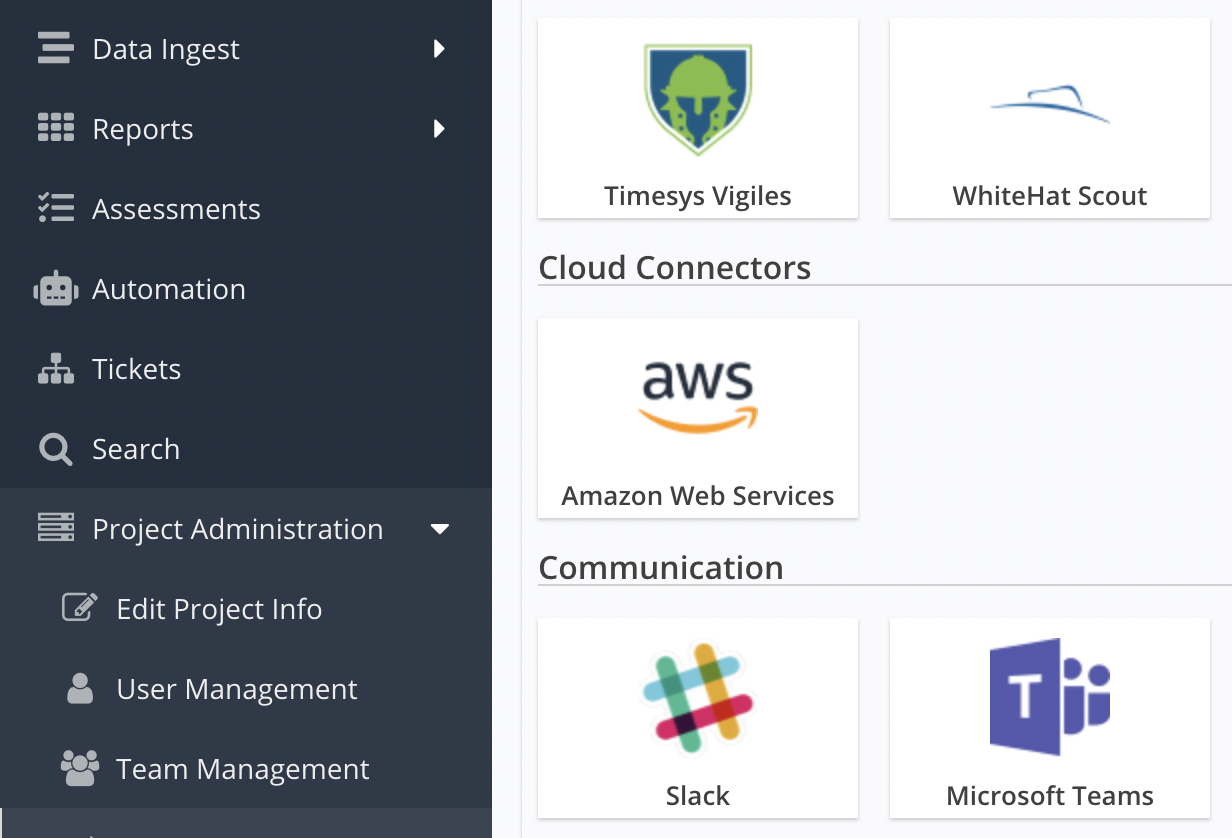
- From the navigation bar on the left, under Integration Hub, select Connector Setup.
- Select Amazon Web Services.
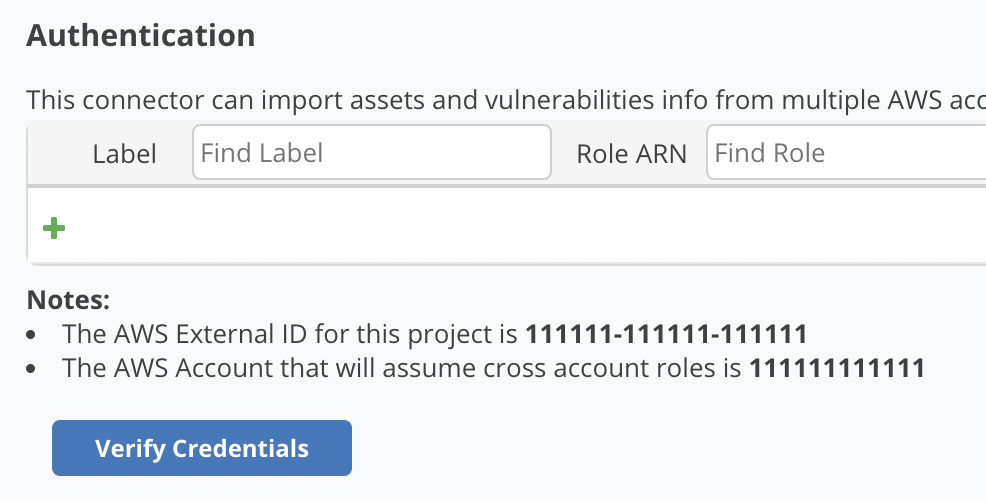
- Locate the Notes area in the Authentication section.
- Make a note of the AWS External ID and AWS Account values. These values are unique to your Nucleus project and you will use them later when setting up the cross-account role in AWS.
- Follow the instructions provided by Amazon for setting up cross-account roles. When creating the role:
- Set the AWS External ID obtained from Nucleus as the role's
sts:ExternalId. - Set the AWS Account obtained from Nucleus as the role's AWS Principal.
- Attach the permissions Nucleus needs to access and ingest data from your AWS account(s) as inline or managed policies.
- Set the AWS External ID obtained from Nucleus as the role's
The following IAM permissions are required for each service:
| Service | Permissions |
|---|---|
| All services | iam:ListAccountAliases |
| Amazon EC2 | ec2:DescribeInstances, ec2:DescribeInstanceStatus, ec2:DescribeTags |
| Amazon ECR | Managed Policy AmazonEC2ContainerRegistryReadOnly |
| Amazon Inspector 2 | Managed Policy AWSSecurityHubReadOnlyAccess |
| Amazon Inspector 2 | Managed Policy AmazonInspector2ReadOnlyAccess |
| Amazon Inspector Classic | Managed Policy AmazonInspectorReadOnlyAccess |
| Amazon S3 | Managed Policy AmazonS3FullAccess (note: only needed for use of S3 Data Export functionality) |
Example template
The following is an example CloudFormation template that can be deployed to AWS accounts to provide access to all currently supported services (excluding S3 file upload.
When using the template below, replace ACCOUNT_ID_FROM_NUCLEUS and EXTERNAL_ID_FROM_NUCLEUS_PROJECT with the relevant AWS Account and AWS External ID values.
AWSTemplateFormatVersion: "2010-09-09"
Resources:
  NucleusAWSIntegrationRole:
    Type: "AWS::IAM::Role"
    Properties:
      RoleName: "NucleusAWSConnectorRole"
      Description: "Role used by a Nucleus Project connector to ingest asset and scan data."
      AssumeRolePolicyDocument:
        Version: "2012-10-17"
        Statement:
          - Effect: Allow
            Principal:
              AWS:
                - "arn:aws:iam::ACCOUNT_ID_FROM_NUCLEUS:root"
            Action:
              - "sts:AssumeRole"
            Condition:
              StringEquals:
                "sts:ExternalId": "EXTERNAL_ID_FROM_NUCLEUS_PROJECT"
      Policies:
        - PolicyName: "NucleusAWSConnectorPolicy"
          PolicyDocument:
            Version: "2012-10-17"
            Statement:
              - Effect: Allow
                Action:
                  - "iam:ListAccountAliases"
                  - "ec2:DescribeInstances"
                  - "ec2:DescribeInstanceStatus"
                  - "ec2:DescribeTags"
                Resource: "*"
      ManagedPolicyArns:
        - "arn:aws:iam::aws:policy/AmazonInspectorReadOnlyAccess"
        - "arn:aws:iam::aws:policy/AmazonEC2ContainerRegistryReadOnly"
        - "arn:aws:iam::aws:policy/AWSSecurityHubReadOnlyAccess"
For large organizations with many AWS accounts, it is recommended that AWS CloudFormation StackSets are used to deploy and manage the above IAM roles at scale.
Next steps
After setting up permissions, proceed with setting up instance synchronization.