Overview
Google Chronicle is our first purpose-built SIEM connector – opening a world of new use cases for correlating vulnerability data alongside security logs and alerts. We’re extremely excited to partner with Google to streamline this functionality.
With this connector, Nucleus customers can achieve precision in their incident response workflows by synchronizing Nucleus-enriched vulnerability data and asset data with the associated risk attributes to their Google Chronicle instance. Vulnerability data sent to Chronicle is asset aware too, giving you all of your asset’s organizational context such as asset groups and risk attributes right alongside the vulnerability data.
This integration enables SOC and incident response (IR) teams to do investigations of an incident (among many other situations!) without ever needing to leave their SIEM! They can see the asset’s business context, all vulnerabilities, risk, and threat intelligence correlated to the asset for use in their investigations from a single console. This data is now all at your fingertips alongside your network traffic, SIEM events, and log data. By correlating data from all these different sources and putting them in the hands of your analysts, the incident response process and decision-making process just got better and more scalable.
Establish connection
- From within a Nucleus project, navigate to Integration Hub > Connector Setup.
- Navigate to the SIEM section and click the Chronicle icon.
- In the Setup Chronicle Connector pop-up, enter in the following:
| Field | Description |
|---|---|
| Name | Name to recognize the connector in Nucleus |
| Description | Optional description to add details about the connector for other users |
| Instance URL | Enter URL to your base Chronicle server |
| API Key | Your Chronicle API key |
- Click the Verify Credentials button and wait for the success message.
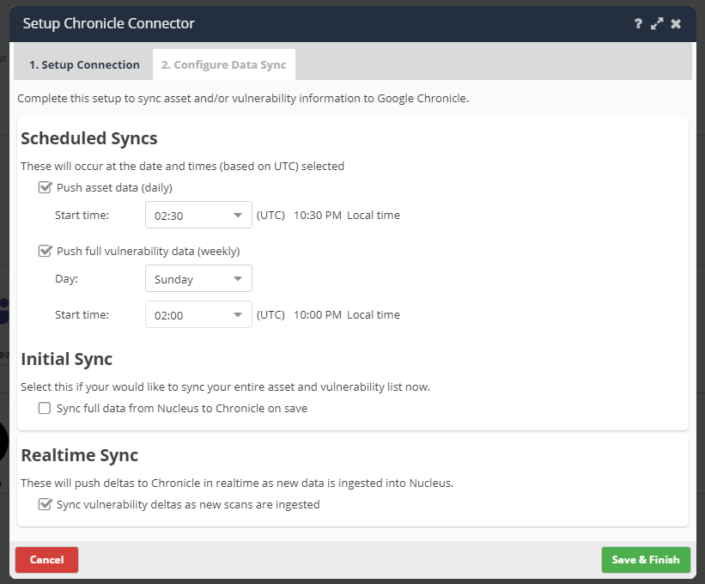
- Click the 2. Configure Data Sync tab.
- Set your sync preferences and choose whether you'd like to sync all your existing Nucleus data to Chronicle upon finishing the setup process.
- Click the Save & Finish button and wait for the success message.
You're done! Nucleus will now sync your data with Chronicle according to the configurations you set.
If you have any questions, please contact us through the support center.