Overview
The All Findings page in Nucleus provides a way for security teams to query data using a structured query language called Nucleus Query Language abbreviated NQL. NQL is a domain specific language for retrieving nearly any sort of information from Nucleus based on user-defined queries against a specific dataset. As Nucleus may be constantly ingesting new vulnerability information, the data returned by NQL queries may change as newly ingested data is processed by the platform, even for the same query.
The “All Findings” Page
The All Findings page is accessible under the Explore menu item after you select a Project in Nucleus (Explore → All Findings). The page has a Basic and Advanced (NQL) query editor, action buttons (Save, Run and Export), and a grid that displays query results. When All Findings loads for the first time it displays a default query using the Basic query editor. The default query shows the finding name, finding risk score, nucleus threat rating, severity, finding source (scanner), asset name, and the date when the finding was discovered. You can refine this query or create your own using either the Basic or Advanced query editors which are described The Basic Query Editor and The Advanced (NQL) Query Editor sections.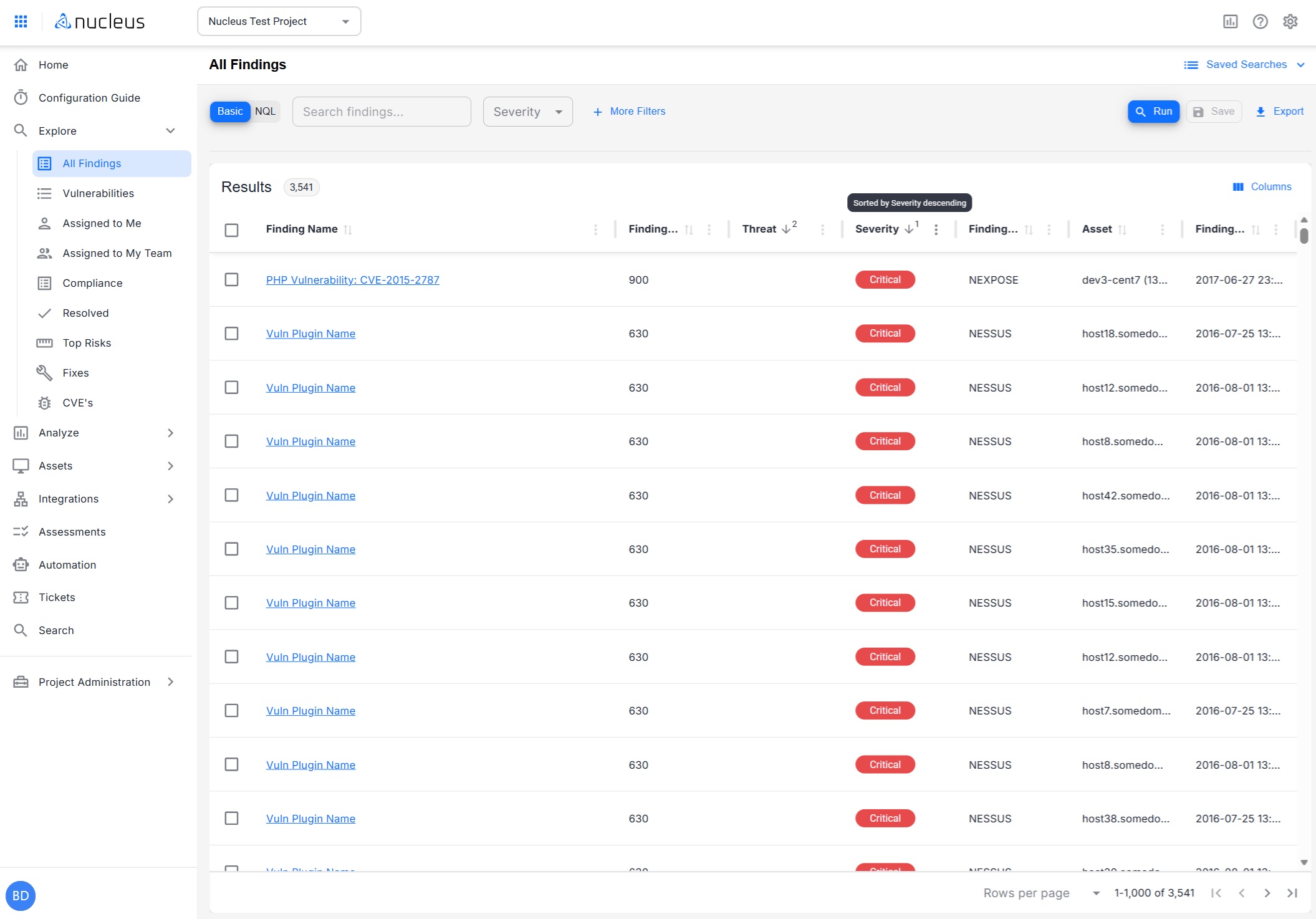
The Basic Query Editor
The basic query editor helps you construct NQL queries using point-and-click filters. For example, you can search for all findings that contain “PHP” in the name that are a “High” severity by using the search box and severity filter drop-down as follows. Note that you must click Run for the results to update.
.png)
Clicking the + More Filters control allows you to select from a drop-down of additional filters you can apply to your query. An example is shown in the following screen shot for Nucleus Description, Due Date, Ease of Exploitation, Executive Summary, and Exploit Available.
.png)
To continue the example, if you select Due Date, you can specify a filter operator as follows. In this example, we’ll filter on due dates prior to 11/30/2025
.png)
One the filter is set, you can select Run to see the results. Since we’ve added columns use the Columns control to show the new column in the result set.
.png)
Select Apply and you will see the updated results:
.png)
Tip: Make sure you execute the query by selecting Run for you results to show. If you’ve added additional filters you MUST add them using the Columns control for them to show up in the result set using the Basic query editor.
The Advanced (NQL) Query Editor
The advanced query editor (NQL) allows you to construct expressive queries against all of the vulnerability data stored inside Nucleus. You can switch to the advanced editor by selecting NQL which will open a larger query window as follows:
.png)
The initial query is shown in an abbreviated format based on the default query from the Basic editor. The abbreviated NQL query is “short hand” for the full NQL query as follows:
SELECT finding_name, finding_risk_score, finding_source, asset_name, severity, nucleus_threat_rating, finding_discovered FROM findings ORDER BY severity DESC, nucleus_threat_rating DESCIn most cases you will delete the abbreviated query to begin a new query using Nucleus Query Language (NQL). The auto-complete will help you fill in the field names as necessary. The following screen shot shows a sample complete query in the advanced query editor (NQL). This query shows all findings, their risk score and due date. Results are sorted by due date, descending. The query is:
SELECT finding_name, finding_risk_score, due_date FROM findings ORDER BY due_date DESCTip: Use Ctrl-A and then backspace while in the Advanced (NQL) query editor to clear the abbreviated query. NQL keywords are case insensitive
.png)
Be sure to select Run to execute your query and see the results
Tip: The Save button becomes available for the Advanced (NQL) query editor after you execute a query for the first time.
Advanced (NQL) Query Editor – calculations, aliases, and relative date
The Advanced (NQL) editor supports the full Nucleus Query Language, including:
Calculation functions (for example,
ADD,MULTIPLY,DATE_DIFF,LIST_LENGTH).Column aliases defined with
AS, which you can reuse inWHEREandORDER BY.Relative date and datetime filters using
TODAY,"-Nd", and"Nd".
For example:
SELECT
  finding_name,
  MULTIPLY(finding_risk_score, 10) AS ten_x_risk
FROM findings
WHERE ten_x_risk > 1000
ORDER BY ten_x_risk DESC
You can also use the same relative date syntax described in the NQL reference. For example, to show findings discovered in the last 60 days:
...
WHERE finding_discovered >= "-60d"
See the Nucleus Query Language (NQL) article for the complete syntax reference.
Taking Actions with “All Findings”
One a result set is returned to the user, you can take three possible actions: Save your view and come back to it later, export the data, or modify finding instances.
Saved Searches
Clicking Save will save the current NQL query as a new saved search which can be accessed from the Saved Searches drop-down.
.png)
Tip: Once a search is selected, be sure to execute the query using Run to see the results.
Exporting Data
Once you have your results, selecting Export will allow you to generate an Excel file with your results. The exported data is available as a report in .xlsx format. Navigate to Analyze > Reports and look for a report called Explore Export [Project Name].
Note: Export is limited to 20,000 rows.
.png)
Modifying Instances
Once a result set is shown in the grid, you can select the finding name to open the vulnerability instance view for that finding. From here you can modify the finding as you wish. To modify multiple findings, use the check box selector and then select the pencil icon to modify multiple instances. The pencil icon is shown as follows:
.png)
The pencil icon will open the bulk edit vulnerabilities window as follows. From here you can set the due date, change the status, change the severity, assign vulnerabilities or add a comment to all selected instances.
.png)