Generate a ConMon Report
It’s not only possible to manage the POA&Ms themselves inside of Nucleus, but it is also possible to export the POA&Ms with all the updates into a ConMon report. This allows you to leverage your existing work and make the actual generation of the report a button click. You can set up this report to either run one time manually, or to set it up on a schedule to run at a time of your choosing and email the report to you.
To generate the report, you will navigate to the “Vulnerabilities > Active” page,and click the “Reports” dropdown. Find the “POA&M Continuous Monitoring Report” option and select it.
Report Generation
.png "image(367).png")
In the modal, select which options you would like to generate a report for. By default, the report will generate for all findings that have POA&Ms. If you’d like to manage multiple scopes in the same Nucleus instance, you can filter the report based on a variety of asset criteria, such as Asset Groups, which allows for flexibility in reporting.
Report Version
By default, Nucleus supports generating the FedRAMP Revision 5 (version 2.1) of the POA&M template. The previous version (Revision 4) of the template is also available as an option if required under Options. If the box is not checked Nucleus will generate a FedRAMP Revision 5 template.
Report Export Options
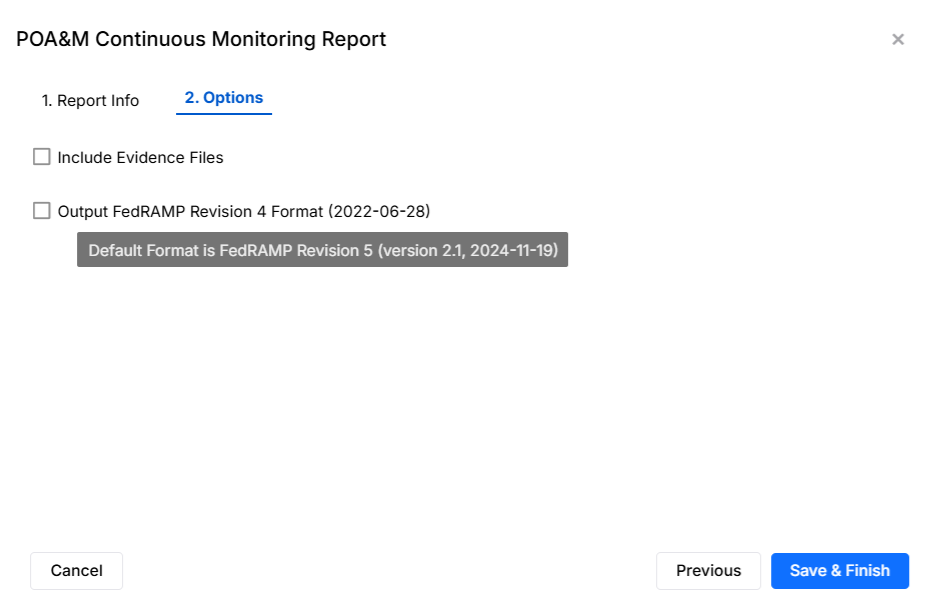
POA&M Continuous Monitoring Report Options
Note: You have the option of including evidence files in the export of the report. Nucleus allows you to upload evidence files to the findings and the resulting POA&Ms in the console. If this option is selected, Nucleus will generate a .zip file that contains both the ConMon report as well as all the evidence files referenced in the ConMon report. You will need to have uploaded the evidence to Nucleus in order to see this behavior.
Report Generation Overview
POA&Ms with an identical Display ID will appear as a single row when the report is exported (Active > Reports > POA&M Continuous Monitoring Report). This is helpful when many vulnerabilities are based on a common cause or are assigned to the same team in your organization. POA&Ms with a different display ID or with different Adjusted Risk Rating and Original Risk Rating values will always appear in different rows in the exported report.
Display IDs can be updated in the user interface (Vulnerabilities > Instances > POA&M Tracking > Display ID) or be applied to many instances at once using the Set Display ID button (Vulnerabilities > Instances > Set Display ID). The maximum length of the Display ID is 240 characters.
Note: At least one instance must be selected for the Set Display ID to be activated.
POA&M and Informational Findings
Informational findings with POA&Ms will not appear in the generated ConMon report as these types of findings have no risk level. For a weakness to appear in the ConMon report, they should have a severity of at least Low based on the Nucleus severity model.
Common Fields
The following fields in the exported report will always contain the same values:
Adjusted Risk Rating
Controls
Weakness Name
Weakness Description
Weakness Detector Source
Weakness Source Identifier
Binding Operational Directive 22-01 Tracking
Binding Operational Directive 22-01 Due Date
CVE
Derived Fields
The following fields in the exported report will contain derived information from each POA&M:
The Asset Identifier field will contain all assets from each POA&M in a comma separated list
The Point of Contact field will contain all email addresses for each Nucleus point of contact from each POA&M
The Resources Required field will contain all values from each POA&M
The Overall Remediation Plan field will contain all values from each POA&M
The Original Detection Date field will contain the earliest date among all POA&Ms
The Scheduled Completion Date field will contain the earliest date among all POA&Ms
The Planned Milestones field will contain all values organized by asset
The Milestone Changes field will contain all values organized by asset
The Status Date field will contain the latest date among the grouped instances
The Vendor Dependency field will contain “Yes” if at least one POA&M has a vendor dependency
The Last Vendor Check-in Date field will contain the latest date among all POA&Ms
The Vendor Dependent Product Name field will contain all values from each POA&M
The Risk Adjustment field will contain “Yes” or “No” based on the values of the Adjusted Risk Rating and Original Risk Rating.
The False Positive field will contain “No” if all instances are not false positives and Pending if some are false positives. If all instances are false positives the grouped POA&M will appear in the resolved tab and the field value will be Yes.
The Operational Requirement will contain “Yes” if at least one grouped POA&M instance has this field set to “Yes”
The Deviation Rationale field will contain all severity change comments from all all POA&Ms
The Supporting Documents will contain the filename of any supporting documents
The Comments field will contain all values from each POA&M
The Auto-Approve will contain “No” if at least one grouped POA&M instance has this field set to “No”
The Service Name will contain all values from each POA&M