After setting up permissions and instance sync, configure the AWS connector to pull data from Amazon Inspector Classic into your Nucleus project.
Connector configuration
- Log in to your Nucleus project.
- From the navigation bar on the left, under Integration Hub, select Connector Setup.
- Select Amazon Web Services.
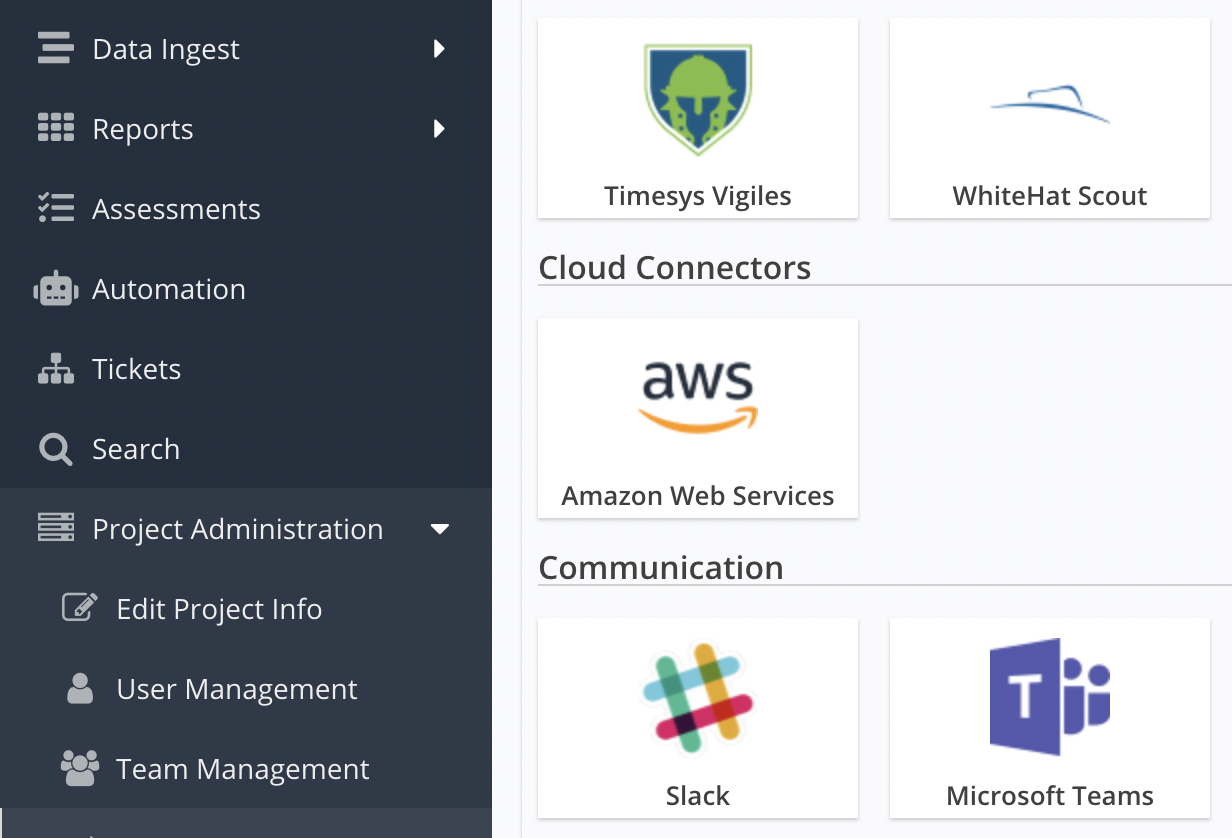
- In the Name field, enter a name for the connector.
- In the Description field, enter a description for this connector.
- In the Authentication section click the green plus button to add a new AWS role to use when connecting to AWS. Note you can only have one role per AWS account. Alternatively, you can bulk import credentials using a CSV file.
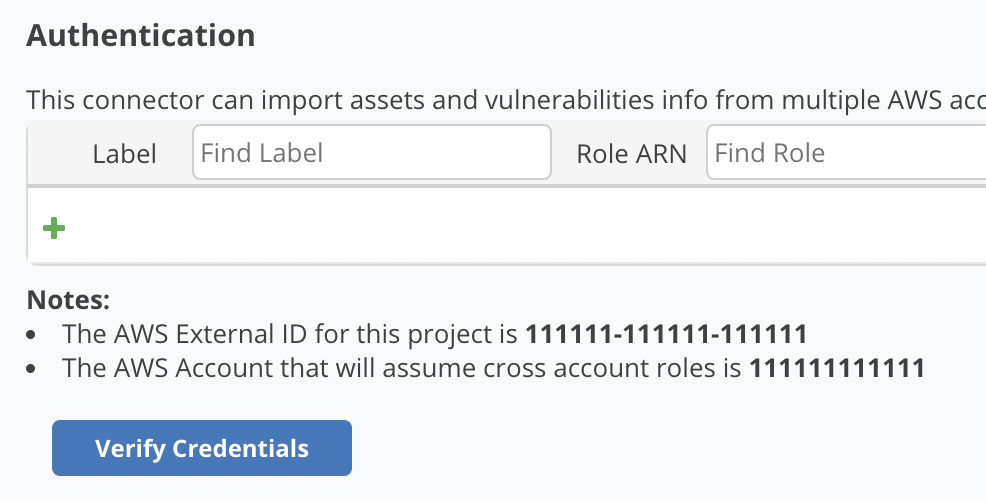
- In the Label field, enter a label for the role.
- In the Role ARN field, enter the Amazon Resource Name (ARN) for the role.
- Click Verify Credentials. If the credentials were entered correctly, a message confirming a successful connection will appear.
- Do not check Import all AWS Resource Tags as nested asset groups as this option is now legacy.
- Optionally check Synchronise EC2 and ECR Instance states.
- To automatically deactivate the asset in Nucleus when an EC2 or ECR instance is terminated, select When an EC2 or ECR instance is terminated, deactivate the asset in Nucleus.
- To automatically remove the asset from Nucleus when an EC2 or ECR instance is terminated, select When an EC2 or ECR instance is terminated, remove the asset from Nucleus.
- Optionally decide if you want to upload asset and finding data from your Nucleus project to S3 buckets.
- Click Save & Finish.
Bulk import credentials template
If your organization has many AWS accounts, you can bulk import role ARNs by clicking Bulk Import Credentials and uploading a CSV structured in the following way:
label,crossaccountrole
my label,arn:aws:iam:123456798012:role/myRoleName
Vulnerability scan data ingestion
The AWS connector enables flexibility when you import scan results from Amazon Inspector Classic. Individual assessment runs (scans) can be imported from the Import via Connector page as a one-time import. You can also import by assessment target or assessment template either as a one-time import, or on a schedule.
Selecting target or template instructs the AWS connector to import all assessment runs (scans) with a specific target or template.
To ingest Amazon Inspector Classic scan results from your AWS connector into a Nucleus project:
- Log in to your Nucleus project.
- From the navigation bar on the left, under Integration Hub, select Import via Connector.
- Select your AWS connector.
- Select Amazon Inspector (Classic).
- Select the import method to use: Scan, Target, or Template.
- Select the region(s) from which to import results.
- Click Next.
- Select the scans, targets, or templates to import.
- Click Next.
- Select a schedule to import scans into the project.
- Click Save & Finish.
Next steps
You are now finished setting up the AWS connector. If you use other AWS services, see our other AWS guides.
You can optionally set the AWS connector to upload all asset and finding data from your Nucleus project to S3 buckets.
Limitations
Using Amazon Inspector Classic and Inspector 2 (EC2 Continuous Scanning) together
Amazon Inspector Classic and Inspector 2 are separate continuing products, however Amazon has positioned Inspector 2 as the next generation of vulnerability scanning for EC2 instances. Although the source technologies differ, the Inspector 2 connector was built with continuity between the two products in mind and therefore shares the same scan type. These overlapping scan types are intended to bridge the gap as customers migrate entirely from Inspector Classic to Inspector 2 whilst continuing to have consistent trend data.
As the underlying scanning technologies and quality of vulnerability data differs, the connector ingest methods for these two products should not be used concurrently. If you choose to use Inspector 2, you should cease usage of Inspector Classic connector entirely. Usage of both connectors concurrently ongoing will result in mismatched unique finding definitions and properties, as well as conflicting scan mitigation calculations, which will impact vulnerability trends.
If you accidentally ingested Inspector Classic vulnerability data, please contact Nucleus Support for assistance with removing the scans from your project.