This article is designed to get you up and running with using SSO to log into your Nucleus instance. This article assumes you have already received your key and cert file from your Nucleus customer success manager.
Instructions
-
Alert your Nucleus support manager that you would like to enable SSO for your organization. If you are setting up token encryption, inform your Nucleus support manager.
-
Once you have your files saved, log into the Admin Console of your JumpCloud acccount.
-
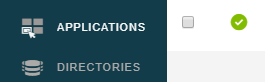
In the console, navigate to Applications in the lefthand navbar.
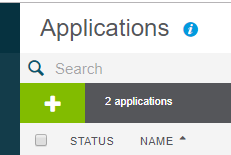
- Click the Green Plus Icon to Add a new application.
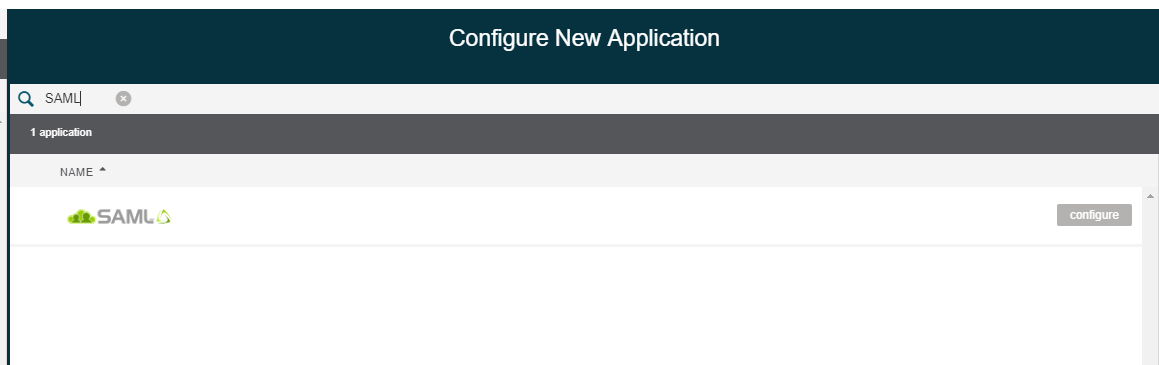
- Search SAML and select Configure on the SAML Selection.
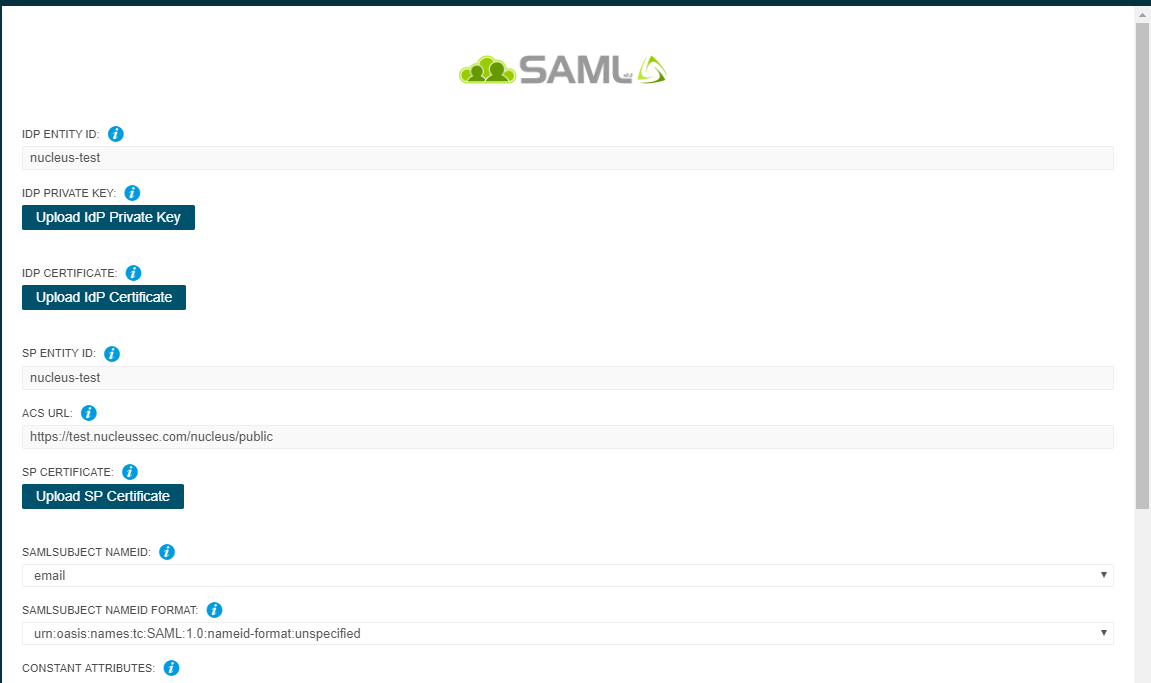
- On the Create SAML Application page, enter the following information:
IDP Entity ID: This is the identifier that JumpCloud uses to validate the connection. Pick something unique. Note this is case-sensitive. Note, you will need to send this to your Nucleus success manager to complete the integration.
SP Entity ID: MAKE SURE THIS MATCHES IDP ENTITY ID.
ACS URL: Use the URL which was given to you by your Nucleus Customer Success Manager. Paste that link into this field. Make sure to not have any leading or trailing whitespace.
IDP URL: Enter a URL for Nucleus to use to validate your users. Note, you will need to give this URL to your Nucleus Success Manager to complete the SSO integration.
Display Label: This is how JumpCloud will display the application in the JumpCloud console. Name appropriately.
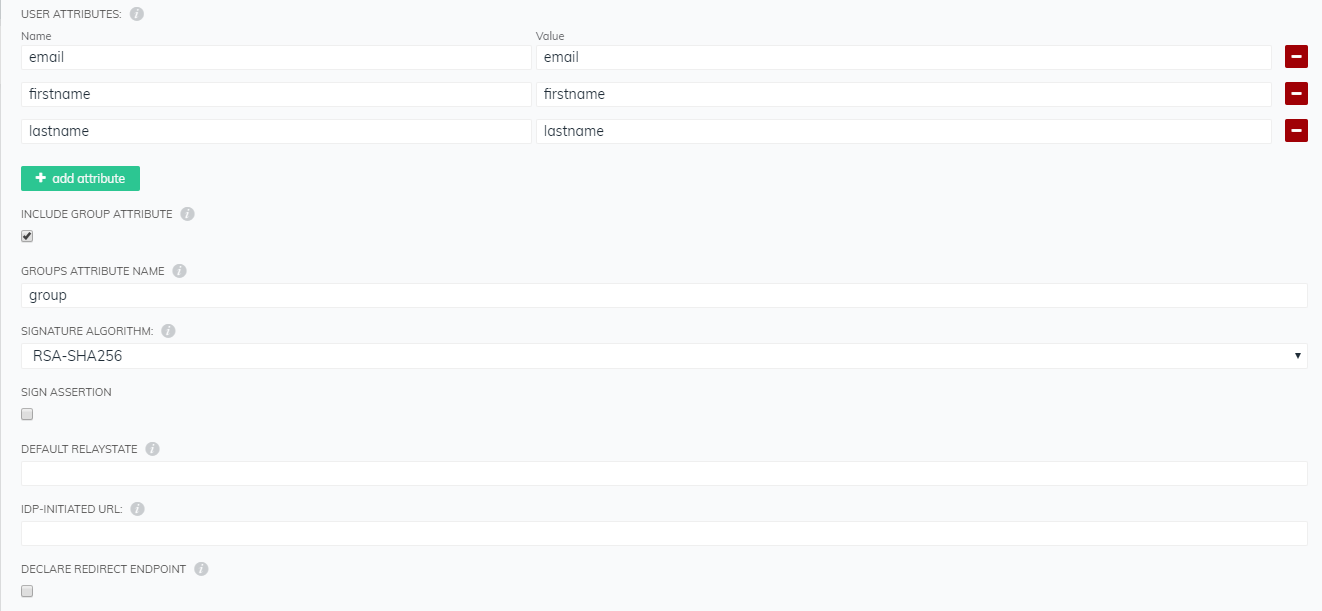
User Attributes: Add the following user attributes: Note: group is optional and only needed for RBAC mapping.
Name Value
email email
firstname firstname
lastname lastname
Include Group Attribute: Check this value to pass mapping groups to Nucleus
**Everything else: **Leave blank.
Example configuration:
-
At the bottom right of the page, click the green Activate button.
-
You must now add that application to either a user, or a user group to allow access to Nucleus.
- To add a group, click on Groups.
- Select a group to which to add the SAML application to.
- Select the Applications Tab
- Check the box for the SAML application you just created.
-
Download your export metadata file and send it to your Nucleus Customer Success Manager.
-
Your Nucleus Success Manager will reach out when your SSO is set up. It should take less than 24 hours to be fully deployed where your users can log in via JumpCloud. If you are setting up token encryption, confirm the URL provided to you includes the parameter "
?sso=", which is required for token encryption. If the URL doesn't contain that parameter, reach out to [email protected].