Overview
By default, for assets which have IP addresses, Nucleus automatically matches new assets based on IP address. This works very well in network environments set up with static IP addresses. All new scans will map to the IP address, allowing for easy asset matching across scans all targeting one IP address.
However, in some environments, assets utilize hostnames to determine which asset it is, and the IP address changes, sometimes as often as every vulnerability scan. With the default behavior of Nucleus, every time an IP address changes, a new asset would be added to the assets list in Nucleus. This can become annoying for DHCP environments where IP addresses change regularly.
To support the changing of IP addresses, Nucleus allows you to configure matching of new assets based on hostname rather than by IP address. You can configure this on a per-project basis so that if you have certain subnets that are static and others which are DHCP, you can support both within your Nucleus account.
Supporting DHCP Environments
This setting only affects imports from network scanning tools, so DAST, SAST, SCA, and Container, etc are unaffected.
To set up your project to support the changing of IP addresses is very simple. Navigate to the Global Administration > Select your project > Project Administration > Edit Project Info pop-up modal in your project, and then check the box for the setting "Track Assets By Hostname" (this option is enabled by default on new projects).
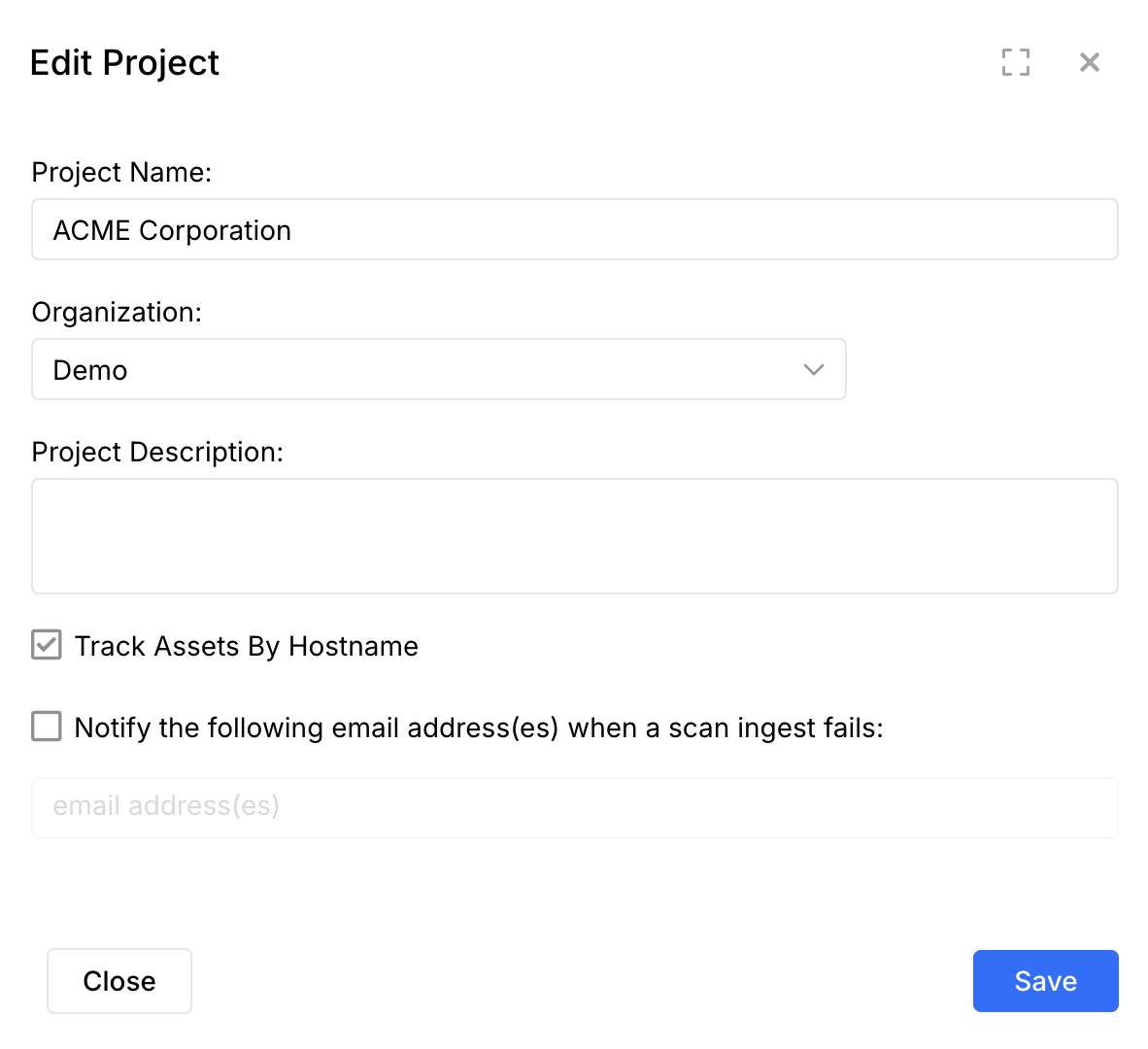
Then click Save button and you are all done. This project will now use the hostnames to map assets together rather than the IP addresses.
How It Works
As mentioned previously Nucleus by default maps together assets from new scans based on IP address when the "Track Assets By Hostname" project option is not checked (for network scanners such as Qualys, Nessus, and Rapid7). However, by enabling the DHCP setting for the project, Nucleus behavior changes to do the following:
- Map together assets from new scans based on hostname, not IP address.
- In the event that a scanned network asset does not have a hostname, the IP address becomes the hostname, so new scans will still be mapped to assets based on IP address for assets which do not have a hostname.
- Application scan imports will be unaffected by this setting. This setting only affects assets which have an IP address.
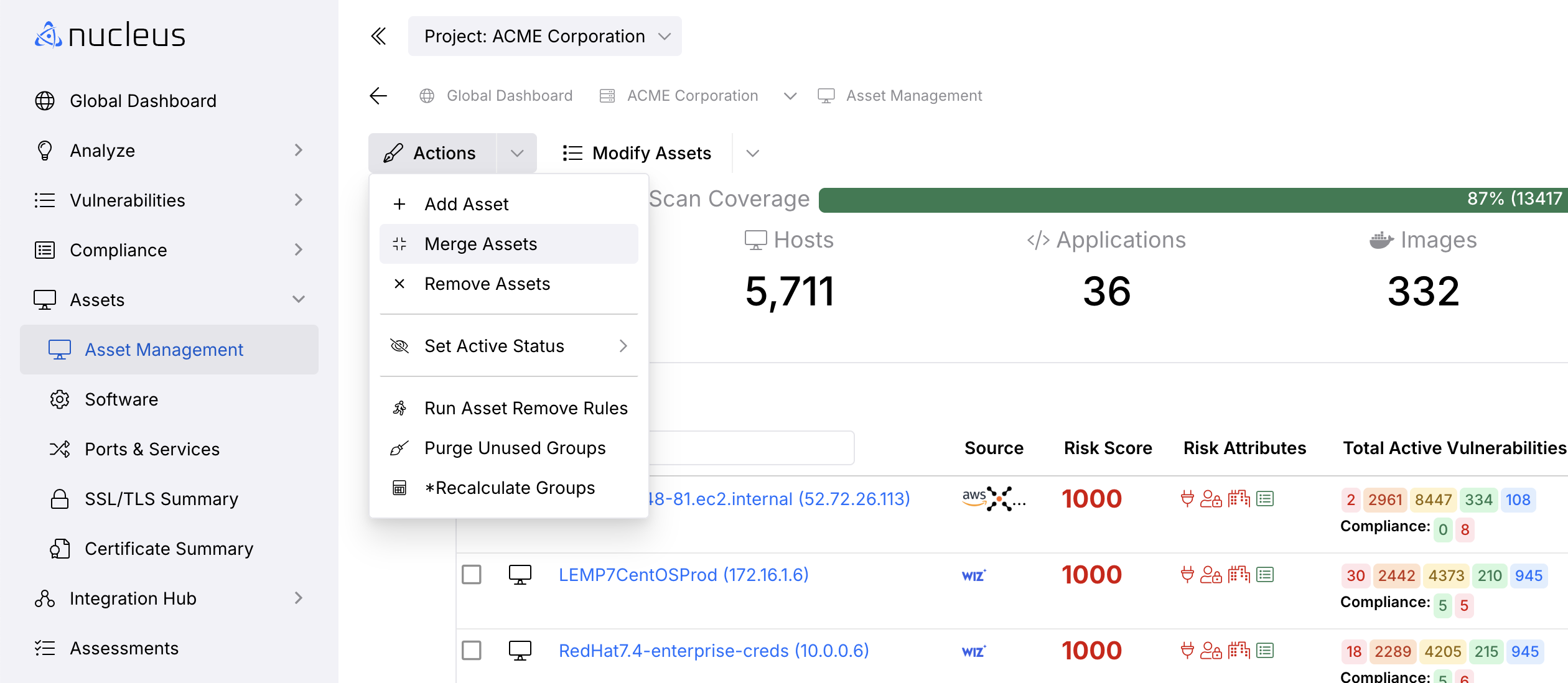
In the event that an asset has changed IP addresses, you can also manually merge two assets together. Navigate to the Global Dashboard > Select your project > Assets > Asset Management page.
Click Actions and in the drop-down menu click Merge Assets.
If you have any questions, please contact us through the support center.