Overview
Nucleus enables you to ingest your Orca vulnerability, compliance and system misconfiguration data directly into your Nucleus console using an automated connector. The connector uses the APIs provided by Orca Security to seamlessly sync data into your Nucleus project for use in analysis, triage, automation, and reporting.
The Orca Security connector supports importing vulnerabilities and alerts for:
- All active and running Virtual Machines
- All scanned container images including those that are active in a containerised environment as well as point in time scans.
- Cloud misconfiguration findings on cloud resources, as well as vulnerabilities on Serverless functions.
Connector Setup
Connector Setup Checklist
Follow the steps in this checklist to successfully set up this connector:
- API Access
Create a service account API token in Orca. - Connector Configuration
Create and configure the connector in your Nucleus project. - Vulnerability & Alert Data Ingestion
Create one or more vulnerability scan ingest rules to ingest vulnerabilities, compliance findings and system misconfigurations from Orca.
1. API Access
- Open Orca and go to Settings -> Users & Permissions -> API.
- Under the API Tokens tab, click Add API Token. You will see the following popup:
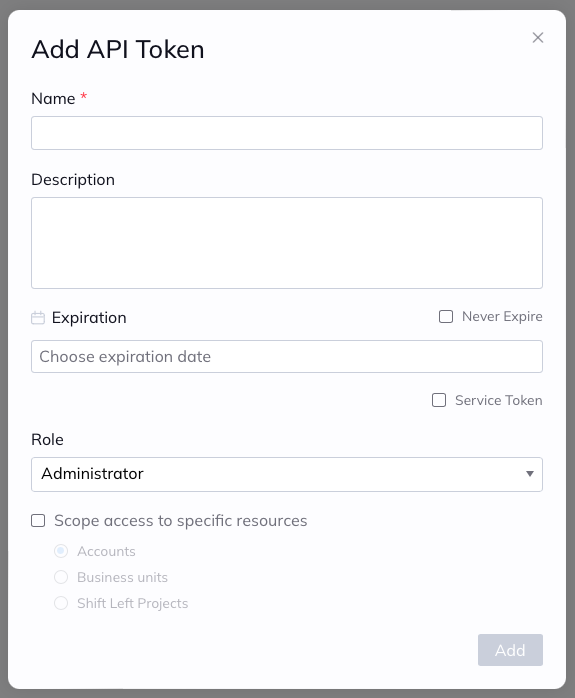
- In the Add API Token popup, enter the following information:
| Field | Description |
|---|---|
| Name | Enter a unique API token name, such as Nucleus Security Connector. |
| Description | (Optional) Enter a description for your connector. |
| Expiration | Leave Never Expire unchecked. |
| Service Token | Leave this box unchecked. |
| Role | For quick onboarding, select the Administrator role. See FAQ for a role with fewer permissions. |
| Scope access to specific resources | Leave this unchecked, or optionally scope this account to access only specific accounts or business units within your Orca subscription. |
- Click Add. You will be presented with an Integration API token like so:
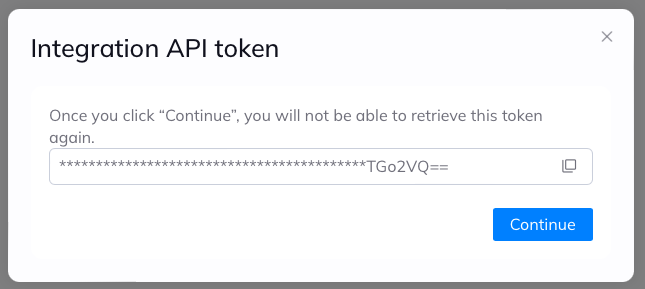
- Copy the token for use later, and click Continue.
You can find out more about managing API tokens in Orca's documentation here.
2. Connector Configuration
- Open Nucleus and go to Integration Hub > Connector Setup
- Under the Scanners section, click the Orca icon. You will see the following popup:
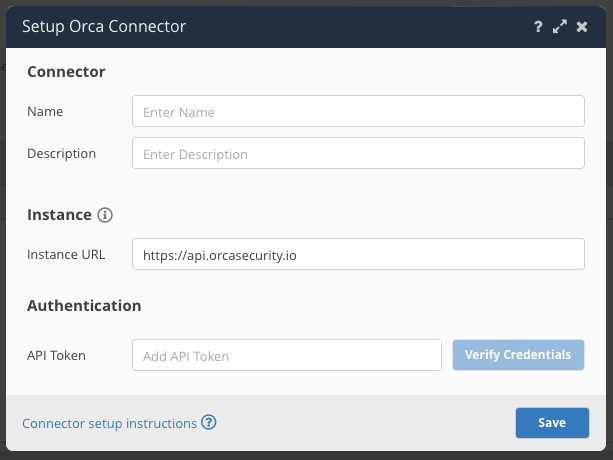
- In the Setup Orca Connector popup, enter the following information:
| Field | Description |
|---|---|
| Name | (Optional) enter a name for your connector. If left blank, this will default to Orca. |
| Description | (Optional) Enter a description for your connector. |
| Instance URL | Enter the URL to your Orca instance. |
| API Token | Enter the token you created in API Access. |
- Click Verify Credentials.
- Click Save.
3. Vulnerability & Alert Data Ingestion
- Go to Integration Hub > Import via Connector.
- Select the Orca connector you just created.
- Select the method of import: All Virtual Machines, All Container Images or All Cloud Resources.
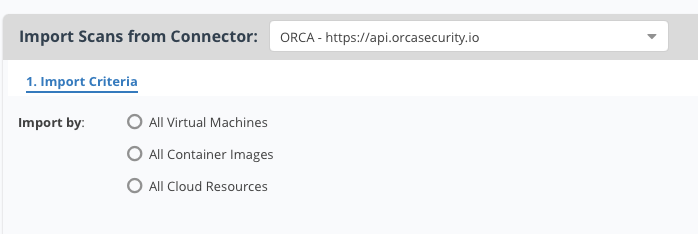
- Select a schedule to import scans into the project.
- Click Save & Finish.
Frequently Asked Questions
Does the connector require all permissions in the Administrator role?
The connector can function with a fewer set of permissions than in the Administrator role. If you don't want to configure the Administrator role for production, please clone the Viewer role, edit it and include the Platform Organization Read permission.
For customers using the serving layer API's and do not wish to grant Administrator roles. Proceed with the following to create a new service account:
- Navigate to Roles
- Locate the Viewer Role and Duplicate it
- Edit the new role and Add the following 2 permissions
- Platform -> Schedule Reports -> Export
- Organization -> Read
How are alerts mapped to finding types in Nucleus?
Nucleus ingests all CVE's from Orca as vulnerabilities in Nucleus, and ingests alerts as either compliance findings, or both vulnerabilities and compliance findings. Alerts ingested as both types of findings won't be duplicated as separate findings, but instead show up on both views, as they fit both the criteria of being a vulnerability as well as a compliance finding.
The finding type of an alert is determined by its alert category in Orca. The following table details how alerts in each Orca alert category show up in Nucleus:
| Orca Alert Category | Nucleus Finding Type (VMs and Container Images) | Nucleus Finding Type (Other asset types) |
|---|---|---|
| Authentication | Compliance | Compliance |
| Best practices | Compliance | Compliance |
| Data at risk | Vulnerability & Compliance | Compliance |
| Data protection | Compliance | Compliance |
| IAM misconfigurations | Compliance | Compliance |
| Lateral movement | Vulnerability & Compliance | Compliance |
| Logging and monitoring | Compliance | Compliance |
| Malicious activity | N/A | N/A |
| Malware | N/A | N/A |
| Neglected assets | Compliance | Compliance |
| Network misconfigurations | Compliance | Compliance |
| Suspicious activity | N/A | N/A |
| System integrity | N/A | N/A |
| Vendor services misconfigurations | Compliance | Compliance |
| Workload misconfigurations | Compliance | Compliance |