Service Setup
-
Open a browser and login to PagerDuty.
-
Browse to Services > Service Directory using the tabs at the top of the page
.png)
-
Click on the green +New Service button in the top right of the screen.
-
Fill out the rest of the form with your desired settings:
a. "Name" - Fill out "Name" and "Description".
b. "Assign" - Choose you preferred Escalation Policy or Select an existing Escalation Policy > Default.
c. "Reduce Noise" - For Alert Grouping, choose your preferred configuration or Use Intelligent (Recommended) and keep all defaults. -
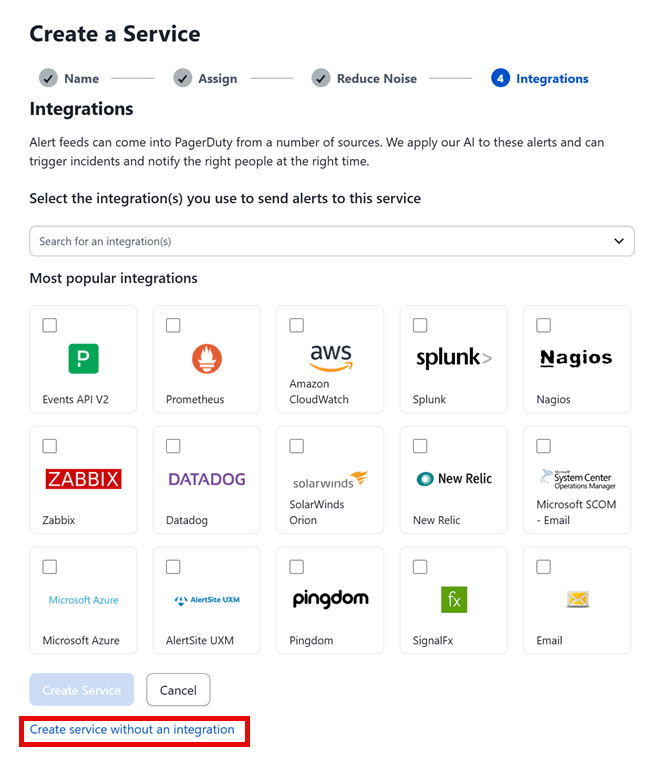
Under "Integrations" select Create Service without an Integration at the bottom of the form.
-
You are now at your new service's page. At the top navigation bar, select Integrations.
-
On the Integrations page, scroll down to the Service Extensions section. Click + New Extension.
-
From the Extension Dropdown, scroll until you see Service Level, and select Generic V2 Webhook.
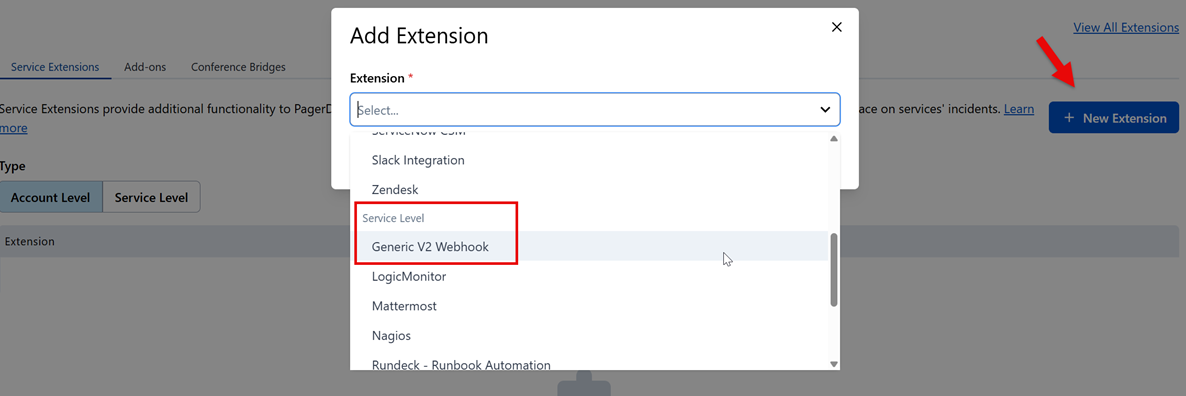
- Enter the Name of the extension, select the Service you just created and enter the URL of the nucleus application in the Details Column.
The url for the extension should be the url to the nucleus application with /public/index.php/webhook/pagerduty appended. An example url would be: https://example.com/nucleus/public/index.php/webhook/pagerduty.
- Once these have been entered, click Add.
API Access Setup
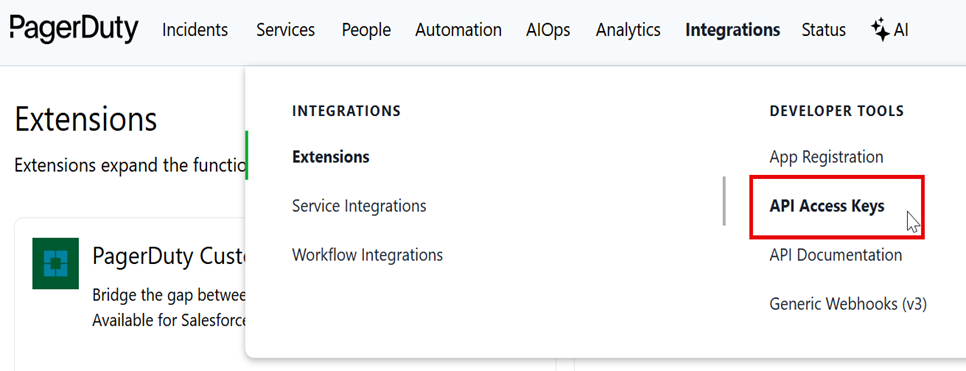
- Still in PagerDuty, use the tabs to navigate to Integrations > API Access Keys
-
Click Create New API Key. Note, make sure "read-only" is not selected.
-
Provide a Description. Select Create Key.
-
Copy key to clipboard.
Nucleus Setup
-
In a 2nd browser window, open Nucleus and browse to Integrations > Connector Setup.
-
Under the Issue Trackers section, click the PagerDuty icon.
-
In the Setup PagerDuty Connector popup, fill in the API Key field with the API Key which was just generated in PagerDuty.
-
Click the Save Changes button and wait for the Success message.
-
Once the success message has appeared, click the Retrieve Data button in Setup PagerDuty Connector Popup.
-
In Nucleus Popup, select the PagerDuty service we just created.
-
Select the Default Requester from the dropdown. Note, you may want to create a user specifically as the requester for this application
-
Optional: Select the default escalation policy for issues which originate from this connector. These will be used to help you escalate tickets within PagerDuty.
-
Optional: Select the Default Assignee in order to assign tickets to a default user.
-
Once the options have been selected from the dropdowns, click Save Changes.
-
Click Verify Connection to ensure everything is working properly. If successful, you're all done!
-
Close the popup window.