This article is intended to help you set up your Okta console with Nucleus SSO.
You will need to contact your Nucleus support representative to get the URLs needed to go through this setup. If you are setting up token encryption, inform your Nucleus support representative.
To set up Okta SSO with Nucleus:
-
In a browser window, log into your Okta console.
-
Click Admin to go to the Administrator console
-
In this console, navigate to Applications > Applications
-
Click on the green Create New App button
-
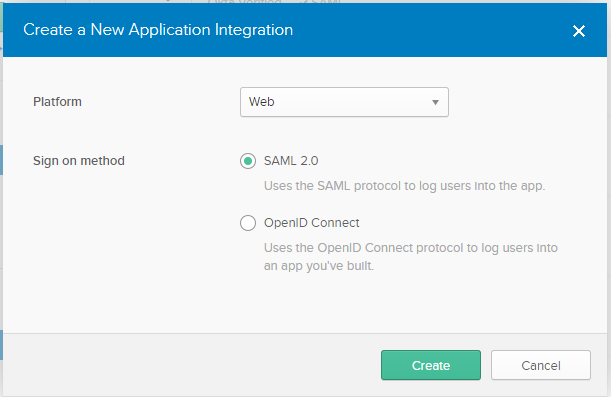
In the dialog that opens, select the "SAML 2.0" option, then click the green "Create" button
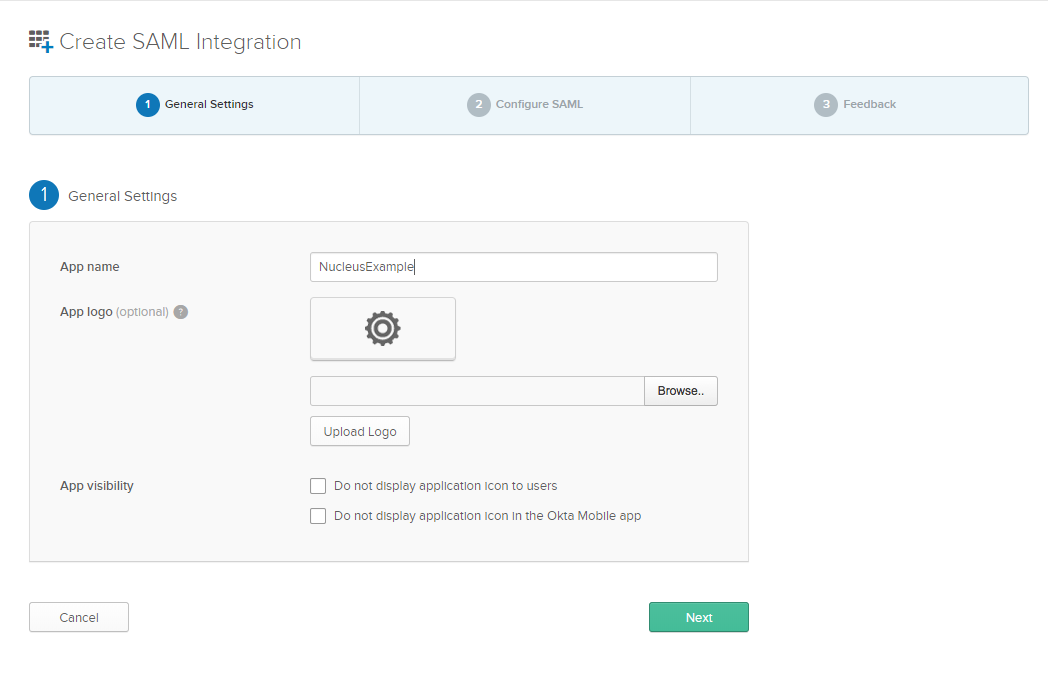
- In Step 1 "General Settings", enter name of the Nucleus application (e.g., Nucleus) in the "App name" field, then click the green Next button.
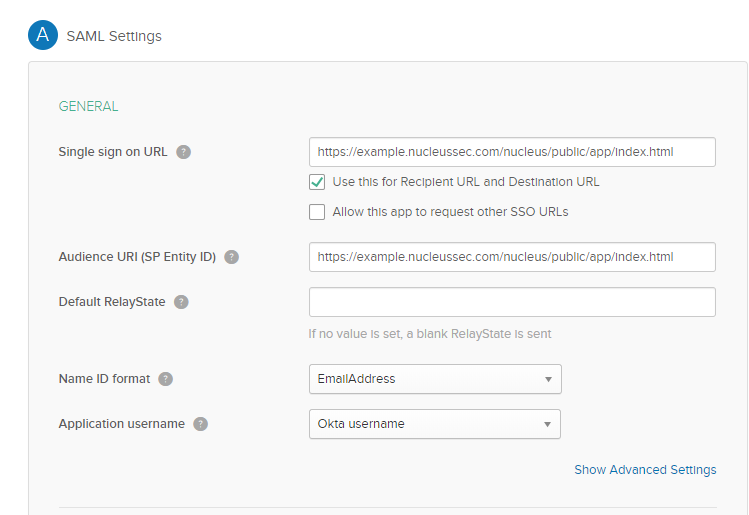
- On this page (SAML Settings), enter the following information:
| Option | Description |
|---|---|
| Single sign on URL | Use the URL given to you by your Nucleus support representative. If you are setting up token encryption, confirm the URL provided to you includes the parameter " ?sso=", which is required for token encryption. If the URL doesn't contain that parameter, reach out to your Nucleus support representative. |
| Audience URI | SP Entity ID |
| Name ID Form | Make sure this is set to EmailAddress |
| Application Username | Make sure this is set to Okta username |
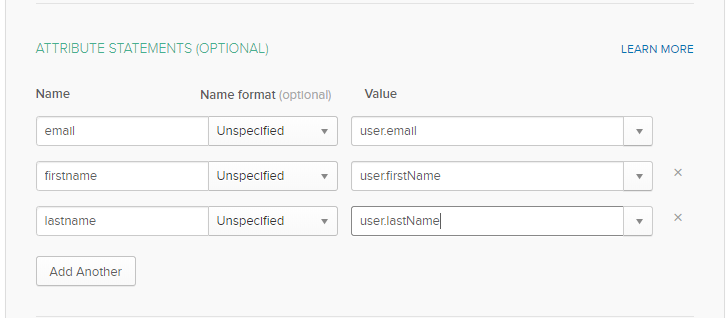
- Scroll down to Attribute Statements and enter the following information:
| Name | Value |
|---|---|
| user.email | |
| firstname | user.firstName |
| lastname | user.lastName |
Both the name and value fields here are case sensitive, they need to be exactly as they appear above. For the value field, this can be avoided by using the pull down menu to select the correct value, instead of typing it in.
It should look like this:
The following step is very important if you wish to utilize groups from Okta to automatically give the users access to the correct projects and with an appropriate role. This process is described in the next section.
Subsequently, this configuration will also be used for automatic assignment of users to appropriate Nucleus teams upon logging in. Further information for this can found in the team management section under Edit a team
-
Scroll down even further to the Group Attribute Statements (Optional). Add a Group Attribute Statement with name value exactly equal to group and then enter a filter value that will include the names of the required groups in the SAML assertion.
For example, if all the groups you want to use here, start with the string "vm-", your statement will look like below:
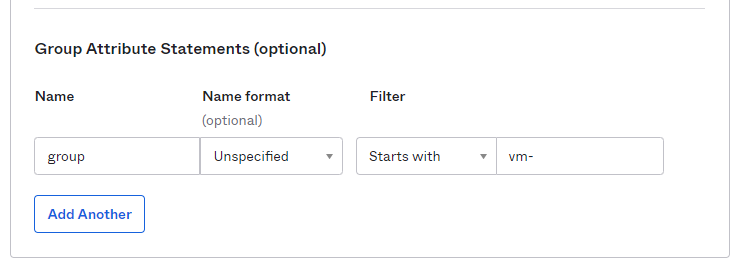
You can only have one statement with the name "group" so this needs to be considered very carefully if you need to include multiple groups in your SAML assertion. You can also use "Matches Regex" option here.
-
Scroll down to the bottom of the screen and click the green Next button.
-
Click Save again if you need to.
-
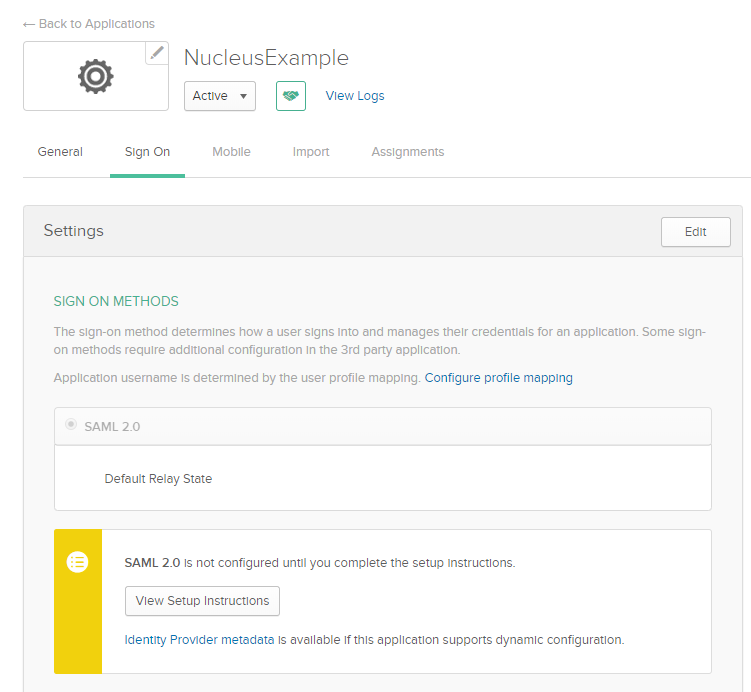
You should now be taken to the Sign On page for the new SSO app you just created. Right click on the "Identity Provider metadata" link and then "Save As". Download the file.
-
Click on the View Setup Instructions link in the middle of the screen to complete your Okta SSO App setup.
-
Send the metadata document you saved to your Nucleus support representative via either email or in the support ticket you created.
You're all done! Now you just need to add whatever users you would like to access Nucleus through your Okta SSO console. Your Nucleus support rep will reach out when SSO has been enabled on the Nucleus side, but it generally takes less than 24 hours until you are up and running.
If you are setting up token encryption, confirm the URL provided to you includes the parameter "?sso=", which is required for token encryption. If the URL doesn't contain that parameter, reach out to