Overview
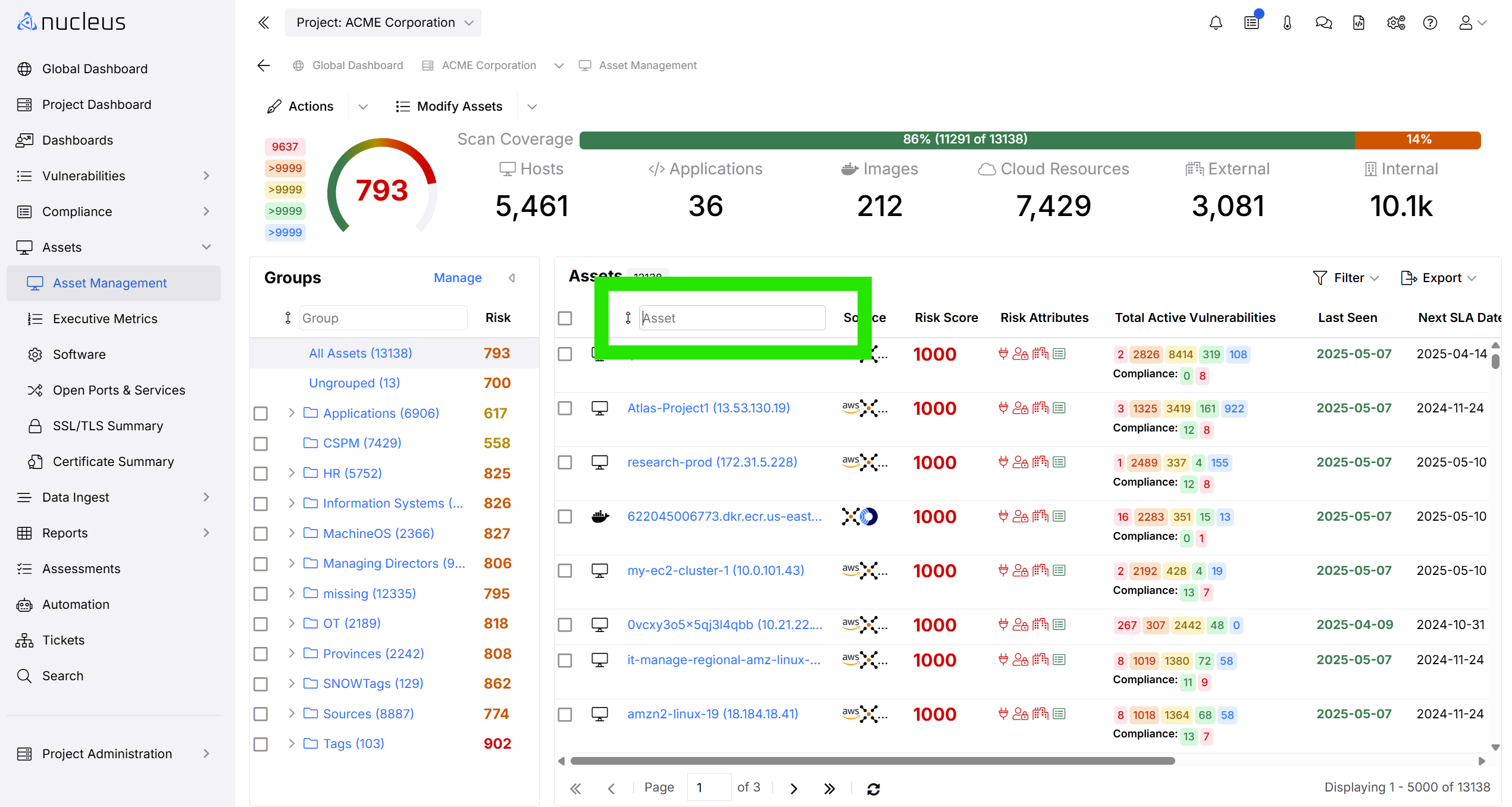
Nucleus provides asset inventory and management functionality far beyond other vulnerability management tools. Nucleus builds your asset inventory from multiple sources including vulnerability scan results, external asset inventory and discovery tools, and security assessments.
Add a New Asset
Nucleus automatically stores all the asset information discovered when ingesting scan data. However, if you're using Nucleus to manage results from vulnerability assessments and penetration tests, you may not have raw vulnerability scan files to ingest. In this case, Nucleus enables you to create new assets manually. To create an asset manually:
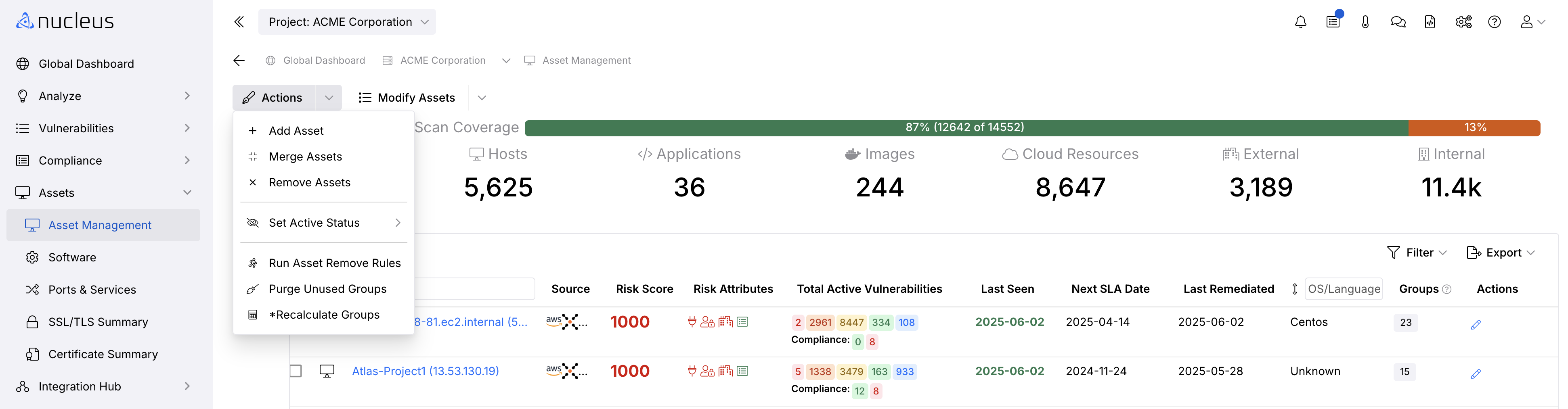
- Navigate to Global Dashboard > Select your project > Assets > Asset Management.
- Click Actions > Add Asset.
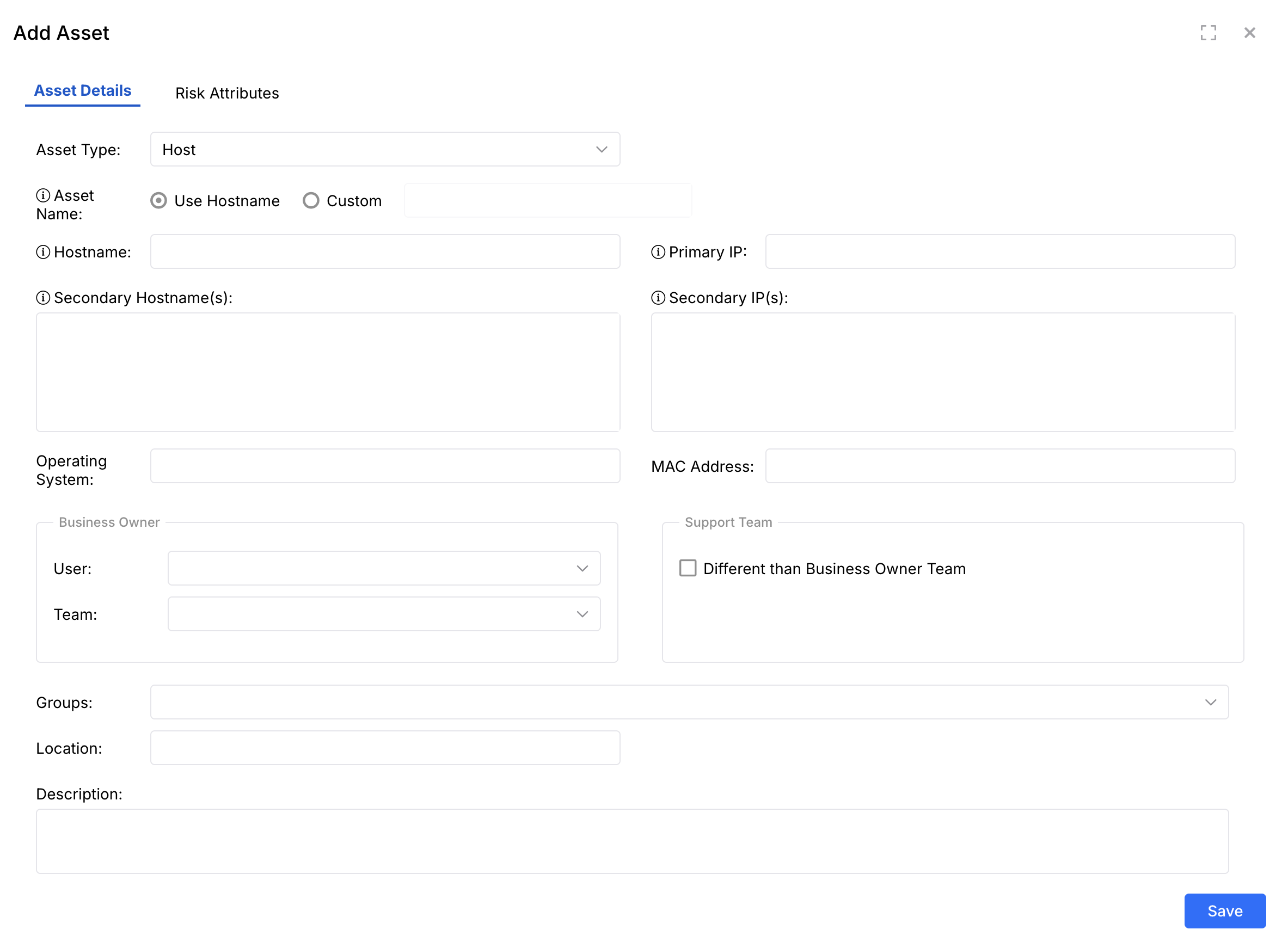
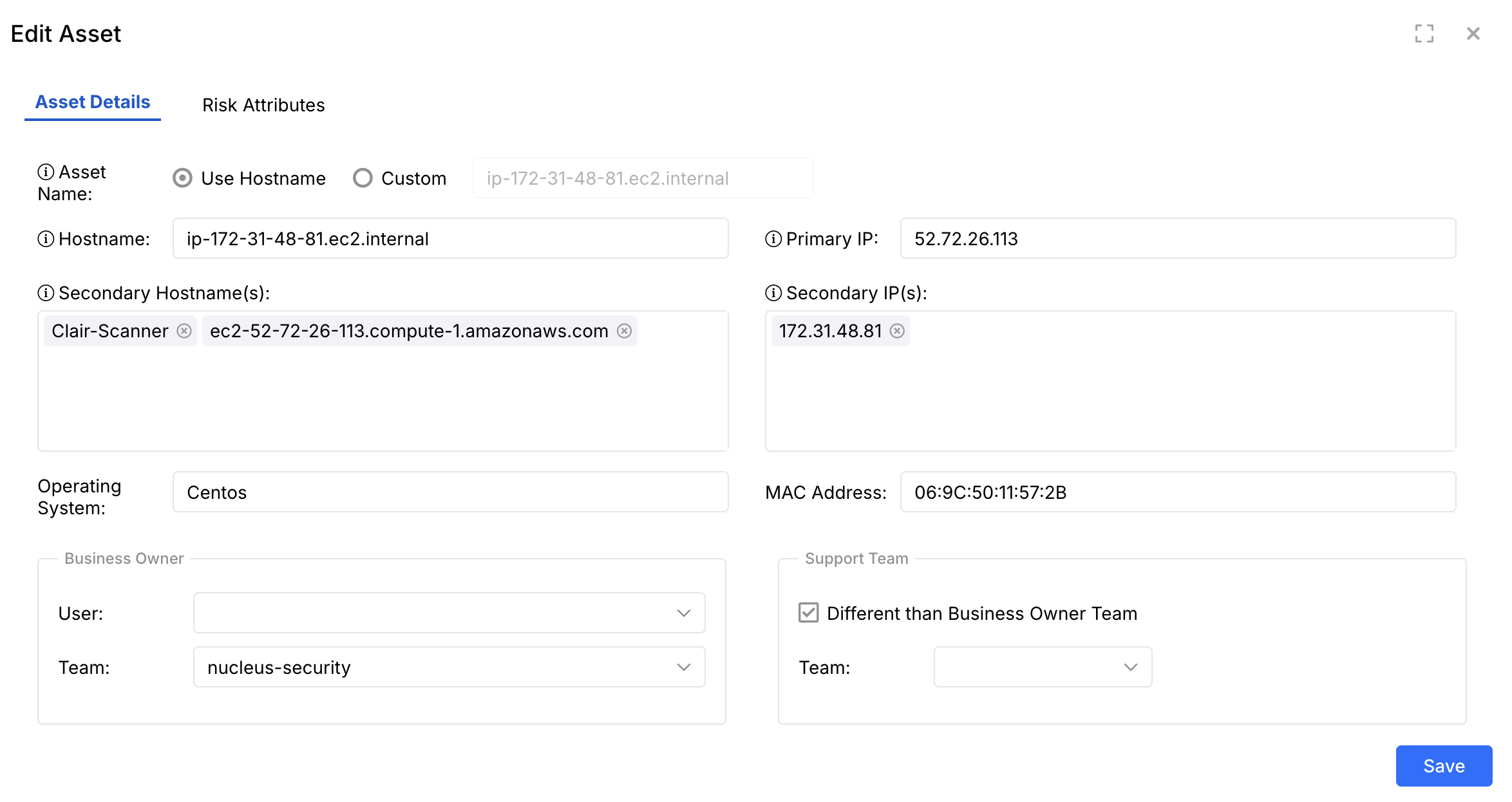
- In the pop-up modal click Asset Details and enter the asset information.
- To assign risk attributes click Risk Attributes and enter the risk information.
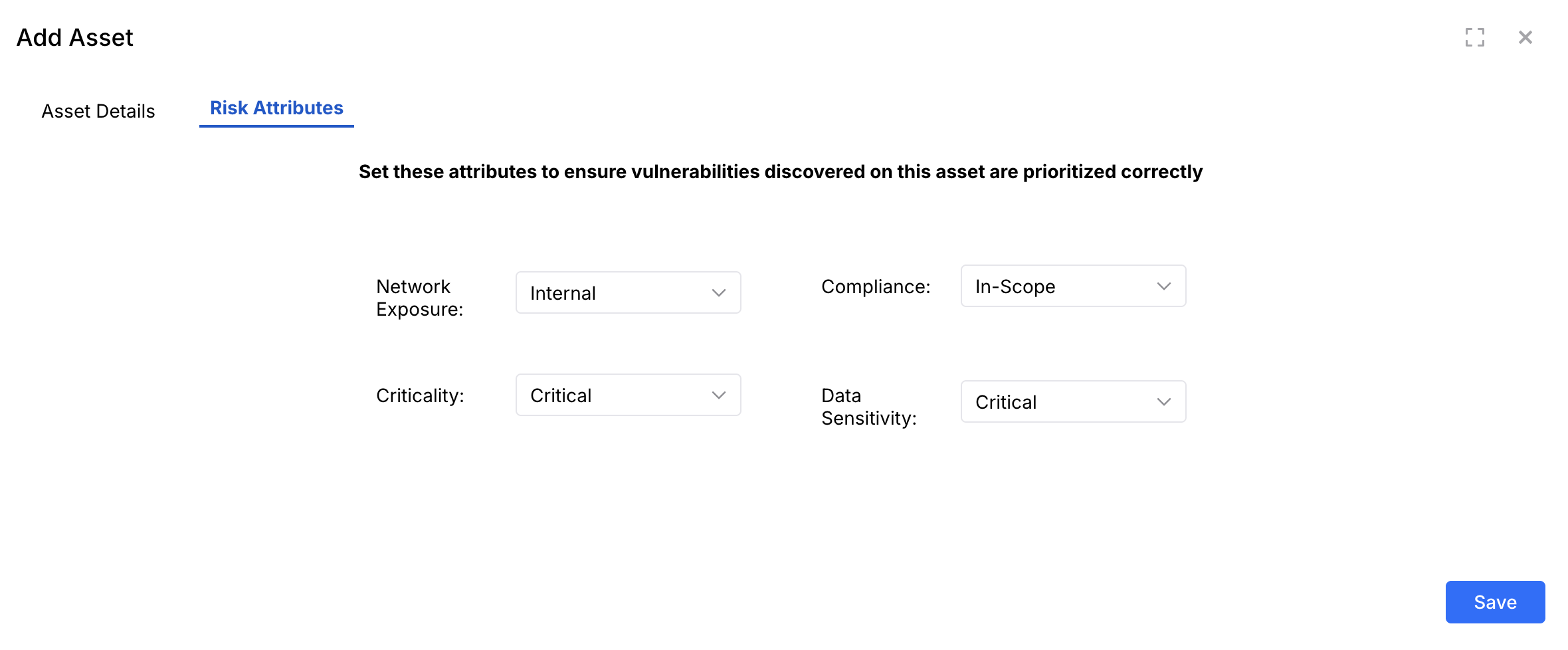
Click Save and the asset is added.
Edit an Asset
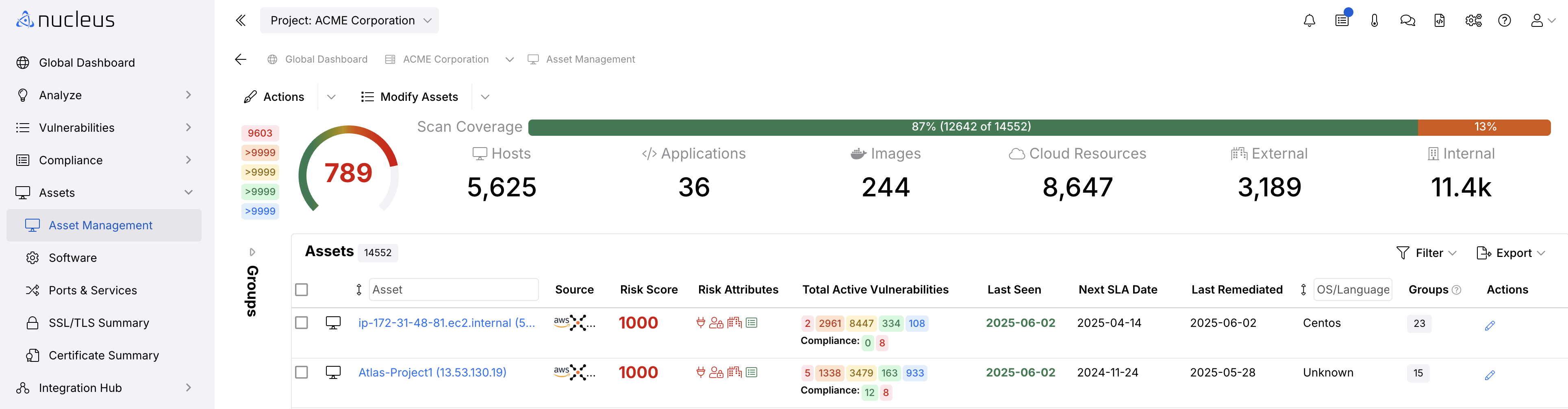
All asset information collected by Nucleus is editable. To edit an asset:
- Navigate to Global Dashboard > Select your project > Assets > Asset Management.
- Click the blue pencil icon to the right of the asset you want to edit.
- In the pop-up modal, edit the Asset Details and Risk Attributes fields you want to change and click the Save button.
Inactive Assets
There may be times when assets are no longer active in your environment and you want to remove them and also preserve their vulnerability information and history. In this case, you can set the status of the Asset to Inactive; while it won't appear in your asset list by default or count toward your license, the information will be retained in Nucleus.
Overview
The intent of asset status is to enable a user to mark an asset -which they believe is no longer active in their environment - as inactive. Should the asset re-appear in a future scan, Nucleus will automatically revert the asset status to active.
Inactive assets have a couple of useful attributes to keep in mind:
- Inactive assets do not count towards your Nucleus license from the date that the asset is marked inactive.
- Inactive assets are removed from project metrics and latest reporting data; they will not factor into overall metrics like trends, nor will vulnerabilities on those assets show up on the "Active Vulnerabilities" page. This behavior also occurs from the date that the asset is marked inactive.
- Assets marked inactive will automatically re-activate in Nucleus when two conditions are met: 1) a new scan upload/ingest includes data about the inactive asset, and 2) the asset data is more recent than the datetime when you marked the asset as inactive.
Set as inactive
To set an asset to inactive:
- Navigate to Global Dashboard > Select your project > Assets > Asset Management.
- In the list of Assets, select the Checkbox for the assets you want to set as inactive.
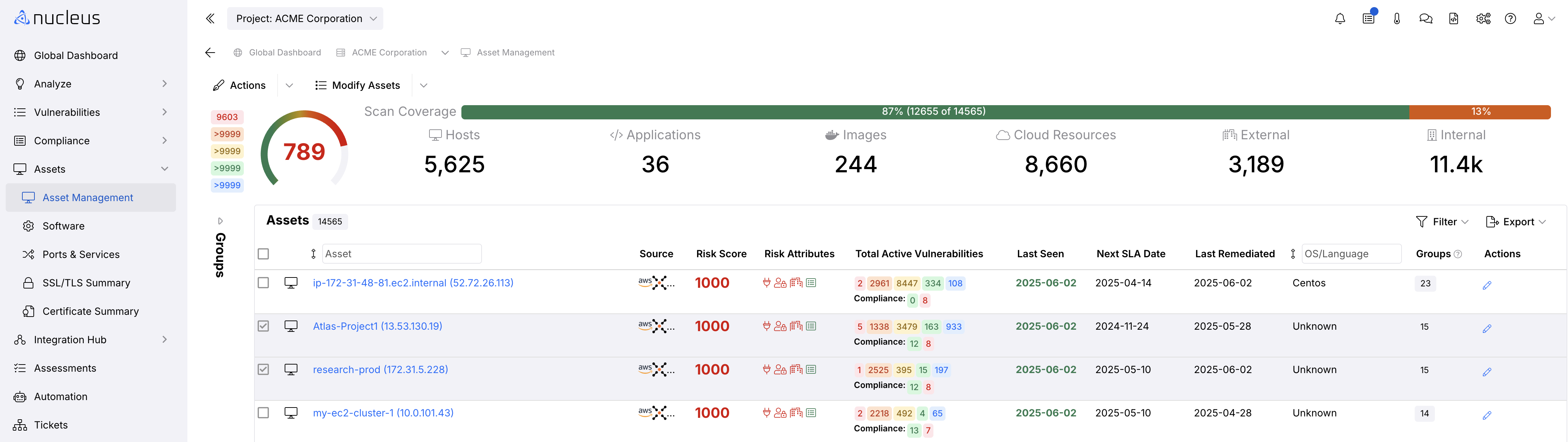
- Click Actions.
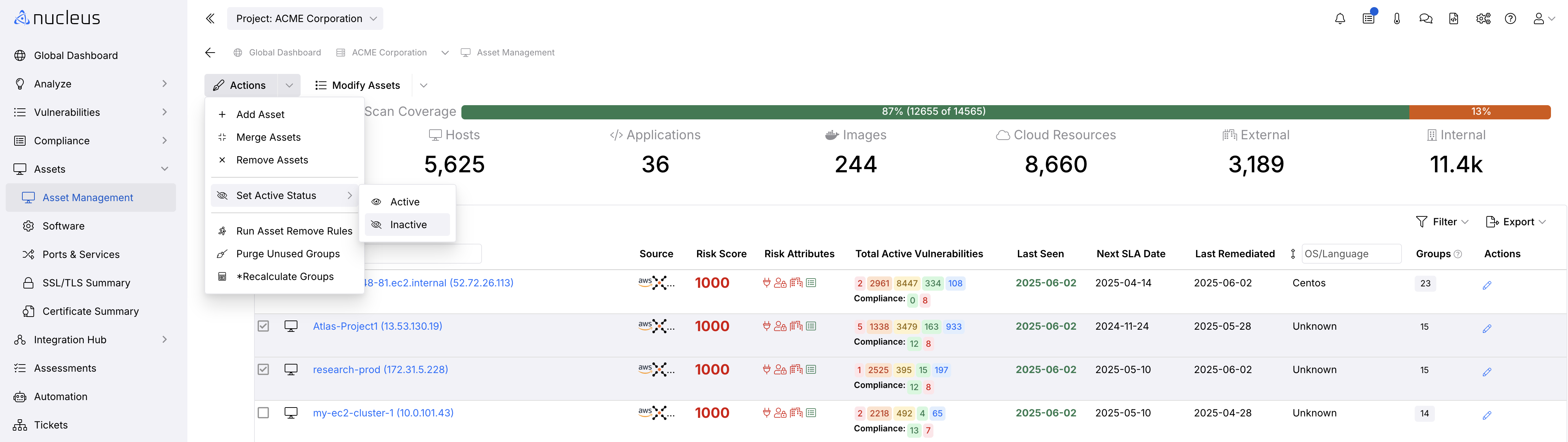
- From the dropdown, hover over Set Active Status.
- Click Inactive to set the selected assets to Inactive.
View inactive assets
- From within a Nucleus project, Navigate to Global Dashboard > Select your project > Assets > Asset Management
- Click the Filter button on the upper right above the column headings.
- Use the checkbox to select the Show Inactive Assets button.
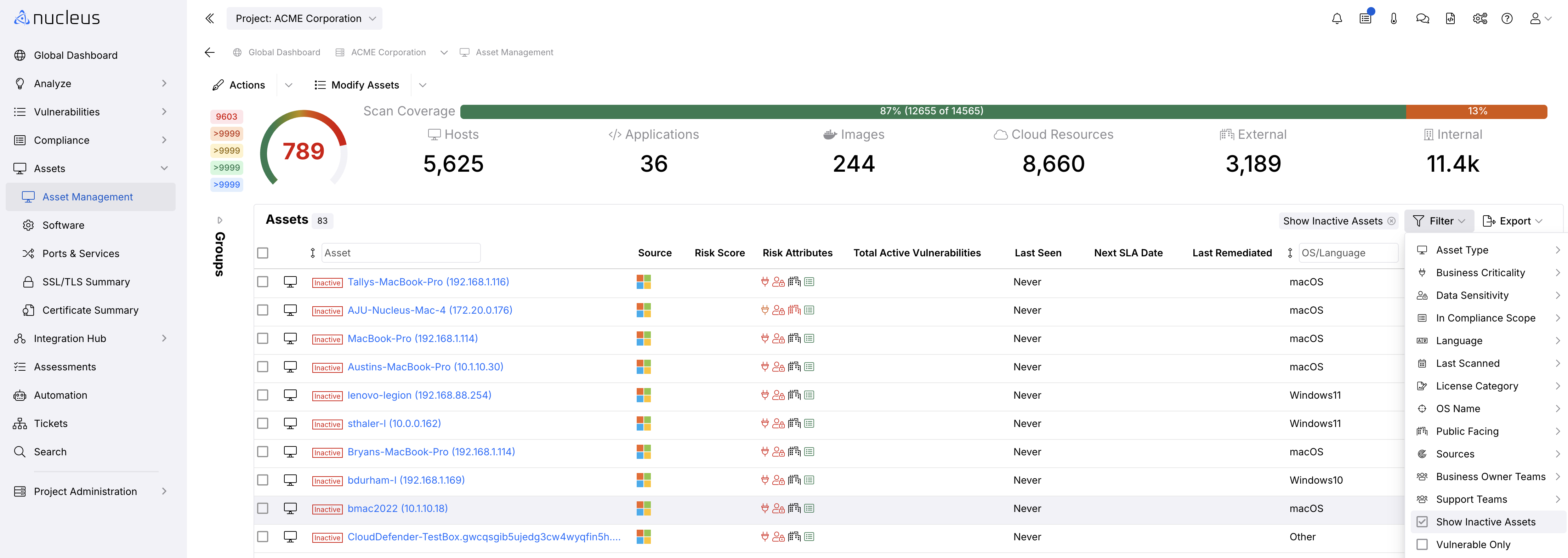
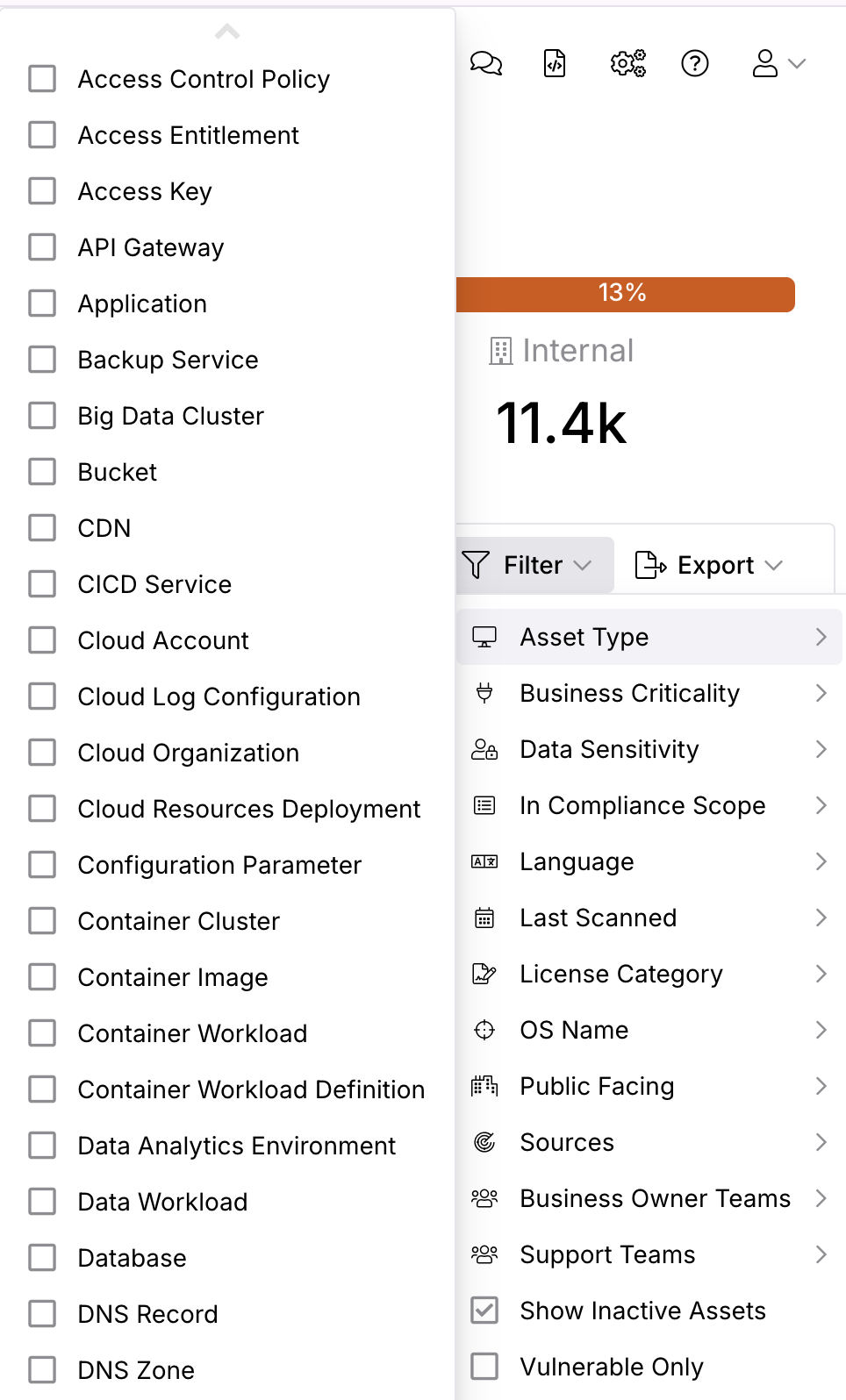
You can apply additional filters on top of the inactive assets checkbox, such as filtering by asset type by selecting the Asset Type filter and selecting the type of asset.
Remove an Asset
If you want to completely remove an asset from the Nucleus Asset Inventory and don't want to preserve the vulnerability history of an asset, you can delete it. To remove an asset:
- Navigate to Global Dashboard > Select your project > Assets > Asset Management.
- In the list of Assets, select the Checkbox for the assets you want to remove.
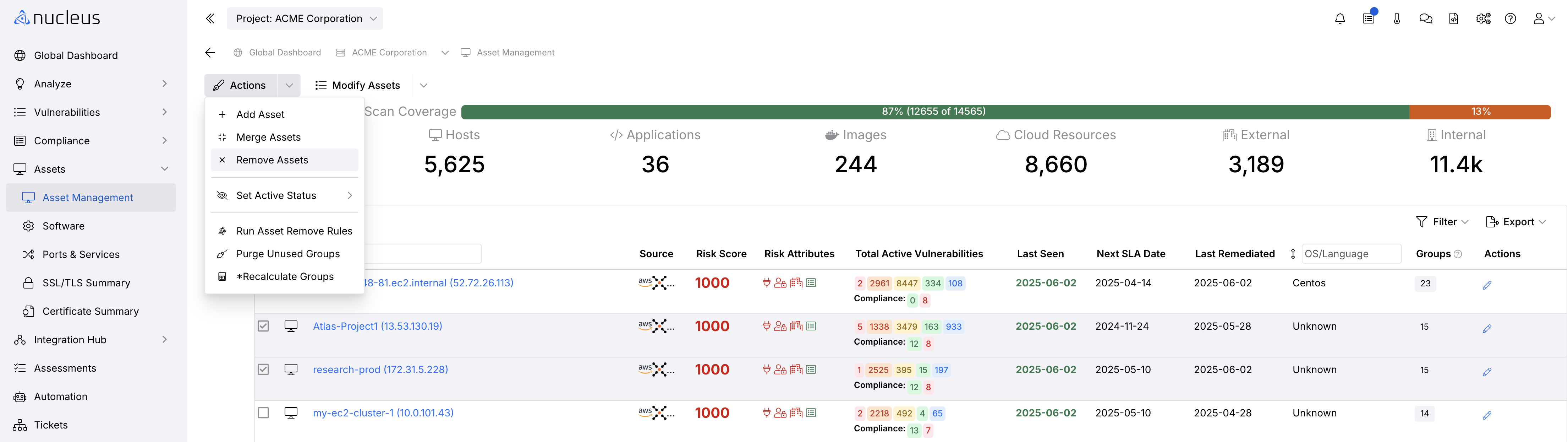
- Click Actions.
- From the dropdown, click Remove Assets.
Asset filters on the Asset Management Page
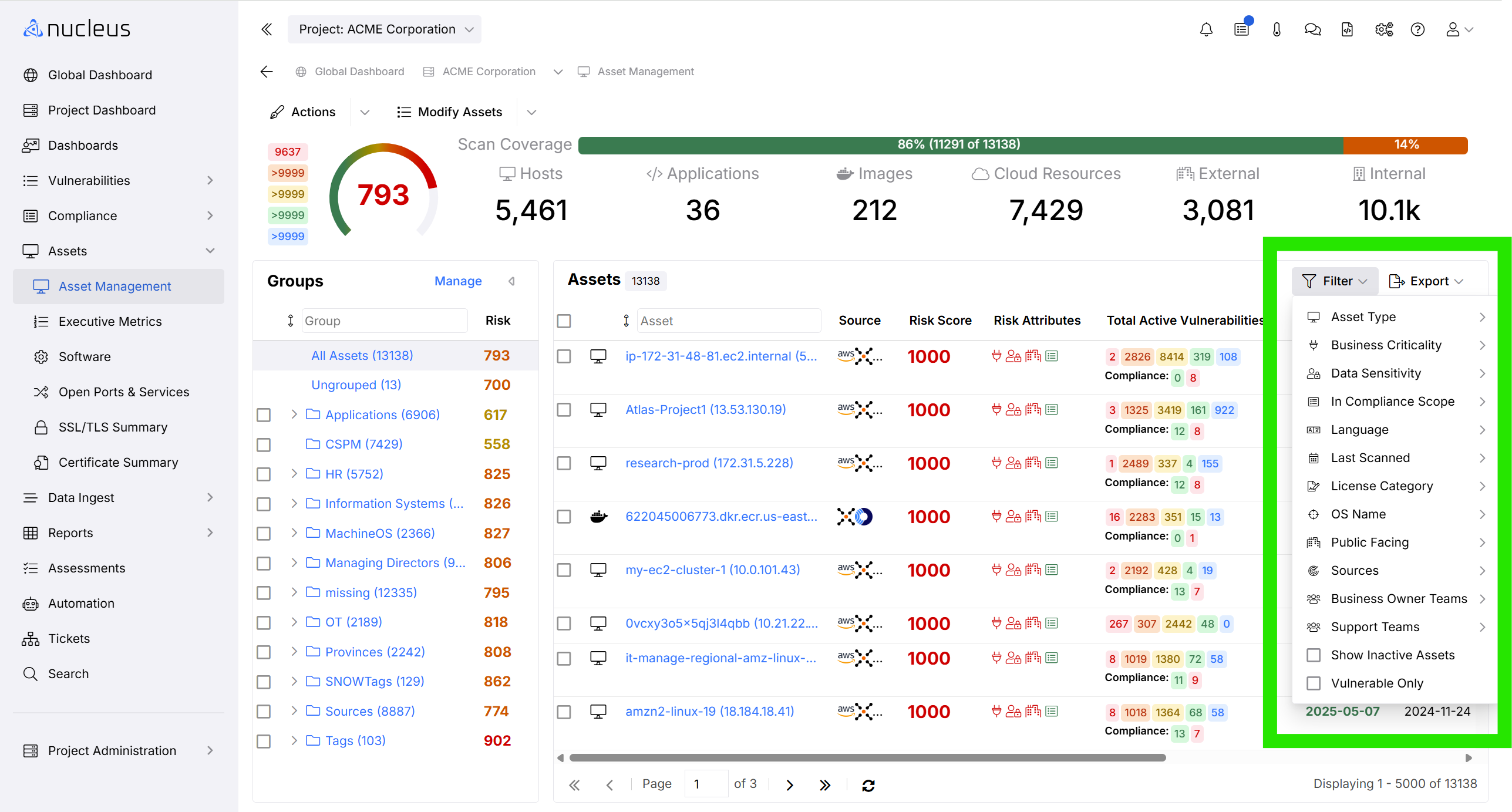
There are several filters available on the asset management page to help narrow down the results in the list.
A note on the License Category filter
The License Category asset filter will show either compute or non-compute assets, depending on your filter selection. Since some assets may be represented in the Nucleus console without consuming a license, the count of assets displayed when using this filter may not necessarily represent the count of licenses consumed by your assets.
Asset Searching in the Asset Management page
The text box at the top of the asset name column supports regex searching. Regex can be denoted between two slashes. For example, to search for multiple assets with different IP address names, type /1.1.1.1|2.2.2.2|3.3.3.3/ and press enter.