Overview
One of the most powerful features Nucleus offers is its capability for bidrectional communication with popular issue tracking and ticketing tools. For example, many of our customers use Jira. From a vulnerability details pop-up modal in Nucleus, you can create an issue in Jira on one or more instances of a finding. This can also be done automatically with the Nucleus Automation Engine.
Create a ticket manually
Your Nucleus user will need to have the "Create External Issue" permission to perform this action.
-
From within a Nucleus project, navigate to the Vulnerabilities > Active page. This is the list of findings for your entire project.
-
Click on the vulnerability you want to create ticket(s) for to open the Vulnerability Details dialog. This shows detailed information regarding the vulnerability along with available actions you can perform.
-
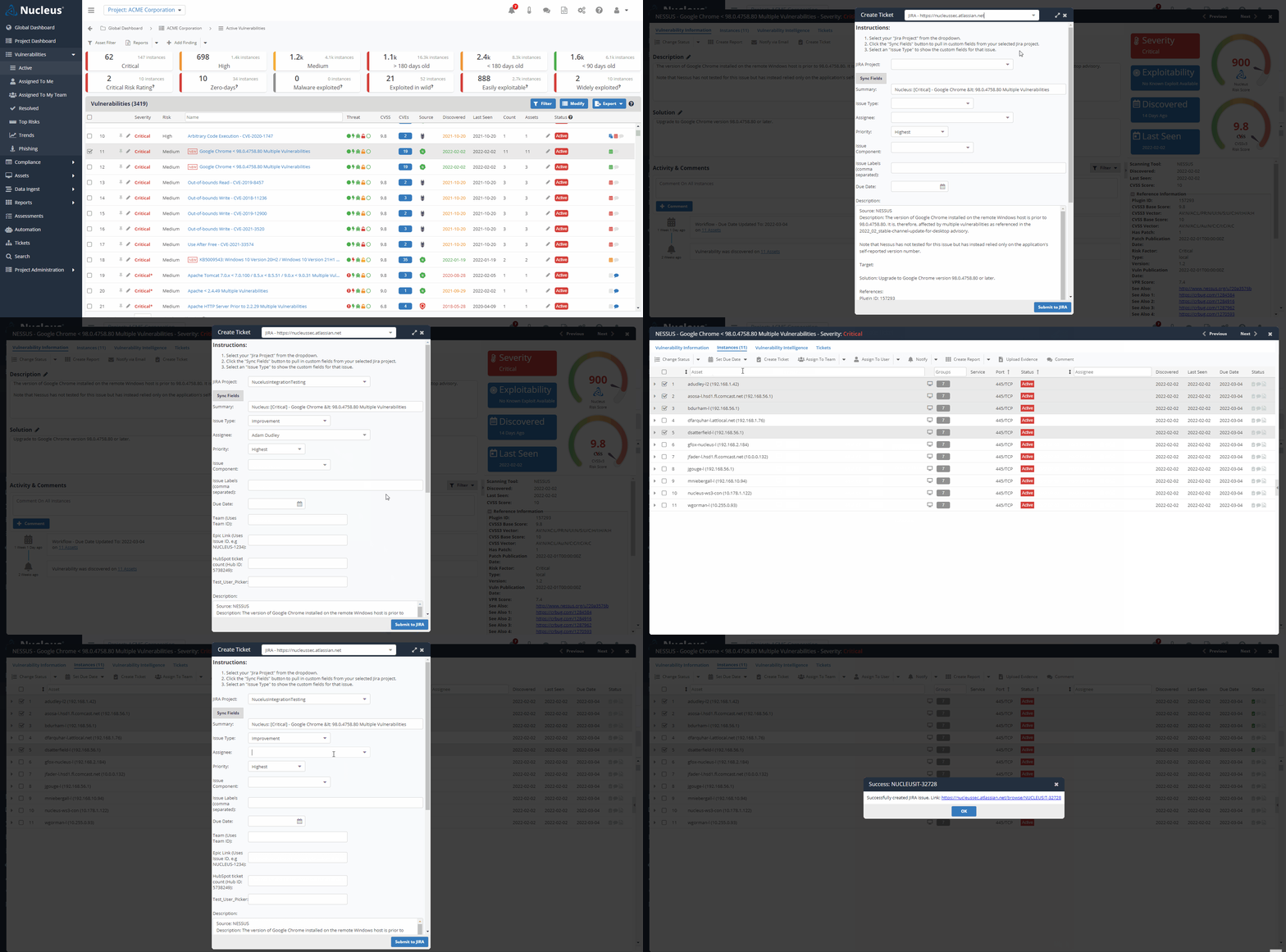
To create a ticket for all instances of the vulnerability, click Create Ticket.
-
Alternatively, you can create a ticket for specific instances by going to the Instances tab, selecting the instances you want to include, then click Create Ticket.
-
Click the Select Issue Tracker dropdown and select your issue tracker from the list if it's not already preselected.
-
Depending on the connector, you will have different options to fill out, such as:
| Field | Info |
|---|---|
| Project | The project in the ticketing system where the issue will be assigned. |
| Assignee | The user to which the ticket will be assigned in the issue tracker. |
| Summary | This is the title of the issue that will be displayed in the issue tracker. |
| Priority | This is the severity of the ticket in the external system. |
| Due Date | This is when the ticket or issue is due to be completed. |
| Description | This is the description of the vulnerability which will be displayed in the issue tracker. This includes the details of the vulnerability, the assets which are affected, and the solution to fix the vulnerability. |
For details regarding the features and ticket customization capabilities for a specific ticketing connector, click on the relevant documentation found under the Ticketing & Notifications section.
Many of these fields will be pre-populated with information based on the defaults you set as well as the data in Nucleus. For example, you will not have to enter the description of the vulnerability.
- Click the Submit to... button.
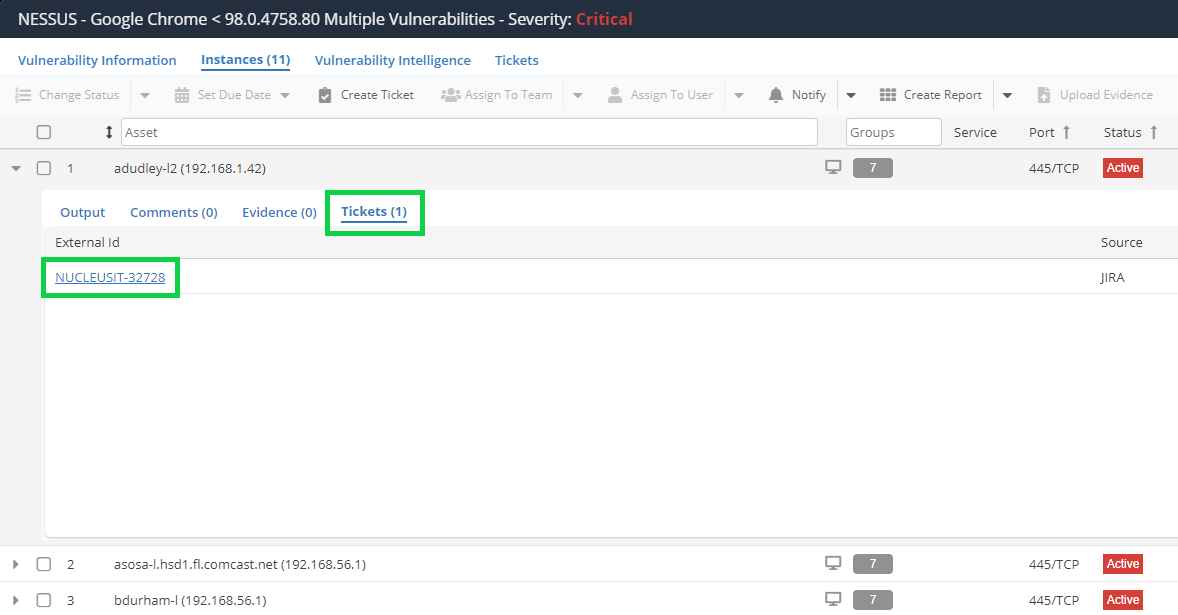
You should now see the issue has been created! You can view the status of the ticket in Nucleus by expanding the asset row for the assets on which the ticket has been linked.
It is not possible to delete issues created in external ticketing tools from within Nucleus.
If you have any questions, please contact us through the support center.