Connect Nucleus to GitHub to create issues from findings, add comments, assign users, and synchronize issue status back into Nucleus.
Note: This connector can be used by all users of the project. We recommend authenticating with a GitHub service account rather than an individual's account.
Before you begin
- Enable Issues on the target repository. Nucleus checks this during verification and will not complete setup if the repository's issue tracker is disabled.
- Choose a GitHub user or service account that can access the repository and manage its issues.
- If Nucleus will assign issues, that account must have enough repository access for GitHub to list it among the repository's assignable users.
- Have the repository owner and name available, for example
nucleus-security/example-repository. - Treat the token like a password. GitHub displays it only once after creation.
Create a GitHub token
Nucleus authenticates to GitHub with a personal access token. Fine-grained personal access tokens are recommended because they can be scoped to a single repository and a small set of permissions. If your organization prohibits fine-grained tokens, see Alternate: personal access token (classic) below.
-
Open a browser and login to GitHub as the account Nucleus will use.
-
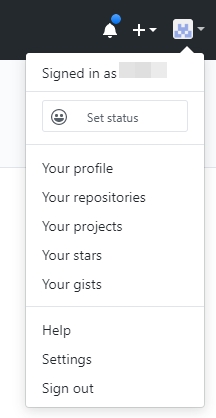
Browse to your avatar in the top right corner of the screen, then click on Settings.
-
Click on the menu item labeled Developer Settings.
-
Expand the menu item labelled Personal Access Tokens, then click Fine-grained tokens.
-
On this page, select Generate new token.
-
Complete the token settings:
| Setting | Recommended value |
|---|---|
| Token name | Enter a name so you can remember what this connection is, for example Nucleus GitHub Issues |
| Expiration | Follow your organization's credential-rotation policy |
| Resource owner | The user or organization that owns the repository |
| Repository access | Select Only select repositories, then select the target repository |
| Issues | Read and write |
| Metadata | Read-only (normally selected automatically) |
Issues: Read and write allows Nucleus to create, update, close, and comment on issues. Metadata: Read-only allows Nucleus to read repository settings and the repository's assignable users, which is what populates the Default Assignee list.
-
Click Generate token at the bottom of the page.
-
Copy the token which was generated and store it securely until you have entered it into Nucleus.
Organization approval: If the resource owner requires approval for fine-grained tokens, the token stays in a Pending state until an organization owner approves it, and it cannot access private organization resources while pending.
Configure the connector in Nucleus
-
In a second browser window, open Nucleus and browse to Project Administration > Connectors.
-
Under the Issue Trackers section, click the GitHub Issue Tracker icon.
-
In the Setup GitHub Connector popup, complete the following fields:
| Field | Description |
|---|---|
| Name | Optional. A friendly name shown for this connector in Nucleus. |
| Github URL | Enter the URL to the api of your Github instance. Note: For GitHub Enterprise Server, ensure that the URL includes the full API path, such as ending in /api/v3. |
| Repo | Enter in the project name for which this connector is set up, including the owner. For example, rampant/demo |
| Username | Enter the GitHub username that owns the token |
| Token | Enter the token which was generated in the Github console (the one copied to your clipboard). Do not include Bearer, token, or quotation marks. |
| Labels | Optional. A comma-separated list of labels that show up on Github issues so you know where the issue came from. |
-
Click the Save Changes button and wait for the success message.
-
Click the Verify Connection button. You will be a message to notify you that the connection test was successful. Nucleus confirms the repository is reachable, confirms its issue tracker is enabled, and retrieves the repository's assignable users. Your connector is now setup properly.
-
Optional: Select a user from the Default Assignee dropdown menu in order to have that user be the default user when manually assigning issues so you don't have to select from the dropdown every time. The dropdown is only populated after a successful Verify Connection, and you can only choose a user GitHub reports as assignable for the repository.
-
If you selected a default assignee, click Save Changes.
-
Close the popup window.
Alternate: personal access token (classic)
Use a classic token only when fine-grained tokens are unavailable or prohibited by your organization. The repo scope grants broad access to every repository the token owner can reach, so prefer a fine-grained token where your organization allows it.
-
Browse to your avatar in the top right corner of the screen, then click on Settings.
-
Click on the menu item labeled Developer Settings.
-
Expand the menu item labelled Personal Access Tokens, then click Tokens (classic).
-
Select Generate new token (classic).
-
Enter a token description so you can remember what this connection is, and select an expiration.
-
Select the scope that matches your repository:
- For public repositories only, check the public_repo box.
- For private or internal repositories, check the repo box.
-
Click Generate Token at the bottom of the page.
-
Copy the token which was generated (it is in green highlight), then continue with Configure the connector in Nucleus above.
SAML SSO: If the organization uses SAML single sign-on, authorize the classic token for that organization after creating it.
Troubleshooting
| Message or result | Likely cause |
|---|---|
| Incorrect Authentication. Username/password correct? | The token is invalid, expired, or revoked. |
| You do not have permissions to this repo | The token lacks Issues: Read and write, is awaiting organization approval, or needs SSO authorization. |
| URL/Repo was not found | The Repo value or Github URL is incorrect, or the token cannot see the repository, in which case GitHub reports it as missing. |
| Repository does not have issue tracker setup. Please enable in repo settings | Issues is disabled on the repository. Enable it in the repository settings and verify again. |
| No users appear in Default Assignee | Click Verify Connection to refresh the list. If it is still empty, confirm the token can read repository metadata and that the users have access to the repository. |
| We have exceeded our request limit for the day | The token has hit GitHub's rate limit. Wait for the limit to reset before retrying. |
| Github refused our requests and we hit secondary rate-limit | Nucleus created issues faster than GitHub allows. Nucleus retries automatically and then pauses for about five minutes before sending further requests. |
| Github is down. Please try again later. | GitHub returned a server error. Try again later. |
Rotate or replace the token
-
Create a replacement token with the same repository access and permissions.
-
Open the GitHub connector in Nucleus.
-
Replace the value in the Token field.
-
Click Save Changes, then Verify Connection.
-
After verification succeeds, revoke the previous token in GitHub.