Overview
Nucleus enables you to ingest vulnerabilities directly from GitHub Advanced Security into the Nucleus console using an automated connector. The connector integrates seemlessly with your GitHub organisation by leveraging a GitHub App to seamlessly query and ingest data into Nucleus so that you can easily manage your data from Github at scale.
The GitHub connector currently supports ingesting
- CodeQL analyses from GitHub Code Scanning
- alerts on open source dependencies from Dependabot
- secrets from GitHub Secrets Scanning
Connector setup
The user setting up the GitHub connector needs permissions in Nucleus (Project Admin) to create the connector and permissions in GitHub to create Apps (Admin).
Connector Setup Checklist
Follow the steps in this checklist to successfully setup this connector:
-
Create the GitHub App
Create the Nucleus GitHub app in your GitHub organization. -
GitHub App Installation
Install and configure the app within the organization. -
Vulnerability Scan Data Ingestion
Create one or more vulnerability scan ingest rules to ingest data from GitHub.
1. Create the GitHub App
-
In Nucleus, go to Integration Hub> Connector Setup.
-
Under the Scanners section, click the GitHubb App icon.
-
In the Setup GitHub Connector popup, complete the following fields:
| Field | Description |
|---|---|
| Name | Enter a short unique name for the connector, such as "GitHub Org name" |
| Description | Optionally, enter a description for the connector |
| Organization | Enter the name of the organization you want to install the app into, for example 'nucleus-security'  |
-
Click the Install GitHub App button. This will open a new browser tab, directing to you create a GitHub App.
-
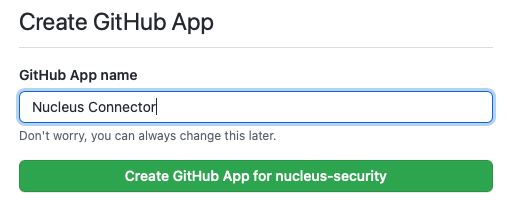
Enter a name for the GitHub App such as Nucleus Connector:
-
Click Create GitHub App for org-name
-
The app is now created and you should now be redirected to the final setup page in Nucleus. You should be presented with the following screen:
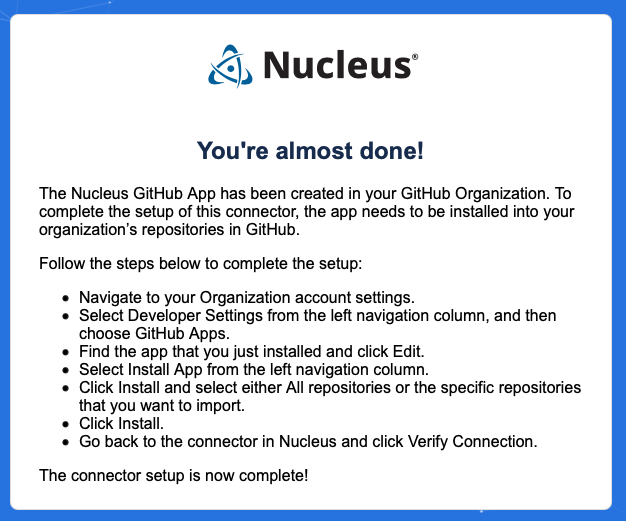
The connector setup is not yet complete! The Nucleus GitHub App has been created but still needs to be installed. Follow the steps in the next section to install the app.
2. GitHub App Installation
- Find your Organization where you just installed the GitHub app.
- Go to its Settings page.
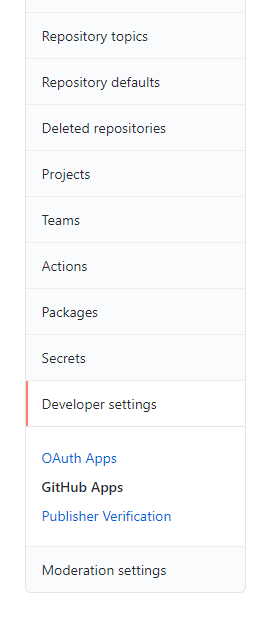
- In the lefthand navbar find Developer Settings > GitHub Apps
- Find your new app in the list ("Test-App-Nucleus" from our example above).
- Click Edit on this app.

- In the lefthand navbar, click Install App.
- Find your organizations where you want to install the app and click "Install".
- You'll see options to select repositories to enable for the app:
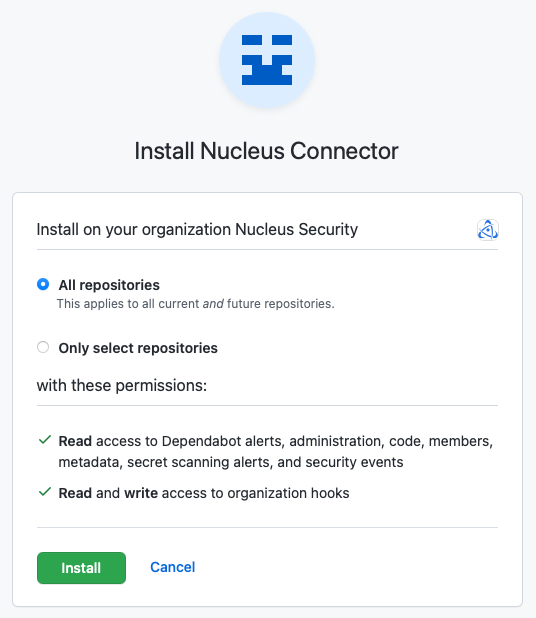
If you chose "Only select repositories" from this page, then Nucleus will not be able to see new repositories as they are created in this organization.
If you want to sync everything from GitHub into Nucleus - including future repositories - we recommend selecting "All repositories". Otherwise you will need to periodically enable new repositories for Nucleus to sync.
-
Click Install
-
Now go back to your Nucleus connector and click Verify Connection to make sure the app is working correctly.
-
Click Save & Finish to finish connector configuration.
3. Vulnerability Scan Data Ingestion
- Go to Integration Hub > Import via Connector.
- Select the GitHub connector you just created.
- Choose the source (Code Scanning, Dependabot or Secrets Scanning if enabled for your organization) and import method:
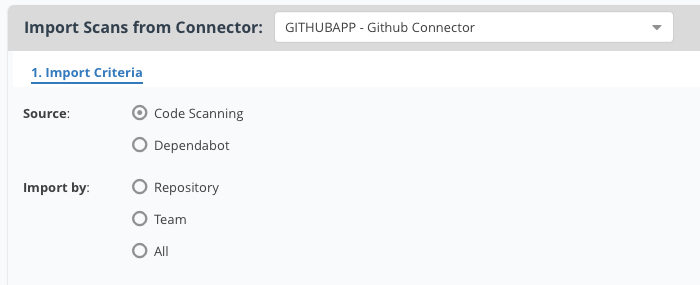
- Click Next and select what you want to import.
- Select the import frequency as a one-time import, or auto-imported on a schedule.
- Click Save & Finish.
The data will now be synced based on the schedule you set up!
Connector Behaviour
Finding Statuses
Nucleus maps statuses from GitHub Advanced Security for both Dependabot and CodeQL findings to finding statuses in Nucleus. Status changes appear in Nucleus the next time a new scan is ingested for each respective asset.
CodeQL
| Dismissed reason in CodeQL | Status in Nucleus |
|---|---|
| false positive | False Positive |
| used in tests | False Positive |
| won't fix | Accepted Risk |
Dependabot
| Dismissed reason in Dependabot | Status in Nucleus |
|---|---|
| Risk is tolerable to this project | Accepted Risk |
| This alert is inacurate or incorrect | False Positive |
| Vulnerable code is not actually used | False Positive |
| A fix has already been started | In Progress |
| No bandwidth to fix this | Exception Granted |
| Blank / No message provided | Accepted Risk |
Additional Metadata
Nucleus pulls in all the associated information about each GitHub repository as Additional Metadata. All of these fields can be used for filtering, automation, and reporting throughout the Nucleus application.
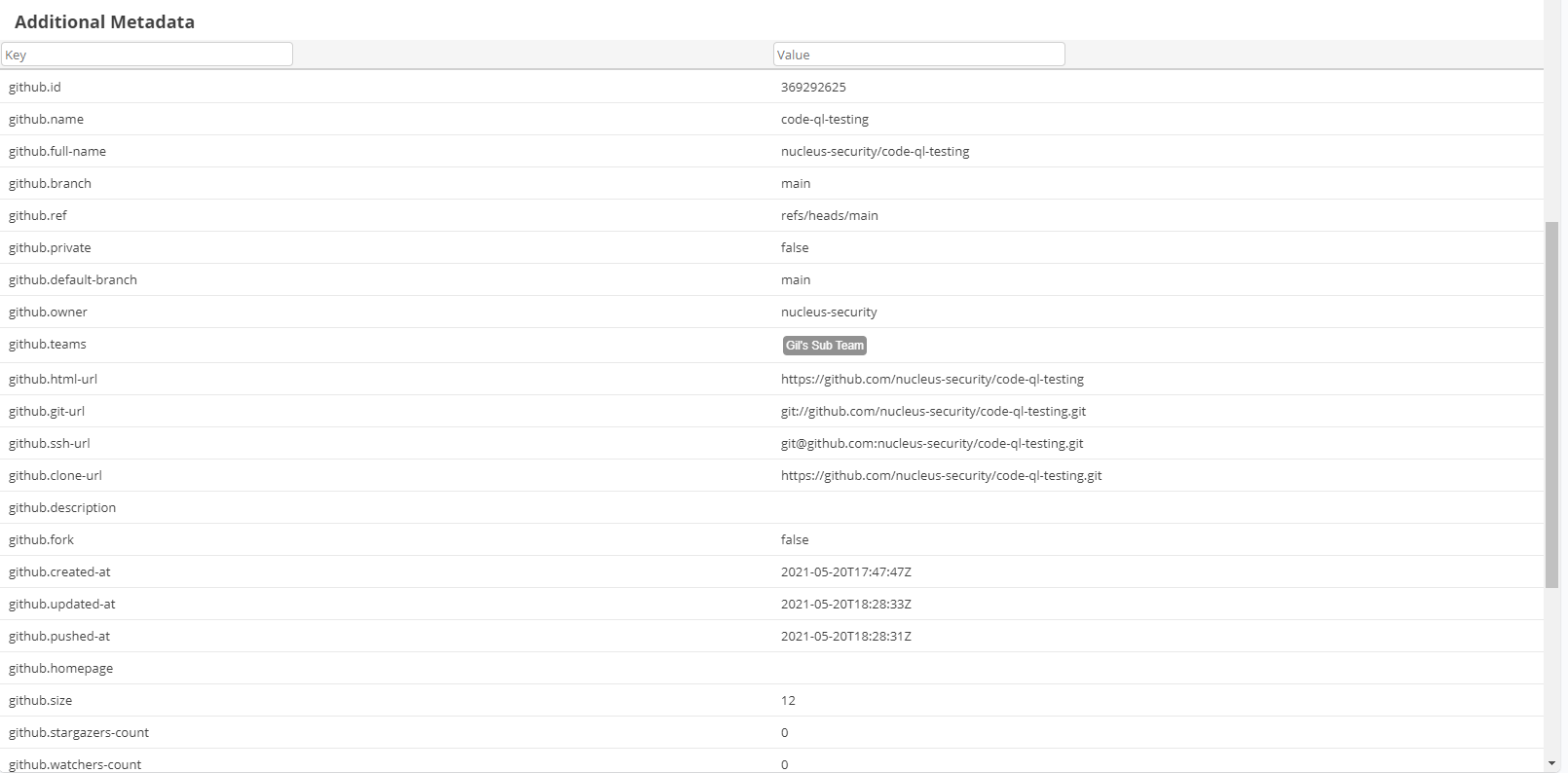
One of the primary uses of this is to automatically create Nucleus Asset groups dynamically based on the GitHub custom field data, such as "github.teams".
Custom Properties
Github Repository Custom Properties are currently ingested by Secrets Scanning only and are not supported in the Dependabot or CodeQL integrations. To ingest custom properties for Dependabot or CodeQL, please setup a Secrets Scanning ingestion job so that these properties are ingested and updated.
FAQ
Q: Can we set up Github as an enterprise vs. an organization?
A: No, we can only set it up per Org due to Github authentication requirements.