Overview
Custom asset fields allow you to pull in as much asset metadata as you want from any of the various tools you connect to Nucleus, e.g., ServiceNow, Qualys, Nexpose, Checkmarx,etc. This metadata is then centralized on the Additional Metadata panel on the asset details page.
How custom asset fields work
There are several ways to get custom asset metadata into Nucleus.
- Use a Nucleus Connector to pull in scan results from external scanners and the custom metadata will populate automatically.
- Manually upload FlexConnect files that contain the assets and their metadata.
- Use the Nucleus API to populate asset metadata.
Custom metadata will show up in the Additional Metadata section on the Asset Details page.
To view the Additional Metadata for an asset:
- Navigate to Global Dashboard > Select your project > Asset Management page.
- In the Assets panel select an Asset and click to view the Asset Details page.
- In the Asset Details page, scroll down to view the Additional Metadata section.
- The Additional Metadata can be sorted by Key or Value.
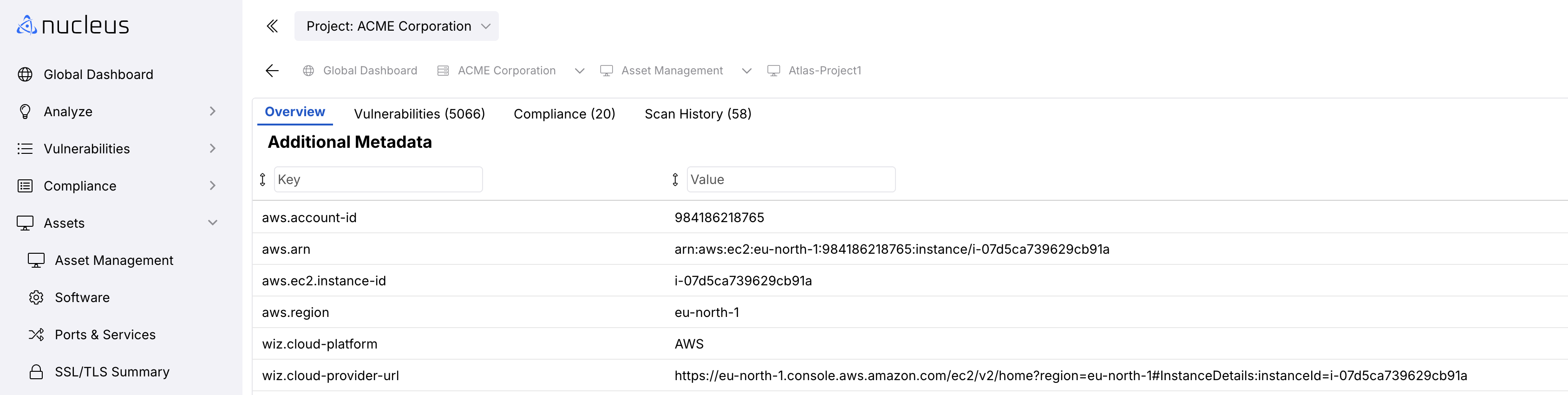
If you use the Nucleus Microsoft Defender connector, when you sync vulnerability data from the ATP console it will automatically populate the asset information in Nucleus with fields such as: owner, domain, group, and more.
Automation rules and custom asset fields
Nucleus allows you to use any custom field from your external systems as criteria for automation rules within Nucleus. Combined with Nucleus' default correlation capabilities, this gives you the flexibility to automate and orchestrate workflows across tools.
Dot notation
Nucleus uses a dot notation to make it simple to know which fields you would like to filter on, and where that field is coming from.
A field called 'branch' coming from Checkmarx will be labeled as "cxsast.branch" whereas a field from ServiceNow called 'Active' will be labeled as 'servicenow.active'
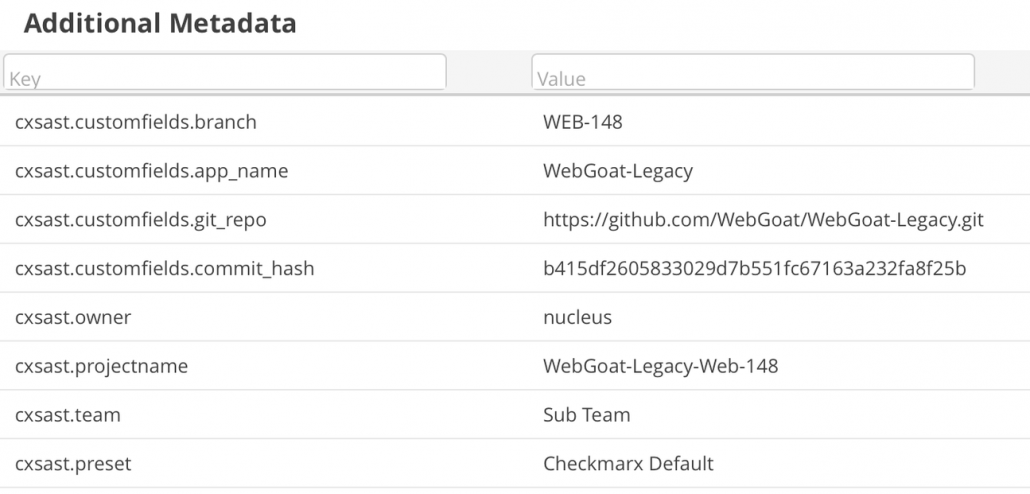
Let's look at an example
As an example, let's use Tenable.io, ServiceNow CMDB, and Jira to build a workflow across these tools.
-
You're ingesting asset data from ServiceNow and one of the custom fields is named "Active", with either a 1 or a 0. This field is set in the ServiceNow console.
-
In step 2 you set up a tenable.io connector to start importing your network scan data. Nucleus will automatically correlate asset data from ServiceNow CMDB to Tenable.io to deduplicate your list of assets. Your metadata will automatically populate from the connectors.
-
Finally, in step 3 you want to set up a ticketing rule to create a ticket in ServiceNow.
To set up a ticketing rule to create a ticket in an external system i.e. ServiceNow:
- Navigate to Global Dashboard > Select your project > Automation for the Automation page.
- Click Ticketing & Issue Tracking for the Ticketing & Issue Tracking page.
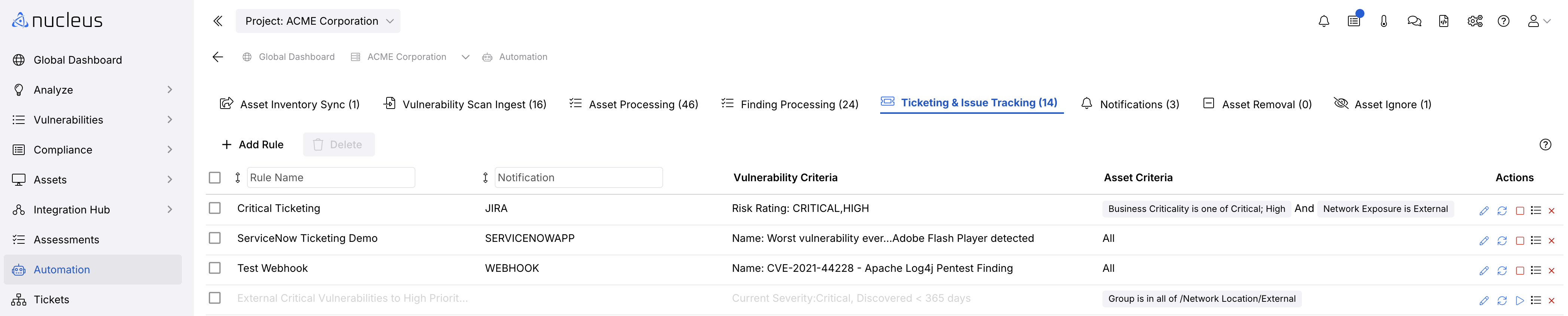
- Click + Add Rule
- . In the pop-up modal, complete the information in each of the three tabs: 1) Rule Details, 2) External System, and 3) Advanced Settings using the open fields and drop-downs to create your ticketing rule.
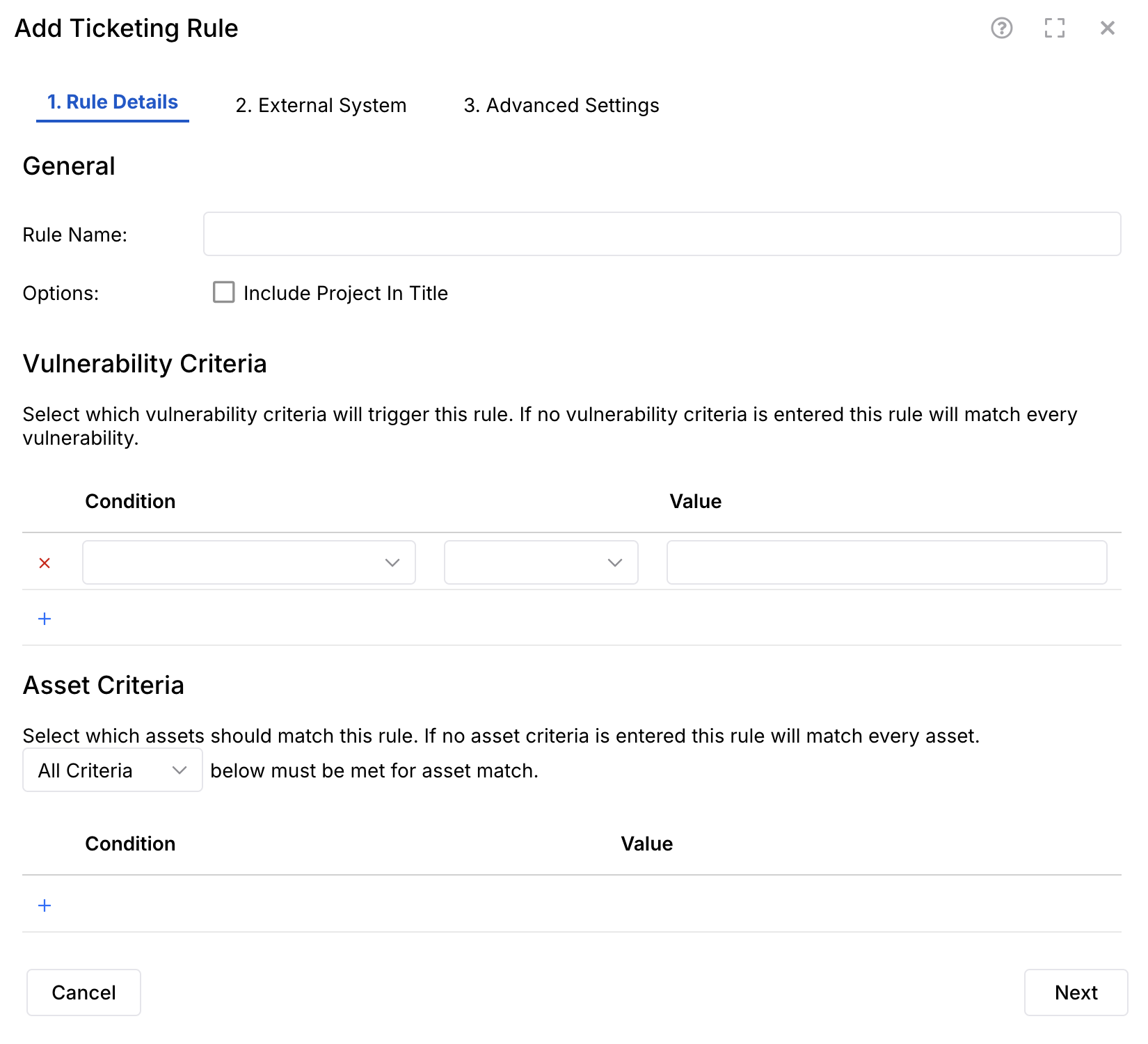
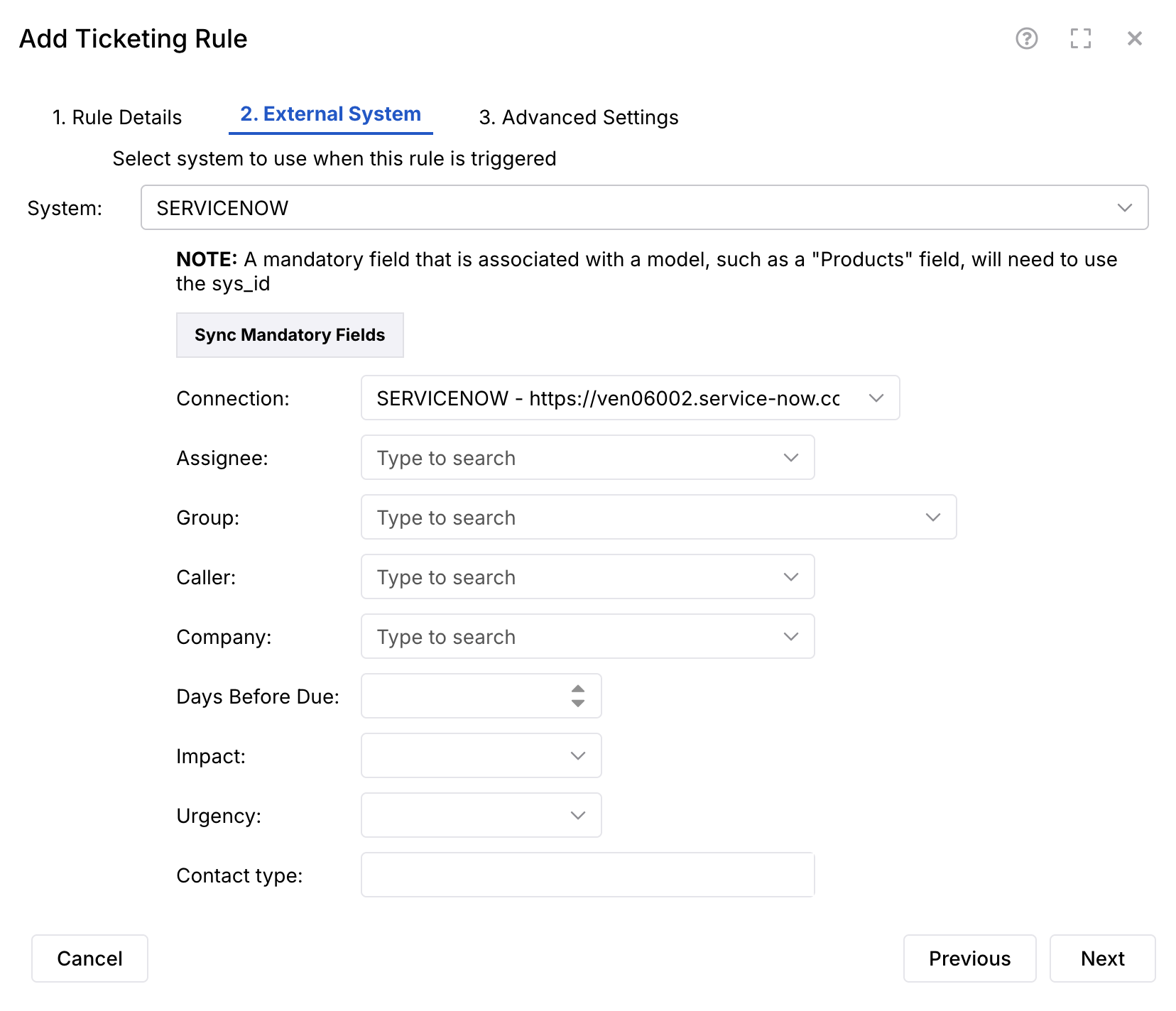
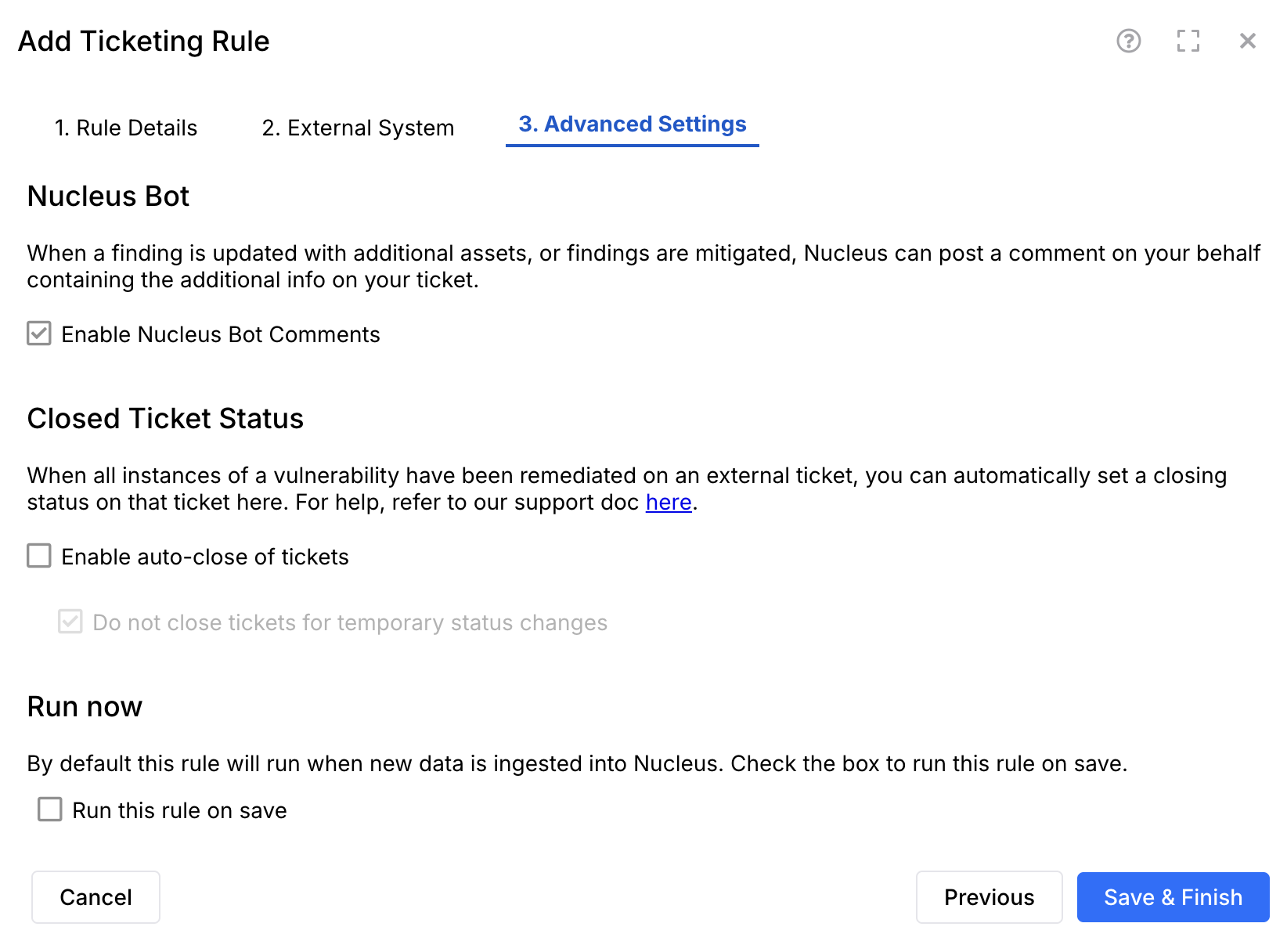
For example, you can choose to create a ticket in ServiceNow whenever a new critical vulnerability is found by tenable.
Using Nucleus' asset metadata, you can create ticketing rules. In the ticketing rule you can choose to filter on the assets using the field "servicenow.active" or any other field coming from the external system. Based on the rule, tickets will be created for those specific assets automatically.
With automation rules in Nucleus, you can trigger workflows with custom asset fields. For example, with Asset Processing Rules and custom asset fields, you can group assets based on on any asset metadata you want.
How to remove asset metadata keys/values
If you want to remove asset metadata keys/values from an asset or multiple assets, use a FlexConnect file upload. In your file, specify the metadata key for the asset_info field and set the value to an empty string. This will remove the metadata from the asset entirely.
Asset URLs
The following functionality is available on an opt-in basis. Please contact your Nucleus account representative or support to activate
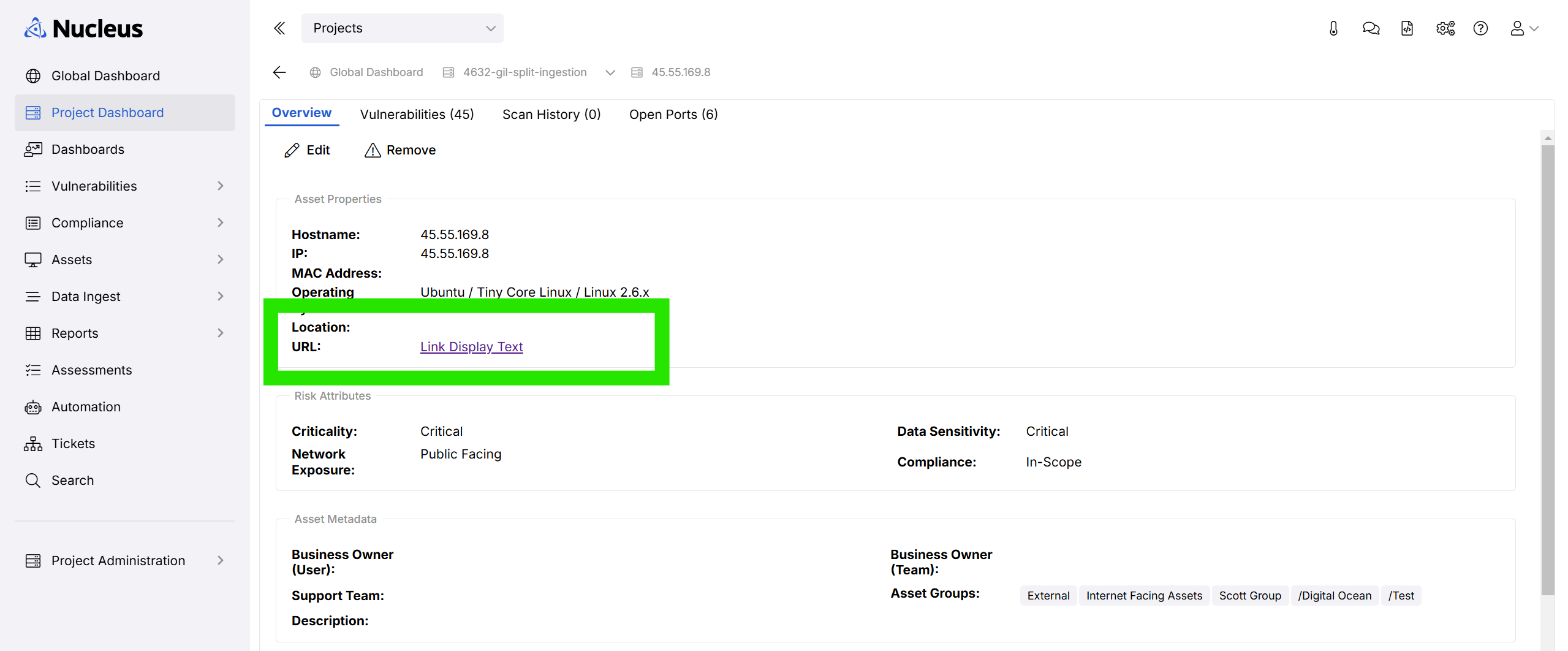
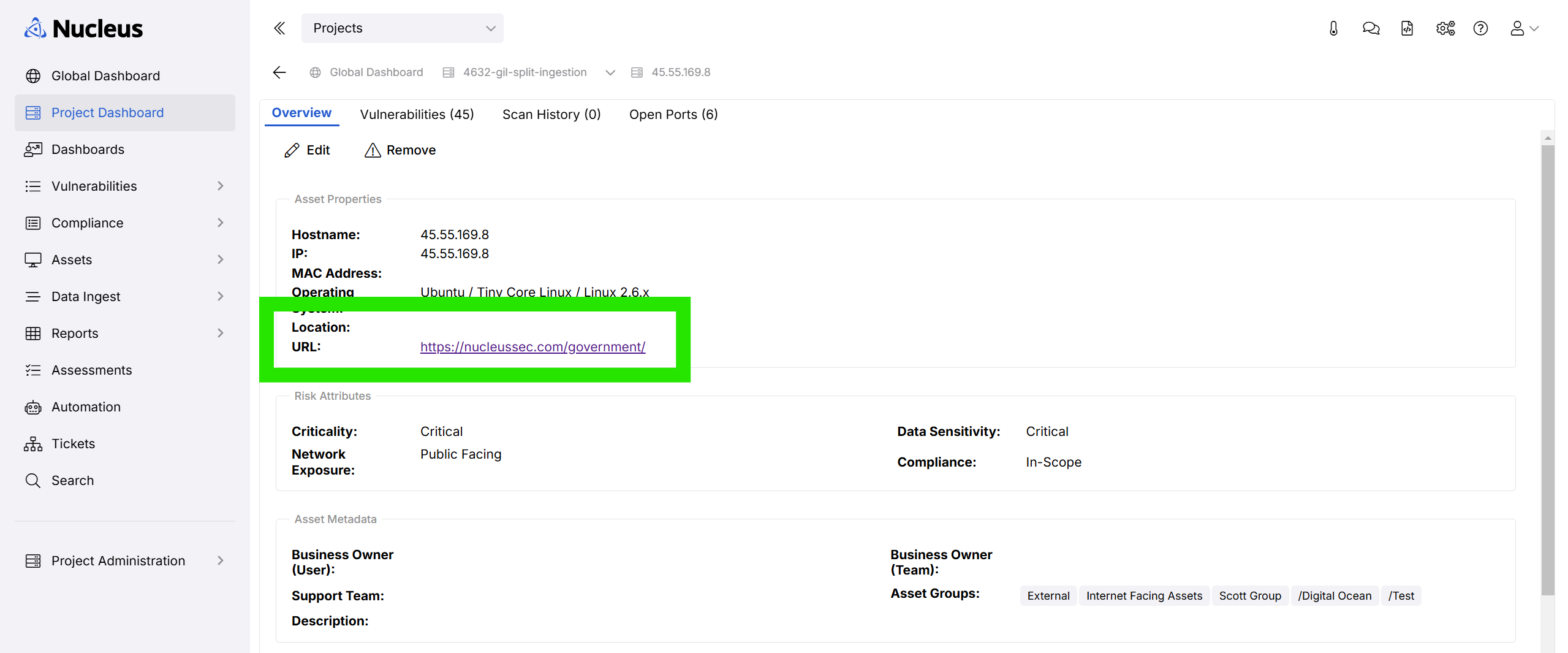
Nucleus can display a URL for an asset in the asset properties section of the asset overview page. Users with edit asset permissions and API access may set or update this value using the assets API. By default, no URL field or value will display on an asset if none has been set.
Setting or Updating the Asset URL
The URL field may be set in two ways: (1) When creating new assets using the POST /projects/{project_id}/assets/{asset_id} endpoint, and (2) when updating existing assets using the PUT /projects/{project_id}/assets/{asset_id} endpoint.
The URL field may be updated using the PUT endpoint.
To set the URL field, pass the following fields into the asset.info field in the body of the API:
{
  "asset_info": {
    "nucleus.url": "string",
    "nucleus.url-display": "string"
  }
}
nucleus.url is a required field to set the URL. nucleus.url-display is optional. If nucleus.url-display is not set but nucleus.url is, the UI will display the full URL string provided in nucleus.url.
If nucleus.url-display is provided without nucleus.url, the API will return an error code.
Example: URL with Display Text
Example: URL without Display Text
Removing the Asset URL
To remove URL display text or the URL itself, pass an empty string in one of the API fields specified above.