Overview
Nucleus enables you to ingest cloud resources and cloud misconfiguration findings from Rapid7 InsightCloudSec directly into your Nucleus console using an automated connector. The connector uses the APIs provided by Rapid7 to seamlessly sync data into your Nucleus project for use in analysis, triage, automation, and reporting.
The Rapid7 InsightCloudSec connector supports importing insight findings as compliance findings for cloud resources that have been evaluated against one or more insight packs.
Connector Setup
Connector Setup Checklist
Follow the steps in this checklist to successfully set up this connector:
- API Access
Create an API key in InsightCloudSec. - Connector Configuration
Create and configure the connector in your Nucleus project. - Data Ingestion
Create an ingest rules to ingest cloud resources and compliance findings from Rapid7 InsightCloudSec.
1. API Access
- Follow the steps in Rapid7's InsightCloudSec documentation to generate a new Domain Admin with Read-Only permissions.
- Login as this new user account.
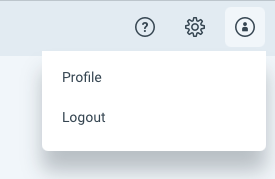
- Click on the user icon in the top right hand corner of the screen, then click Profile.
- In the section Personal API Keys, click Generate.
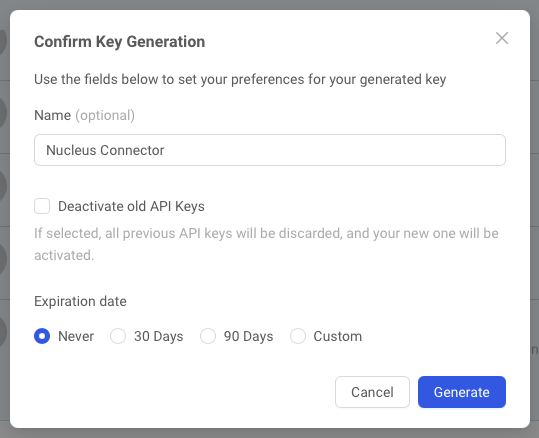
- In the Confirm Key Generation dialog, give the new key a name and set the Expiration date to Never. Click Generate.
- Make a copy of the API key for use when configuring the connector.
2. Connector Configuration
- Open Nucleus and go to Integration Hub > Connector Setup.
- Under the Scanners section, click the Rapid7InsightCloudSec icon. You will see the following popup:
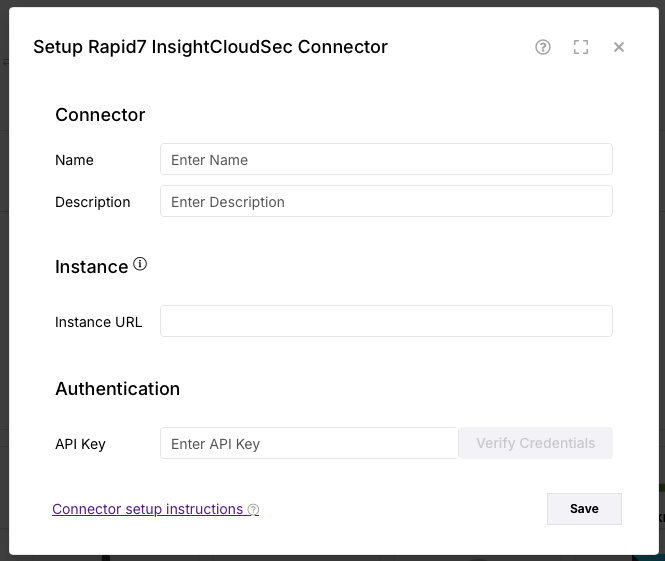
- In the Setup Rapid7 InsightVM Cloud Connector popup, enter the following information:
| Field | Description |
|---|---|
| Name | Enter an optional name for your connector. |
| Description | Enter an optional description for your connector. |
| Instance URL | Enter the URL to your instance of InsightCloudSec. |
| API Key | Enter the API Key you created in API Access. |
- Click Verify Credentials.
- Click Save.
3. Data Ingestion
- Go to Integration Hub > Import via Connector.
- Select the Rapid7 InsightCloudSec connector you just created.
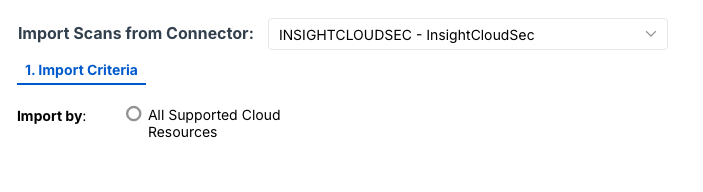
- Select importing All Supported Cloud Resources.
- Select a schedule to import data into the project.
- Click Save & Finish.
Connector Behaviour
Filtering Resource Types
The connector ingest job can be be further limited to only retrieve a subset of resource types. To have this filter enabled, please contact support or your Nucleus Customer Success Manager to request it be put in place, providing the list of resource types you would like to ingest.
Limiting Insight Packs
By default the connector will import all discovered insights for any supported resource type. The connector also supports limiting down the insights by one or more Insight Packs. To have this filter enabled, please contact support or your Nucleus Customer Success Manager to request it to be put in place, providing a list of the insight pack id's to limit by. Note that the insight pack id's should include the source and number, e.g. custom:123.
API Limitation - Missing Insight Definition
The connector uses the InsightCloudSec v2 List Insights API to retrieve definitions for all insights, and uses this during the normalize stage to populate all fields of the compliance finding. According to Rapid7 engineering, this API endpoint will not return definitions for Custom Insights with a named owner. Setting it up in that way means only owners who either created the insight, or are domain admins will be able to see the insight.
If the connector is configured without a user that has Domain Admin permissions and these findings are found, a separate finding called Insight Not Returned From InsightCloudSec v2 List Insights API will be created for each such Insight on each identified asset. For each insight, please update the permission settings to allow anyone to view the Insight, or change the connector's integration account to be a Domain Admin.
Supported Resources Types
The connector supports these resource types:
- restapi
- dataanalyticsworkspace
- servicecertificate
- contentdeliverynetwork
- apiaccountingconfig
- serviceeventbus
- serviceeventrule
- serviceloggroup
- elasticcluster
- dbcluster
- dbinstance
- distributedtable
- distributedtablecluster
- mcinstance
- mcsnapshot
- snapshot
- volume
- privateimage
- ecstaskdefinition
- containercluster
- containerdeployment
- container
- containernodegroup
- containerservice
- sharedfilesystem
- loadbalancer
- mapreducecluster
- esinstance
- serviceaccesskey
- servicepolicy
- serviceuser
- servicerole
- serviceencryptionkey
- deliverystream
- datastream
- serverlessfunction
- bigdatainstance
- dnszone
- servicedomain
- storagecontainer
- storageaccount
- notificationtopic
- messagequeue
- storedparameter
- resourceaccesslist
- resourceaccesslistrule
- networkendpointservice
- privatenetwork
- webapp
- serviceencryptionkeyvault
- bastionhost