Overview
Nucleus enables you to sync your Prisma Cloud CSPM data directly from Prisma Cloud into the Nucleus console using an automated connector. The connector uses the APIs provided by Prisma Cloud to seamlessly sync data into Nucleus projects for use in analysis, triage, automation, and reporting.
The Prisma Cloud CSPM connector supports ingesting alerts as compliance findings for supported AWS and Azure resource types.
Connector Setup
Connector Setup Checklist
Follow the steps in this checklist to successfully set up this connector:
- API Access
Create an administrator user account in Prisma Cloud CSPM. - Connector Configuration
Create and configure the connector in your Nucleus project. - Data Ingestion
Create data ingest rule to ingest compliance findings from Prisma Cloud CSPM.
1. API Access
Credential Re-use with Prisma Cloud CWPP Enterprise Edition (SaaS)
The API credentials used for Prisma Cloud CWPP are the same as this connector and can be re-used. Please note that the Instance URL is different and needs to be set accordingly.
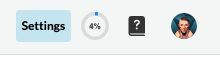
- In the top right of the screen, navigate to Settings.
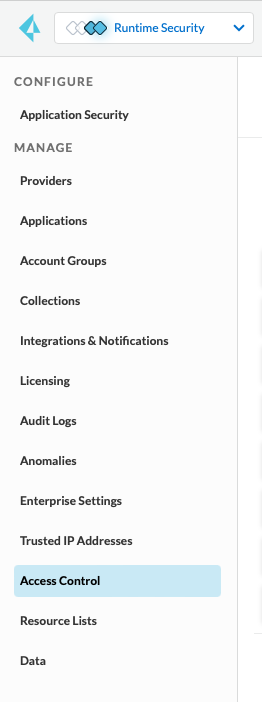
- Select Access Control in the navigation column.
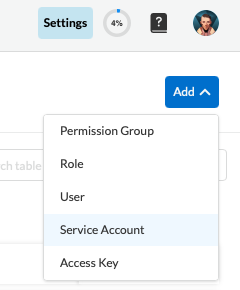
- Add > Service Account.
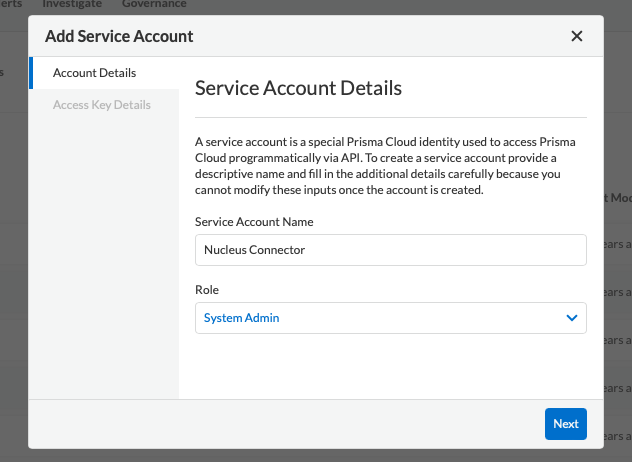
- Enter a Service Account Name such as Nucleus Connector, choose the System Admin role and click Next.
- Take note of the Access Key ID and Secret Access Key for later.
2. Connector Configuration
- Open Nucleus and go to Integration Hub > Connector Setup.
- Under the Scanners section, click the Prisma Cloud CSPM icon. You will see the following popup:
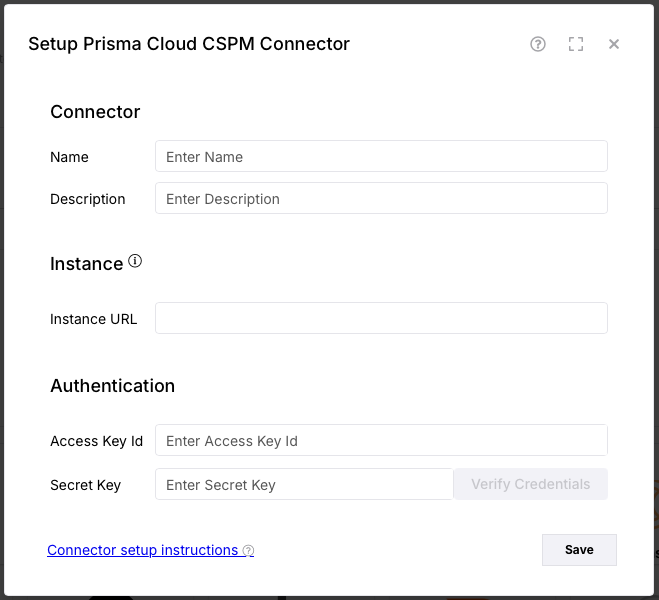
- In the Setup Prisma Cloud CSPM Connector popup, enter the following information:
| Field | Description |
|---|---|
| Name | Enter an optional name for your connector. |
| Description | Enter an optional description for your connector. |
| Instance URL | Enter the API URL to your instance of Prisma Cloud CSPM. See Prisma Cloud's API documentation for API URL's. |
| Access Key Id | Enter the Access Key ID that you created in section 1 above. |
| Secret Key | Enter the Secret Access Key that you created in section 1 above. |
- Click Verify Credentials.
- Click Save.
3. Data Ingestion
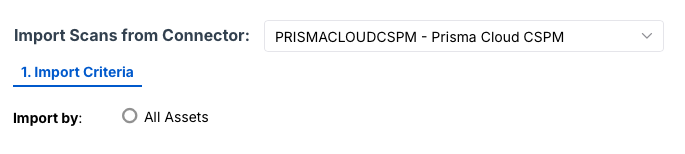
- Go to Integration Hub > Import via Connector.
- Select the Prisma Cloud CSPM connector you just created.
- Select importing All Assets.
- Select a schedule to import data into the project.
- Click Save & Finish.