Overview
Nucleus enables you to ingest assets and vulnerabilities from SentinelOne Singularity XDR directly into your Nucleus console using an automated connector. The connector uses the APIs provided by SentinelOne to seamlessly sync data into your Nucleus project for use in analysis, triage, automation, and reporting.
The SentinelOne connector supports importing assets and vulnerabilities. It comes in two modes: scan mode and asset sync mode. When asset sync mode is toggled, vulnerabilities will not be ingested and only assets will be synced.
Connector Setup
Connector Setup Checklist
Follow the steps in this checklist to successfully set up this connector:
API Access
Create an API Token in SentinelOne.Connector Configuration
Create and configure the connector in your Nucleus project.Data Ingestion
Create an ingest rule to ingest assets and vulnerabilities from SentinelOne.
1. API Access
Account Access
We recommend creating a service user account instead of a regular user account to ensure maximum security and uninterrupted integration.
Login to SentinelOne, then click Settings.
Select the Users tab.
Select Service Users, click Actions, and then Create New Service User.
Enter a Name for the connector, set the Expiration Date to two years and click Next.
Select an appropriate scope, then click Create User.
Make a copy of the API Token for use when configuring the connector.
2. Connector Configuration
Open Nucleus and go to Integration Hub > Connector Setup.
Under the Scanners section, click the SentinelOne icon. You will see the following popup:
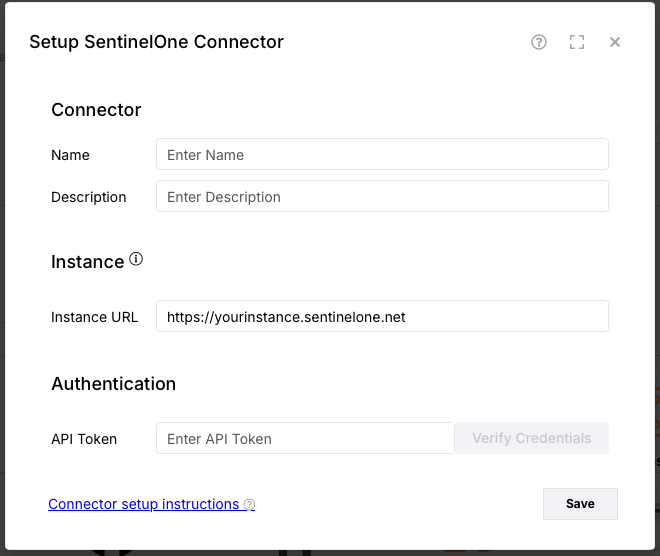
In the Setup SentinelOne Connector popup, enter the following information:
Field | Description |
|---|---|
Name | Enter an optional name for your connector. |
Description | Enter an optional description for your connector. |
Insatnce URL | Enter the URL to your instance of SentinelOne. |
API Token | Enter the API Key you created in API Access. |
- Click Verify Credentials.
- Click Save.
3. Data Ingestion
- Go to Data Ingest > Import via Connector.
- Select the SentinelOne connector you just created.
- Select importing by All Endpoints.
- Select a schedule to import data into the project.
- Click Save & Finish.
Connector Behaviour
Asset Sync Mode
The SentinelOne connector has two modes:
Scan Mode, where both the assets and their vulnerabilities are ingested
Asset Sync Mode, where only assets are synced and no vulnerabilities are ingested.
These modes are available at the organization level only and must be configured by Nucleus. The modes cannot operate at the same time, so you will want to use the asset sync mode when you are not scanning for vulnerabilities with SentinelOne, and use the regular Scan mode for when you are scanning.