-
Open a browser, navigate to https://api.slack.com/apps and login to Slack.
-
Click Create New App.
-
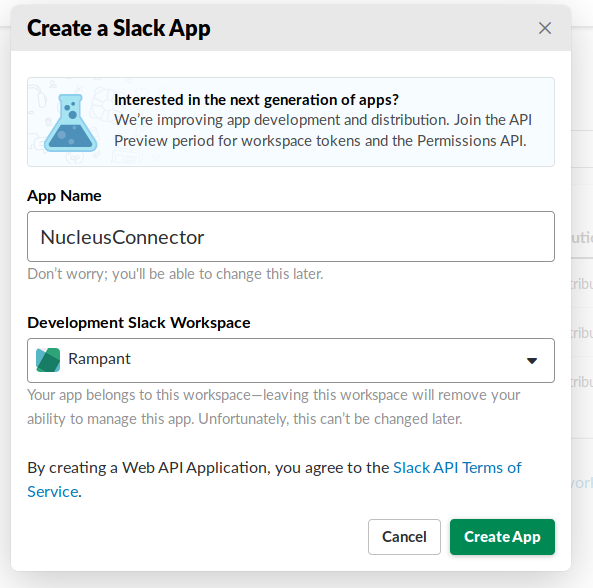
In the Create a Slack App pop-up, select From scratch.
-
Enter an App Name to identify the Nucleus connection.
-
Select the workspace where you'd like Nucleus to post notifications.
-
Click Create App.
- Optional: On the left navigation menu, click Basic Information and scroll down to Display Information. Here you can add the Nucleus app icon to identify Nucleus at-a-glance in your Slack workspace. Save the image below and upload it under App Icon & Preview, then click Save Changes.

-
In the left navigation menu, click Incoming Webhooks.
-
Set the Activate Incoming Webhooks toggle to On.

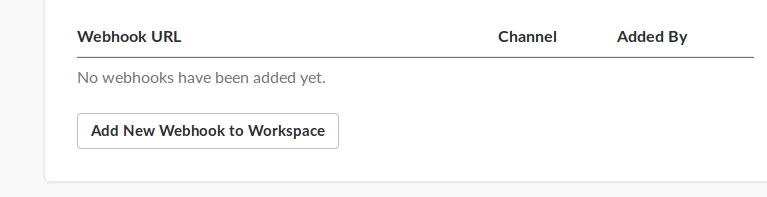
- Scroll down and click Add New Webhook to Workspace.
-
Select the Slack channel where you want to post the Nucleus notifications.
-
Click Allow.
-
Copy the generated Webhook URL. You will paste this URL into Nucleus in Step 16 below.
-
In a second browser window, open Nucleus and navigate to Project Administration > Connectors.
-
Under the Communication section, click the Slack icon.
-
In the Setup Slack Connector pop-up, complete the following field:
- Slack Webhook URL: Paste the URL you copied from the Slack console.
-
Click Save Changes.
-
Click Send Test Message.
-
Once the test message is verified in Slack, close the pop-up window.