Overview
One of the most significant benefits of Nucleus Teams feature set is the ability to assign ownership of vulnerabilities for remediation to teams, for tracking, reporting, and accountability purposes. Teams is designed to be a flexible way of representing who owns what in an organization. This is designed to combat the problem of accountability creep and help organizations report on and track the vulnerability status, resolution states, etc of various teams with enhanced accuracy.
Manually assign vulnerabilities
In Nucleus there are multiple ways to assign vulnerabilities to Teams.
Users who are part of a team currently will NOT be notified via email when a vulnerability has been assigned to their team.
Vulnerability Details Page
You can assign individual instances of vulnerabilities (i.e. the specific vulnerability on a specific location of a specific asset) from the Vulnerability Details page.
To manually assign vulnerabilities in this way, do the following:
- Go to the Vulnerabilities > Active page.
- Click on a vulnerabilitiy.
- Click on the "Instances" tab to see all the places this vulnerability exists.
- Use the checkboxes to select which instances you want to assign to a team.
- Click "Assign to Team" button near the top of your screen and search for (and/or select) the Team you want to assign the selected instances.
All done, you should get a toast message informing you that the instances were assigned, and you will see this action show up on the Vulnerability Timeline for this vulnerability on the "Overview" tab of this page.
Bulk Modify on Active Vulns page
You can also modify unique vulnerabilities as a whole, as well as modify multiple unique vulnerabilities at one time easily using the Nucleus bulk modify action.
- Go to Vulnerabilities > Active page.
- Use the checkboxes in the table to select the vulnerabilities you want to modify
- Click the "Modify" button in the table header (along the right side).
- Select the "Set Business Owner Team" action to set the Business owner team for this bulk action.
- Select "Assign Vulnerabilities" from the list of available actions
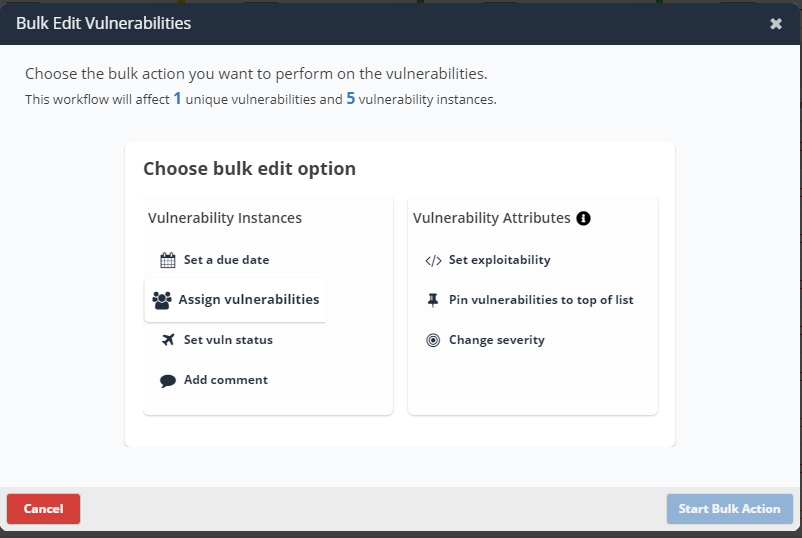
- Now use the action card to determine what you want to assign the vulnerabilities to.
- Select either user or team, and then select a static value or use a dynamic field
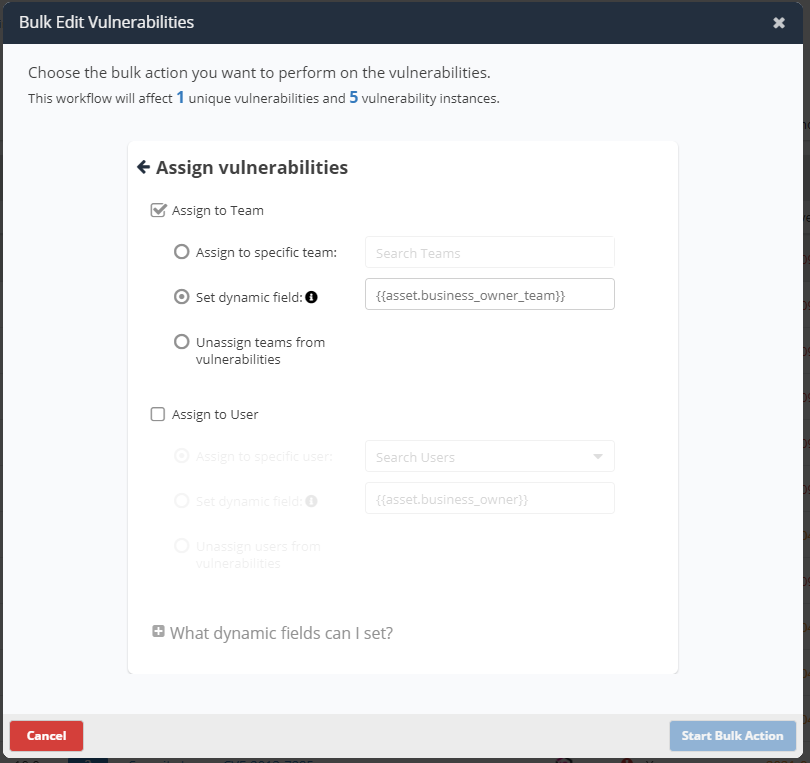
Vulnerabilities can only be assigned to teams or users that exist in Nucleus. So if you are going to use a dynamic field, make sure that for users the string matches either an existing user's email address or "FirstName LastName". For teams, make sure the team name exists in Nucleus.
If there is no match, the bulk action will do nothing (i.e. take no action) for that vulnerability. The rest of the vulnerabilities selected will continue processing.
Automatically assign vulnerabilities using the Automation Engine
The best part about Nucleus is that you can take all your manual actions in Nucleus and then roll them into an automation rule so you don't have to repeat yourself over and over again. Assigning vulnerability ownership is no different. You can use Vulnerability Processing rule to automatically assign vulnerabilities to users and teams via logical rules you predetermine so you don't need to manually keep vulnerability ownership up to date.
To set up an automation rule to assign vulnerabilities to teams, do the following:
-
Go to Automation > Vulnerability Processing > Add Rule
-
Select the vulnerability and asset attributes you would like this rule to apply to. In this case, let's choose nothing so that the rules matches on every vulnerability instance.
-
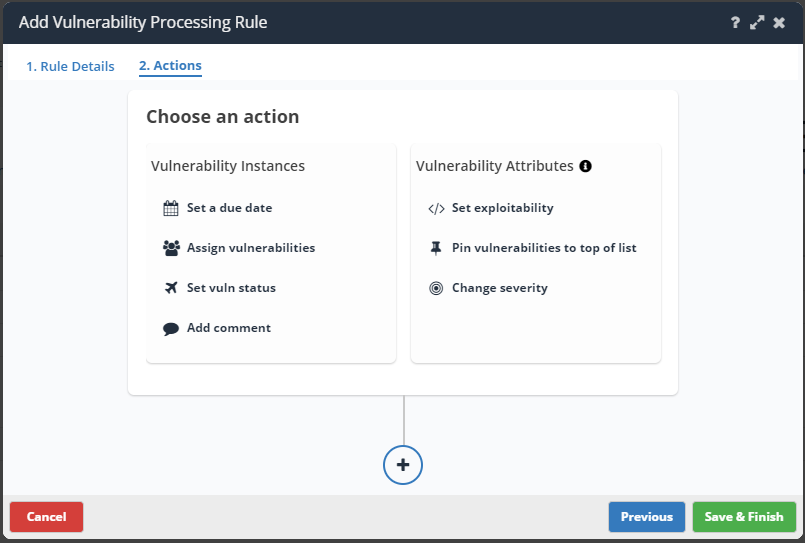
Go to "Actions"
-
Select "Assign Vulnerabilities"
-
In the resulting action card, choose who you would like to assign the vulnerability to. You can choose either a static value or based on a dynamic field.
A common use case is to automatically assign all vulnerabilities to the asset owners where the vulnerability exists. A dynamic field of {{asset.business_owner_team}} will do this for you for all vulnerabilities. It will auto-assign every vulnerability to the respective business owner team of the asset.
NOTE: Vulnerabilities can only be assigned to teams or users that exist in Nucleus. So if you are going to use a dynamic field, make sure that for users the string matches either an existing user's email address or "FirstName LastName". For teams, make sure the team name exists in Nucleus.
If there is no match, the bulk action will do nothing (ie take no action) for that vulnerability. The rest of the vulnerabilities selected will continue processing.
View your team(s)' assigned vulnerabilities
Another great piece of functionality with Teams is the ability for users to log into Nucleus and easily see which vulnerabilities have been assigned to their team. This can be used to enhance collaboration, user workflows, and more by allowing every member of a team to view, track, and edit the vulnerabilities for which the team is collectively responsible.
This is especially powerful in a distributed and empowered organization with cross-functional teams who want to get vulnerabilities fixed as quickly as possible.
Users can view the vulnerabilities assigned just to their team on the handy Vulnerabilities > Assigned To My Team page. This page will allow users to be able to see all the vulnerabilities which have been assigned to them indirectly through their team assignments. This will be a prioritized list as well, with all of the correlation, RBVM, and enrichment that Nucleus does out of the box, but each team will have THEIR prioritized list based on what has been assigned to them.
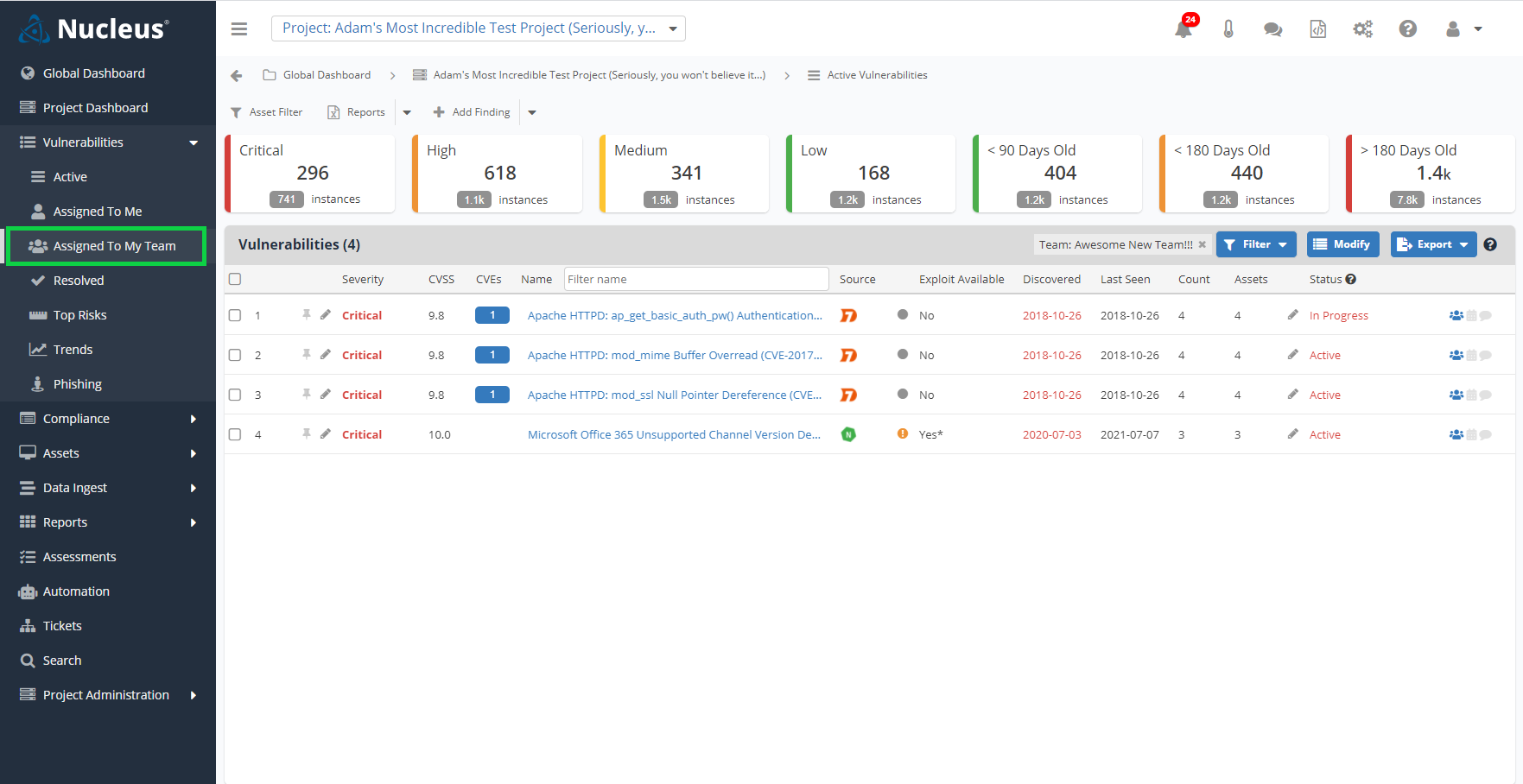
Since users can be part of multiple teams in Nucleus, if a user is part of multiple teams the Assigned to my Team page will be a list of all vulnerabilities assigned to them across all their team assignments.
If you have any questions, please contact us through the support center.