Overview
Nucleus enables you to ingest assets and vulnerabilities from Tenable Attack Surface Management (ASM) directly into your Nucleus console using an automated connector. The connector uses the APIs provided by Tenable to seamlessly sync data into your Nucleus project for use in analysis, triage, automation, and reporting.
The Tenable ASM connector supports importing assets and vulnerabilities.
Connector Setup
Connector Setup Checklist
Follow the steps in this checklist to successfully set up this connector:
- API Access
Create an API Token in Tenable ASM. - Connector Configuration
Create and configure the connector in your Nucleus project. - Data Ingestion
Create an ingest rule to ingest assets from Tenable ASM.
1. API Access
Account Access
We recommend creating a separate user account to act as a service account instead of a regular user account to ensure maximum security and uninterrupted integration.
- Login to Tenable ASM.
- In the top right of the menu bar, select the profile picture or initials click Profile.
- Do one of the following:
- To generate API keys for all your inventories: In the API Key for all your inventories section, click Generate new key or Copy API Key.
- To generate an API key for your inventory: In the API Key for <your inventory name> section, click Generate new key or Copy API Key.
- Make a copy of the API key for use when configuring the connector.
2. Connector Configuration
- Open Nucleus and go to Integration Hub > Connector Setup.
- Under the Scanners section, click the Tenable ASM icon. You will see the following popup:
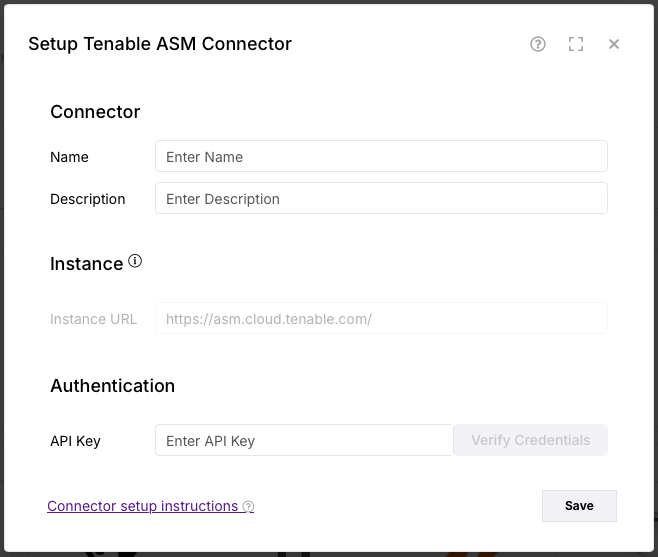
- In the Setup Tenable ASM Connector popup, enter the following information:
| Field | Description |
|---|---|
| Name | Enter an optional name for your connector. |
| Description | Enter an optional description for your connector. |
| API Key | Enter the API Key you created in API Access. |
- Click Verify Credentials.
- Click Save.
3. Data Ingestion
- Go to Integration Hub > Import via Connector.
- Select the Tenable ASM connector you just created.
- Select the method that you want to import:
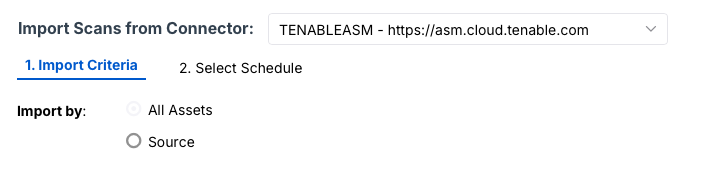
- Select a schedule to import data into the project.
- Click Save & Finish.