Besides the search functionality, one other function inside of VIP is the ability to deep dive into the data of a specific vulnerability. Let's look at an example:
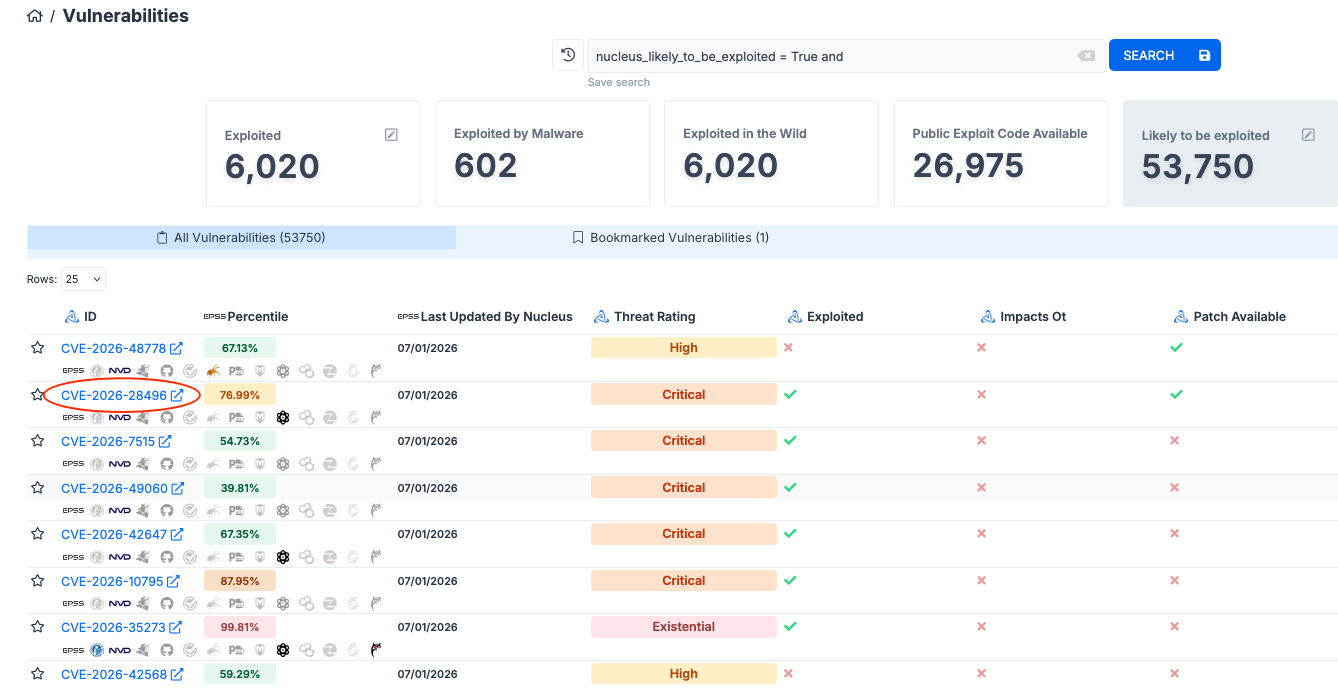
From the main dashboard, select a CVE ID to head to its Details page.
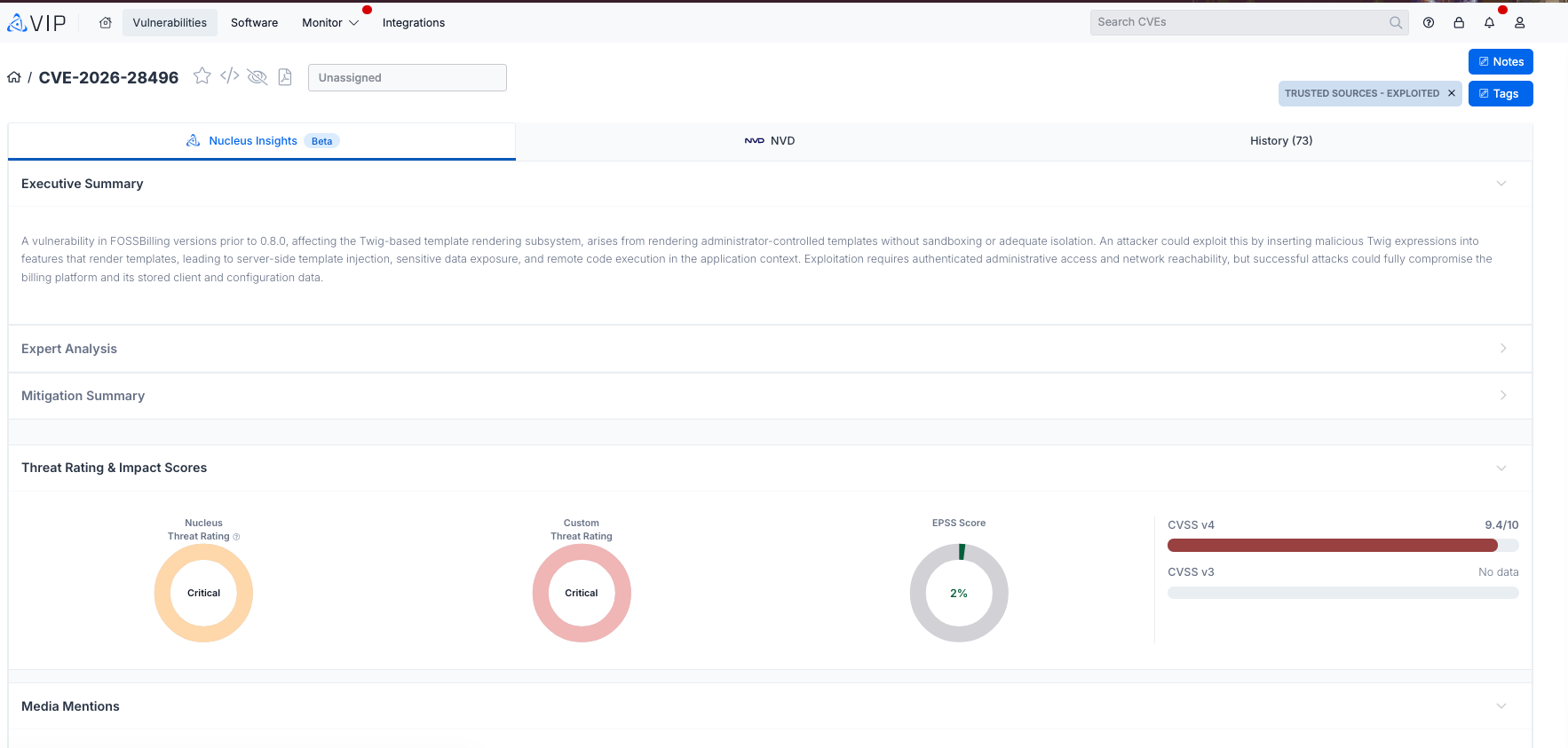
The details page provides you the ability to research a vulnerability in its entirety across all available feeds in VIP. Each feed is shown in a separate tab so you can easily select which feed's data you would like to use to analyze the vulnerability, all in one place.
Notes
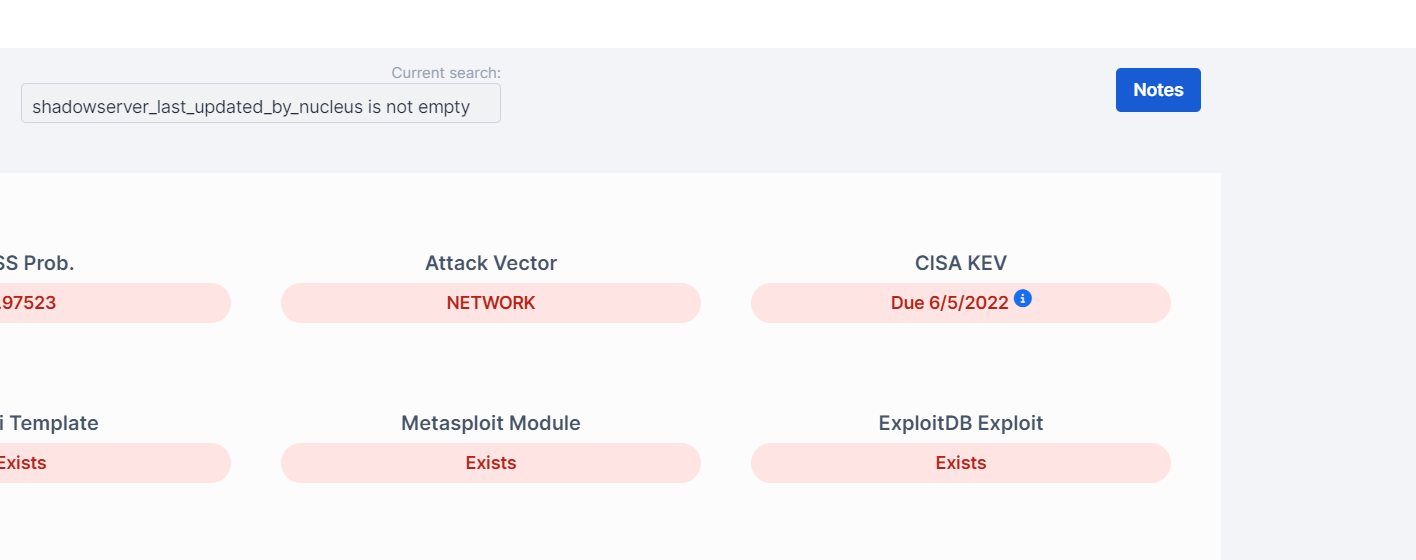
In VIP, you have the ability to add notes to a vulnerability so you can stay on top of custom information generated by your organization. These notes can be accessed by clicking the "Notes" button in the top right of the Vulnerability Details page.
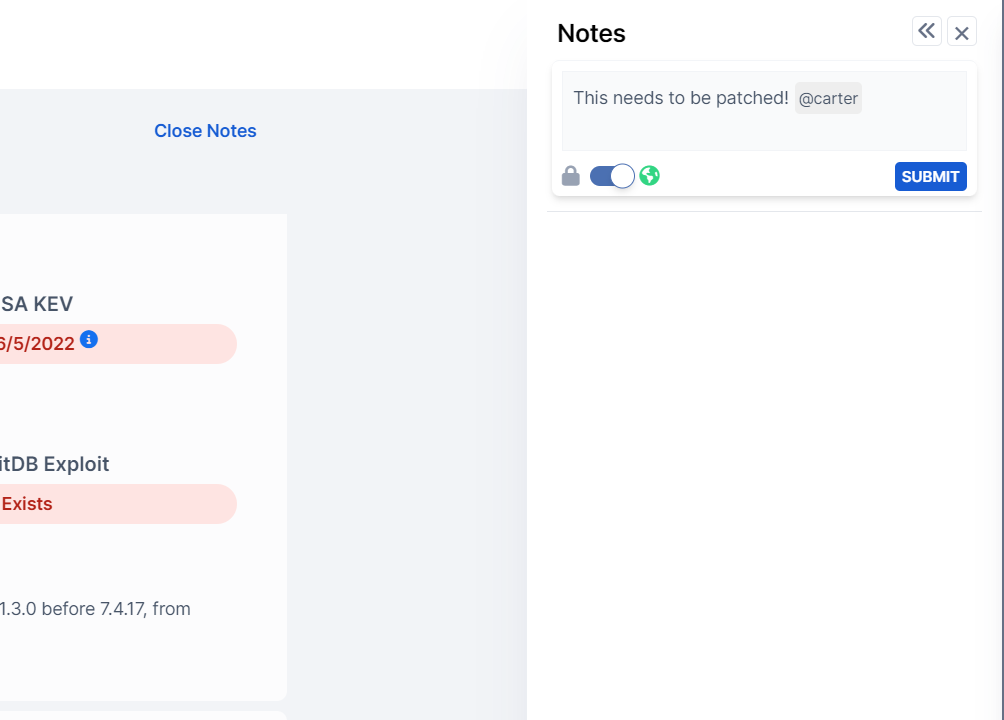
You can use the double arrow button in the top right to move the Notes window to the left or right of the page
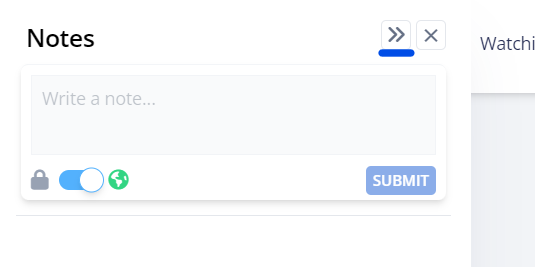
Notes can either be private, meaning that the creator of the note is the only one that will be able to see the note, or global, which are able to be seen by everyone in the organization. Use the slider to select one of these options
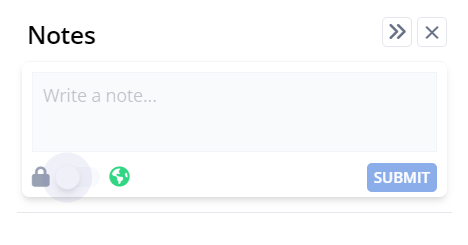
Notes can be edited after creation as well as updating the note to be private or public. Once you have tagged your teammate in a Note on a vulnerability, they will instantly receive an email notifying them of the comment in VIP.