Overview
The fully custom vulnerability details report is probably our most popular report in the Nucleus console. The report is designed to be flexible based on organizational needs: this article details two different approaches for generating the report.
The custom report is fully customizable and can include every vulnerability filter and asset filter in Nucleus. This enables a user to generate completely flexible reports based on the specific data they want to see, to pivot on the data in a way that makes the most sense for them, and to answer the most difficult questions.
Best of all, this report can be scheduled in advance based on your workflow to ensure you always have dynamic reports that include the latest information to answer your vulnerability data questions, You can also create fully customizable comparative reports - for example to show data across different time frames, using different combinations of filters.
Example
For example, let's say you wanted to schedule a weekly report to answer the following question as multi-part query:
- I want to know all of my new Critical Severity Adobe vulnerabilities that have both CVEs associated with them and an exploit available in the wild, that were discovered in my environment in the last 30 days;
- and I want that info filtered by a specific subnet and asset groups, so I can see these vulnerabilities based on my business critical assets which are public-facing;
- And I want to schedule that report to be generated every week (or day, month, year) to be emailed to specific users that I designate.
You will run that query in Nucleus to generate a first report, and review your results. You can then automate subsequent report scheduling and distribution in Nucleus. Your report will auto-generate and Nucleus will automatically email it to your designated recipients. You don't need to rerun that query over and over again when trying to answer that question in the future - simply open your email and review the report.
That's just one example of the flexibility these filters give you for generating any custom report in Nucleus. Getting immediate answers to queries and running custom reports is one of the most powerful features of Nucleus that is not possible with other tools.
Option 1: Through the Active Vulnerabilities List
There are two options for generating this report. The first option is to get this information from the Active Vulnerabilities List.
The benefit of generating the report this way is that you apply the vulnerability filters in the Nucleus UI first to see a preview of your results. The custom report automatically populates the report template with those filters, so you can see the type of information you'll get before you generate the report.
To generate the custom report in this way, do the following:
-
Navigate to the Project where you want to run the report and chose Vulnerabilities > Active.
-
Click the Filter button to open the Query Builder to get the information to answer your query. Then click Search.
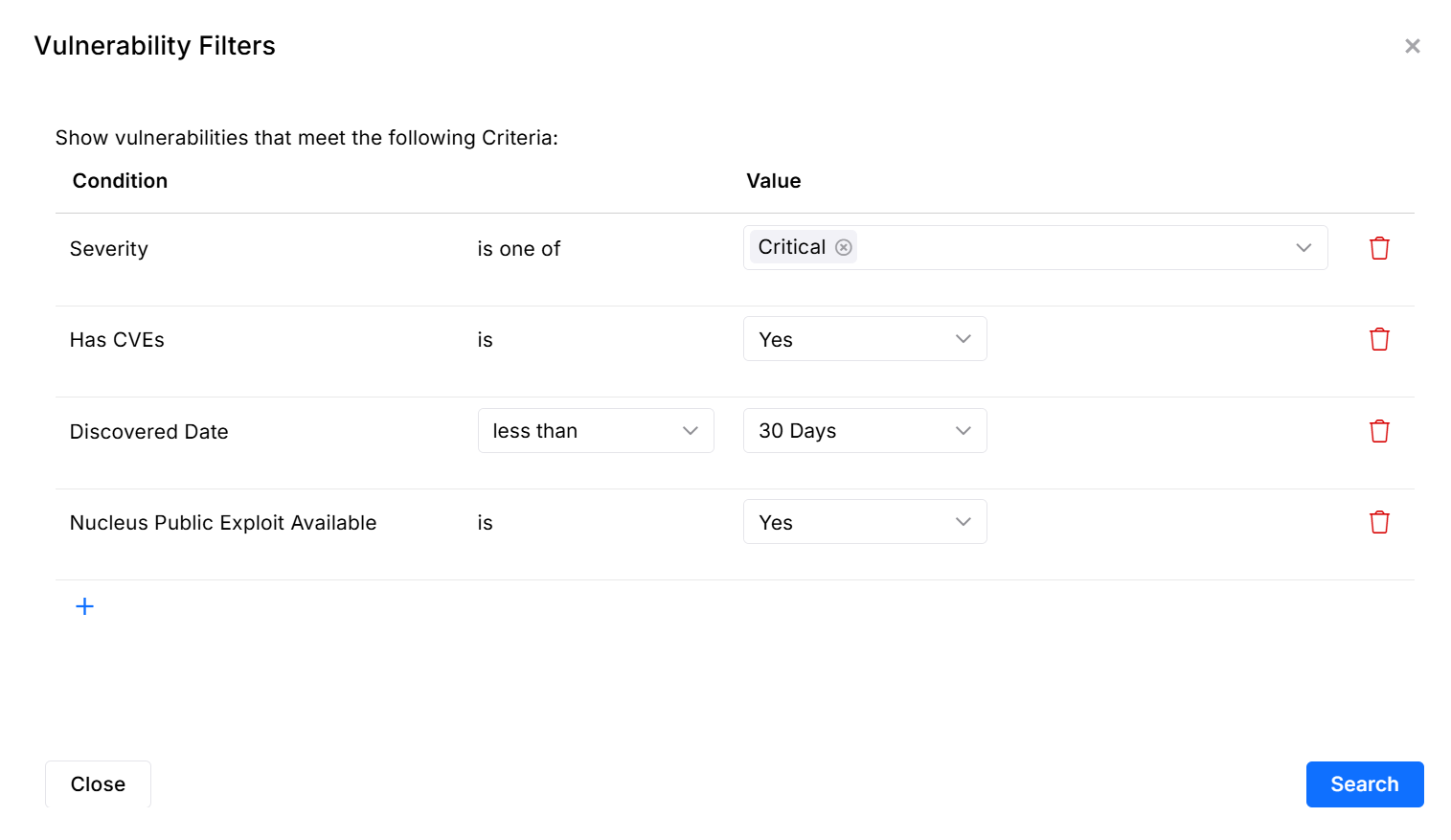
Examples
- Filter by vulnerability severity
- Filter by external issue status
- Filter by Nucleus Insights vulnerability intelligence
- Filter by Last Seen Date
- Filter by Discovered date range
- Filter by a CVE Search
- Filter by Asset Group
The default behavior for asset group filters is is in all of, meaning if you select multiple asset groups for this report, the assets must be in all of the asset groups included in the report.
If you'd like to report on assets which are in any of the selected asset groups, select the is in any of option.

-
Once you have your filters in place you should see your vulnerability list change based on these filters. To export this data you can either export this table via the Export button.
-
Or to generate this data as a report, select Reports from along the top toolbar and choose one of the options.
a. Enter a name for the report.
b. The filters should already be filled out and correspond 1:1 to the filters you used in the UI.
c. Optional: Select tab 3 to schedule the report on a recurring basis.
Once a filtered report is scheduled, you won't be able to modify its reporting criteria. You will however be able to change other settings like its schedule, email address, etc., but the actual criteria of the report is not modifiable. If you wish to change the criteria, you will have to create a new report with the desired criteria. Then delete the previous report if it is no longer required.
- Click Save & Finish.
That's it, you've generated the report! You are now automating the answers to your questions on a recurring basis.
Option 2: Through the Reports Page
This option is an alternate way to generate the custom report. Do the following:
-
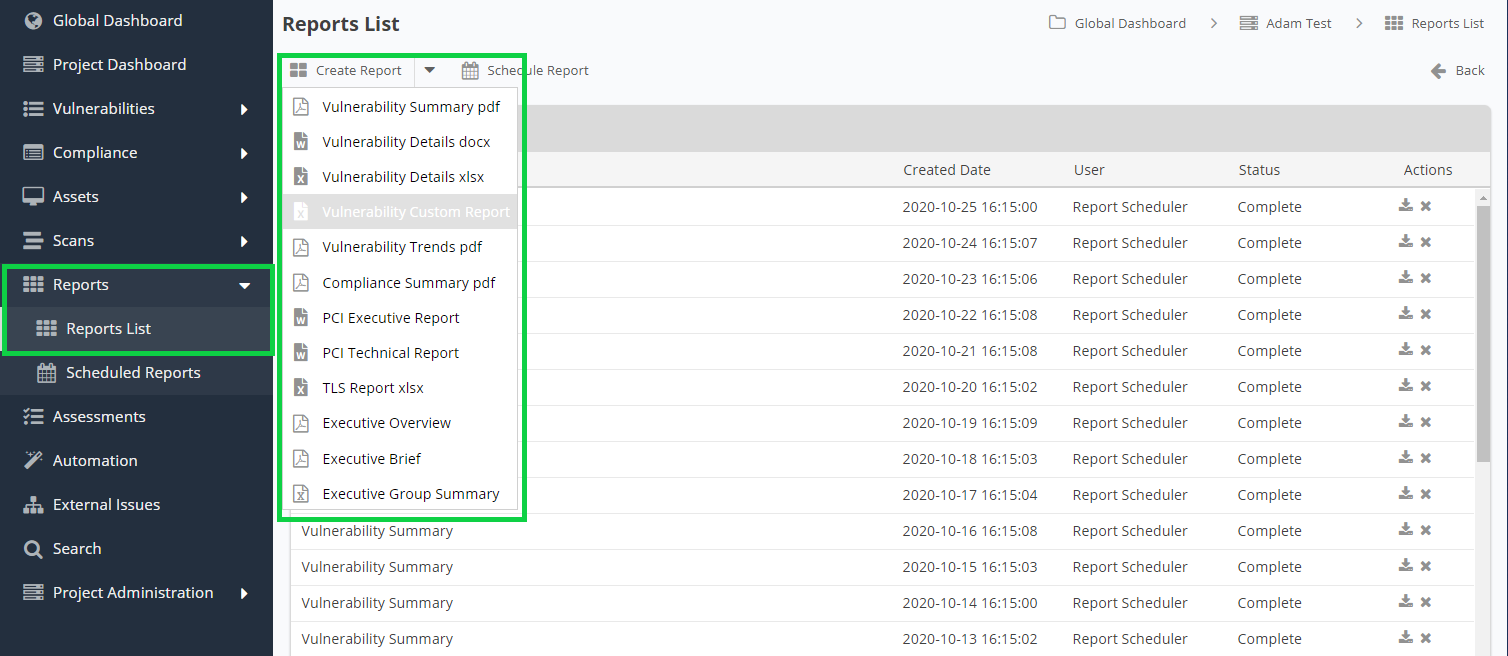
Navigate to the project you want then go to Reports > Reports List.
-
Select Create Report > Vulnerability Custom Report.
-
In the pop-up modal, select each of your filters for the report. Follow the steps in the modal to select the report filters you want to include. Select the options and schedule the report if you choose.
-
Click Save & Finish.
You are all done! You have generated the custom report in two different ways, which enables you to answer questions and pivot on the vulnerability data in any way that you choose!
If you have any questions, please contact us through the support center.