Overview
This article specifies step by step instructions to generate custom vulnerability reports by using the CVE number filter. This is particularly useful when there is an urgent need to retrieve all assets having a vulnerability identified by a particular CVE number.
Please follow along:
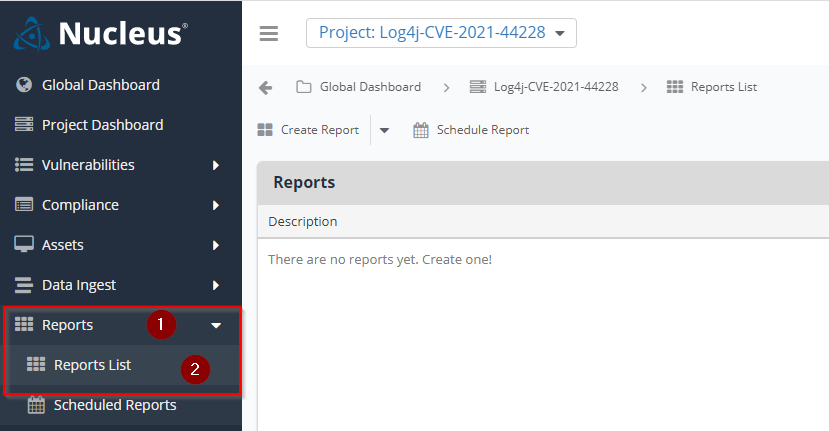
- Navigate to the project you would like to generate the vulnerability report for and then go Reports > Reports List.
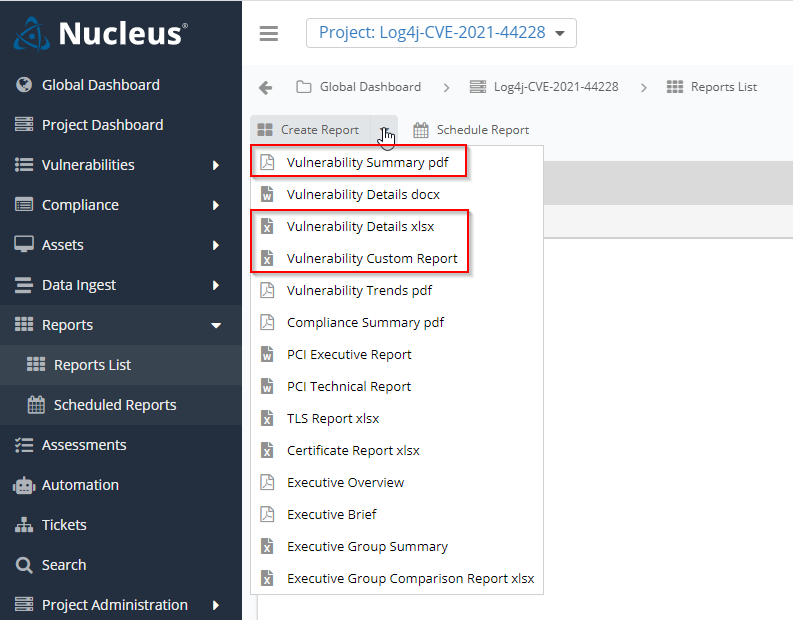
- Click Create Report, this will list all the reports you could generate. Click on one of the highlighted reports below to proceed.
- For generating a PDF report, click on Vulnerability Summary pdf option.
- For generating an excel report containing all details of the vulnerabilities, click on either of the Vulnerability Details xlsx or Vulnerability Custom Report options.
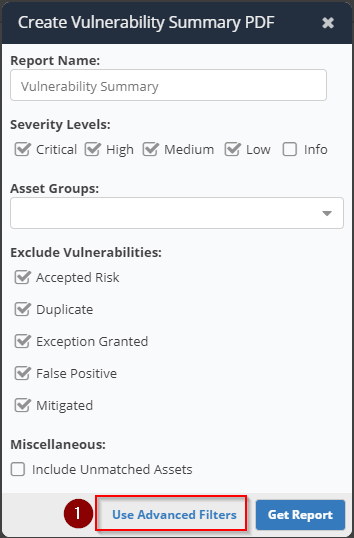
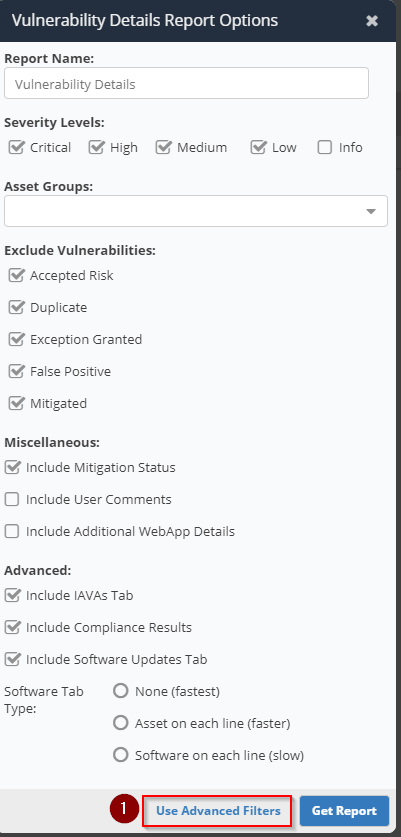
- In this step, if you see either of the following screens, click on Use Advanced Filters to open Custom Report Options screen.
- On the Custom Report Options screen, give the report a suitable name.

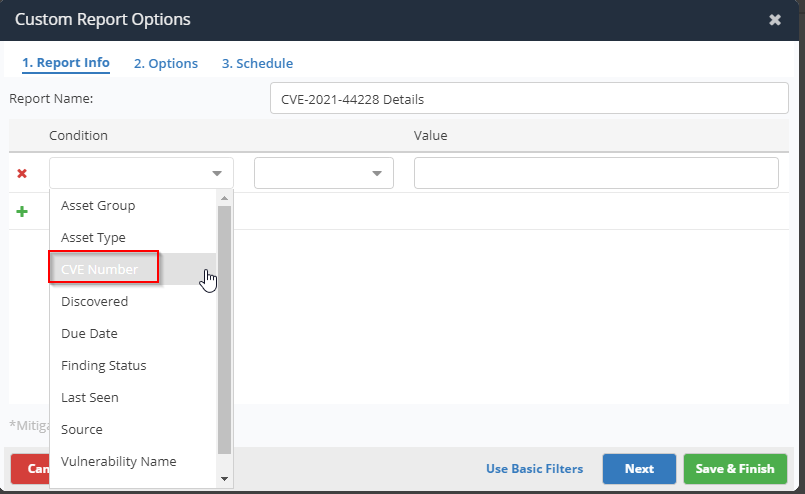
- Then click on plus icon to add a filter for this report. Select CVE Number from the condition pull down menu.
- In the Value column enter the CVE number which you would like to generate the report for. Like below:
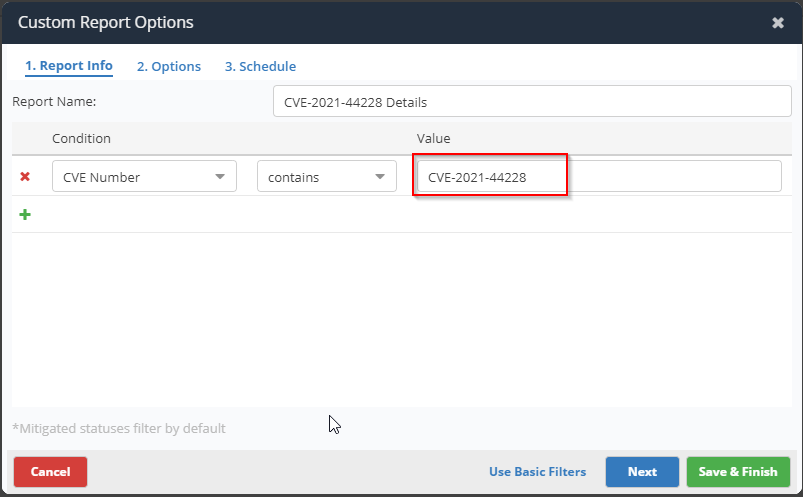
The CVE Number filter support the regex matching and you can use the regular expressions to match more than one CVE numbers here.
For example, to generate reports for the CVE numbers, CVE-2021-44228 and CVE-2020-9488, you can use the following regex in the value field:
/CVE-2021-44228|CVE-2020-9488/
This is how the filter will look like in this case:

This will include all assets that have either of the specified vulnerabilities.
- Click Save & Finish.
- This will add the report to the report list page.

- Once the Nucleus is finished generating the report, you will be able to download it from reports list by clicking on the download icon in the Actions column, as below:

All done! You have successfully generated a report filtered by CVE Number. This will help you identify assets with newly discovered CVEs quickly.
If you have any questions about this report, contact Nucleus support at [email protected].