Overview
WhiteHat Sentinel is a cloud-based web application security platform that helps organizations identify, manage, and remediate security vulnerabilities. It offers automated security testing for websites and web applications, focusing on detecting common vulnerabilities like cross-site scripting (XSS), SQL injection, and other security risks.
Nucleus enables you to ingest your WhiteHat Sentinel vulnerability data directly into your Nucleus console using an automated connector.
At this point in time, the WhiteHat Sentinel connector supports importing results from Sentinel Dynamic.
Connector Setup
Connector Setup Checklist
Follow the steps in this checklist to successfully set up this connector:
-
API Access
Create a API Key in WhiteHat Sentinel. -
Connector Configuration
Create and configure the connector in your Nucleus project. -
Data Ingestion
Create one or more vulnerability scan ingest rules to ingest vulnerabilities from WhiteHat Sentinel.
1. API Access
- Log in to your WhiteHat instance.
- Click the My Profile link next to your email/username.
- Click "API Key".
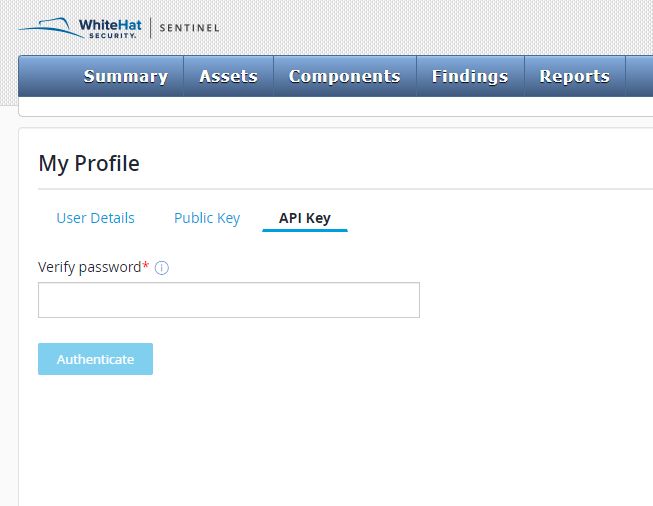
- Enter your WhiteHat password and click the "Authenticate" button.
- Make a note of the API key displayed on screen.
2. Connector Configuration
- Open Nucleus and go to Integration Hub > Connector Setup.
- Under the Scanners section, click the WhiteHat Sentinel icon.
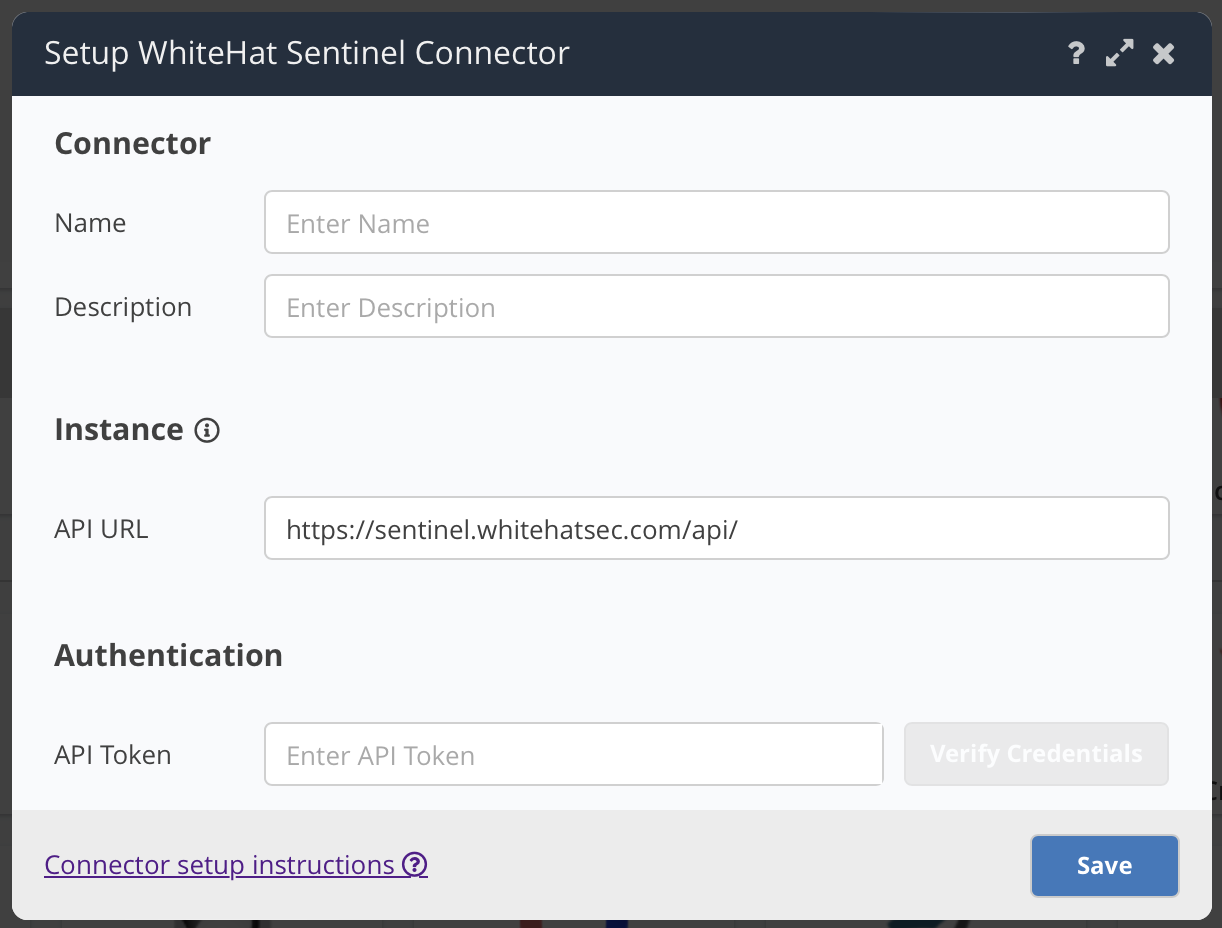
- In the Setup WhiteHat Sentinel Connector popup, enter the following information:
| Field | Description |
|---|---|
| Name | Enter a name for your connector. |
| Description | Enter a description for your connector. |
| API URL | Enter the URL to your WhiteHat Sentinel instance. Include the full path to the API. |
| API Token | Enter API key from your WhiteHat instance here. |
- Click Verify Credentials.
- Click Save.
3. Data Ingestion
- Go to Integration Hub > Import via Connector.
- Select the WhiteHat Sentinel connector you just created.
- Select the assets to ingest.
- Select a schedule to import scans into the project.
- Click Save & Finish.