Overview
Nucleus enables you to ingest your Wiz data directly into your Nucleus console using an automated connector. The connector uses the APIs provided by Wiz to seamlessly sync data into your Nucleus project for use in analysis, triage, automation, and reporting.
The Wiz connector supports importing findings in the following situations:
Vulnerabilities for all active virtual machines on a daily schedule
Immediate ingestion of vulnerabilities for active virtual machines for one or more subscriptions
Vulnerabilities for container images that are currently running on a daily schedule
Configuration findings for cloud resources on a daily schedule
Availability
The Wiz Cloud Resources ingestion connector is now generally available.
Connector Setup
Connector Setup Checklist
Follow the steps in this checklist to successfully set up this connector:
API Access
Generate a client id and secret key with the appropriate permissions.Connector Configuration
Create and configure the connector in your Nucleus project.Data Ingestion
Create a vulnerability scan ingest rules to ingest vulnerabilities or configuration findings from Wiz.
1. API Access
Navigate to Wiz and setup access using the following URL (direct link)
Wiz API Scopes required for API key permissions
Create:reports
read:cloud_configuration
read:cloud_configuration_finding
read:cloud_configuration_rule
read:projects
read:reports
read:resources
read:vulnerabilities
update:reports
Identify your Instance URL by first retrieving your Tenant Data Center:
At the top right of your Wiz portal, click the user icon > Tenant info (direct link).
At the left side, click Data Center and Regions (direct link).
Make a note of your Tenant Data Center.
Your Instance URL can now be constructed according to the table below:
Tenant
Instance URL
Wiz Commercial
https://api.<TENANT_DATA_CENTER>.app.wiz.io
Wiz for Gov (FedRAMP)
https://api.<TENANT_DATA_CENTER>.app.wiz.us
Wiz GovCloud
https://api.<TENANT_DATA_CENTER>.gov.wiz.io
Identify your Auth URL:
Tenant
Auth URL
Wiz Commercial
https://auth.app.wiz.io
Wiz for Gov (FedRAMP)
https://auth.app.wiz.us
Wiz GovCloud
https://auth.gov.wiz.io
2. Connector Configuration
- Open Nucleus and go to Integration Hub > Connector Setup.
- Under the Scanners section, click the Wiz icon. You will see the following popup:
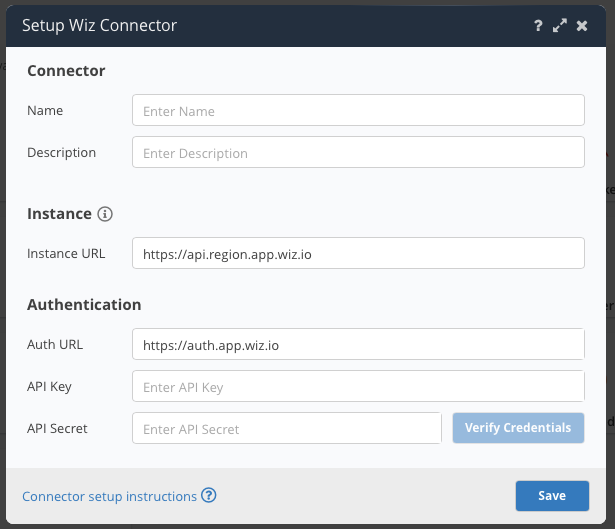
- In the Setup Wiz Connector popup, enter the following information:
| Field | Description |
|---|---|
| Name | (Optional) Enter a name for your connector. If left blank, this will default to Wiz. |
| Description | (Optional) Enter a description for your connector. |
| Instance URL | Enter the Instance URL identified in API Access Step 2 above. Do not include /graphql in the URL. |
| Auth URL | Enter the Auth URL identified in API Access Step 3 above. |
| API Key | Enter the Client ID from API Access Step 1 above. |
| API Secret | Enter the Client Secret from API Access Step 1 above. |
- Click Verify Credentials.
- Click Save.
3. Vulnerability Data Ingestion
- Go to Integration Hub > Import via Connector.
- Select the Wiz connector you just created.
- Select the method of import: VMs, Running Container Images or Cloud Resources.
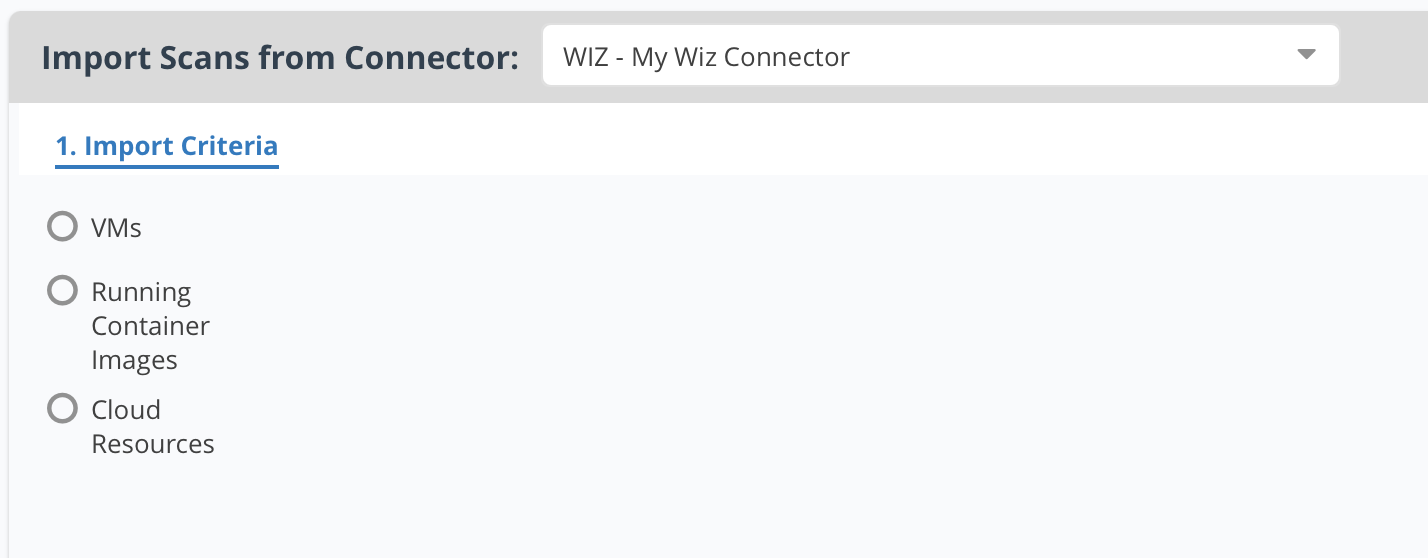
- Select the import method (All, or Subscription for VMs)
- Select a schedule to ingest data into Nucleus, or import immediately if selecting subscriptions.
- Click Save & Finish.