Overview
Zendesk allows you to create bi-directional tickets in Zendesk Support to collaborate on issues with your team. With Nucleus and Zendesk you can:
- Create and assign Zendesk tickets on instances of vulnerabilities without leaving Nucleus.
- Keep comments in sync across both Nucleus findings and Zendesk tickets automatically.
- Automate the creation of Zendesk tickets using Nucleus Automation Workflows.
Set Up Connection
-
In a browser, log into your Zendesk Support account.
-
Click the Settings gear to launch the settings page.
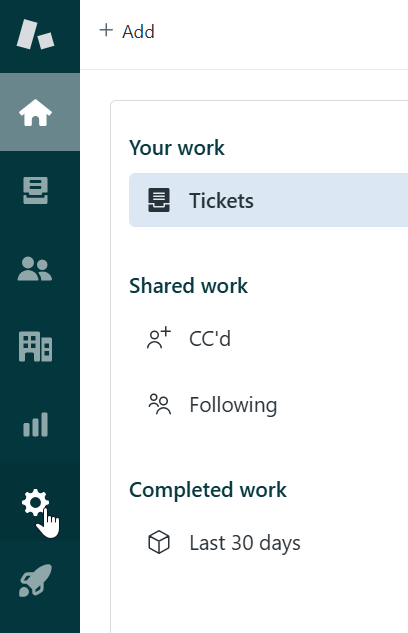
-
From the Settings page in your Zendesk account, select Apps and integrations and then select API tokens.
.png)
-
Click the Add API Token button.
.png)
-
Add a Description to the API token for easy identification (e.g., "Nucleus Zendesk Connector". Save.
-
Copy the API token to your clipboard or a text file.
-
In another browser, log into Nucleus.
-
From within a Nucleus Project, navigate to the Project Adminstration > Connector Setup page.
-
In the Issue Trackers section, click on the Zendesk logo.
-
In the Setup Zendesk Connector pop-up modal, enter your Zendesk URL, Email, and the API Token you created in step 3.
-
Click the Connect to Zendesk button.
-
Click Next and follow the directions in the modal to set up real-time syncing of Zendesk tickets back into Nucleus.
-
Click Next and fill out any defaults you want to set for manually creating tickets.
Default fields will automatically populate in the create ticket modal every time you manually create a ticket
- Click Save & Finish.
Create your first ticket in Zendesk from Nucleus
-
From within a Nucleus Project, navigate to the Explore > Vulnerabilities.
-
Click on any vulnerability to open the vulnerability details pop-up modal.
-
Click the Instances tab above the toolbar to view all instances of the vulnerability.

-
Select any instance(s) of the vulnerability using the check boxes.
-
Click Create Ticket.
-
In the Create Ticket pop-up modal, select Zendesk.
-
Fill out the form to edit items such as: assignee, due date, and description.
If the dropdown fields are empty, click the Sync Fields button. This will also sync custom fields from Zendesk that you can populate from within Nucleus.
-
Click Submit to Zendesk and the ticket will be created in Zendesk!
-
You can see the ticket and all the updates to this ticket by clicking the Tickets tab. When you click on the ticket, you'll be able to see the details and add comments to it.

Automatic ticket creation
You can automate the creation of Zendesk tickets when new vulnerability data is imported into Nucleus by using the built-in Nucleus Automation Workflows. Learn how in this article.