Overview
Nucleus features different template types to use when creating a finding instance. Each template type improves your workflow and accuracy for creating subsequent finding instances. First you'll use the Nucleus template to define the type of finding you want to create, and then you'll select the corresponding fields to include for that type of finding. For example, if you do not want to show a port number in the UI when the vulnerability is code related, the port number field will not appear in your template. Using templates also streamlines the finding creation workflow and sets the stage to manage penetration tests within Nucleus.
When creating a finding, you can upload evidence along with vulnerability data on severity, impact, and likelihood.
Template types
To view template types, navigate to Global Dashboard > Select your project > Vulnerabilities > Active
Click + Add Finding and select Using Template from the drop-down menu
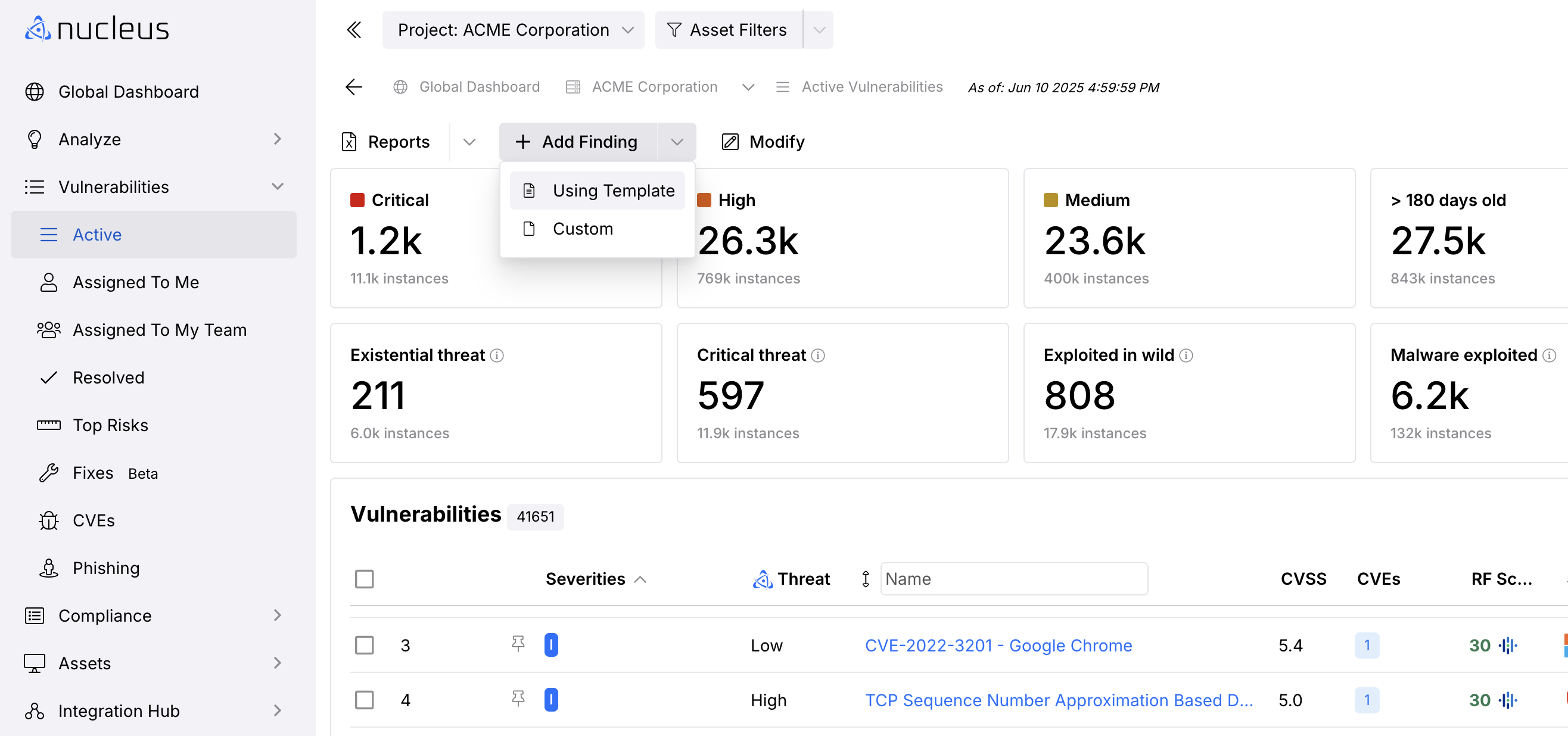
In the Add Custom Finding pop-up modal in the 1. Select Template tab, check the box of the Template you want to use and click Next.
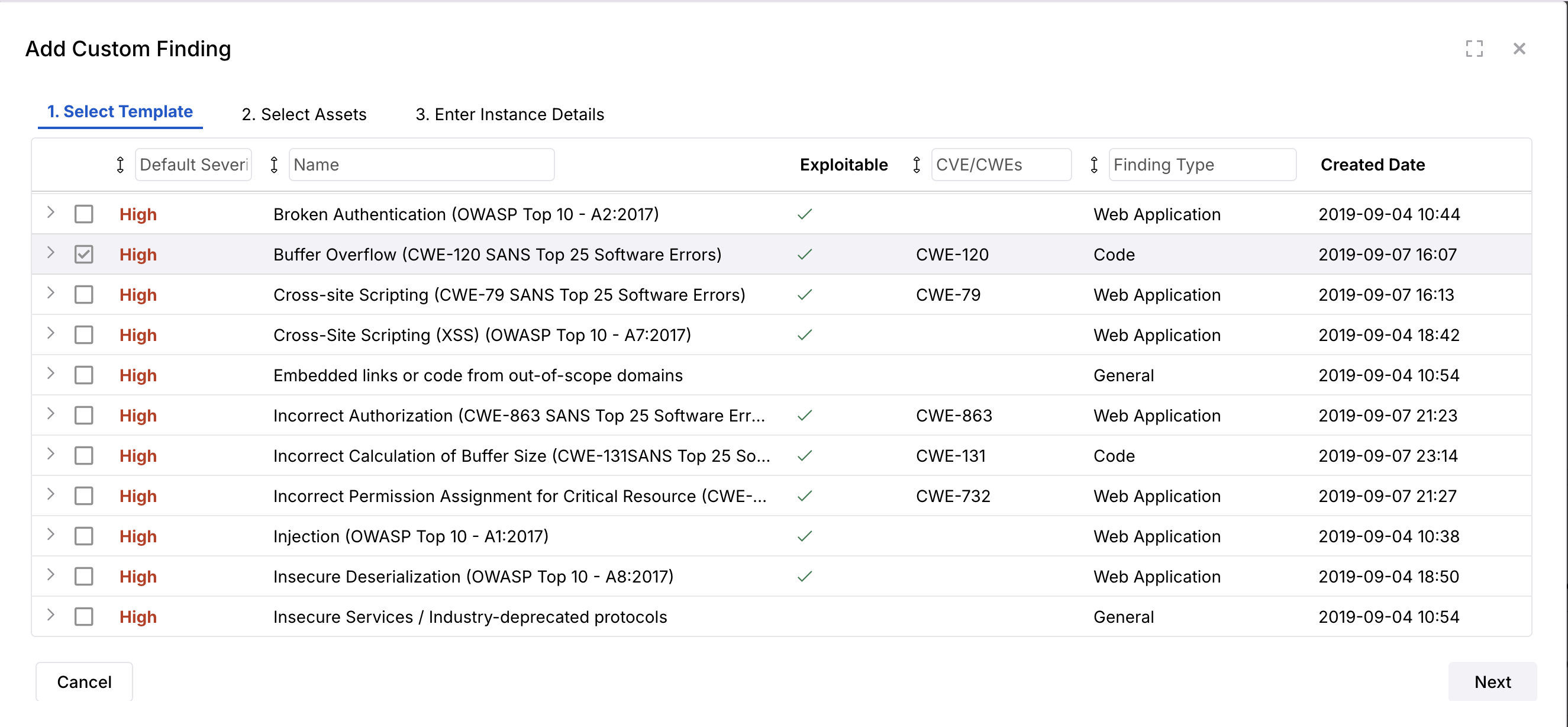
In the 2. Select Assets tab, check the box of the Assets you want to use and click Next.
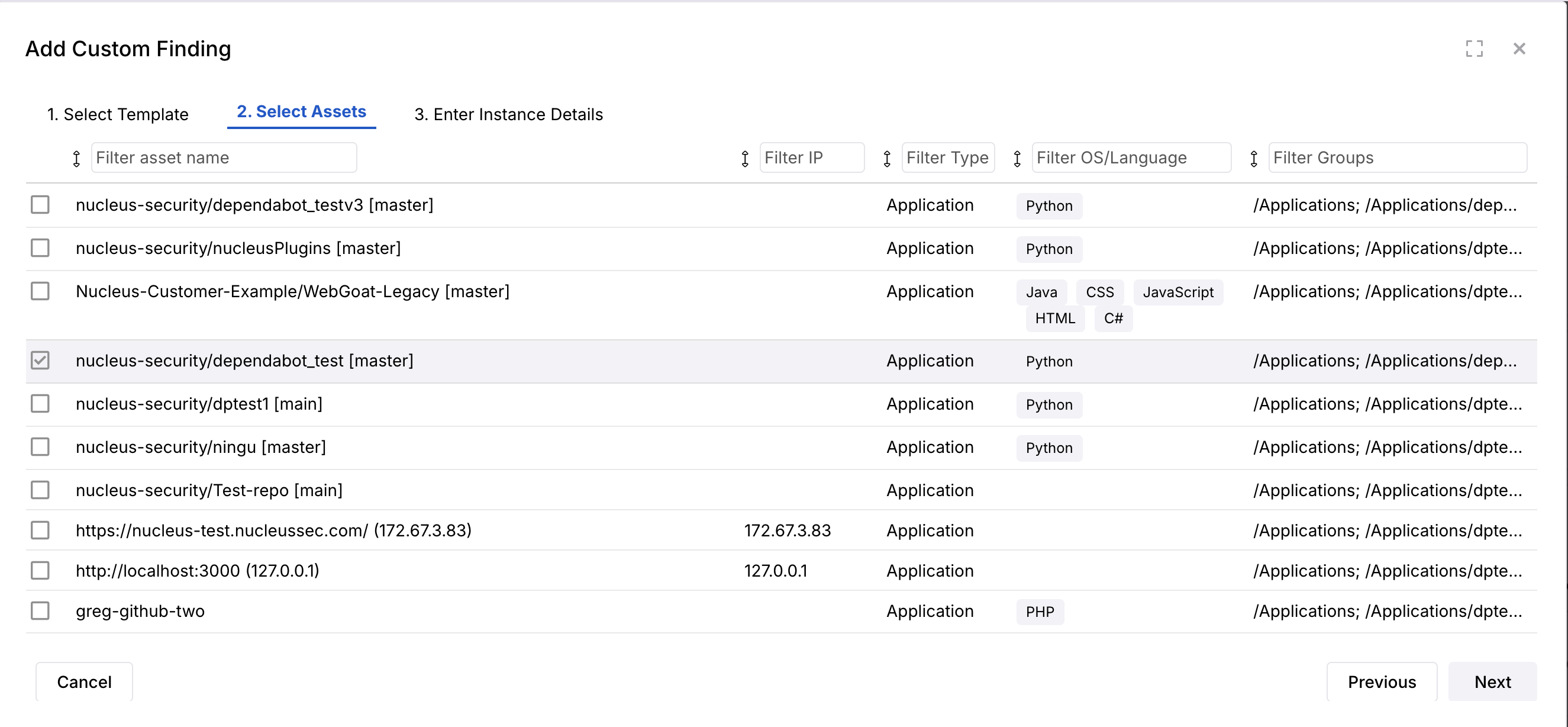
The fields specific to each of the template types below will appear in the 3. Enter Instance Details tab.
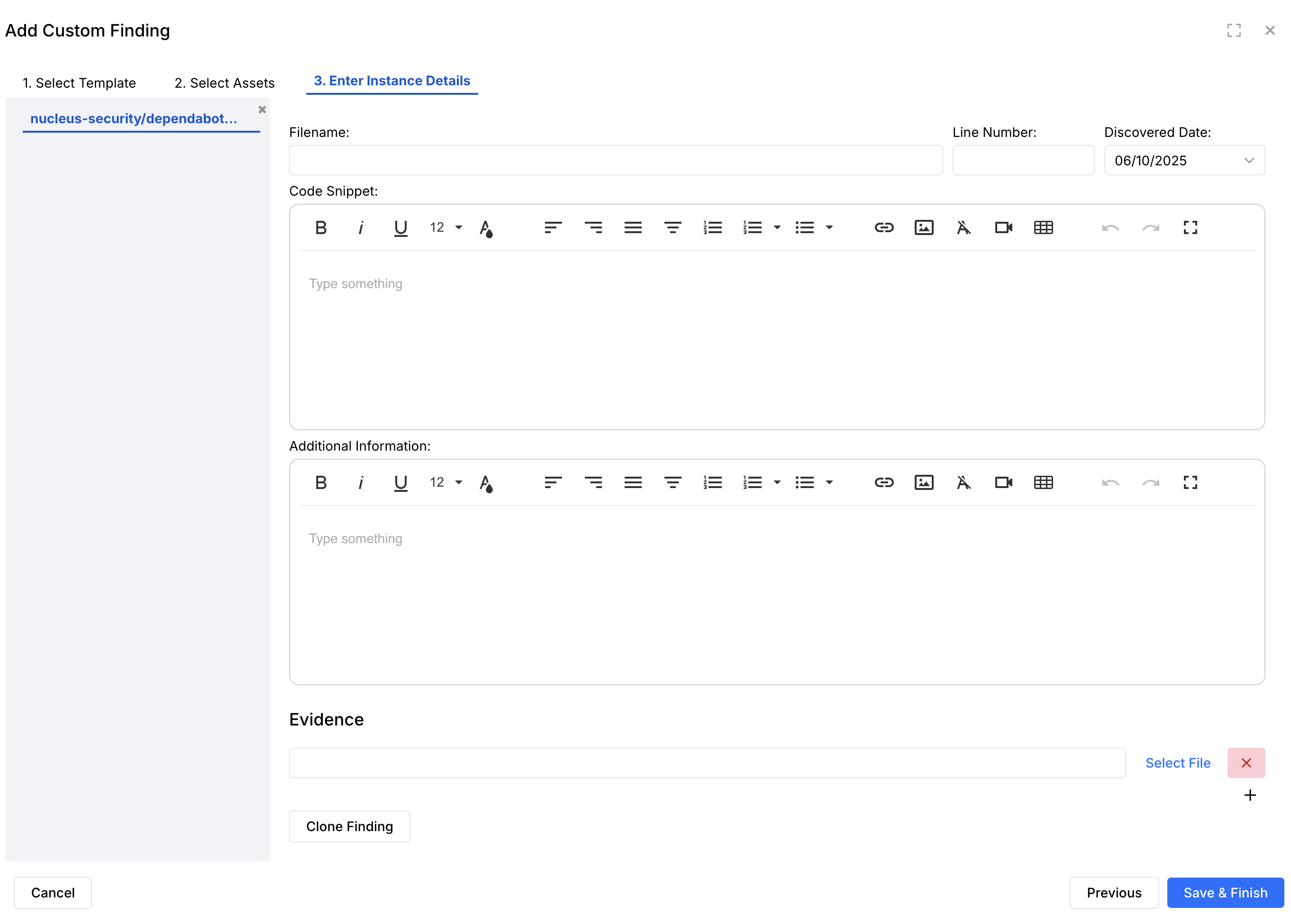
The template types are each detailed below:
Code
Code template types are used to display vulnerabilities in code. The fields specific to this template are:
- Filename: The file where the affected code snippet is located.
- Line Number: The line number for the affected piece of code; this can also be a range.
- Code Snippet: The specific function, line, or snippet of code which is causing the vulnerability.
- Additional Information: Any other information which may be relevant to the finding.
Web Application
Web Application template types are meant for DAST-style AppSec assessments conducted by analyzing web traffic. The fields specific to this template are:
- HTTP Request: The HTTP request to cause the vulnerability.
- HTTP Response: The HTTP response from the above request which shows the vulnerability.
If you are using a tool like Burp Suite, we recommend uploading a Burp XML report to Nucleus. The manual process is specifically for use with manual testing and penetration tests.
Device
Device template types are meant for host-based type issues; for assets such as IP addresses, running containers, and container images.
The fields specific to this template are:
- Port: The port field allows you to select which port shows this specific vulnerability.
- Output: The output field can include anything you need to populate for the vulnerability such as SSL certificates and cert dates, to headers, etc.
General
General template types are intended for any generic finding types not covered by the other templates. This includes issues like "Weak password policy" or other general findings that are not necessarily vulnerabilities on an asset, and should be noted in the vulnerability management program.
Editing custom finding details
It's easy to quickly edit the details of a custom finding. Navigate to Global Dashboard > Select your project > Vulnerabilities > Active Vulnerabilities.
Choose a vulnerability using the checkbox in the Instances tab in the vulnerability details pop-up, double-click anywhere on the row to reveal the editable fields. Make the desired changes, click the Update button and you're done!
Examples


For more information on how to create templates and findings in Nucleus, refer to the Custom Findings Overview article.
If you have any questions, please contact us through the support center.