Overview
Nucleus enables you to ingest your Tenable.io (Nessus) Vulnerability Management (VM), Compliance and Web Application Security (WAS) scans directly into the Nucleus console using an automated connector. The connector uses the APIs provided by Tenable.io to seamlessly sync data into various Nucleus projects for use in analysis, triage, automation and reporting.
This connector supports ingesting:
- vulnerabilities and compliance findings from Vulnerability Management;
- vulnerabilities from Web App Scanning (WAS).
Connector Setup
Connector Setup Checklist
The user must be given the CanView permission on the All Assets object in Tenable for proper functionality.
Follow the steps in this checklist to successfully setup this connector:
-
API Access
Create a service account with an Administrator role in Tenable.io and generate an API key. -
Connector Configuration
Create and configure the connector in your Nucleus project. -
Data Ingestion
Create one or more ingestion rules to ingest data from Tenable.io.
1. API Access
-
Create a new user in Tenable.io and assign it the Administrator role. The user must also be given CanView permission on the All Assets object in Tenable.
-
Open a browser and login to Nessus or Tenable.io.
-
Browse to Settings > My Account > API Keys (see Tenable.io example below):
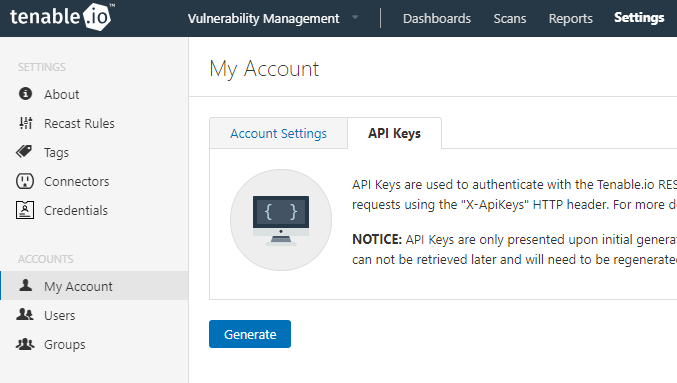
- Click the Generate button, read the warning, then click Generate again. An "Access Key" and a "Secret Key" will be displayed. Copy these because you will need these values in the following steps.
Nessus scanners collect informational data in all default scan configurations. There are over 20,000 different types of Info findings that Nessus scanners can collect. When Nessus scanners are enabled to collect Info data, the Info data can represent more than 90% of all findings per asset, and in the case of port scanning (open ports), Info data accounts for more than 40% of all findings data.
In-line with Tenable's recommendation, Nucleus strongly recommends disabling High Traffic Info Plugins using the global platform setting Process High Traffic Info Plugins. If this setting is not disabled, the time taken to download and ingest vulnerability willl be substantially longer and may impact the download and ingestion speed of vulnerability data from other sources.
2. Connector Configuration
-
In Nucleus, go to Integration Hub > Connector Setup.
-
Under the Scanners section, click the Tenable.io icon.
-
In the Setup Tenable.io Connector pop-up, complete the following fields:
| Field | Description |
|---|---|
| Name | Enter a short, unique name to identify the connector, such as "Tenable.io - Prod". |
| Description | Optionally, enter a description for the connector. |
| Tenable.io URL | Use https://cloud.tenable.com for commercial or use https://fedcloud.tenable.com for Government |
| Access Key | Enter the Access Key you just generated. |
| Secret Key | Enter the Secret Key you just generated. |
- Click the Save Connection button. You'll see a success notification message confirming that the connection was saved.
Your connector is now set up and ready to use!
Nucleus recommends keeping the Sync asset data back to Tenable.io option deselected unless you have agreement from your vulnerability scanning team that they want all asset data from Nucleus pushed back upstream into Tenable.
3. Data Ingestion
- Go to Integration Hub > Import via Connector.
- Select the Tenable.io connector you just created.
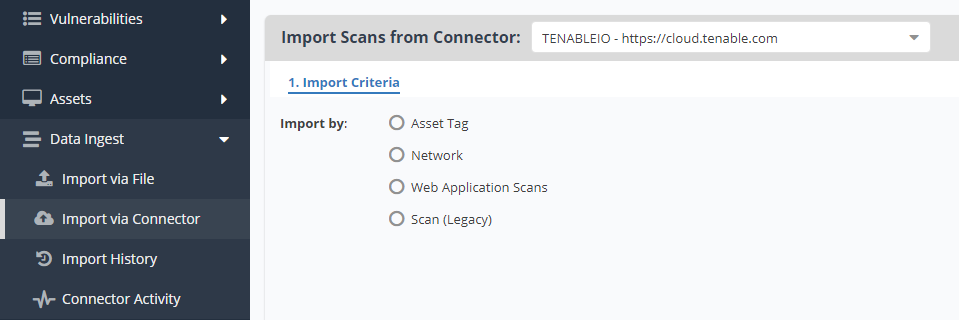
- Choose your import method (for VM results select Asset Tag, Network or Scan):
Scan (legacy) ingests are no longer supported by Tenable and will be deprecated from Nucleus July 31, 2024
- Click Next and select what you'd like to import.
- Click Next and select how often you want to import, either one-time or to auto-import on a schedule.
- Click Save & Finish.
- Once your scan finishes importing, visit the Data Ingest > Import History page to view the results.
Limitations
The connector makes use of the Tenable.io Export APIs for optimal extraction of asset and finding data at scale. Tenable.io's documented concurrency limits allow for up to 10 concurrent active exports at any one point in time, and each ingestion job will consume two slots at one time (one for assets, and one for vulnerabilities).
For this reason, it can sometimes be necessary to be strategic about the ingest methods used and schedule of each ingestion job to ensure that concurrency limits are not exceeded.
Nucleus recommends following these best practices when scheduling jobs:
- For best outcomes with downloading and ingestion, schedule a single ingestion job that represents all of the assets that you want to ingest. This could be by either the network ingest method, or by tagging all assets with a single tag (e.g. tag all assets with 'Nucleus') and ingest only that tag.
- When ingesting data into multiple projects, ensure that the ingestion jobs are staggered by two or more hours to ensure that there are no clashes.
- Check to make sure that Nucleus scan ingestion jobs are not scheduled at the same time as other platforms or users that regularly make use of the Tenable.io Export APIs.
If a Tenable.io ingestion job results in an error with the message Error: We have exceeded our request limit for the day it means that there are already 10 actively running exports.
Either cancel an existing export and re-run the job, or modify the job's schedule to run at a time when there are fewer exports running.
Tenable Compliance Findings
The Tenable.io connector currently supports ingesting compliance findings from compliance scans into Nucleus in an opt-in basis. When the feature is enabled for a project, any existing or new ingestion from Vulnerability Management (ingestion by network or asset tag) will automatically also include compliance findings.
It is essential that you read and understand the following sections before opting in to the connector to avoid issues and interruptions to your vulnerability management program.
Importing legacy Nessus scans (VM or Compliance)
The Tenable VM and Compliance connector is not designed to function alongside legacy Nessus vulnerability or compliance scans. If you upload Nessus scans separately in addition to using the Tenable connector (such as to ingest compliance findings currently), or use the Legacy scan import method, please first stop ingesting these scans before using the new functionality.
Attempting to use Nessus scans (uploaded or via the legacy ingestion method) alongside the connector will result in vulnerabilities and compliance findings being incorrectly mitigated, impacting trends and other data within your project.
How can I opt-in?
Customers may opt-in to the Tenable Compliance Connector by contacting support or their dedicated customer success manager to have the feature enabled within one or more Nucleus projects.
Additional Metadata
Nucleus pulls in the follow additional information from each licensed asset from Tenable.io Vulnerability Management as additional metadata if available.
| Tenable field name | Nucleus field map name | Notes |
|---|---|---|
| Tenable uuid | tenableio.uuid | |
| Tenable Asset Tags | tenable.tag.key = value | Example: region:aus is one of your tenable.io tags. In Nucleus it will be Imported as tenableio.tag.region = aus. |
| Type | tenableio.type | |
| Network | tenableio.network | |
| IPV6 addresses | tenableio.ipv6 | |
| azure_vm_id | azure.virtual-machine.vm-id | |
| azure_resource_id | azure.resource-id | |
| gcp_project_id | gcp.project-id | |
| gcp_zone | gcp.zone | |
| gcp_instance_id | gcp.compute.instance.id OR gcp.compute.instance.name | |
| aws_ec2_instance_ami_id | aws.ec2.image-id | |
| aws_ec2_instance_id | aws.ec2.instance-id | |
| aws_owner_id | aws.account-id | |
| aws_availability_zone | aws.ec2.placement.availability-zone | |
| aws_region | aws.region | |
| aws_vpc_id | aws.ec2.vpc-id | |
| aws_ec2_instance_group_name | aws.ec2.security-group-names | |
| aws_ec2_instance_state_name | aws.ec2.instance-state.name | |
| aws_ec2_instance_type | aws.ec2.instance-type | |
| aws_subnet_id | aws.ec2.subnet-id | |
| aws_ec2_product_code | aws.ec2.product-codes | |
| aws_ec2_name | aws.tags.name | |
| mcafee_epo_guid | mcafee.epo.guid | |
| mcafee_epo_agent_guid | mcafee.epo.agent-guid | |
| servicenow_sysid | servicenow.sysid | |
| bigfix_asset_id | bigfix.asset-id |
If you have any questions, please contact us through the support center.