Overview
Nucleus has one over-arching goal: to make vulnerability management efficient and streamlined by automating repeatable tasks whenever possible, so all of us as IT professionals can work with maximum effectiveness and spend our time where it matters most - whatever that means to each of us in our own context. That's why we made it possible to quickly and easily bulk modifiy properties on vulnerabilities.
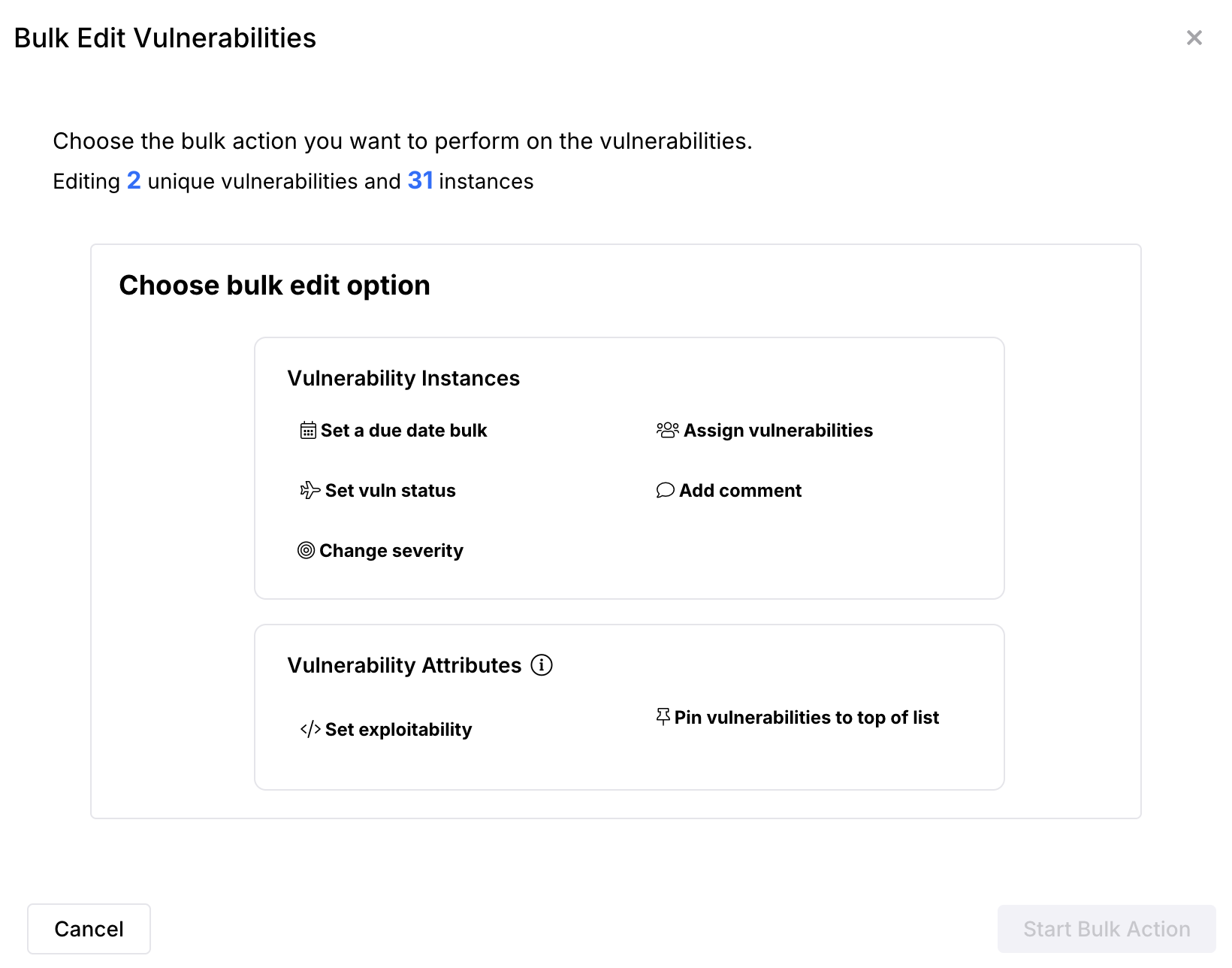
You have multiple options in Nucleus to modify individual instances of the selected vulnerabilities, including assigning them to users, changing the status, setting a due date, and adding a comment; as well as changing the unique vulnerability attributes: exploitability, severity, and pinning or unpinning them from the top of the grid.
Bulk edit vulnerabilities
-
From within a Nucleus project, navigate to the Global Dashboard > Select your project > Vulnerabilities > Active page.
-
Select any number of vulnerabilities using the checkboxes.
To quickly multi-select a list of vulnerabilities in just two clicks, use the checkbox to select the topmost vulnerability in the list that you want to choose. Then, hold down the shift key (Windows) and select the bottommost vulnerability you want to choose. All the vulnerabilities between the two selections you made will be selected in bulk.
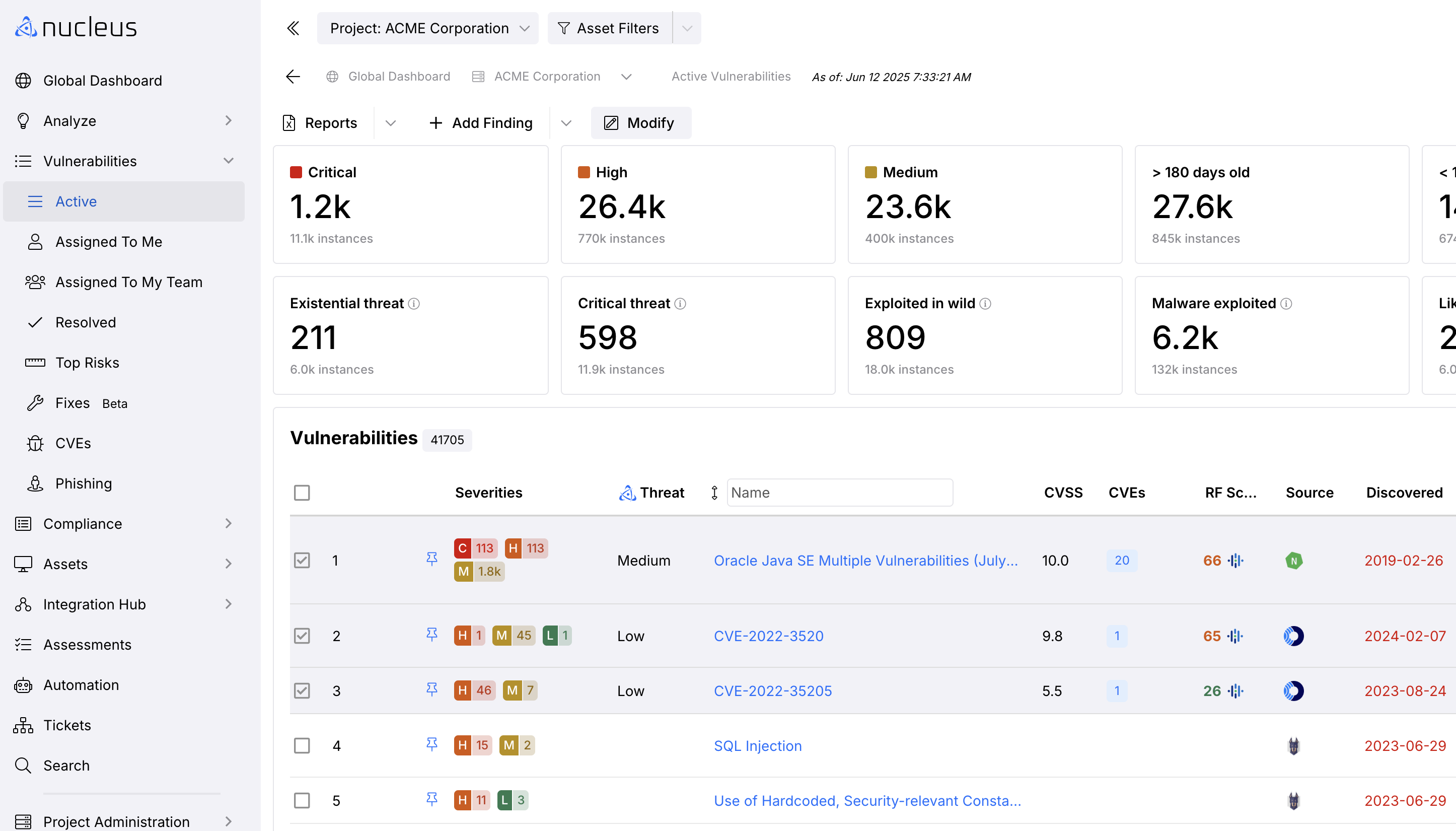
- Click the Modify button and a pop-up modal Bulk Edit Vulnerabiities will appear.
- You'll see the number of unique vulnerabilities and instances of vulnerabilities that will be changed. In the pop-up modal you'll see a list of available options to bulk update the selected vulnerabilities
- Click to select an option and a pop-up modal for that option will appear.
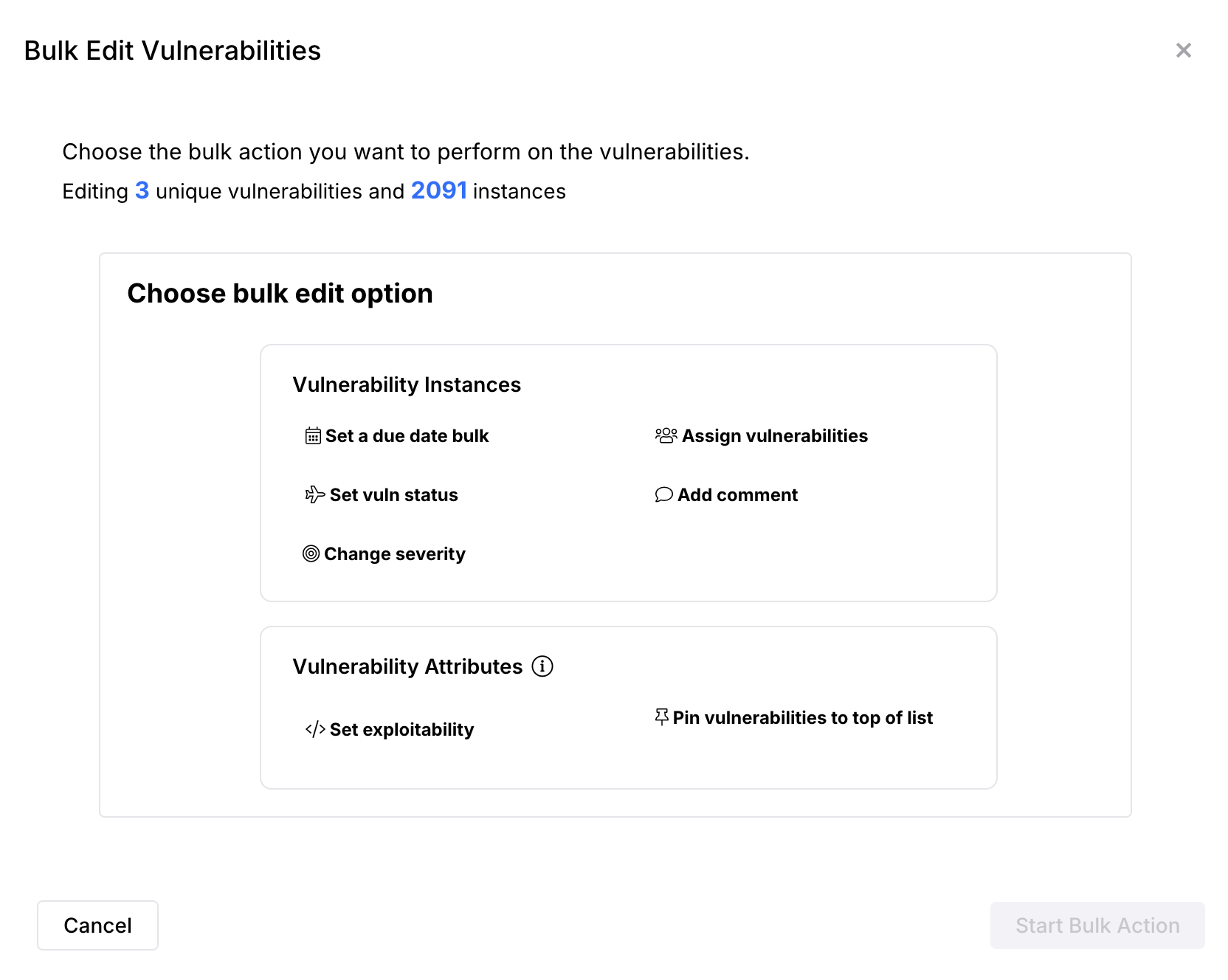
Once you Start Bulk Action in Step 7 below, you’ll see the progress of the change until completed. During the change, you can close the dialog and it will continue running in the background. Re-select Modify to restore your view of the progress window.
- Populate the fields for the option you selected in Step 5 above.
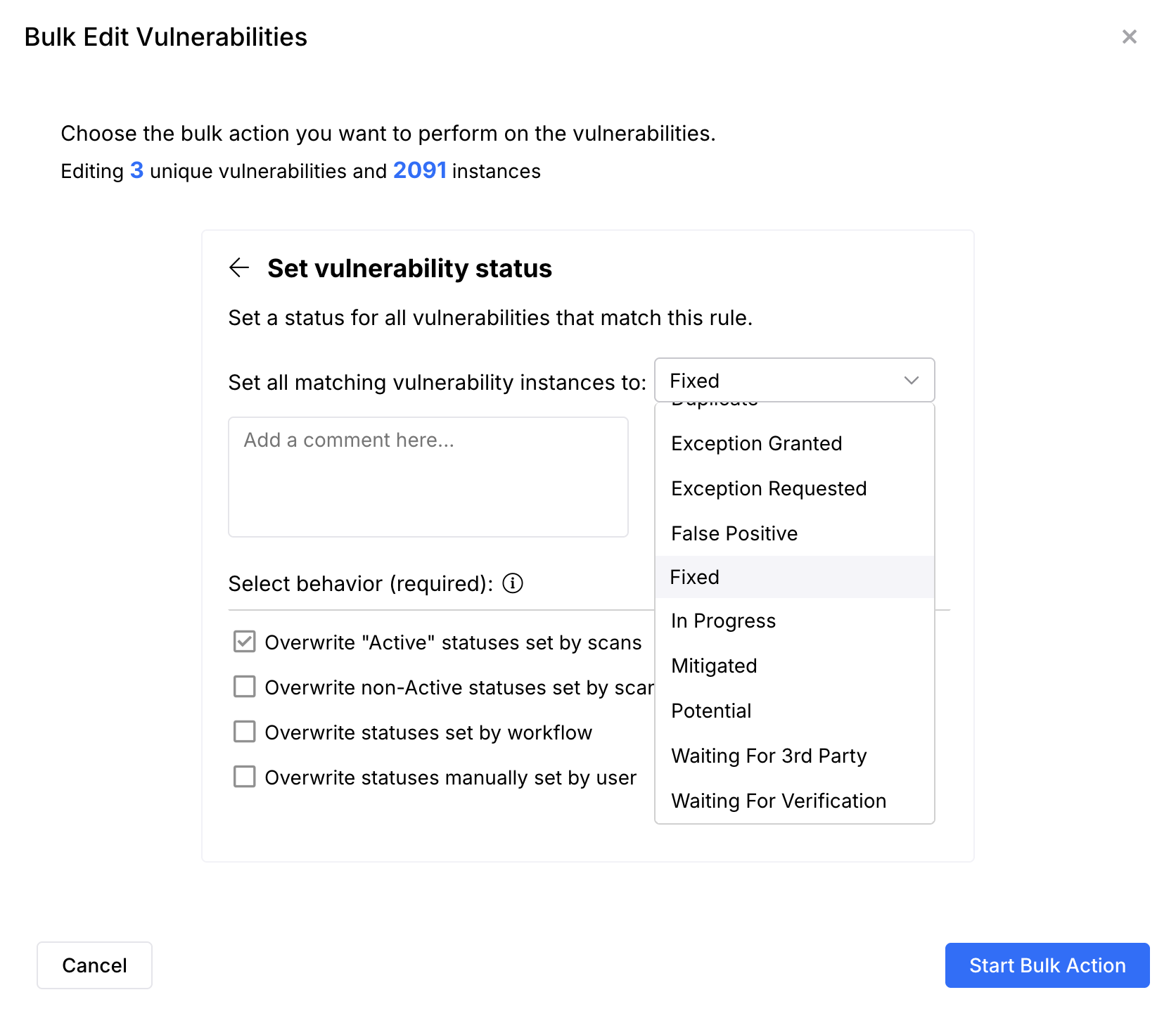
- Click the Start Bulk Action button to begin the modification process. The process bar activates and when the process is complete, you'll see the bar turn green and the message Process complete!
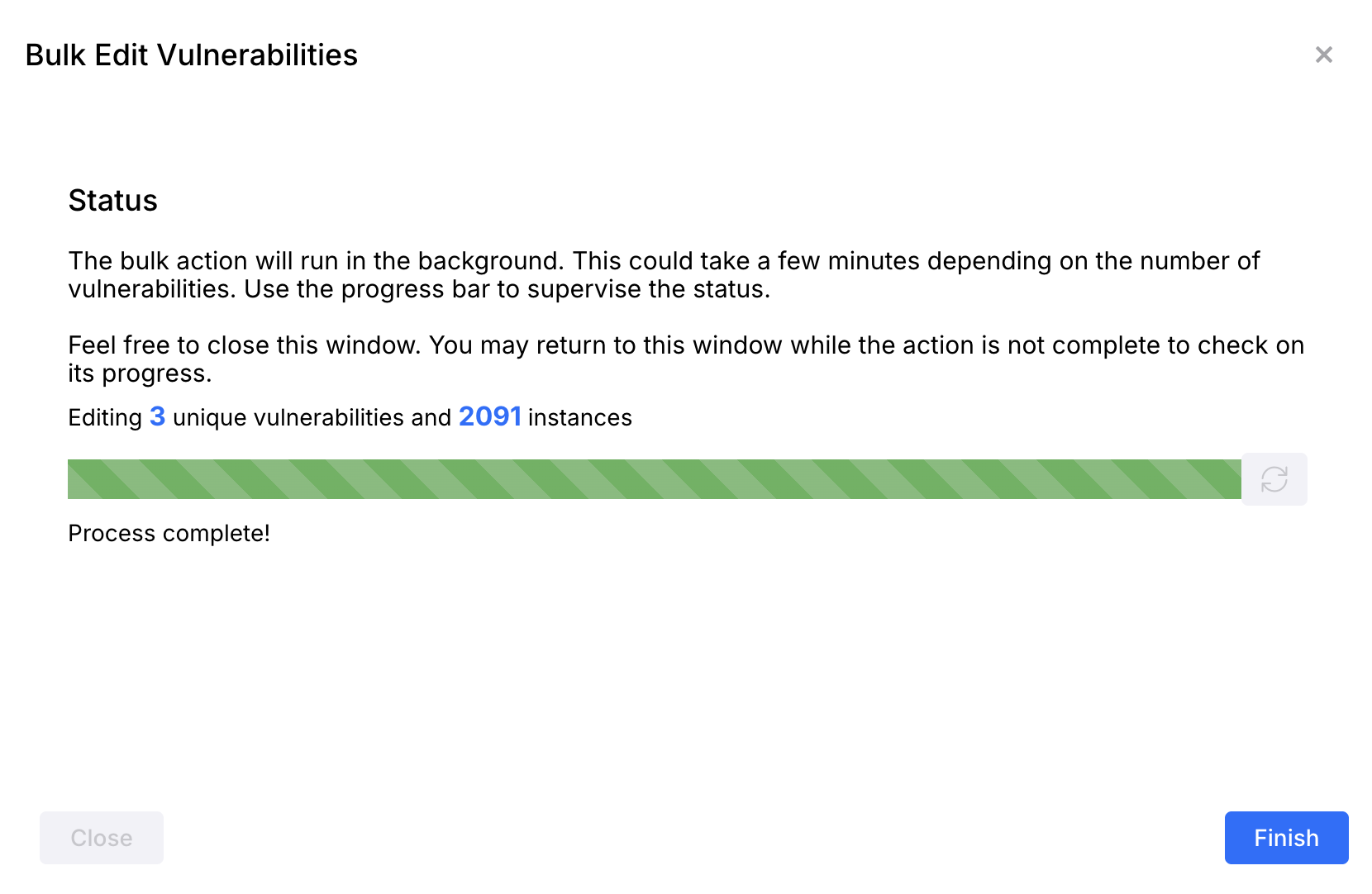
- Click the Finish button and you're done!
If you have any questions, please contact us through the support center.