Nucleus automatically maps and merges all the data that we receive from all of your different tools. You'll need to edit the assets occasionally in order to reflect data accurately, to make changes to the risk attributes, and/or to provide asset context to the risk attributes.
Edit a single asset
- To edit a single asset navigate to Global Dashboard > Select your project > Assets > Asset Management page.
- In the Assets panel scroll right to the Actions column, and click the Pencil Icon for the asset you want to edit.
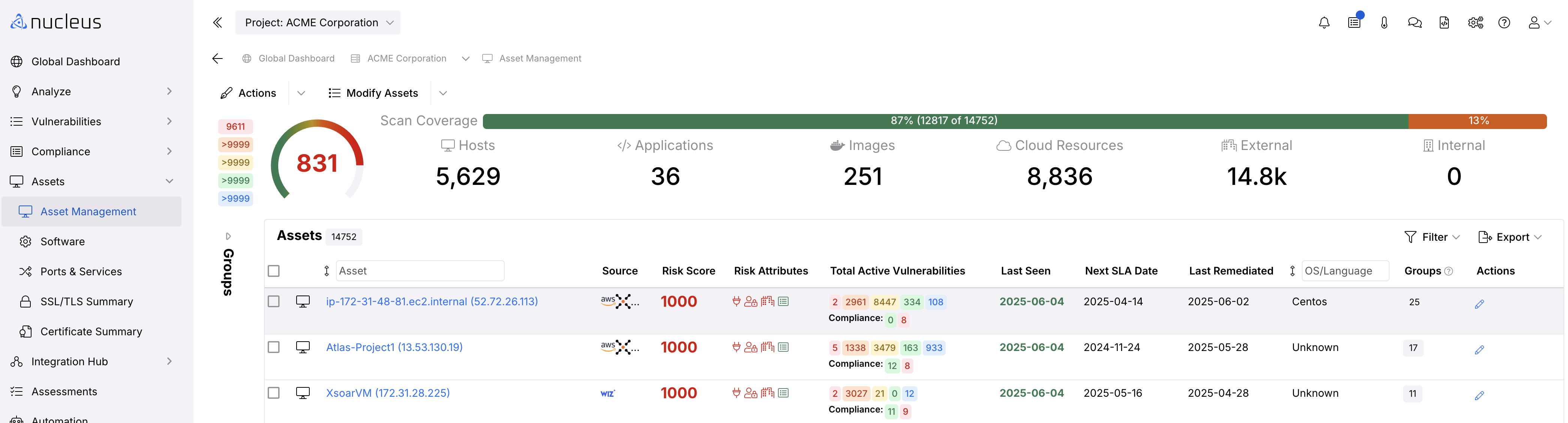
- In the Edit Asset pop-up modal, update the information you want to save to this asset. Here's an example of data you could save:
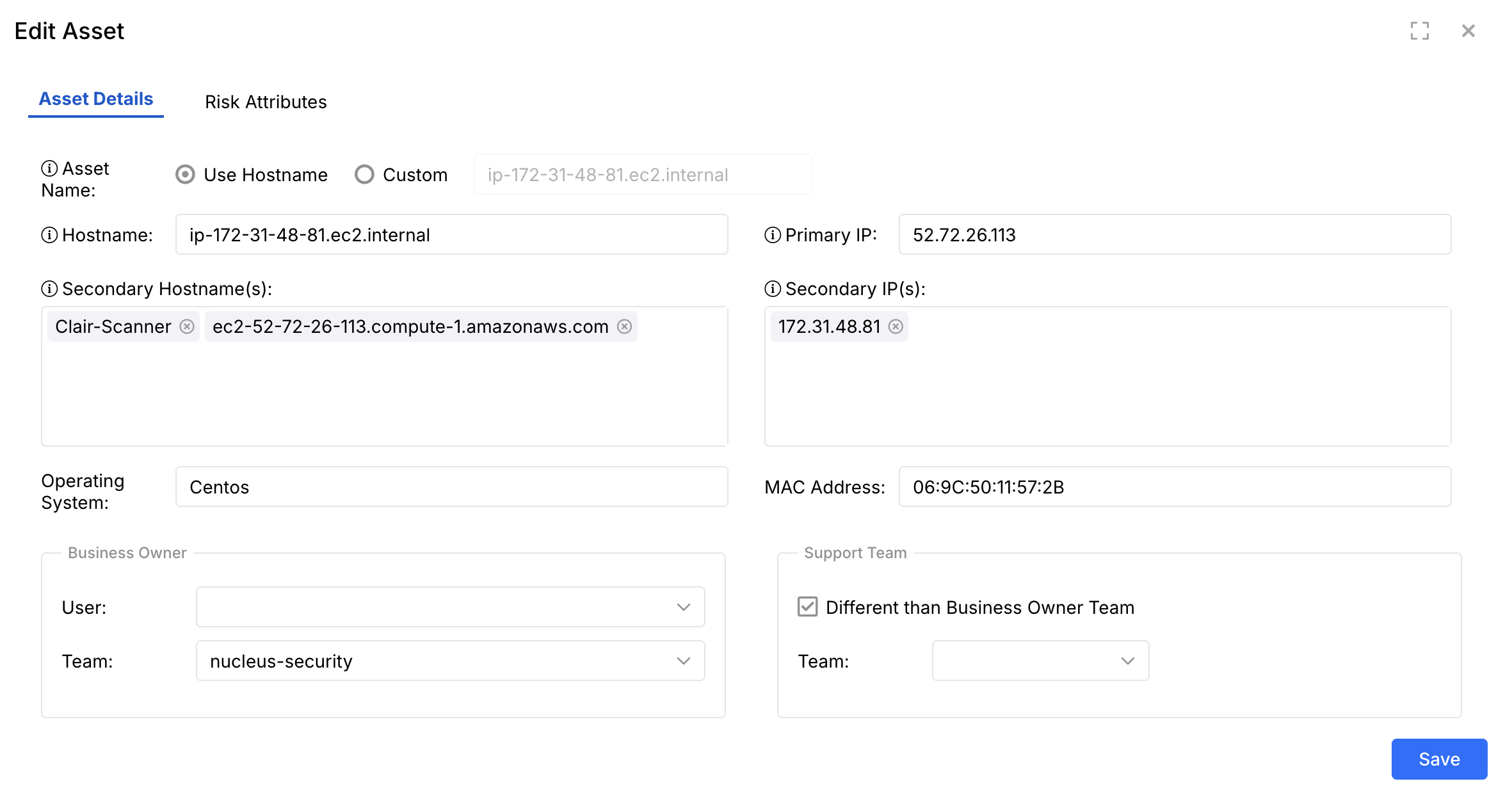
Key field descriptions include:
| Field | Info |
|---|---|
| Asset Name | Your name for the asset within Nucleus. |
| Primary and Secondary IPs | IP Addresses associated with the asset. |
| Risk Attributes | To use in the risk scoring system within Nucleus to help you prioritize your asset risk. Click the "risk attributes" tab to access this asset's risk attributes. |
| Business Owner Fields | These two fields identify the business sponsor user and the team owner of the asset, such as "Accounting" or a specific Business Unit. |
| Support Team Fields | This field identifies the team responsible for managing the vulnerabilities for the asset. This may be the same team name as the Business Owner, or might be a different team, such as an Application team, or a patching team that's responsible for managing the vulnerabilities on the asset. To assign a different Support team, check the the box "Different than Business Owner Team". This will create a Support team field where you'll enter the Support Team name. You can use Vulnerability Processing Rules to automatically assign vulnerabilities based on an asset's support team. |
- Click Save.
Your asset edit is complete! You can now change the properties on assets to be more useful for your organization.
Aliasing your assets
One common use case is to label the asset in Nucleus differently than the host name or the unique information used to identify the asset in different tools. Nucleus allows you to name assets in whatever way works best for you - regardless of how they are named across different tools - by setting the Asset Name attribute on an asset.
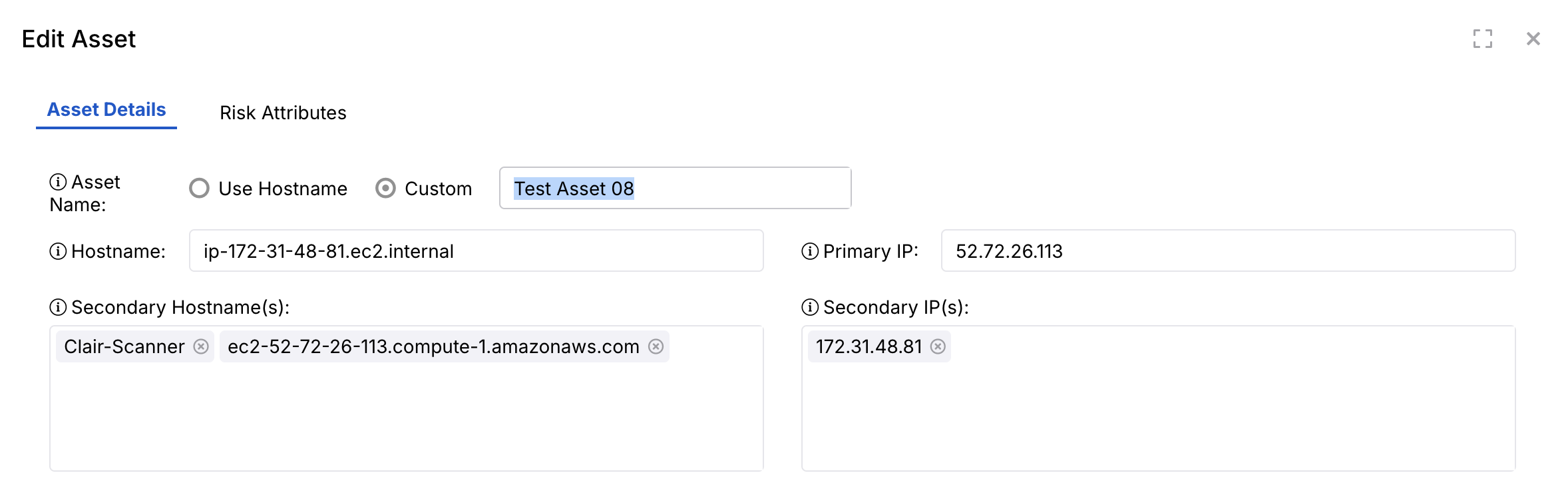
There are two main benefits to asset aliasing:
- Assign a display name to an asset while preserving links to all scan history and future scans.
- Merge multiple IP addresses together to give that group of IPs one display name in order to treat it as one asset (e.g. a load balancer with 6 IP addresses associated with it.)
Bulk editing assets
Nucleus also allows you to update asset fields in bulk by doing the following:
- Go to the Assets > Asset Management page Assets panel.
- Use the checkboxes to select which assets you'd like to modify.
- Select the Modify Assets menu item.
You can hold down the Shift key to select all assets between two assets in the table.
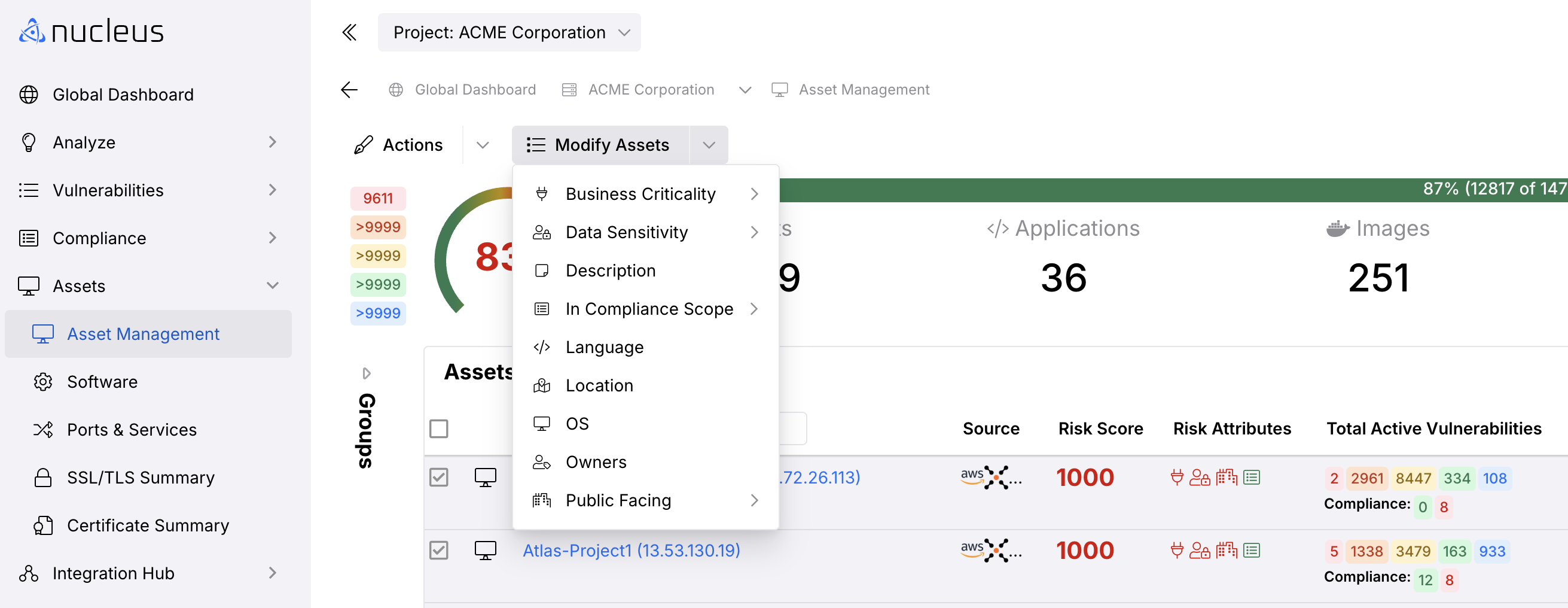
- Use the Modify Assets menu item to select which attribute you would like to bulk modify, such as:
- Business Criticality
- Data Sensitivity
- In Compliance Scope
- OS
- Select any of the options to modify these attributes and the assets will be modified in bulk!