Overview
The purpose of this article is to provide general guidance on how to use Nucleus to rapidly find and respond to a high-profile and possibly critical vulnerability in your environment.
How to find and respond
Step 1
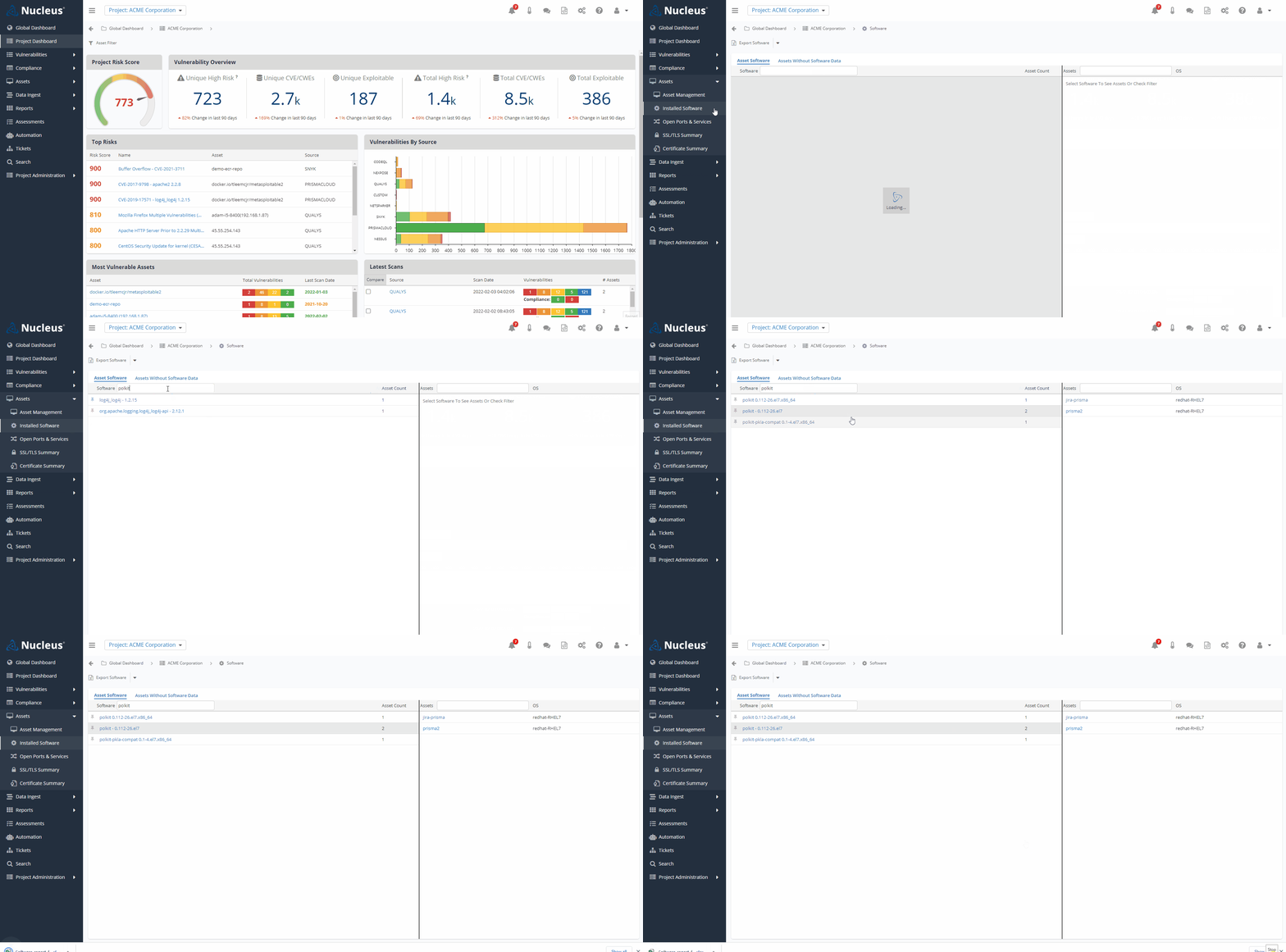
1. Navigate to the Assets > Installed Software view.
2. Search on the affected software package (E.g., log4j, polkit, etc.) to see what systems you have that contain the affected software. This allows you to find potentially vulnerable systems before you have even had a chance to scan for the specific vulnerability. You can then ask remediation teams to begin updating the vulnerable software on those machines based on this preliminary data.
3. OPTIONAL: From this view, you can also export the list of affected systems with the Export Software option to begin remediating systems
Step 2
4. When you know your preferred scanner is able to identify the vulnerability, scan your network.
5. Import the scan into Nucleus. For a really rapid response, agent-based scanners are great.
Step 3
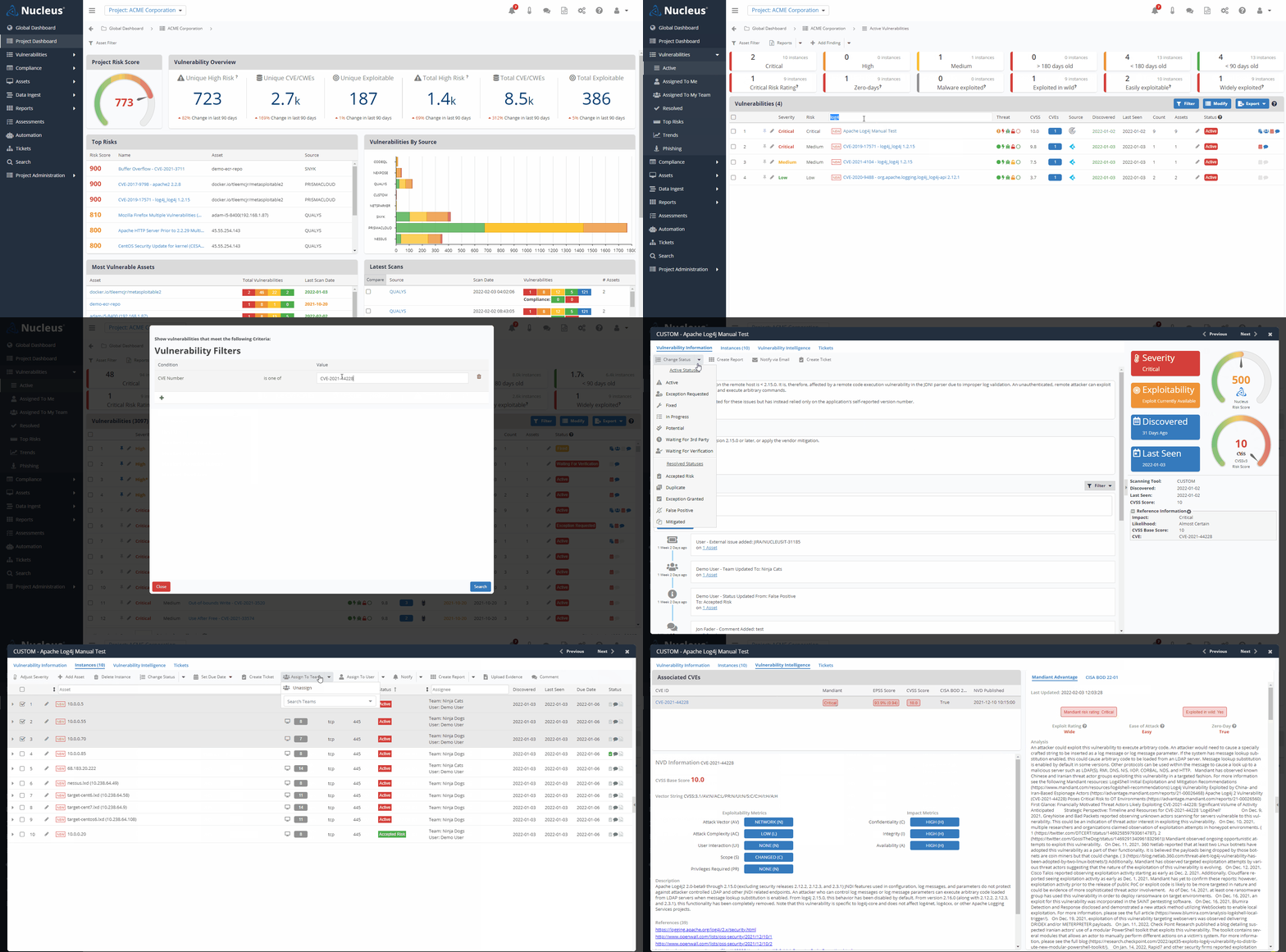
6. Navigate to the Vulnerabilities > Active view and search for the vulnerability. You can search for the vulnerability using the field in the Name column or the CVE number using the query builder accessible via the Filter button. After you find the vulnerability, you can pin it to the top of the vulnerabilities list for quick reference using the pushpin icon next to the pencil icon.
7. Click the name of the vulnerability. Then, in the detailed view, click Instances. Here you can set due dates, create tickets, and do whatever else you need to do.
8. While you are here, click on Vulnerability Intelligence and see what our threat intelligence sources are saying about the vulnerability and compare that with what you are seeing elsewhere to gauge the real vs. perceived severity.
If you have any questions, please contact us through the support center.