Overview
Being able to see all your vulnerabilities is great, but sometimes you want to see specifically what has changed and what the new vulnerabilities present in your organization are. With Nucleus vulnerability analysis, it is extremely simple, and you can do so in a couple of steps.
A New status means the finding was discovered and hasn't been seen more than once. Within the Nucleus UI, a "NEW" icon will appear when the Discovered Date equals the Last Seen date.
View all new vulnerabilities
-
From within a Nucleus project, navigate to the Vulnerabilities > Active page.
-
Click the Filter button.
-
Select the Condition "New" and a Value of "Yes":
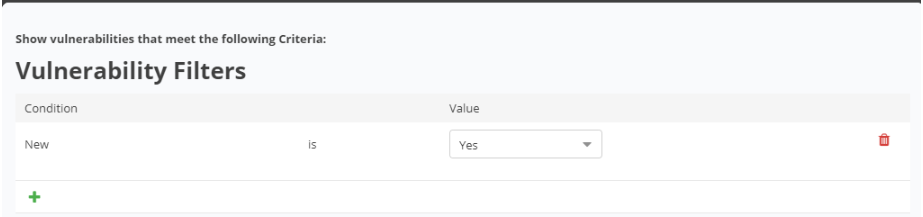
4: Click "Search" at the bottom of the Vulnerability Filters Modual.
You are now viewing all of the new vulnerabilities in your project. From here, you can conduct further analysis activities, including sorting, drilling down into each of the vulnerabilities, changing finding status, and assigning tickets to the relevant ITSM systems.
Interested in bulk editing vulnerabilities? Reference this article.
If you have any questions, please contact us through the support center.