Overview
Nucleus enables you to ingest assets and vulnerabilities from Rapid7 InsightVM Cloud directly into your Nucleus console using an automated connector. The connector uses the APIs provided by Rapid7 to seamlessly sync data into your Nucleus project for use in analysis, triage, automation, and reporting.
The Rapid7 InsightVM Cloud connector supports importing vulnerabilities for all assets that have had a vulnerability scan conducted against them.
Connector Setup
Connector Setup Checklist
Follow the steps in this checklist to successfully set up this connector:
- API Access
Create an organization API key in the Insight Platform. - Connector Configuration
Create and configure the connector in your Nucleus project. - Data Ingestion
Create one or more ingest rules to ingest assets and vulnerabilities from Rapid7 InsightVM Cloud.
1. API Access
- Follow the steps in Rapid7's Insight Platform documentation to generate an organization API key.
- Make a copy of the API key for use when configuring the connector.
2. Connector Configuration
- Open Nucleus and go to Integration Hub > Connector Setup.
- Under the Scanners section, click the Rapid7InsightVM Cloud icon. You will see the following popup:
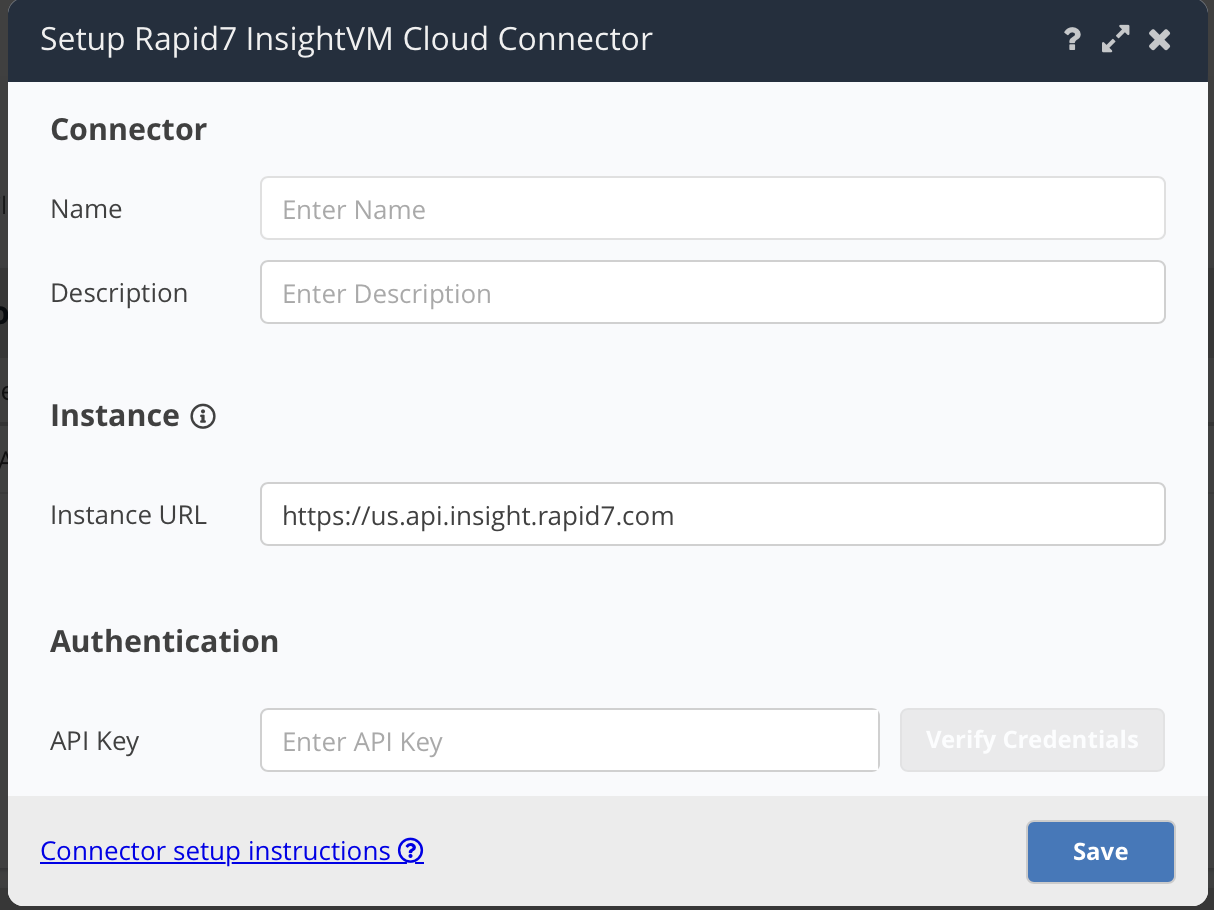
- In the Setup Rapid7 InsightVM Cloud Connector popup, enter the following information:
| Field | Description |
|---|---|
| Name | Enter an optional name for your connector. |
| Description | Enter an optional description for your connector. |
| Instance URL | Enter the URL to your instance of the InsightVM Platform. See here for available region codes. |
| API Key | Enter the API Key token you created in API Access. |
- Click Verify Credentials.
- Click Save.
3. Data Ingestion
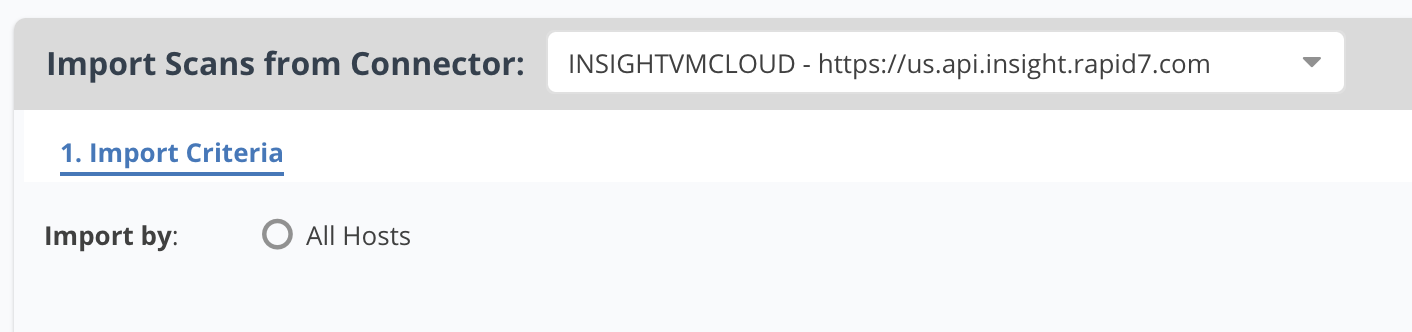
- Go to Integration Hub > Import via Connector.
- Select the Rapid7 InsightVM Cloud connector you just created.
- Select importing All Hosts.
- Select a schedule to import data into the project.
- Click Save & Finish.
FAQ
InsightVM Cloud Reintroduced Findings and Discovered Date handling
When ingesting data from InsightVM Cloud, a finding can sometimes be reintroduced after previously being mitigated or no longer observed.
Historically, Rapid7/InsightVM may preserve the original first_found date when that finding resurfaces. Because Nucleus used that source date for the Nucleus Discovered date, the finding could appear much older than it actually is from an operational perspective.
This created problems for teams tracking:
* SLA aging
* MTTR
* Overdue findings
* Dwell time
* Reporting based on active finding age
What is the new behavior?
Nucleus now supports a new behavior for reintroduced findings from InsightVM Cloud:
When a finding is reintroduced after previously being mitigated and later resurfacing, the Nucleus Discovered date can be set to the reintroduction date instead of the original first_found date.
This allows the finding’s age in Nucleus to better reflect when the vulnerability became active again in the environment.
How do I enable it?
If you would like this behavior enabled for your environment, please reach out to Customer Success and request that the feature flag be turned on.