Overview
Nucleus enables you to sync your web application scan data directly from the Invicti Enterprise (formerly Netsparker Cloud) & Acunetix 360 consoles into Nucleus using an automated connector. The connector uses the APIs provided by Invicti to seamlessly sync data from their cloud services into Nucleus projects for use in analysis, triage, automation, and reporting.
Connector Support and Naming
The Invicti Enterprise and Acunetix 360 products are supported by the Netsparker connector.
Please note that the Netsparker connector does not support the self-hosted Invicti/Acunetix Scanner appliance that is installable on Windows computers. Those products are instead supported by the Acunetix connector.
Please note that the Netsparker connector does not support the self-hosted Invicti/Acunetix Scanner appliance that is installable on Windows computers. Those products are instead supported by the Acunetix connector.
Connector Setup
Connector Setup Checklist
Follow the steps in this checklist to successfully set up this connector:
- API Access
Generate API credentials in Invicti Enterprise or Acunetix 360. - Connector Configuration
Create and configure the connector in your Nucleus project. - Data Ingestion
Create data ingest rules to ingest vulnerabilities from Invicti Enterprise or Acunetix 360.
1. API Access
- Navigate to your Invicti Enterprise or Acunetix 360 console.
- In the top right of the screen, click on your name and select API Settings.
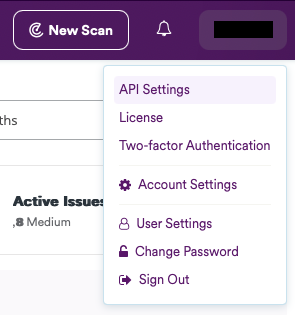
- Take note of the User ID and Token for later.
2. Connector Configuration
- Open Nucleus and go to Integration Hub > Connector Setup.
- Under the Scanners section, click the Netsparker icon. You will see the following popup:
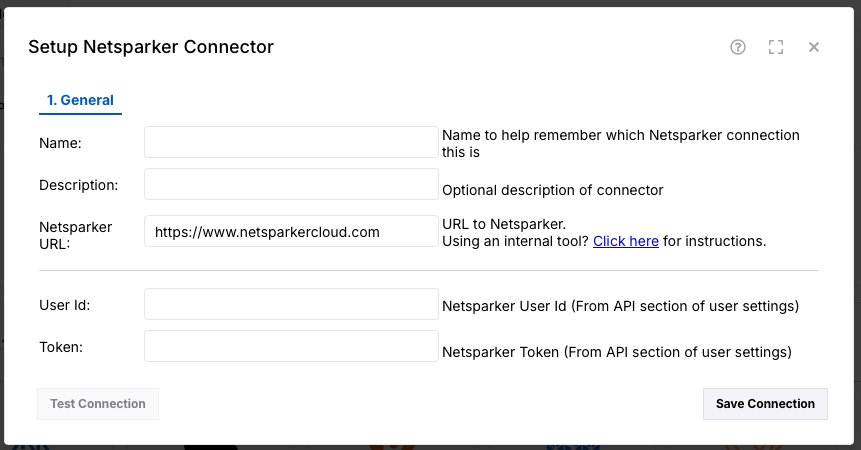
- In the Setup Netsparker Connector popup, enter the following information:
Field Description Name Enter an optional name for your connector. Description Enter an optional description for your connector. Netsparker URL Enter the API URL to the product you are using. The options are https://www.netsparkercloud.com for Invicti Enterprise, and https://online.acunetix360.com for Acunetix 360. User Id Enter the User Id that you copied in section 1 above. Token Enter the Token that you copied in section 1 above. - Click Save Connection.
- Click Test Connection.
3. Data Ingestion
- Go to Integration Hub > Import via Connector.
- Select the Netsparker connector you just created.
- Select the websites that you want to ingest.
- Click Import to import immediately, or Enable Auto-Import to import on a schedule.
If you have any questions, please contact us through the support center.