To set up your connector in Nucleus do the following:
-
Log into your Nucleus instance and select the project you would like to connect to the ManageEngine ServiceDesk Plus connector.
-
Navigate to Project Administration > Connector Setup
-
Scroll down to the Issue Trackers section and select the ManageEngine Icon from the list.
-
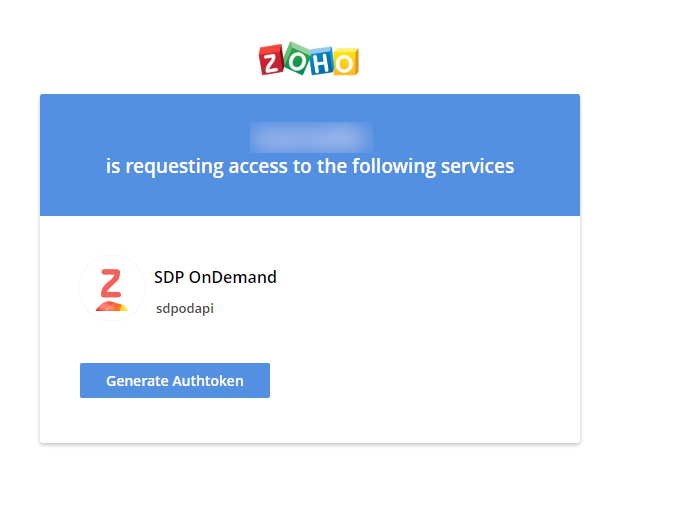
In another browser window, navigate to the following URL: https://accounts.zoho.com/apiauthtoken/create?SCOPE=SDPOnDemand/sdpodapi
You may have to be log into your ServiceDesk Account
- Click Generate Authtoken
-
Copy the authtoken
-
Back in the Nucleus connector setup window, fill out the following information:
| Field | Info |
|---|---|
| ServiceDesk URL | Base path to ServiceDesk |
| ServiceDesk Token | Paste the token you generated in step 5 into this field. |
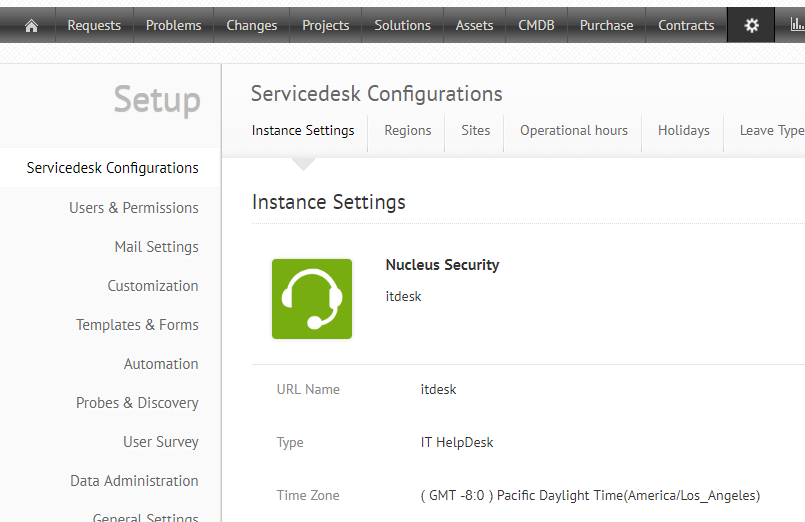
| ServiceDesk Portal | Make sure this matches your URL Name in ServiceDesk Setup and Configurations (shown below) |
To find the URL Name, in the ServiceDesk Plus portal navigate to Setup > ServiceDesk Configurations > Instance Settings
-
Back in the Nucleus window, click Save Changes and wait for confirmation of save
-
Click Verify Connection and wait for verification confirmation.
-
(Optional) Enter in the Default Values and click Save:
- Level
- Urgency
- Priority
The default values will pre-populate when tickets are being created so you don't have to select the urgency, priority, etc every time you create a ticket.
Congratulations! You now can create tickets into your ManageEngine ServiceDesk Plus connector from within Nucleus.