Overview
Veracode is a scalable way to manage risk across application portfolios and provides visibility into application statuses. Veracode data can be synced to your Nucleus account so you can enjoy the benefits of having that data alongside the rest of your scan data from other tools. You can also quickly organize and report on Veracode scan results and correlate it to data from other scanning tools as well.
Service Account Access and Permissions
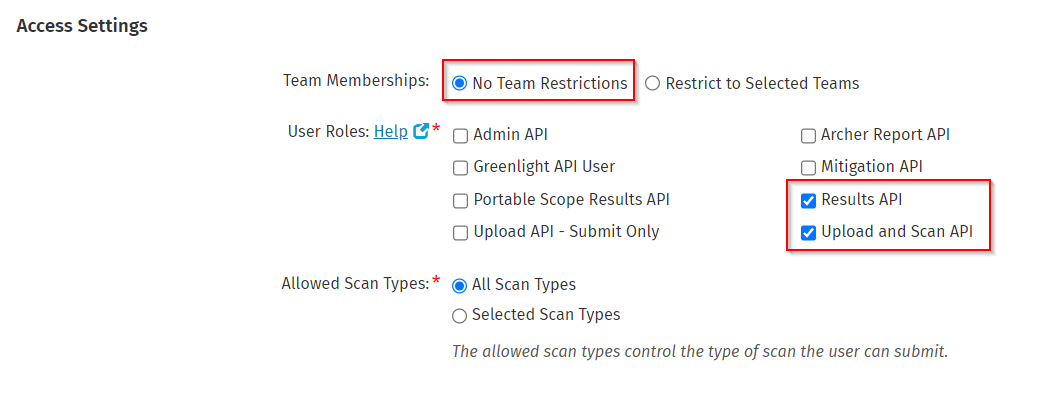
In order to use the Veracode connector in Nucleus, you'll need to create / enable a service account and make sure it has the appropriate team membership, user roles, and allowed scan types.
For Team Membership, either remove all restrictions from the API user by selecting "No Team Restrictions", or ensure that you maintain the list of Teams if your utilization of Veracode grows over time.
For User Roles, Nucleus requires both "Results API" and "Upload and Scan API". If the API user is exclusively for use on the Nucleus platform, we recommend only checking those two boxes.
For Allowed Scan Type, we recommend using "All Scan Types", but similar to Teams, if you choose to restrict the API user down to specific scan types, be aware we may not ingest everything you expect as your usage of Veracode expands.
Establish connection
The following two steps will walk you through setting up your API credentials in Veracode and then verifying them in Nucleus
Set up the API credentials
- Open a browser window and log into your Veracode console.
- Go to the user account menu and select API Credentials.
- Click Generate API Credentials.
- Copy the ID and secret key to a secure place to use them when logging into plugins.
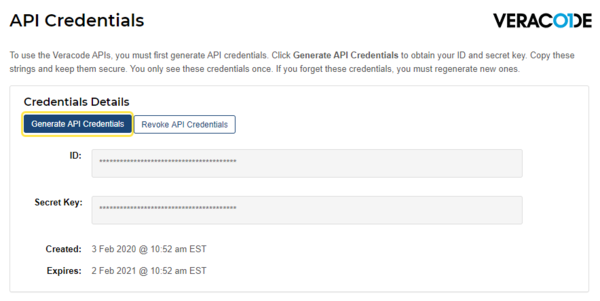
Follow this link to see the steps in Veracode's documentation.
Now that you have the Veracode API credentials, it's time to set up the Veracode connector in Nucleus.
Set up the Nucleus Veracode connector
- In a 2nd browser window, open Nucleus and browse to Project Administration > Connectors.
- Under the Scanners section, click the Veracode icon.
- In the Setup Veracode Connector popup, complete the following fields:
| Field | Info |
|---|---|
| Name | Enter a short name for the connector to uniquely identify it, such as "Veracode Cloud" |
| Description | Optionally, enter a description for the connector. |
| API ID | Enter the API ID you copied in Step 4. |
| API Secret Key | Enter the API Secret Key you copied in Step 4. |
- Click the "Verify Credentials" button and wait for the Success message.
- Click the "Save & Finish" button and wait for the Success message. Your connector is now set up and ready to use!
- Close the popup window.
- Navigate to Data Ingest > Import via Connector to start selecting scans to import!
Import custom Veracode fields to Nucleus
Nucleus allows you to make a deeper connection with Veracode in order to orchestrate additional actions in Nucleus. We enable you to tell Nucleus additional information about each application, which can be used for better organization of Veracode projects within the Nucleus asset database.
Additionally, if you name your custom fields in Veracode a certain way, then Nucleus will use those to help with asset matching across all your vulnerability scanning tools. Any one of the following custom fields are currently supported for additional asset matching by Nucleus:
| Veracode Custom Field Name | Nucleus Field that will be populated |
|---|---|
| branch | Branch |
| app_name | Asset Name (used for deduplication between scans) |
| git_repo | Repo URL |
| commit_hash | Scan Details |
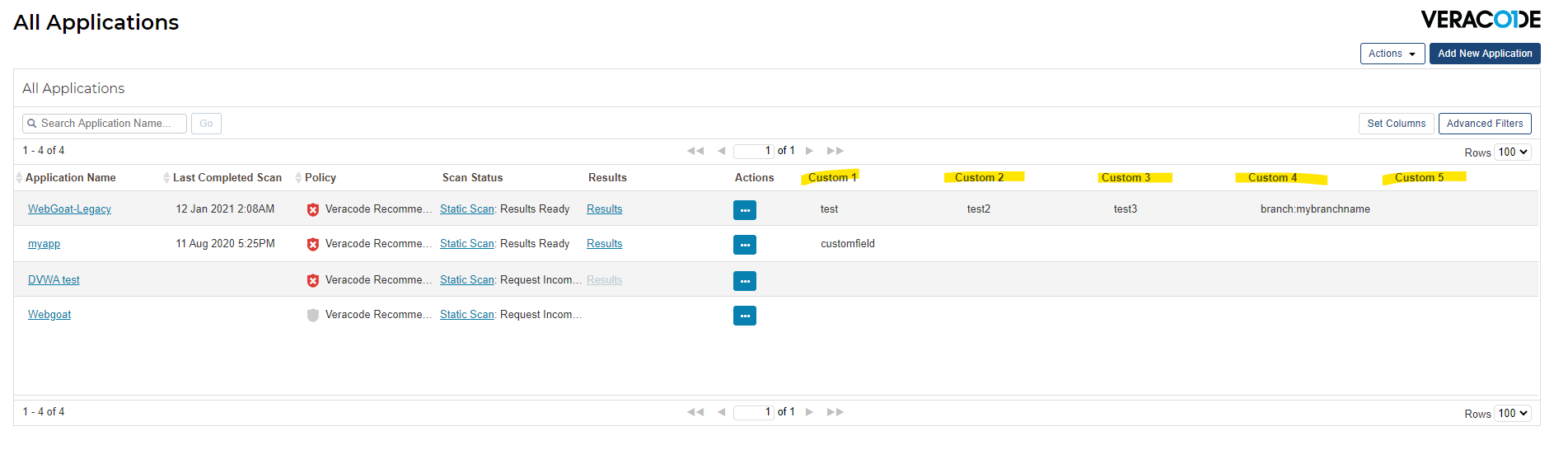
All of your custom fields will be pulled into Nucleus as additional metadata. The specific custom fields referenced above will be used for enhanced asset matching.
Special considerations
Nucleus syncs all the metadata about an asset from Veracode that we can. This includes:
-
commit_hash is synced as ‘Revision’.
-
Veracode customfields are synced as veracode.customfields.fieldname.
-
Veracode app_name and tags always synced as veracode.metadata.app_name and veracode.metadata.tags.
-
The metadata application is always synced as veracode.app_name.
-
Veracode statuses are mapped to the following Nucleus statuses:
- ‘Mitigated by’ as 'Mitigated'.
- ‘Potential False Positive’ as 'False Postive'.
- ‘Sent to Library Manager’ as ‘Waiting for Third Party’.
- ‘Accepted’ as 'Accepted'.
-
Veracode metadata Customfields (veracode.customfields.field) are synced as:
- ‘app_name’ synced as asset name.
- 'branch' synced as branch.
- 'commit_hash' synced as app version.
- 'git_repo_url' synced as the repository.
-
To give you even more flexibility with how you create asset groups, now when assets are imported from Veracode, you have the option to create unique asset groups including:
- Nested asset groups,
- Create groups that match with imports from other scanning tools.
- Do nothing.
- Tags are always synced under
veracode.tags. Veracode tags can optionally be synced as Nucleus groups.
:::
Ingest data
Veracode data may be ingested in three ways. These options are available in the Import via Connector screen or in Vulnerability Scan Ingest rules
The three options available are:
- All: Ingests all Veracode scan data associated with the account (since last ingestion)
- By tag: Ingests all Veracode scan data for applications with the tag you select (since last ingestion)
- By Application: Ingests all Veracode scan data for the application you select (since last ingestion)
Veracode sandboxes
The ability to ingest Veracode sandboxes is currently offered as beta functionality
Nucleus can ingest Veracode sandboxes as assets and their associated vulnerability data. Customers may find this useful if they wish to evaluate sandbox findings from Veracode in Nucleus alongside their application findings.
Ingest sandboxes
To ingest sandbox data, select the Include Sandboxes (Beta) check box when ingesting Veracode data.
This option is available in two places:
- Navigate to Automation > Vulnerability Scan Ingest > Add Rule and select Veracode from the connector dropdown menu
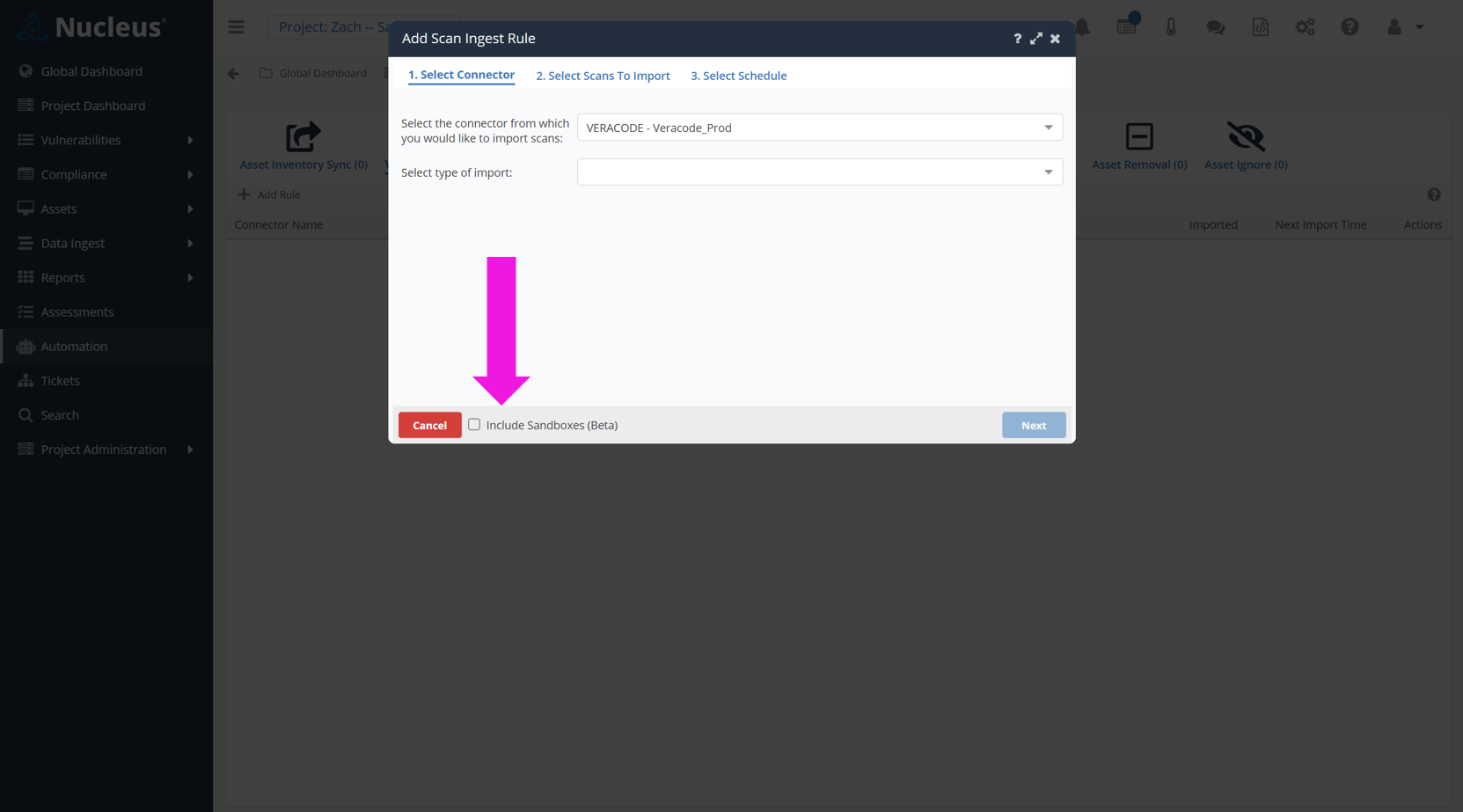
- Or, Navigate to Import via Connector and select Veracode from the connector dropdown menu
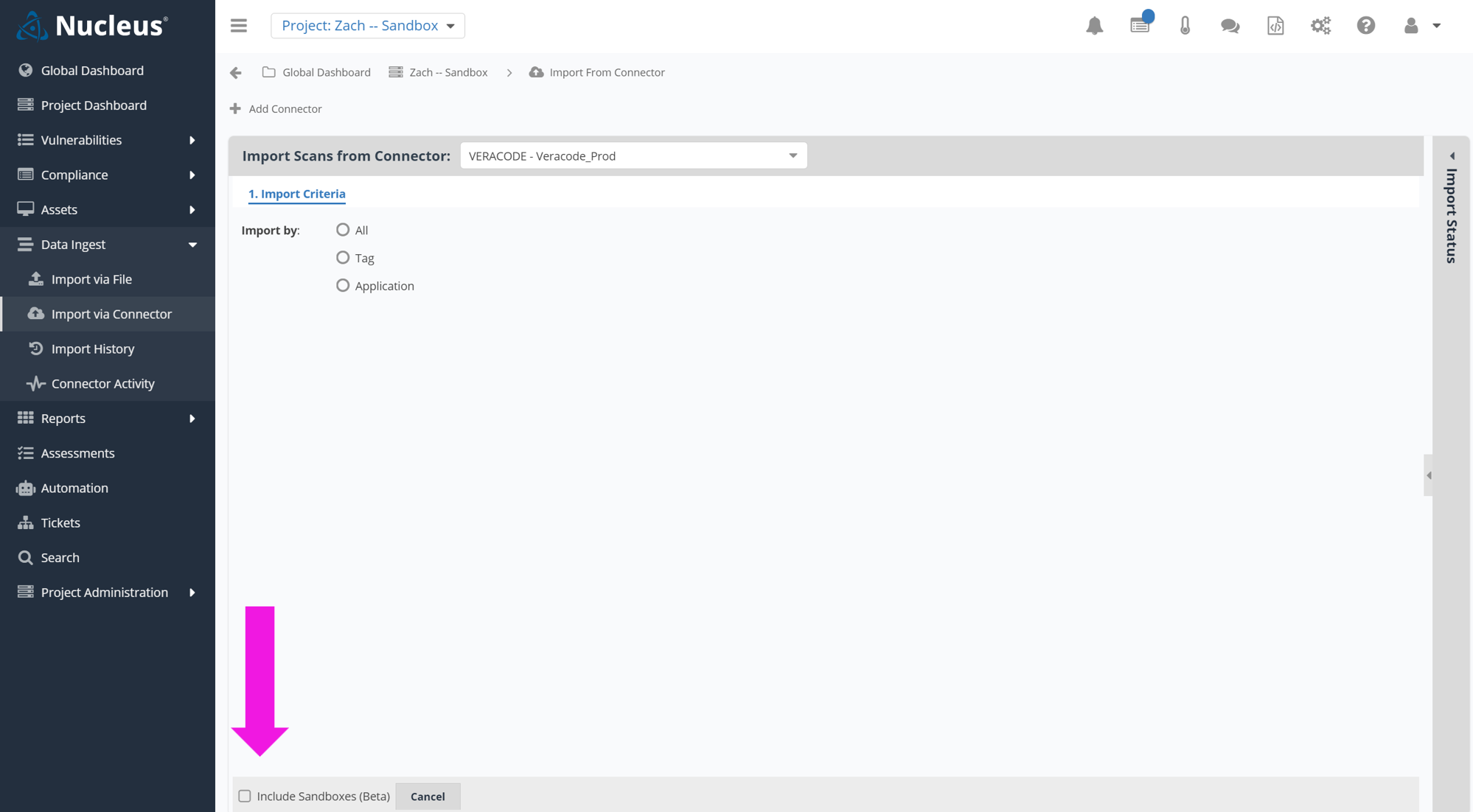
Which sandboxes will be included
When sandboxes are included, Nucleus will pull in all sandbox scans for the applications that match the Import by criteria you select (all, tag, or application -- see Ingest data above for more information about how this works).
Data structure
Veracode sandboxes are treated by Nucleus as application assets and will be organized as branches of the Veracode application they are associated with.
In the asset management UI, they will display with the application name first, and the sandbox name following in brackets. For example, a sandbox called My Sandbox in the application My Application will appear on the asset management screen as My Application [My Sandbox].
Sandbox assets do not count against your application asset count for licensing purposes.