Overview
Microsoft Defender ATP, now named Microsoft Defender for Endpoint (MDE) is an endpoint solution used by large enterprises to defend and scan their endpoints for vulnerabilities. MDE has many modules, including threat intel, EDR, email inbox monitoring, and vulnerability scanning. Follow this procedure to to sync the CVE intelligence found in MDE (specifically, vulnerability exploit status) into VIP in an automated way.
Set up Azure AD App
Microsoft requires an app registration in order to set up the Feed in VIP. To set up the app, do the following:
Step 1: Register app
- Log on to Azure through a user account that has the "Global Administrator" role.
- Go to Azure Active Directory > App registrations > + New registration.
- Enter in a descriptive name for this app, such as "Nucleus VRM".
- Leave the rest as defaults
- Click Register to complete the registration.
Step 2: Allow API permissions to Defender endpoints
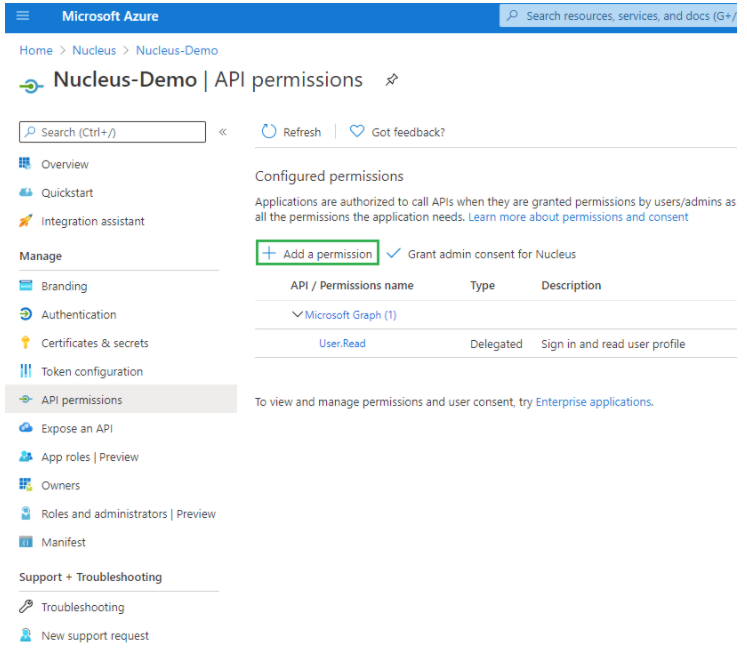
On the new page shown after you register the Azure app, go to API Permissions.
Click + Add a permission.
Click on the tab APIs my organization uses.
In the search bar below, type in "Windows" and look for the item "WindowsDefenderATP" in the list below.
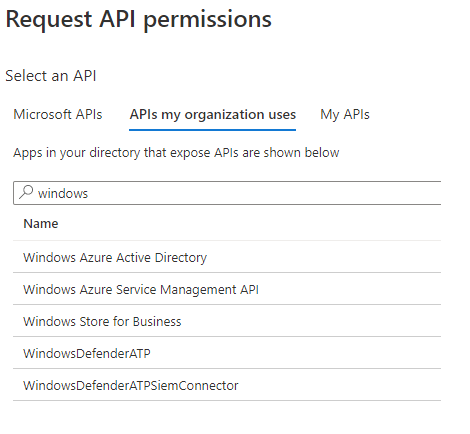
- Click on "WindowsDefenderATP".
- Click "Application permissions".
- In the list, select the following permissions:
| Microsoft Permission | Use |
|---|---|
| Vulnerability.Read.All | Used by VIP to pull down the vulnerability information from Microsoft Defender. |
- Click Add permissions.
Step 3: Grant Admin consent for app
You now need to go to a different section in Microsoft to grant admin permission for this registered application.
After granting the above permissions, your API permissions page will look like this:
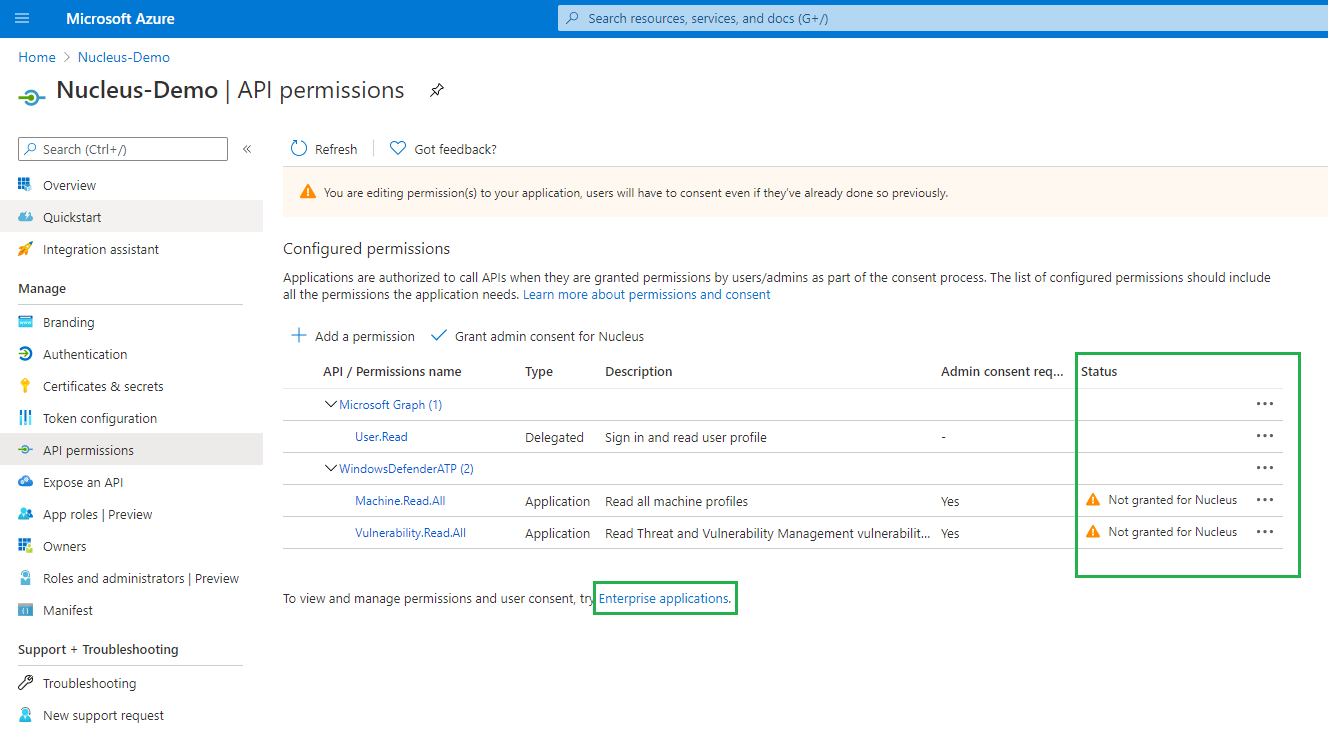
Click on the hyperlink Enterprise applications as noted in the screenshot above.
Click Grant admin consent for Nucleus. This will enable the permissions you set up in Step 2.
Step 4: Configure client secret and gather authentication information
- Still in Microsoft, go to Azure portal > Azure App directory > App registrations > Nucleus (or the name of the application you registered in step 1 of the Microsoft setup).
- Copy the following information from the "Overview" page:
- Application (client) ID
- Directory (tenant) ID
- Go to "Certificates & secrets" page.
- Click "New client secret".
- Add a description for the client secret to remember, such as "Secret for Nucleus to authenticate to Microsoft Defender ATP".
- Set expiration date. Note that you will need to renew this client secret and the Nucleus connector will stop working if this secret expires.
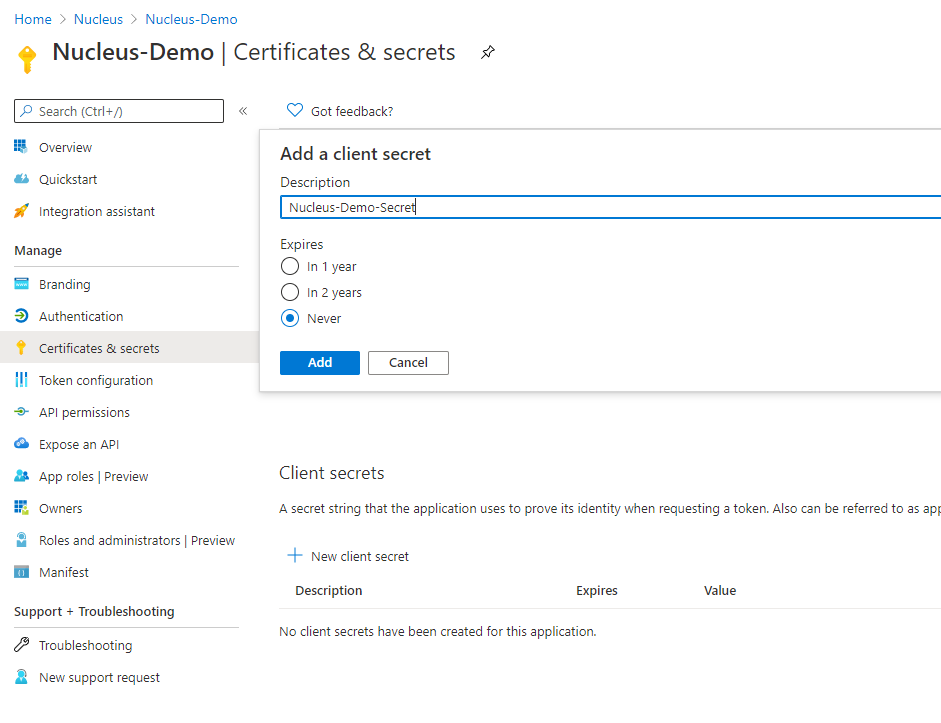
7. Click "Add".
8. Copy the Client Secret "Value".
All done! You have completed the configuration on the Microsoft side. Now you'll move to the Nucleus configuration.
For more information and screenshots on this process, use this Microsoft Guide: Microsoft Defender App Registration
Enable Defender in VIP
Head over to the Store page and click the Enable button in the Microsoft Defender card. Once you enter the Client ID, Client Secret and Tenant ID discussed in the steps above, you can press Enable.
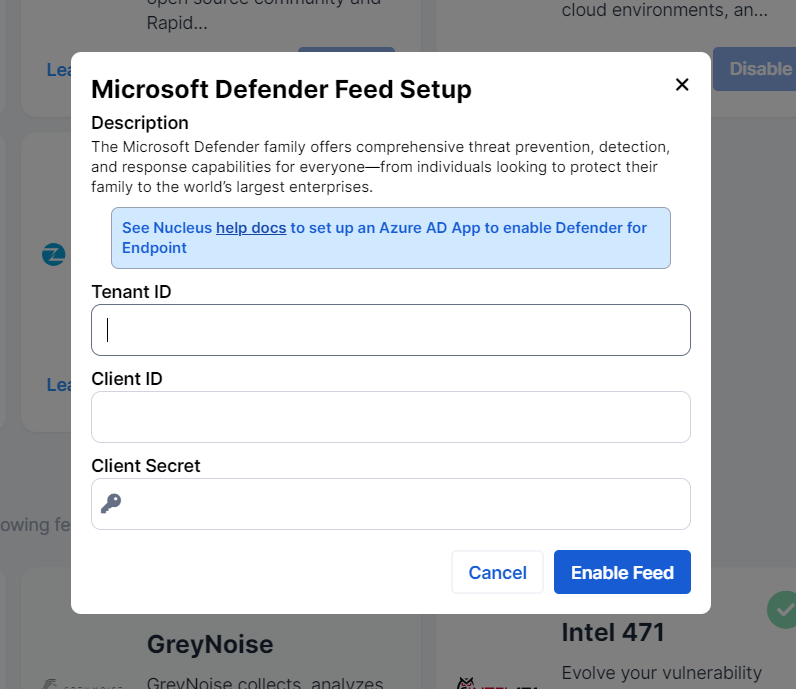
That's it! Defender data for CVEs is now available for viewing and searching on in VIP. Woohoo!