Overview
Nucleus enables you to automatically process new assets as they're discovered. This article details how this process works in Nucleus.
As Nucleus is importing scan data, often we'll find new assets that were scanned. This especially happens in DHCP environments or when new assets were added to a specific scan. Nucleus enables you to set up rules that define what automatic actions to take on the newly discovered assets when they are imported into Nucleus. Actions include adding assets to groups, setting ownership, and business context like criticality, data sensitivity, etc.
When using exact match conditions (e.g., “is,” “is not,” or “equals”), case sensitivity is required.
For example, if your rule condition is set to match the value Production, it will not match production or PRODUCTION.
For a refresher on Asset Groups and their uses in Nucleus, refer to the Asset Groups Overview page. This article assumes you already understand the benefits of using groups within Nucleus and how groups are used throughout the application to more effectively manage your vulnerabilities.
Step 1 - Go to asset processing rule page
Automatic Processing rules in Nucleus allow you to dynamically group assets & assign risk attributes as they are imported into Nucleus. In general, the asset grouping occurs during a scan import.
In order to start grouping your assets automatically, do the following:
- From within a Nucleus project, navigate to the Automation page and select the Asset Processing tab.
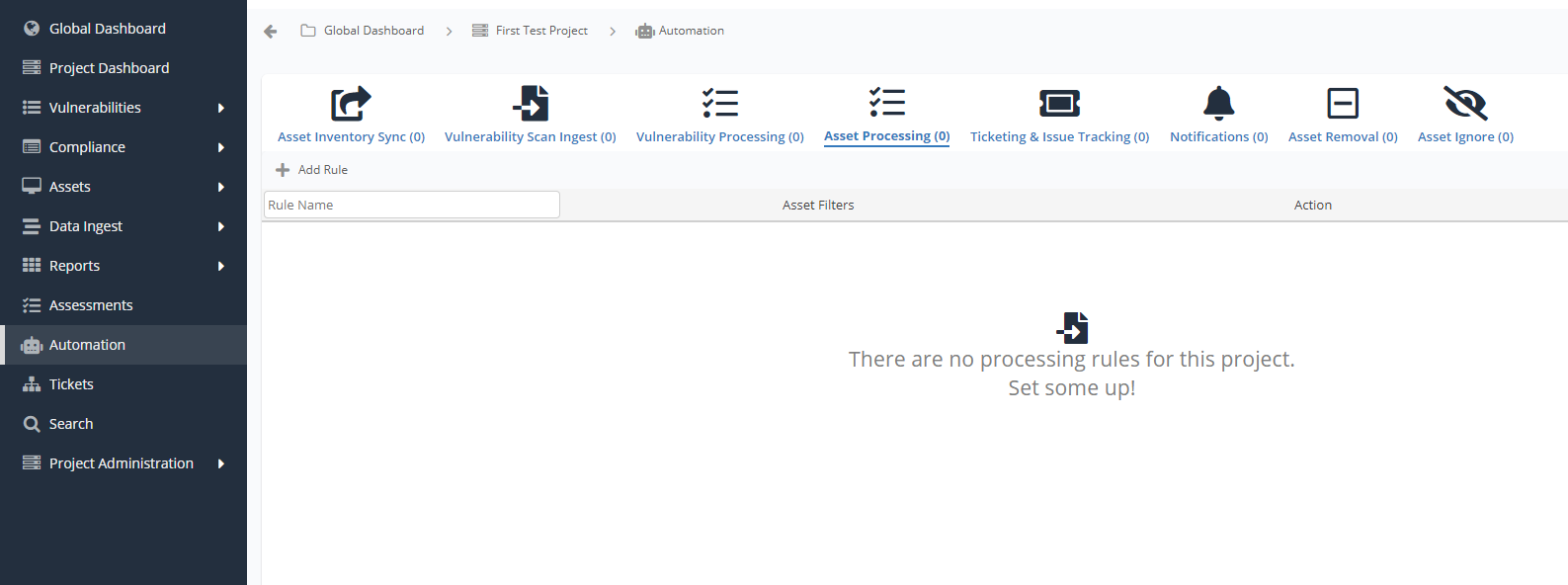
- Click Add Rule.
Step 2 - Enter rule information
Rule name
Fill out a name to recognize the rule, how it is used, and the parameters that trigger this rule. This rule name will be included in some of the notifications. Example: "Map ServiceNow custom fields to Nucleus groups"
Apply on save
By default, asset processing runs as data is ingested. This means the next time you upload a scan or sync asset data to this Nucleus project, all of your asset processing rules will run automatically. If you prefer to save and then immediately run the rule on all existing assets in Nucleus (instead of waiting for the next scan ingest), select this "Apply on save" option. The rule will run immediately on all assets in Nucleus.

Step 3 - Set Asset Criteria
Nucleus will try to match any assets that meet key criteria
Use this section to create sets of Condition/Value pairs as the criteria Nucleus will use to match assets under this rule.
You can choose to select any or all of the following fields or criteria that must be met to trigger this rule.
The following fields are currently allowed for matching asset metadata. Some of these can be Dynamic Fields. For more on this, visit this article.
| Condition | Description | Field Type |
|---|---|---|
| Asset Name | All assets which match a certain name or naming convention | Textfield with exact matching, wildcard matching, full regex matching, dynamic matching with asset.name |
| Asset IP | All assets with a certain IP, IP range, or comma separated list of IPs | IP field, dynamic matching with asset.ip |
| Asset Group | A search field where you can search for strings in the name of any groups that the asset is already in | Textfield with exact matching, wildcard matching, or full regex matching. To match based on subgroups use the "/" delimeter. |
| Asset OS | A search field where you can search for strings in the name of the Operating System | Textfield with exact matching, wildcard matching, or full regex matching |
| Business Owner | A search field and drop down where you can search for and select the name of any user in the current Nucleus project | Search field or textfield, dynamic matching with asset.business_owner |
| Business Owner Team | A search field and drop down where you can search for and select the name of any team in the current Nucleus project | Search field or textfield, dynamic matching with asset.business_owner_team |
| Support Team | A search field and drop down where you can search for and select the name of any team in the current Nucleus project | Search field or textfield, dynamic matching with asset.support_team |
| Source | A search field where you can search for strings in the source of the asset or vulnerability data | Textfield with exact matching, wildcard matching, or full regex matching |
| Connector | A dropdown where you can select which connector the data is coming from | Searchable Dropdown Selector |
| Custom Fields | All assets which match a custom asset field in asset metadata | Textfield with exact matching, wildcard matching, or full regex matching |
Any additional metadata for an asset can be used in asset matching for processing rules, allowing you to leverage and use custom fields from tools like ServiceNow to match to (or match against) within the Nucleus platform.
Example
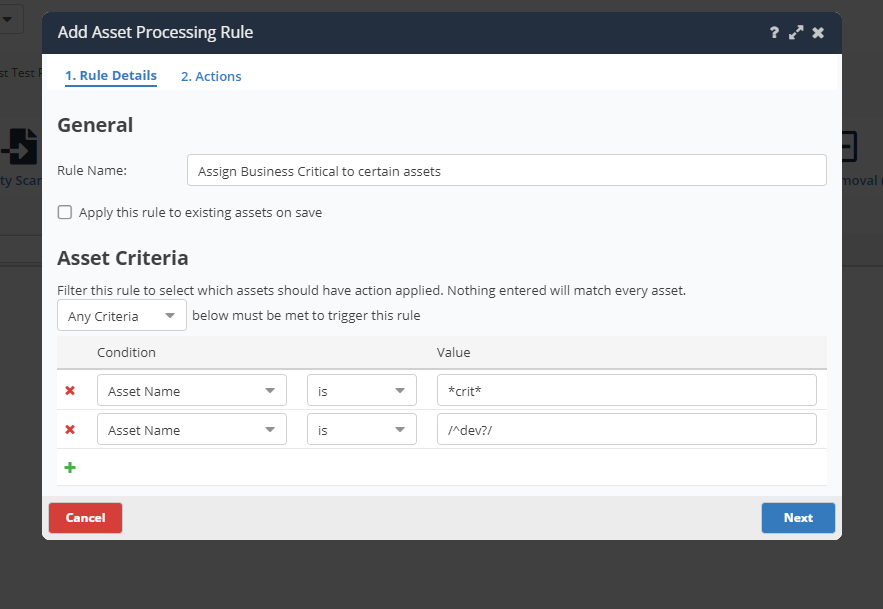
This example mixes a wildcard match and a regex match expression to match asset names contained in the Nucleus asset database
- Click the Next button to go to the next step.
Step 4 - Define actions
The Nucleus Automation Engine uses cards to enable Action Chaining for maximum flexibility and virtually limitless possibilities for automating complex workflows.
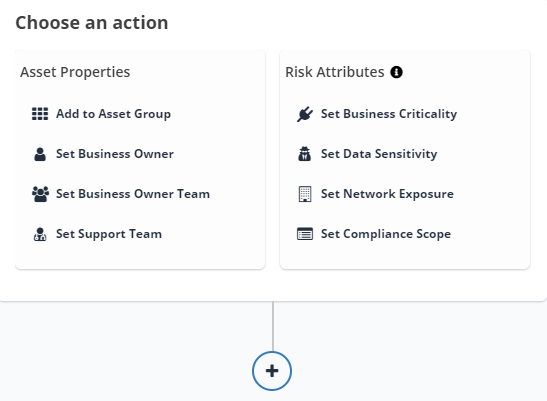
Simply select an action, choose from the available options and/or complete the fields. If you want to chain on another action, click the + button and a new Choose an action card will appear.
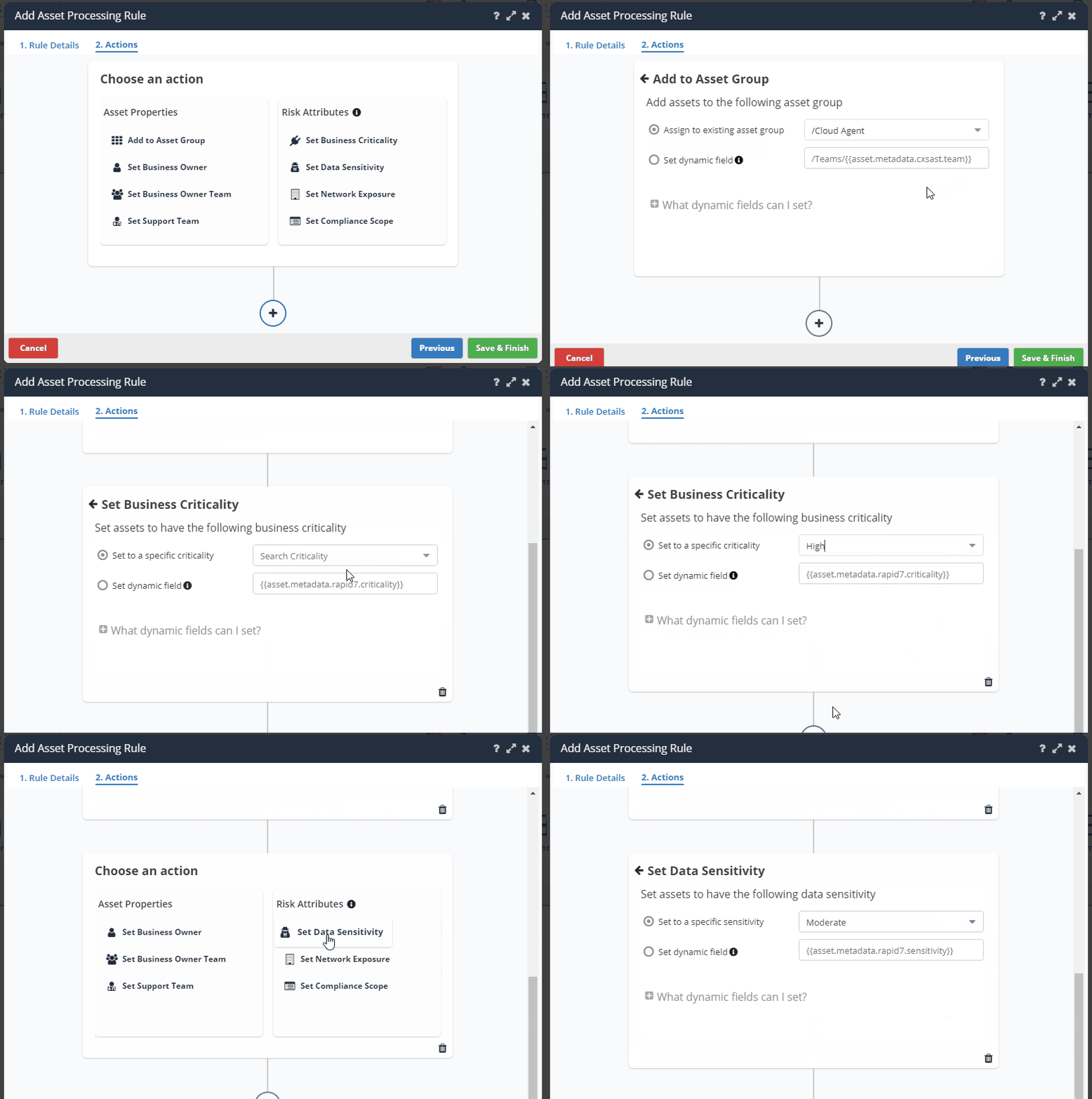
Asset Processing rules are always executed in the order listed, which is the order they were created in.
- Click the Save & Finish button.
You are all done! You have created your first asset processing rule! This will allow you to have Nucleus automatically process assets as they are imported, for downstream use in the rest of the application from reporting to dashboards to triage workflows.
Reorder multiple rules
You can update the order of execution for asset processing rules so that you can build logic for cascading asset processing actions based on previous actions.
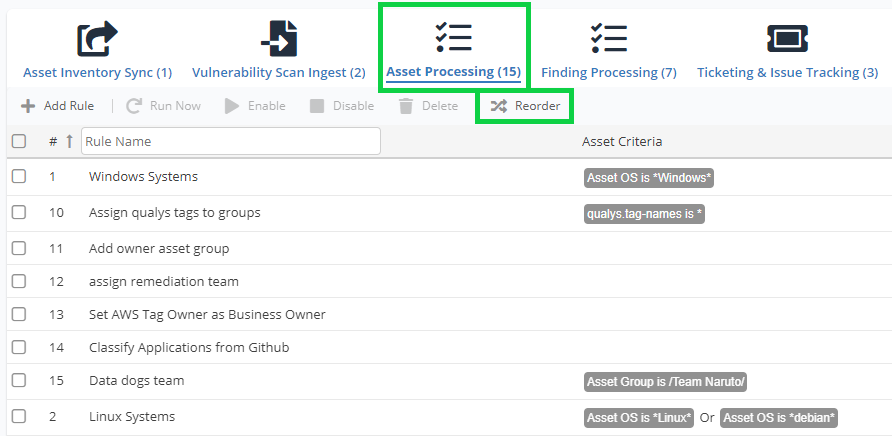
- To do so, click the Reorder button on the Asset Processing view.
- Drag and drop by clicking and dragging one of the hamburger icons or by selecting a rule using the checkbox and then using the up and down arrows to adjust the order of your rules.
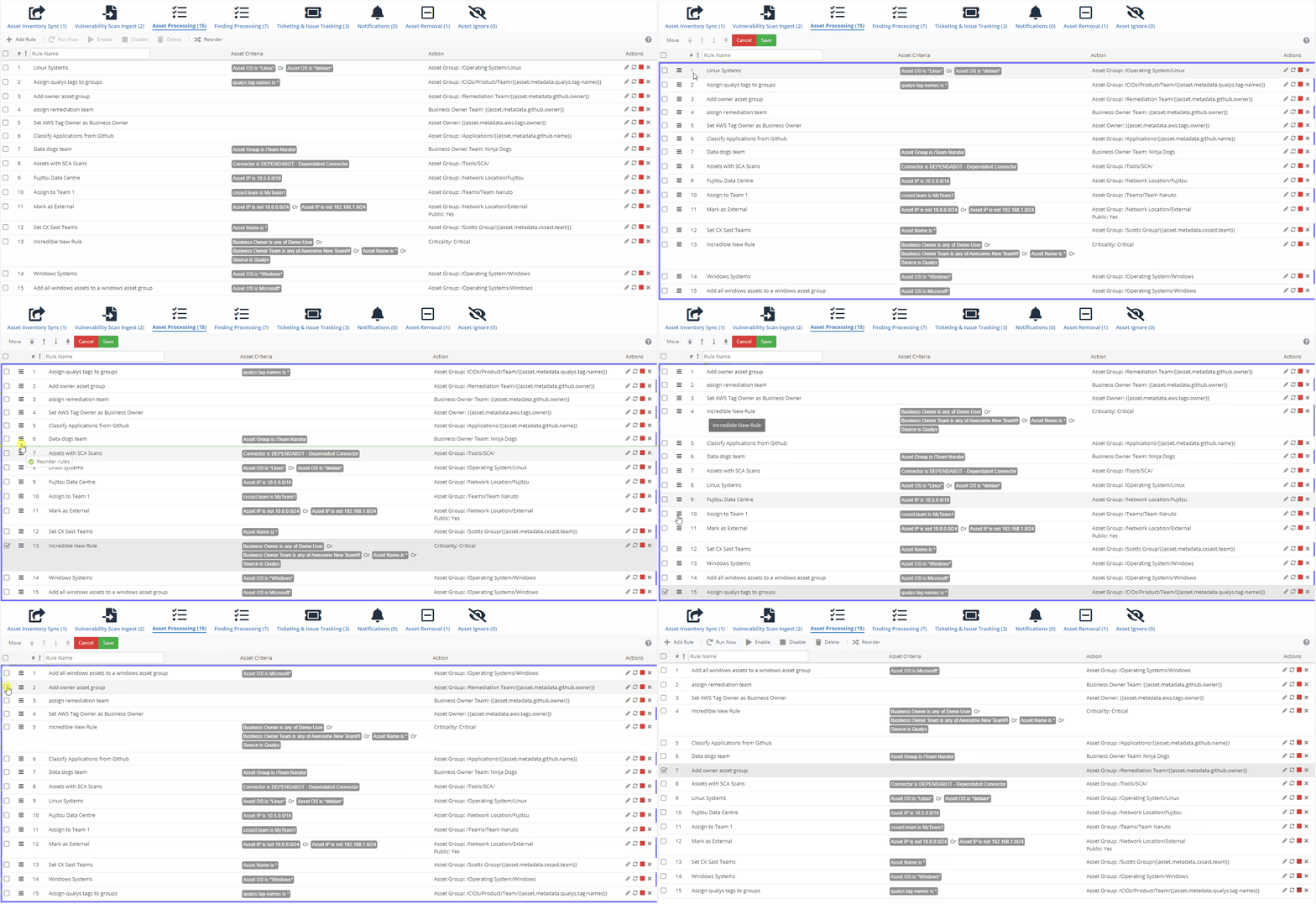
- Click the Save button when the rules are in the order you want.
Create rules via API
You can now create asset processing rules via API! Refer to the API docs for your instance to try it out and start automating vulnerabilities at scale!
With the API, you can do the following:
- Create a new asset processing automation rule
- Get all asset processing automation rules that have been defined
- Update an existing asset processing automation rule
- Get a specific asset processing automation rule that has been defined
Questions about Nucleus Automation Workflows? Contact support here and we'll be happy to help you out!