Overview
Nucleus enables you to schedule reports to automatically be emailed to stakeholders, giving vulnerability analysts one less thing to do every reporting period. To have reports generated and emails automatically, follow these steps.
Schedule a report
- From within a Nucleus Project, navigate to Analyze > Reports > Schedule Report.
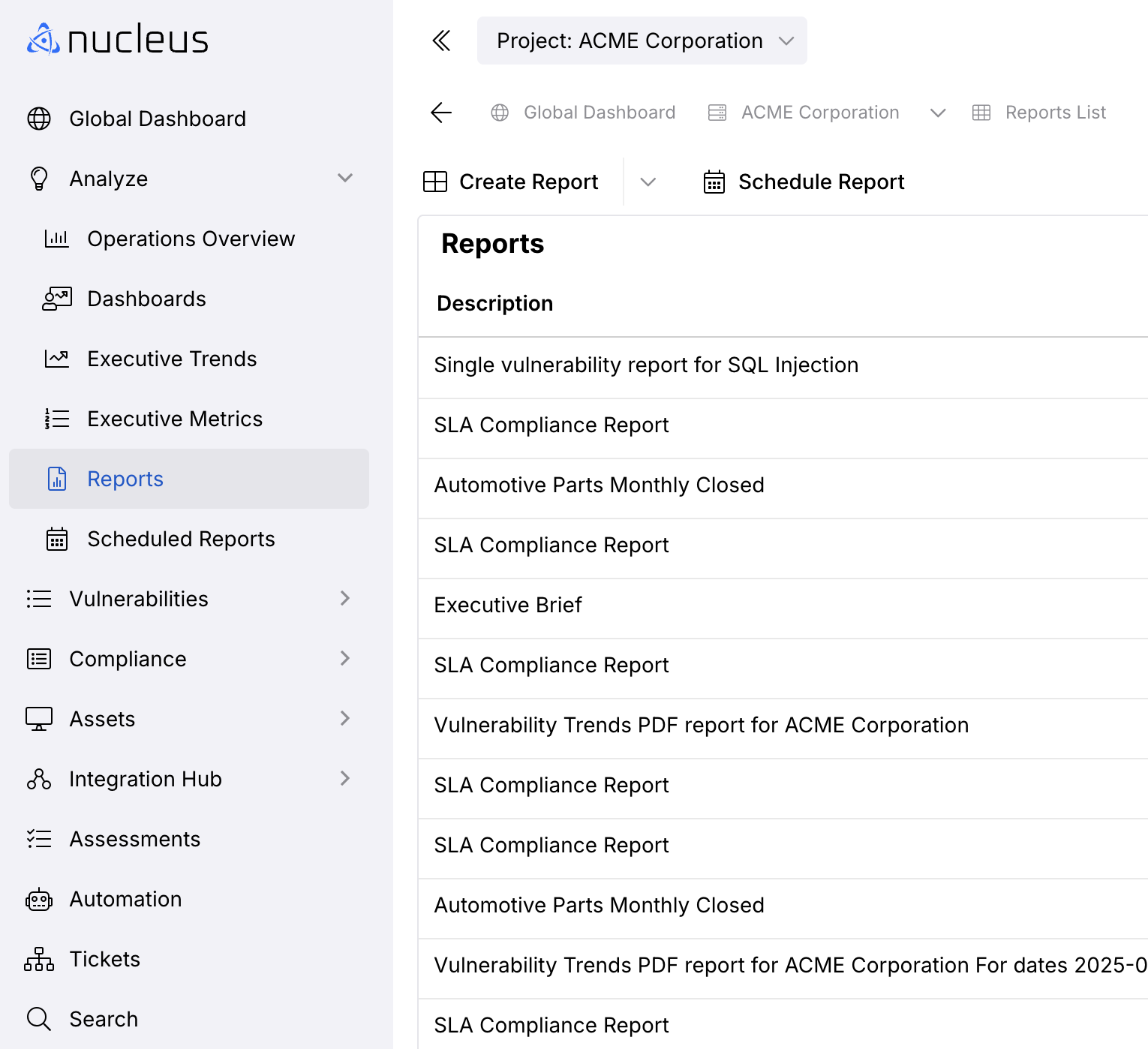
- Click Add Scheduled Report.
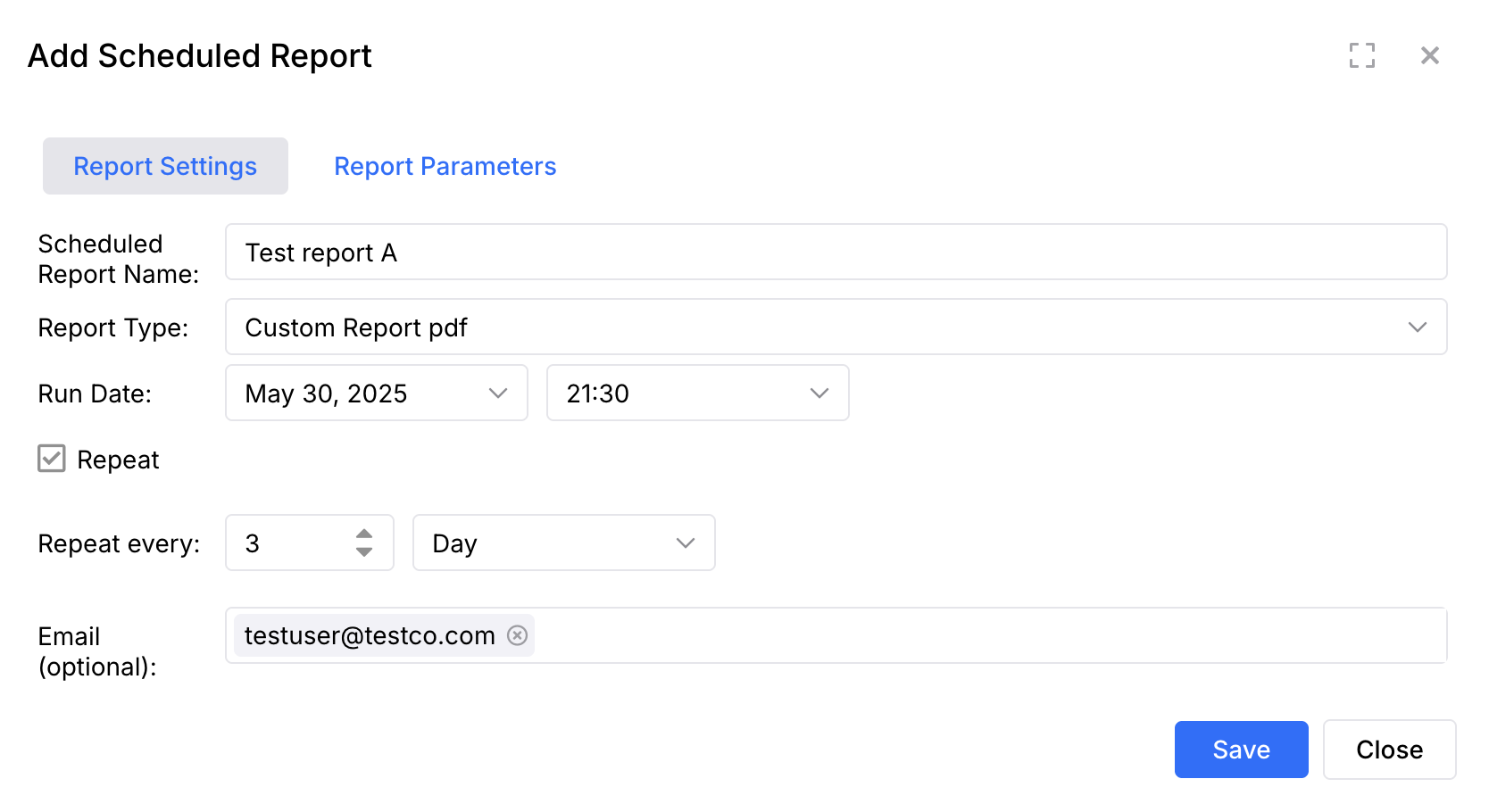
- Fill out the following fields:
| Field | Info |
|---|---|
| Scheduled Report Name | Choose a name to help identify and recognize this report, for example: "Weekly Vulnerability Summary of all my Business-Critical Web Applications". |
| Report Type | Select a type of report from the dropdown list. This is where you choose which report is generated. |
| Run Date | This is the first time that the report is scheduled to run. This time is scheduled according to the time zone of your computer. For more information see this report FAQ. |
| Repeat | This is the schedule and frequency when the report will run. You can set a report to run every day, week, or month, and on specific days of a week or a month. |
| This is the "to" email address or addresses where Nucleus will send the report. Separate multiple emails by a comma or press enter after entering each one. |
- Click Save and your new Scheduled Report is added to the list.
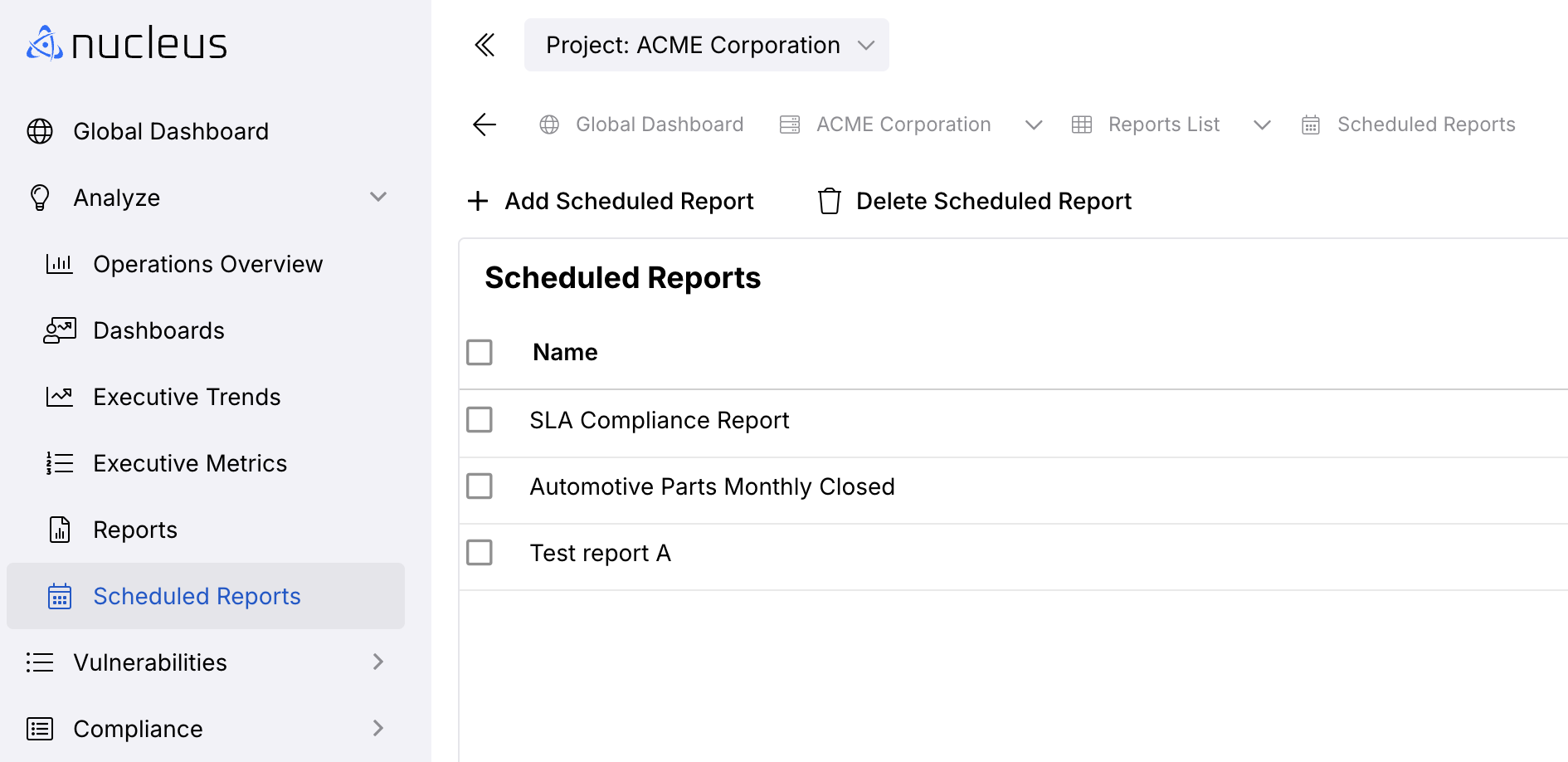
Nucleus allows you to generate reports on a schedule that works for you, whether that is every month on the 30th Wednesday, or every week on Sunday, to give you the flexibility to report according to your specific requirements.
You have scheduled your report! Rinse and repeat to create as many scheduled reports, slicing your data different ways, as you want! This should make reporting to stakeholders much easier and keep everyone happy.
- To edit your Report schedule go to Scheduled Reports.
- Select the Report you want to edit, scroll to the right, and click the Pencil icon.
- In the pop-up edit the fields to update the information and click Save.
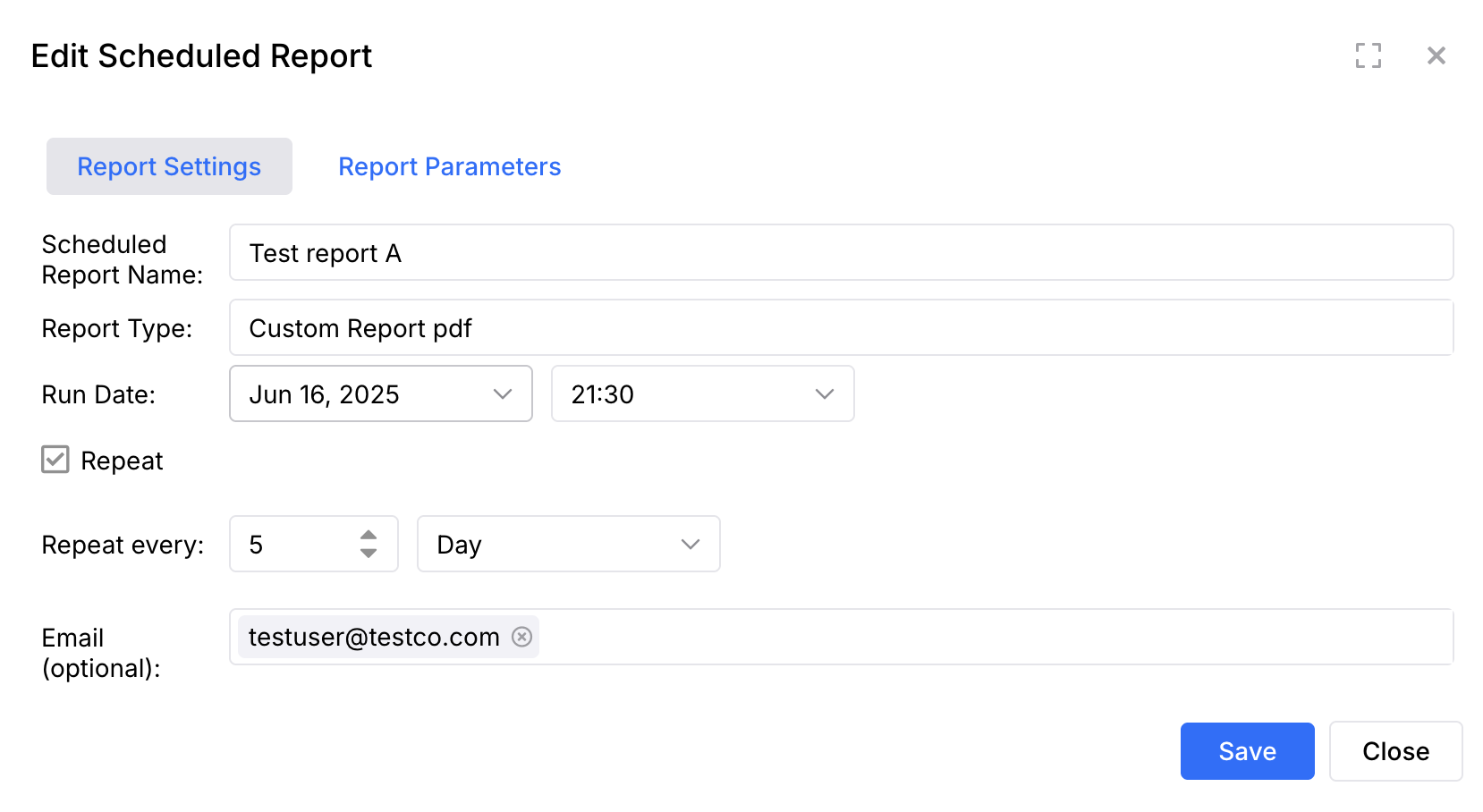
You can schedule reports and update report schedules as needed!
Editing the filters of a scheduled custom report
What opens when you click the Pencil icon depends on the report type of the scheduled report.
| Report Type | What the Pencil icon opens | What you can change |
|---|---|---|
| Custom Report pdf | The full report creation window, with the schedule's saved filters already applied | The report name, the schedule, the email recipients, and all report filters and parameters |
| Custom Vulnerability Details xlsx | The full report creation window, with the schedule's saved filters already applied | The report name, the schedule, the email recipients, and all report filters and parameters |
| All other report types | The Edit Scheduled Report window | The report name, the schedule, and the email recipients. The Report Type cannot be changed. |
To edit the filters of a scheduled custom report:
-
Navigate to Analyze > Reports > Schedule Reports.
-
Select the custom report you want to edit, scroll to the right, and click the Pencil icon. The full report creation window opens with your saved filters already applied.
-
Adjust the filters, parameters, schedule, or email recipients.
-
Click Save.
For report types other than Custom Report pdf and Custom Vulnerability Details xlsx, the Edit Scheduled Report window shows Report parameters cannot be modified here. To change the parameters of one of these reports, delete the scheduled report and create a new one with the filters you need.
Managing Scheduled Reports vs. Report Runs
There are two different places to manage reports, depending on what you want to do:
| Location | What It Manages | Actions Available |
|---|---|---|
| Scheduled Reports page | Recurring schedules | Edit schedule settings, Run Report Now, Delete Scheduled Report (stops all future runs) |
| Reports page | Individual report runs | Download, Cancel (in-progress runs), Delete (completed/cancelled runs) |
Key differences:
- Running a report now from the Scheduled Reports page generates that report immediately and does not change the schedule or the next scheduled run. The generated report appears on the Reports page for download.
- Deleting a schedule from the Scheduled Reports list stops all future runs permanently.
- Cancelling a run from the Reports page only stops that specific run; the schedule remains active.
- Deleting a run from the Reports page removes that report file; the schedule remains active.
For questions, please email [email protected].