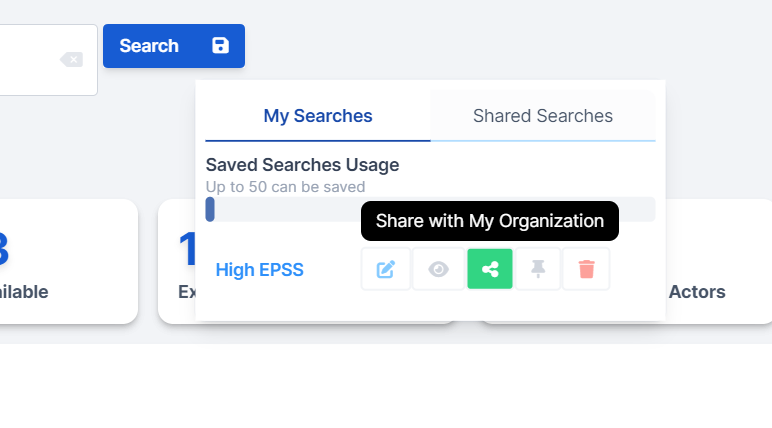
Once you have determined a question you want answered at the click of a button at any time, or to customize your home dashboard to answer it any time you visit, you'll want to save it. Saving a search will enable observing vulnerability intelligence changes in real-time so you know you are making decisions on the latest data.
Save your Search
Click the Save Search highlighted text directly underneath your search and the Save Search modal will appear.
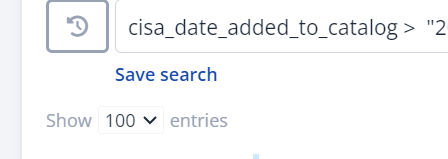
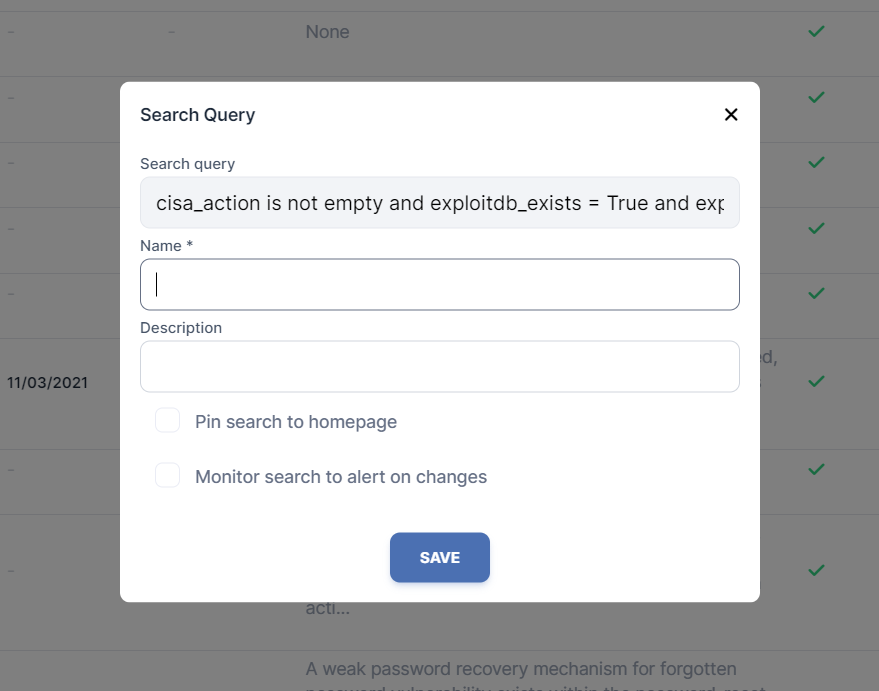
Once you click on "Save search", you will have the option to input the following information
- Name your search (required)
- Give it an optional description
- Choose to pin it to the homepage
- Begin to monitor the search
- Select Save when you're done!
Edit your Saved Search
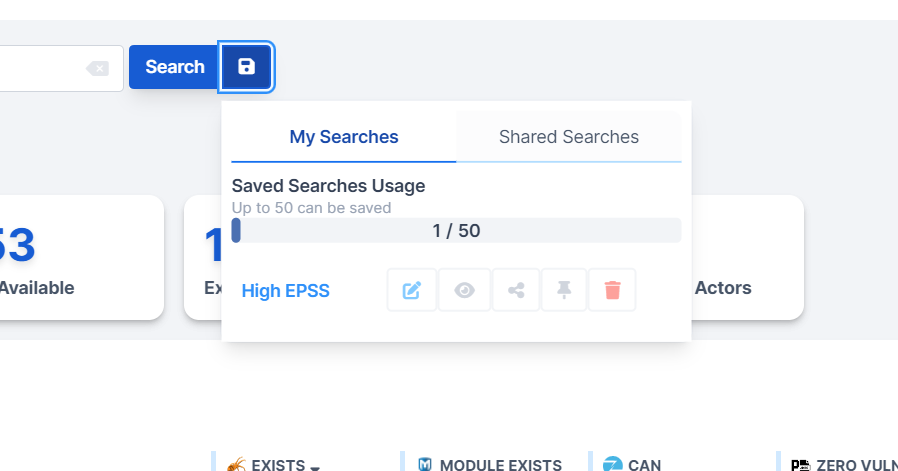
Clicking the 'Save' icon to the right of the 'Search' button opens the Saved Searches modal. Here, you can view searches you have saved as well as searches shared with you by members of your organization.
The row of buttons to the right of the search description allow you to manipulate the saved searches.
- Edit your saved search
- Monitor the saved search
- Share the search with your organization
- Pin the search to your homepage
- Delete your saved search
Pin Search to Dashboard
When you click the 'Save Search' button there will be a checkbox that allows you to replace one of the existing panels at the top of the page with your saved search. Once you select the checkbox, the panel which you want to replace can be selected from the list.
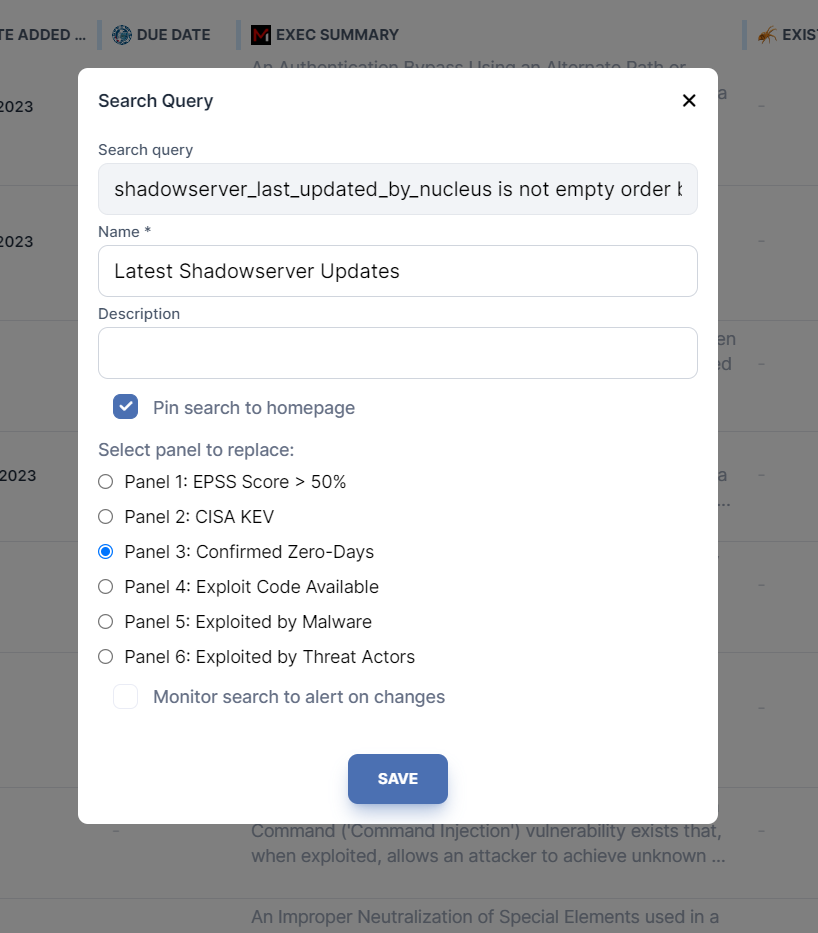
Once you select the panel to replace, click 'Save'.
Woohoo! You just pinned a saved search. Each time you login to VIP, the number represented in the panel will update dynamically as the results of your search change overtime.
Share your search
All VIP users have the ability to share searches with their organizations, which will appear in the Saved Searches Modal > Shared Searches. You can also view searches shared by Nucleus to save for your own use and customization. Nucleus will be adding more "Shared Searches" to this view over time for your use.
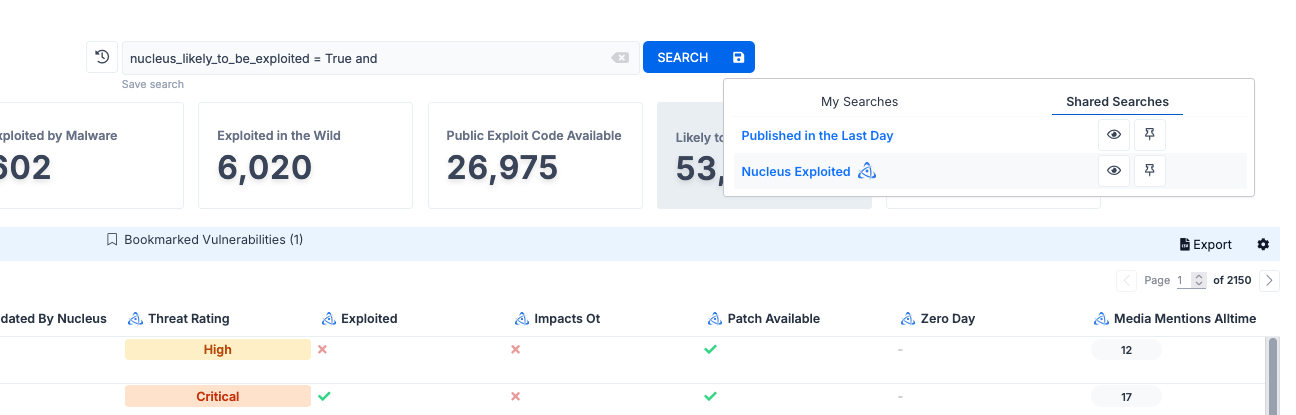
To share your search click the Share icon in the My Searches window on the search you want to share. This will make this search you created available for other users in your organization to use as well. For example, they can pin the search you shared to the top of their dashboard.