Nucleus is designed for users to have finegrained access roles and permissions to support the limited-access use cases that organizations need to build and run an effective vulnerability management program.
This article provides an explanation of users and their user access roles and permissions, and assumes an understanding of the concepts Organizations, Projects and Asset Groups.
Users
Users exist within a Nucleus Organization and are centrally managed at that logical level. Users can be a part of multiple organizations within one or more Nucleus instances, although typically a user only has access to a single organization in a single instance unless they are an administrator using Nucleus for Managed Security Service Providers (MSSPs).
Users can be provisioned manually to organizations from the UI, and can also be automatically provisioned to an organization using Single Sign-On (SSO) with Just-in-Time (JIT) provisioning.
Once a user is part of an organization, they can then be allocated roles in projects manually in the UI, or automatically using SSO group or role mappings.
Nucleus is designed to support the unique roles and requirements needs organizations have for vulnerability management. In Nucleus, you'll define fine-grained roles within each project to meet your specific roles and requirements.
User Access Roles
Nucleus Organization administrators have the ability to create user access roles. Each user access role is a set of permissions that determines what actions users with that role can perform in projects.
User access roles are defined within a Nucleus organization, and can be applied to multiple users within the same project, as well as one or more users across different projects. Users can have different user access roles for different projects, but no more than one role defined per project at a time.
Once a user has been assigned a role within a project, their access can further be restricted to a subset of assets in the project by using Asset Group Access Control (AGAC), either directly applied to their user account, or by adding that user to a team and restricting the team's access with AGAC. Please see the article Asset Group Access Control for how to configure this for users your project.
Pre-defined roles
Nucleus provides a set of pre-defined user access roles for getting started within the platform. These roles cannot be modified or deleted, but do not have to be used. See the Defining new roles section for creating and using custom roles.
Organization Admin
The Organization Admin role is the highest-level super-user role responsible for administering the entire organization within Nucleus, with full-access permission to all projects in the organization. The Org Admin has control over all other users and their roles, access permission levels, and risk management settings:
- User management control to invite, edit, enable, disable and delete users, and provision API accounts;
- Role management control to create, update and delete roles with custom permission options as well as link the roles to groups or match roles defined in the organization's Single Sign-On (SSO) provider; and
- Organization-wide risk management control to set default risk settings for each project.
Organization Admins also have control over reporting, templates, and logs to:
- Generate global reports;
- Create, update and delete custom finding templates;
- Manage organization-wide automation;
- View organization-wide connector activity; and
- View an organization-wide activity log.
Project Admin
The Project Admin role is a super-user role scoped to a specific project. This role gives the user complete access to view and modify all data within a project, and can be used to configure connectors, automation, reports and teams.
General User
The General User role is a power-user role intended for vulnerability analysts that run a vulnerability management program.
This role provides a similar set of permissions to the Project Admin role, but does not allow some organizational or destructive permissions.
For example, this role cannot perform team management, remove scan data or reports, edit project settings or asset risk attributes.
Asset Group Restricted User
The Asset Group Restricted User role provides a set of permissions that are best suited to users that will be restricted to a subset of assets within a project through the user of Asset Group Access Control (AGAC), such as application owners and vulnerability remediators.
The permissions attached to this pre-defined role were intentionally chosen to ensure that users can only access functionality that complements a restricted asset and finding experience within Nucleus.
Users that are configured with AGAC can be allocated other roles with broader permission sets, however these permissions (such as reporting) may result in them having access to data outside of the assets in those groups.
Auditor
The Auditor role is predominantly a read-only role that is best suited to observers that need to view asset and finding data, generate reports, and add comments and evidence to findings.
Default Role
The default role is the role automatically assigned to a user when they are added to a project and no explicit role is set. A default role can be set from Global Console -> Administration -> Roles. Select a row and then choose the edit pencil under Action.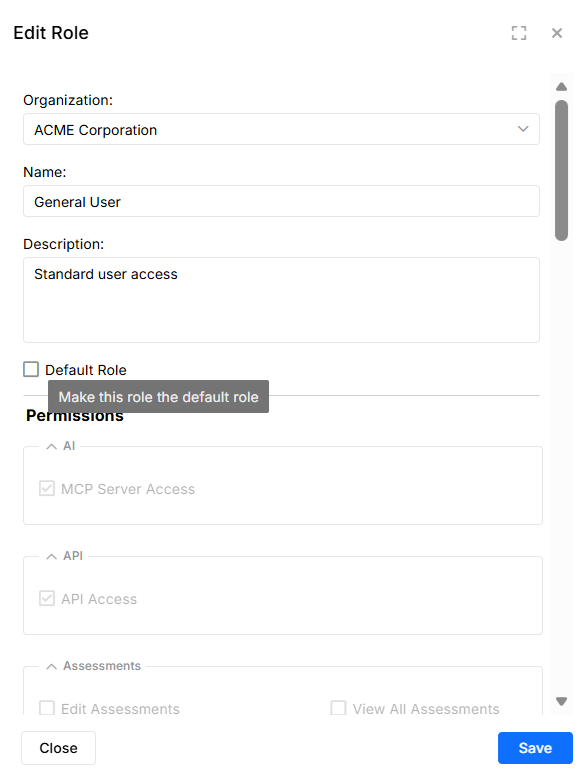
SSO and Manual role assignments
Please note that if a user is manually assigned a role using single-sign-on (SSO) and the project-role mapping is subsequently removed, the user will revert to having no role. If this occurs, you can assign the user a new role manually under Project Administration -> Users.
Defining new roles
New user access roles can be defined by Organization Admins. Roles can be created anew, and can also be cloned from an existing role and later modified.
Steps to create a new role
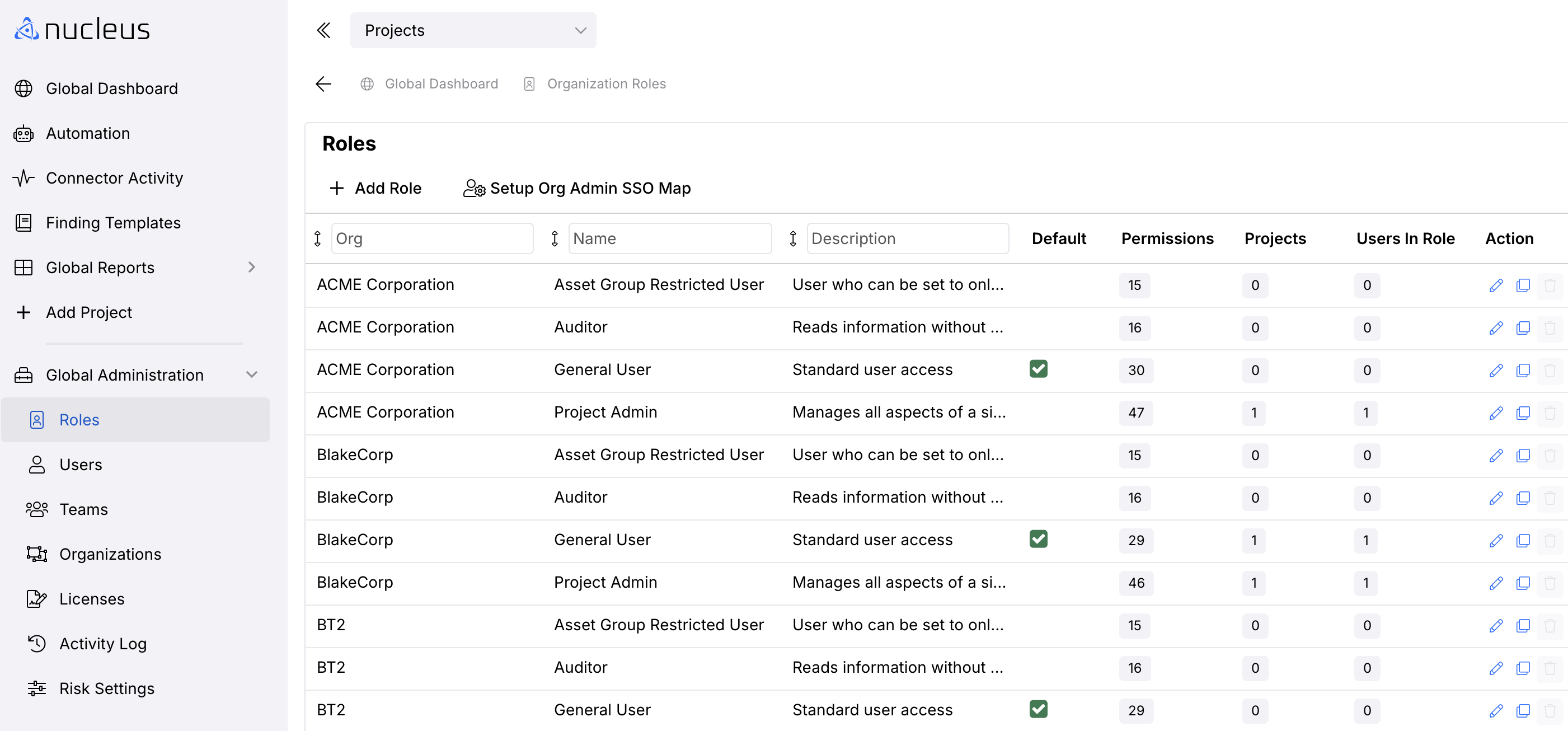 Go to Global Dashboard > Global Administration > Roles.
- Click Add Role along the top navigation bar.
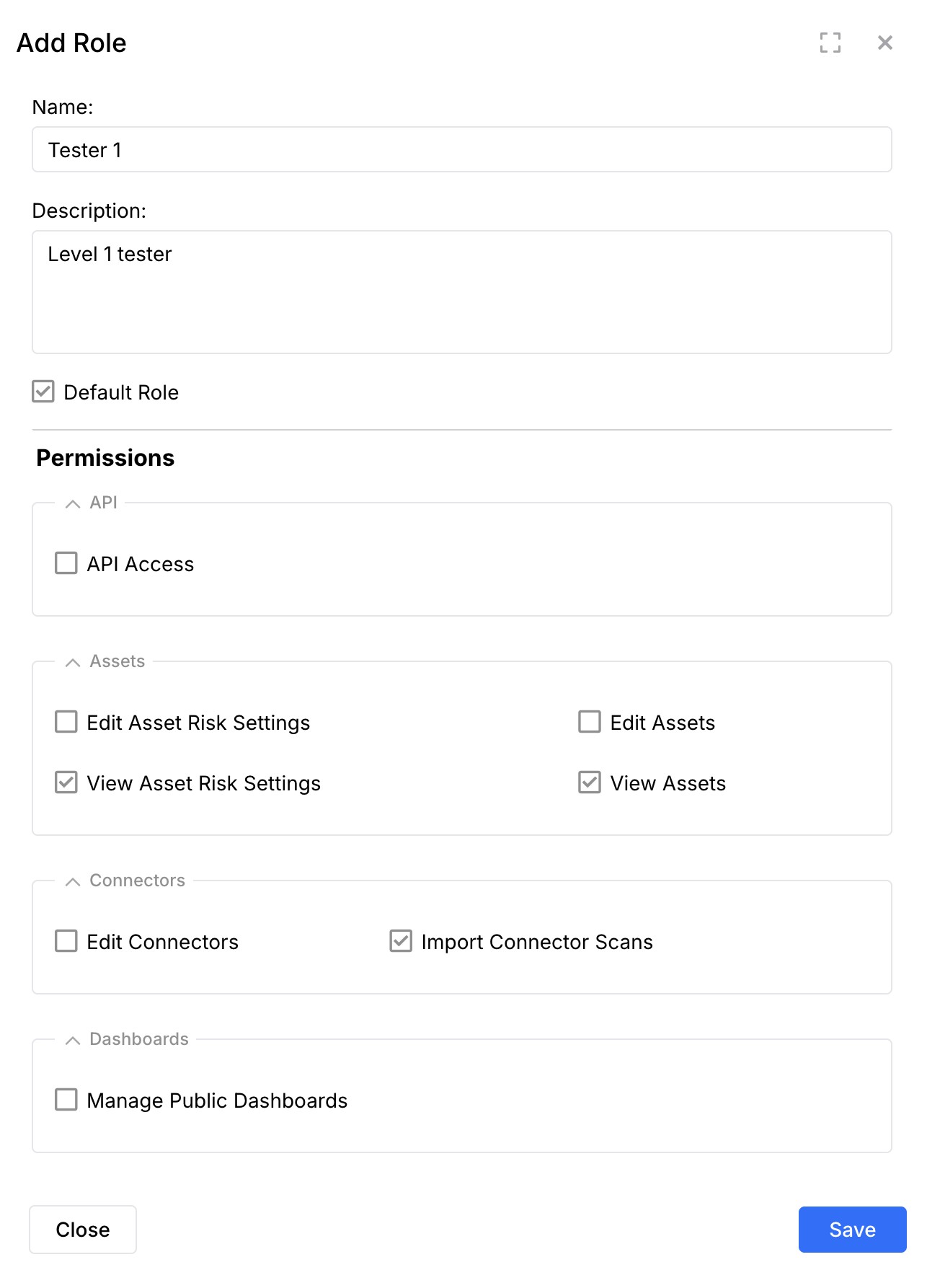
- In the pop-up modal, add a name and description to the role and select the permissions applicable to this role.
- Click the blue Save button to complete the process.
Steps to clone existing roles
- Go to Global Dashboard > Global Administration > Roles.
- Look in the list for a role closest to the role you want to create.
- In the Action column, click the Clone icon. This opens the same pop-up as when creating a new role, with the permissions pre-populated based on that role.
- Modify the role as appropriate.
- Click the blue Save button to complete the process.
Permissions
This section provides an overview of all permissions available to roles within Nucleus. Permissions are fixed, and custom permissions cannot be created.
A majority of permissions in Nucleus are not restricted on a per user basis. For example, if you enable a user role to modify Scheduled Reports they will be able to edit or delete scheduled reports even if another user created them.
AI
| Name | Description |
| MCP Server Access | When enabled, user may authenticate to and make requests to the Nucleus MCP server. API Access must also be enabled for this permission to take effect. |
API
| Name | Description |
|---|---|
| API Access | When enabled, user may access the API, subject to any restrictions governed by other permissions. |
API access permission is available upon request. Please contact your Nucleus representative or support to use this permission in your org.
Assessments
| Name | Description |
|---|---|
| Edit Assessments | User can do everything within an assessment, such as edit the status of the assessment, merge into the project, etc. |
| View Delivered Assessments Only | User has read-only access to see the assessments in a “Delivered” status within a Nucleus project. |
| View All Assessments | User has read-only access to all assessments, whether delivered or not, but cannot edit them. |
If you are unable to see the Assessments Module within your Role Permissions, please follow the steps in the Assessment Module FAQ.
Assets
| Name | Description |
|---|---|
| Edit Asset Risk Settings | User can edit the risk attributes for an asset. |
| View Asset Risk Settings | User can see the risk attributes for all assets (criticality, data sensitivity, etc.). |
| Edit Assets | User can manage an asset, such as change the display name, add secondary matching information, merge assets, etc. |
| View Assets | User has read-only access to view all the assets (and go to the asset management page) but cannot edit any of the asset attributes. |
Connectors
| Name | Description |
|---|---|
| Edit Connectors | User can create and edit Connectors (they can see the connector setup page). |
| Import Connector Scans | User can view the scans the connectors can see, and can select which scans to import from the connector. |
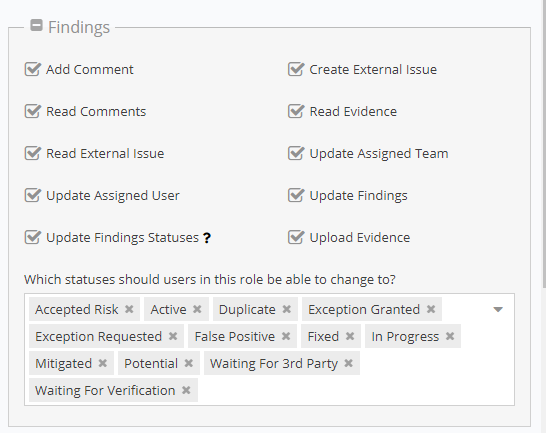
Findings
| Name | Description |
|---|---|
| Add Comment | User can view and add comments to findings. |
| Read Comments | User can view comments on findings. |
| Read External Issue | User can view external issue information. |
| Update Assigned User | User can change who a finding is assigned to. |
| Update Findings Statuses | User can change a finding's mitigation status(es). |
| Create External Issue | User can view and create external issues. |
| Read Evidence | User can view evidence on a finding. |
| Update Assigned Team | User can change the team a finding is assigned to. |
| Update Findings | User can change a finding's severity and exploitability. |
| Upload Evidence | User can view and upload evidence. |
| Update Finding Pins | User can set and change finding pins |
Notifications
| Name | Description |
|---|---|
| Create Rules | User can create rules associated with automated notifications. |
| View Notifications | User can see project-wide notifications, such as license limit overrun, in-app notifications, etc. |
Org Administration
| Name | Description |
|---|---|
| Create Project | User can create and edit new Nucleus projects. |
Projects
| Name | Description |
|---|---|
| Edit Project | User can edit the details of a project, such as change the name and description. |
| Read Project | This is the base permission. User can click into a project and view data. |
| Edit Project Users | User can invite or add users to the selected project. |
Reports
| Name | Description |
|---|---|
| Allow Bulk Data Export | User can manage scheduled bulk Data Exports. Feature currently in BETA, contact support to enable. |
| Create PCI Reports | User can create PCI reports. |
| Delete Reports | User can view and delete reports. |
| View Reports | User can view reports. |
| Allow Reports Without Org Logo | User can choose if the organization logo is displayed on reports. |
| Create Reports | User can view and create reports. |
| Schedule Reports | User can view, create, delete, and schedule reports. |
Scans
| Name | Description |
|---|---|
| Delete Scan Results | User can delete scan results. |
| Import Scans Manually | User can import scans manually. |
| Import Scans | User can import scans via manual file import or connector. |
Social
| Name | Description |
|---|---|
| Email Phishing Users | User can email phishing users and see phishing page. |
| View Email Exposure | User can see email exposure page. |
| View User Training | User can see user training page. |
| Upload Email Exposure | User can see and upload email exposure reports and see email exposure page. |
| View Phishing Results | User can see phishing page. |
Teams
| Name | Description |
|---|---|
| Create | User can create (and inherits edit) teams from scratch. |
| Manage all team members | User can not change the name of the team, but can manage the members of the team. |
| Rename | User can rename the team. |
| Delete | User can delete the team |
| View Teams | User can see teams in the application. |