This article provides an explanation for how to restrict access users and teams to only a subset of asset and finding information in a project. Asset Group Access Control allows administrators to assign users in their organization access to specific asset groups and their associated vulnerability and compliance finding data.
What is Asset Group Access Control (AGAC)?
Asset Group Access Control (AGAC) is an access control layer at the project level for limiting what assets (and by extension findings) that users and teams can see within a Nucleus project. AGAC is an important component of ownership, and enables asset owners and remediators to gain access to information that is only relevant to them and their job context from within Nucleus.
AGAC can also be automated at scale by being used alongside SSO team mappings. When you auto-provision users to teams with SSO team mappings, when that user's job roles change within your identity provider their team and access to asset groups in Nucleus will automatically be updated on next login.
User and team based AGAC can also be used together. When a user has asset groups specified at both the user and team levels, they will have access to the union of these asset groups. For example, if an organization administrator assigns user Jack to asset group 1, and Jack is part of a team that has access to asset group 2, then Jack will have access to both asset groups 1 and 2.
Managing AGAC
Steps to setup AGAC for individual users
- Log in to your Nucleus project.
- From the navigation bar on the left, under Global Administration, select Users.
- Find the user you want to assign, and click the expansion selector on the left side of the table to expand their row.
.png)
- Locate the project in which you want to restrict the user’s asset group access in the Project column.
.png)
- In the Access column, select edit.

- From the menu, select which asset groups the user should have access to in that project.
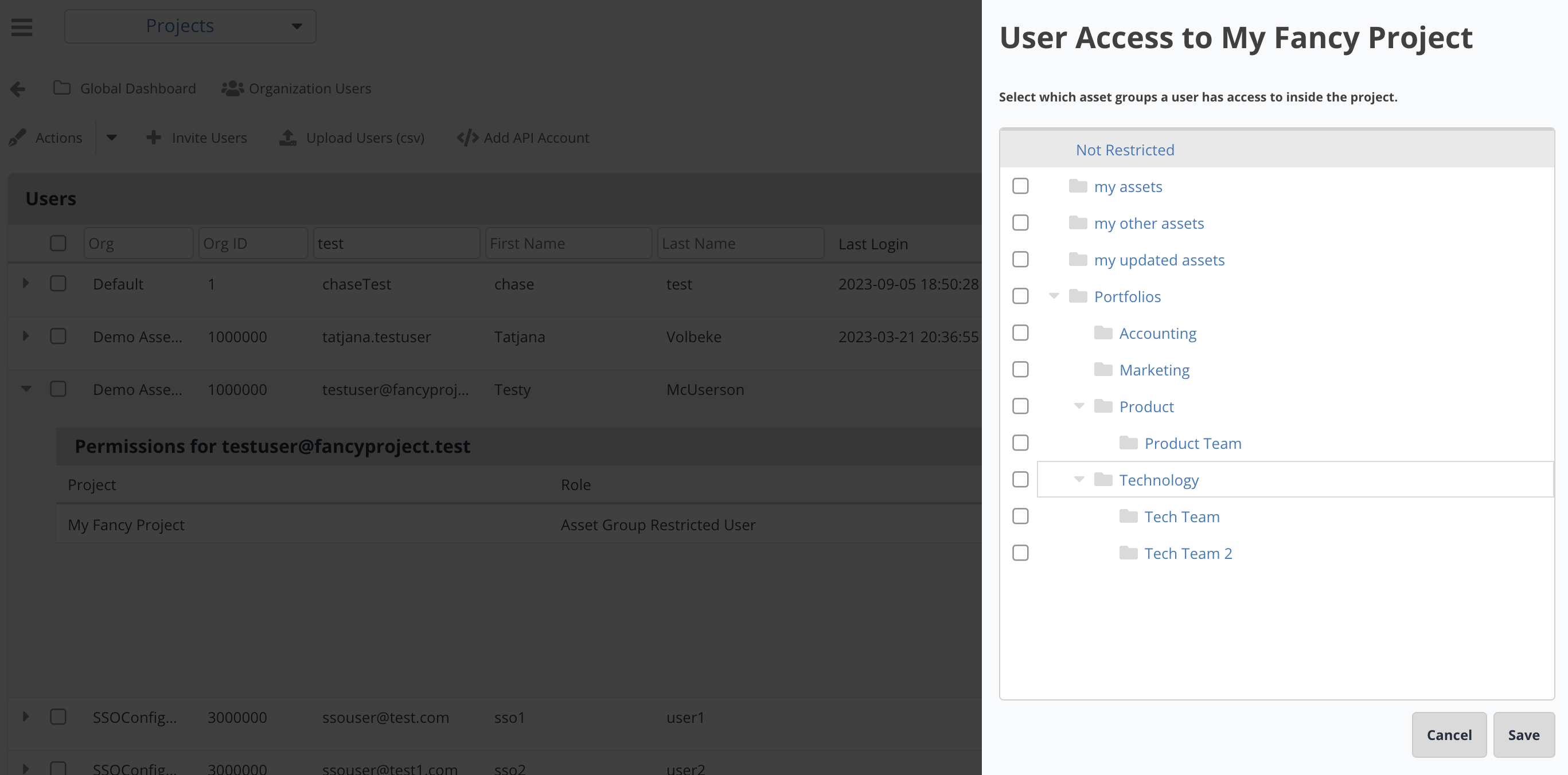
- Click Save.
Steps to setup AGAC for teams
- Log in to your Nucleus project
- From the navigation bar on the left, under Project Administration, select Team Management
- Add a new team, or edit an existing team
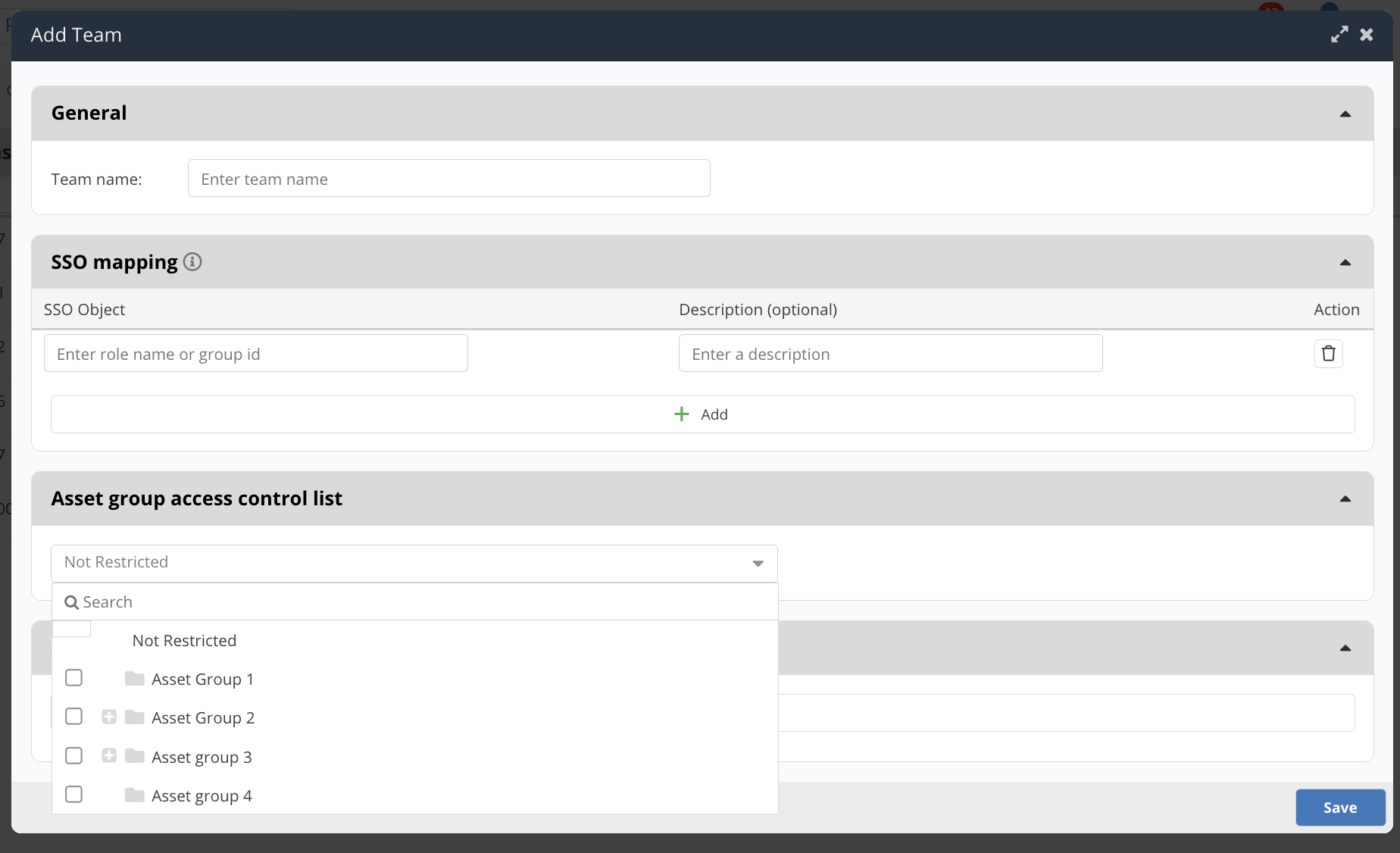
- In the Asset group access control list section, designate the asset groups that the team should have access to
- Perform other team actions, like adding/editing the team name, SSO mapping etc.
- Once users have been selected from the list, ensure that users are added to the team by selecting Add users
- Click save
Additional resources
Learn more about how Asset Group Access Control works with automatic asset grouping to provide the most secure and manageable admin experience.