Overview
The next step after getting your teams set up in Nucleus is to start representing ownership of assets by Teams in your organization. Assets in Nucleus have 3 fields that relate to Team ownership, designed to represent the standard options for representing ownership of assets in an enterprise. Each asset can have any one of, or all 3 of these fields set at 1 time depending on your needs.
- Business Owner - This is a Nucleus User that is the Business Owner (sometimes called sponsor) of this particular asset. Which person owns this asset?
- Business Owner Team - This is the team that is the business team who owns the asset. An example might be the Finance department owns (or is the business sponsor for) this asset.
- Support Team - This is the team that is responsible for keeping the asset up to date, or secure from a security perspective. This could be the same as the business owner team, or it could be a separate team.
A server is owned by the accounting department, so you need to know which devices that accounting owns are the worst off from a patching perspective. But accounting is not the team that patches the server, so the support team is the IT services team.
Set business owner teams manually
In the Nucleus console, you can easily set the business owner teams of an asset by Editing Assets.
- Open the edit asset page.
- Find the fields for Business Owner and Support Team.
- Search, or select which team you want to assign to this asset.
- NOTE: you can unassign an asset by clearing the field using the backspace key like you would in a word document.
- Click "Save"
The asset now has the team ownership set!
Automating team ownership
Normally team ownership information is already stored somewhere in your enterprise, such as a CMDB. We want to keep it simple for you to automatically keep the Team ownership information in Nucleus in sync with your external systems so that you can focus more time on vulnerability activities and not asset management.
In Nucleus, by combining Custom Asset Metadata fields with the Nucleus Asset Processing Rules using the Dynamic Field Templating Language, you can create a single rule that keeps all your team ownership information up to date in realtime, so that your reporting, filtering, and vulnerability lists are always up to date.
The process at a high level is as follows:
- Import asset data with teams information from another external system
- Set up automation rule to Assign Business Owner Team (or any other action!)
- Use a dynamic field to reference the custom field.
Example:
Set up a connector to ingest asset data
- We set up a connector to ServiceNow to ingest asset data automatically into Nucleus. We set this connector up to sync daily.
- Nucleus, on ingest from SNow, will automatically also ingest custom fields from ServiceNow, such as "Application ID", "Business Owner", and more.
- These fields will show up on the Asset Record in Nucleus automatically, seen below.
- For this example, let's assume the field is showing up in Nucleus as
servicenow.application_owner
- Now that we have these fields in Nucleus, we will use an Automation rule to map the custom field from ServiceNow to the Business Owner Team field in Nucleus.
Set up automation rule to map ServiceNow fields to specific Nucleus fields
-
Go to Automation > Asset Processing > Add Rule.
- We are going to set up an automation rule that automatically sets the "Business Owner Team" field on an asset in Nucleus based on the field value from ServiceNow
-
Select the assets that you want this rule to apply to.
- In this case we are going to leave this blank so that it matches on all incoming assets.
- Go to the "Actions" tab to select the action you want this rule to execute.
- Select the "Set Business Owner Team" action from the card.
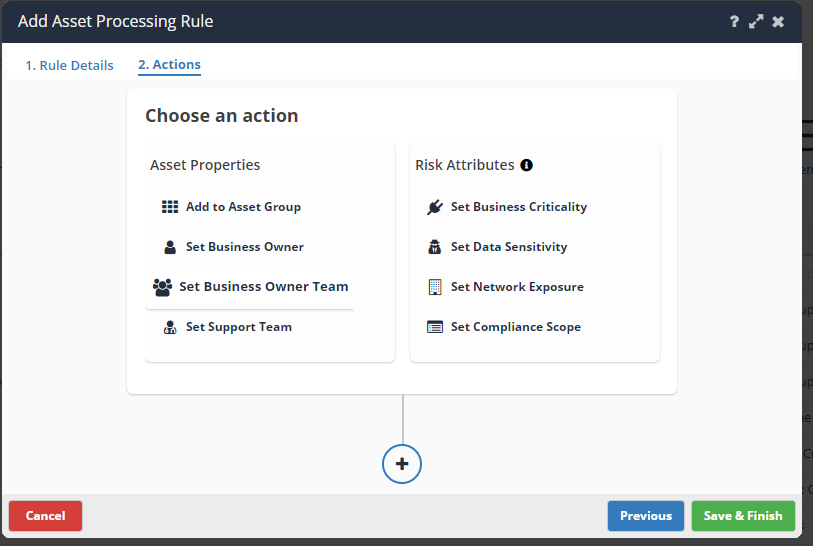
- You will now be presented with an option either select a static team to assign all assets to, or you can use a Dynamic Field. We are going to use a dynamic field.
- Select the radio button for "Use Dynamic Field" and enter in the following to the form:
{{asset.metadata.servicenow.application_owner}}
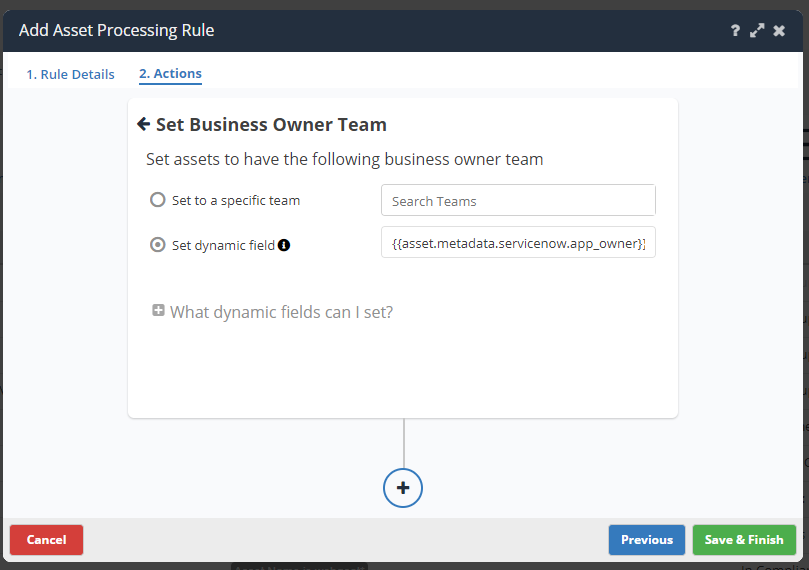
This will use a dynamic field to look up the value of that field from servicenow every time the asset is synced. For more information on using dynamic fields in automation, check out the following article: Dynamic Fields in Automation
- Click Save & Finish on the Automation rule.
You have now completed the single automation rule to automatically set the business owner team field on assets in Nucleus based on the field value from a field coming from an external system (ServiceNow in this case).
You can kick off a rule to run ad hoc by clicking the "refresh" action icon for the rule in the rules table on the Automation page, in cases where your data is already ingested into Nucleus and you want to apply actions to your existing dataset.