This article provides an explanation of Teams within Nucleus, including how teams can be created and managed, as well as used with assets and findings.
What is a team?
Teams are a grouping of users that exists at the project layer, and are a foundational building block for asset and finding ownership within Nucleus. Users can be added to one or more teams either manually in the UI, via the API or automatically by using Single Sign-On Just-in Time (JIT) Provisioning, and can be used to restrict access to assets through Asset Group Access Control (AGAC).
Teams are available throughout the platform for use in asset ownership and finding allocation.
Asset Ownership & Support
Assets have Business Owner Team and Support Team fields for tracking the team that owns or supports the asset. These fields can be updated manually by a user in the UI or by the API, and can also be set automatically by creating and using asset processing rules. To assist with identification and remediation, you can then filter for assets that are owned or supported by teams in various pages throughout Nucleus, such as on the Project Dashboard and Active Vulnerabilities page.
Finding Triage & Remediation
Teams are central to the end user experience of triage and remediation within Nucleus. Similar to assets and their properties, findings can be allocated to teams manually, or can be set automatically and immediately upon ingestion by leveraging finding processing rules.
After findings have been allocated to a team, users within that team can triage and remediate their findings by utilizing the Assigned to my team page, enabling them to immediately identify vulnerabilities that are most important to their context.
Managing teams
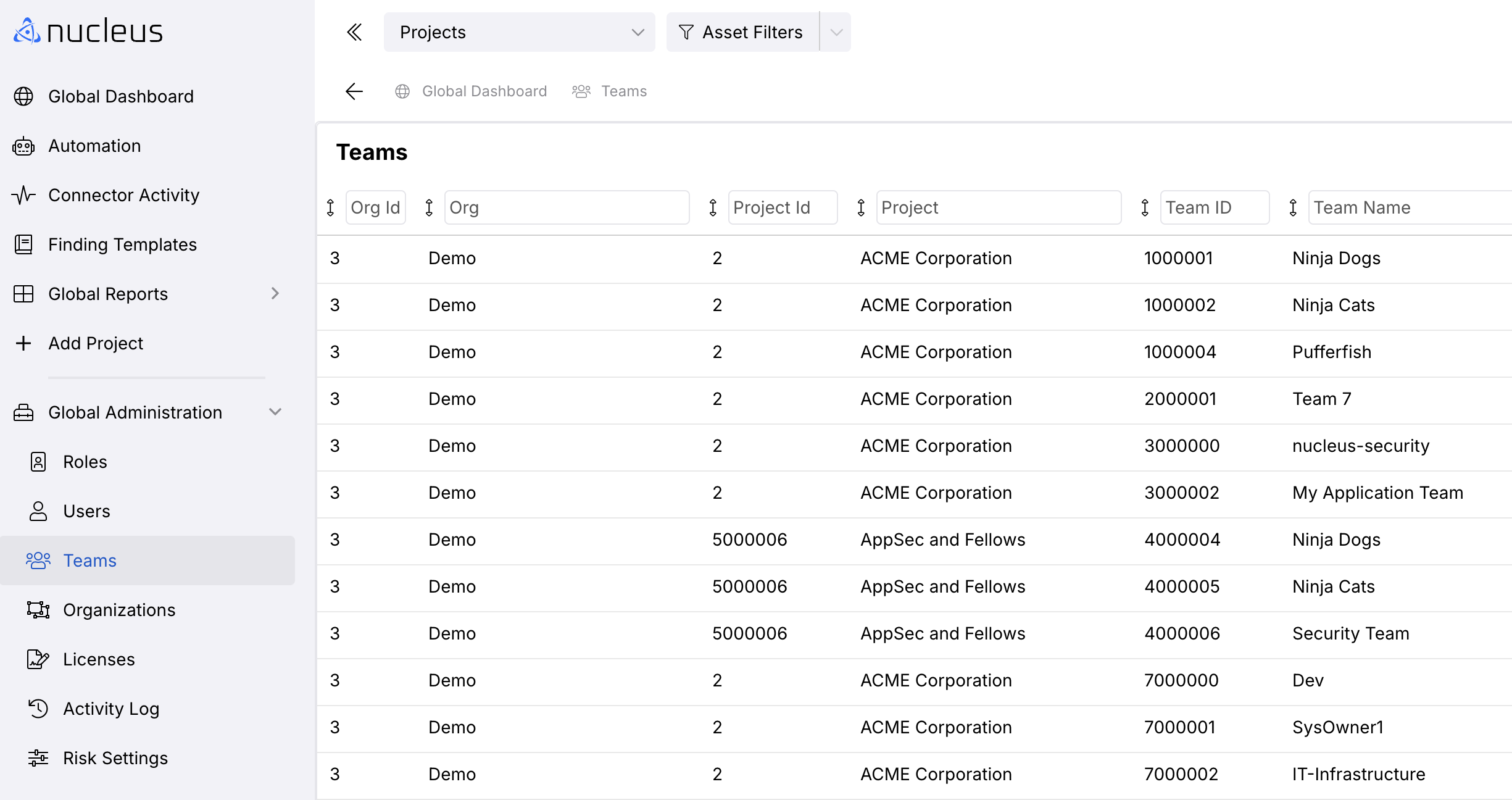
Whilst each team can only belong to a single project, they can be managed at both the project and organization levels. For organization administrators, all of the below steps can also be conducted by navigating first to Global Dashboard > Global Administration > Teams.
Steps to create a team
- Navigate to Global Dashboard > Global Administration > Teams.
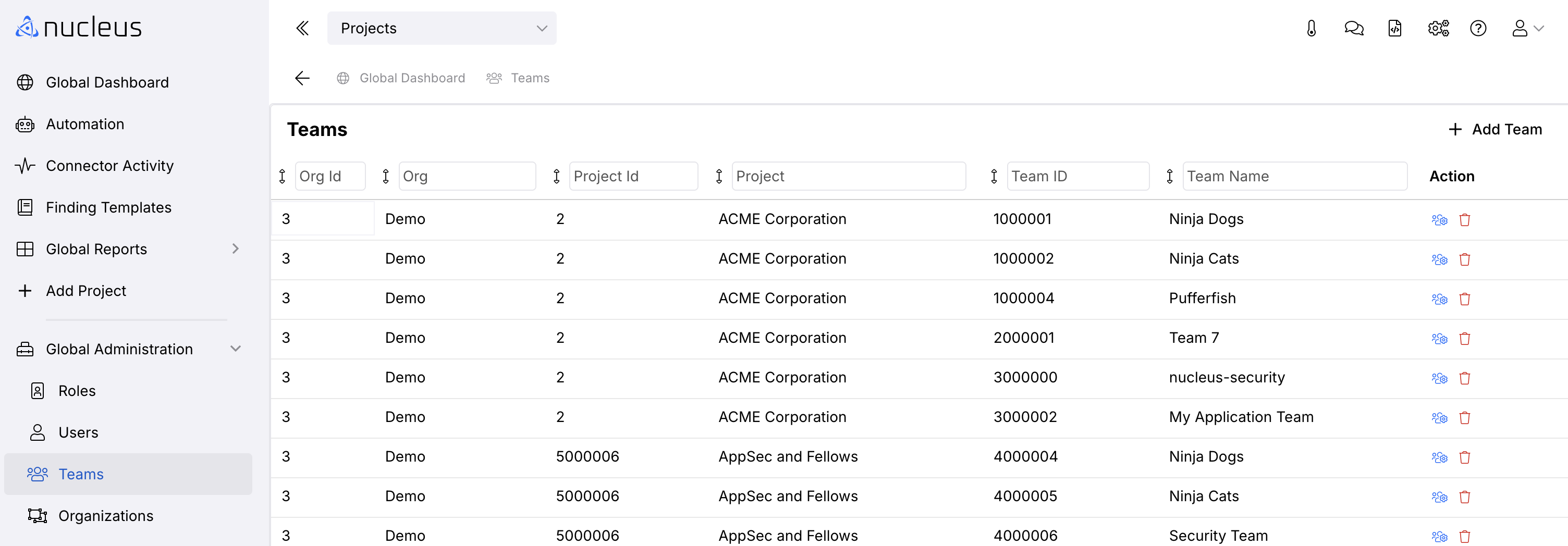
- Click Add Team.
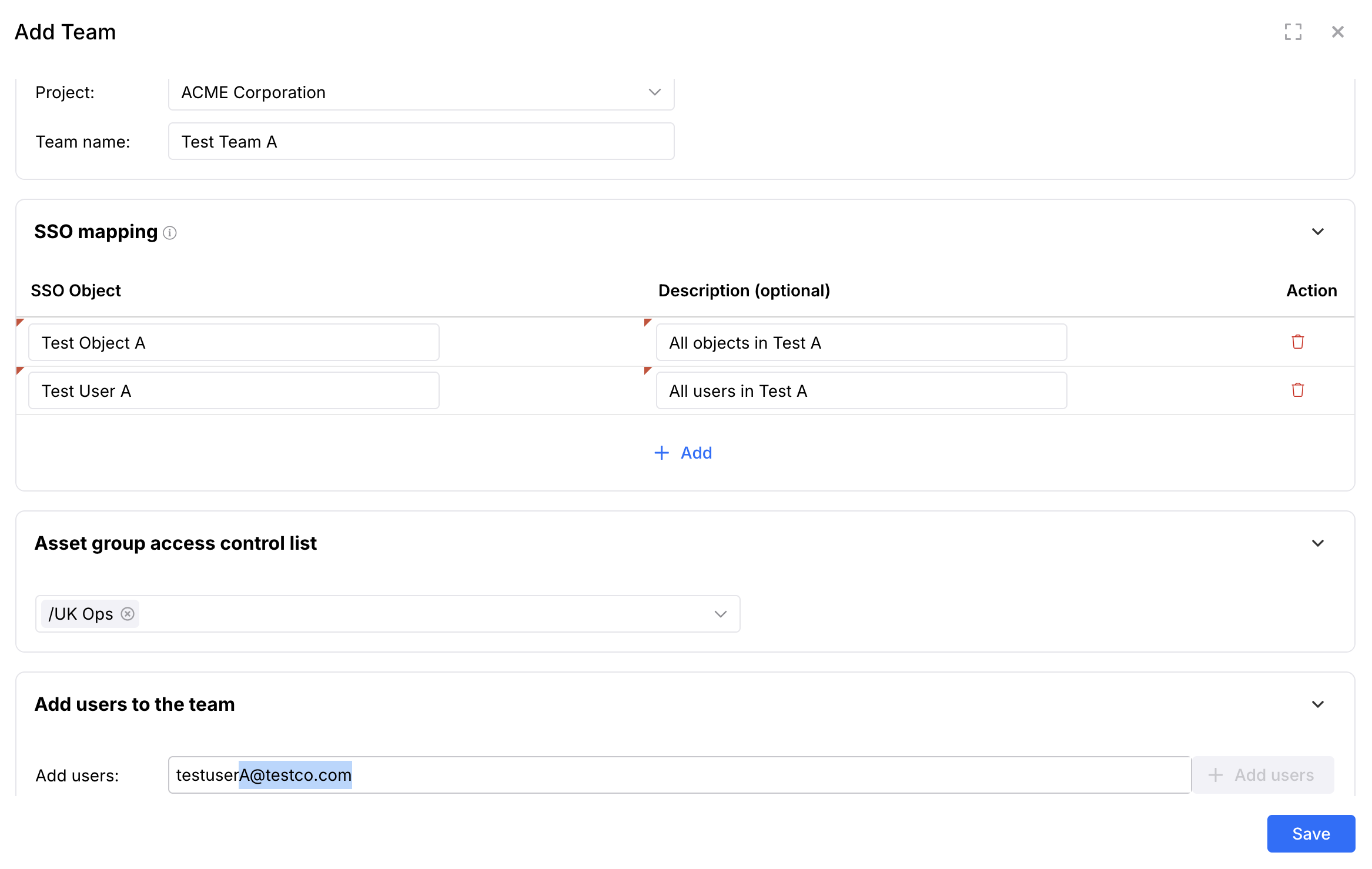
- In the Add Team pop-up modal, enter a name for the team in the Name field.
- In the pop-up modal, enter your team data in the remaining fields. For more information the SSO Mapping and Asset Group Access Control fields, see the section details described below.
- No commas.
- No number only names (e.g. “1234” is not allowed, but “1234 team” is).
- No duplicate team names.
- Only standard ASCII characters are allowed (see ASCII Code - The extended ASCII table).
- To add users to the team, click + Add users and start typing the user email or name, and select each user.
- When you've added all the users you want to the team, click the blue Save button.
A user can be part of multiple teams. This is so that users who need to manage across multiple teams can do so easily and simply. For example, a Scrum master could be part of and see all the vulnerabilities for the two Scrum teams they manage.
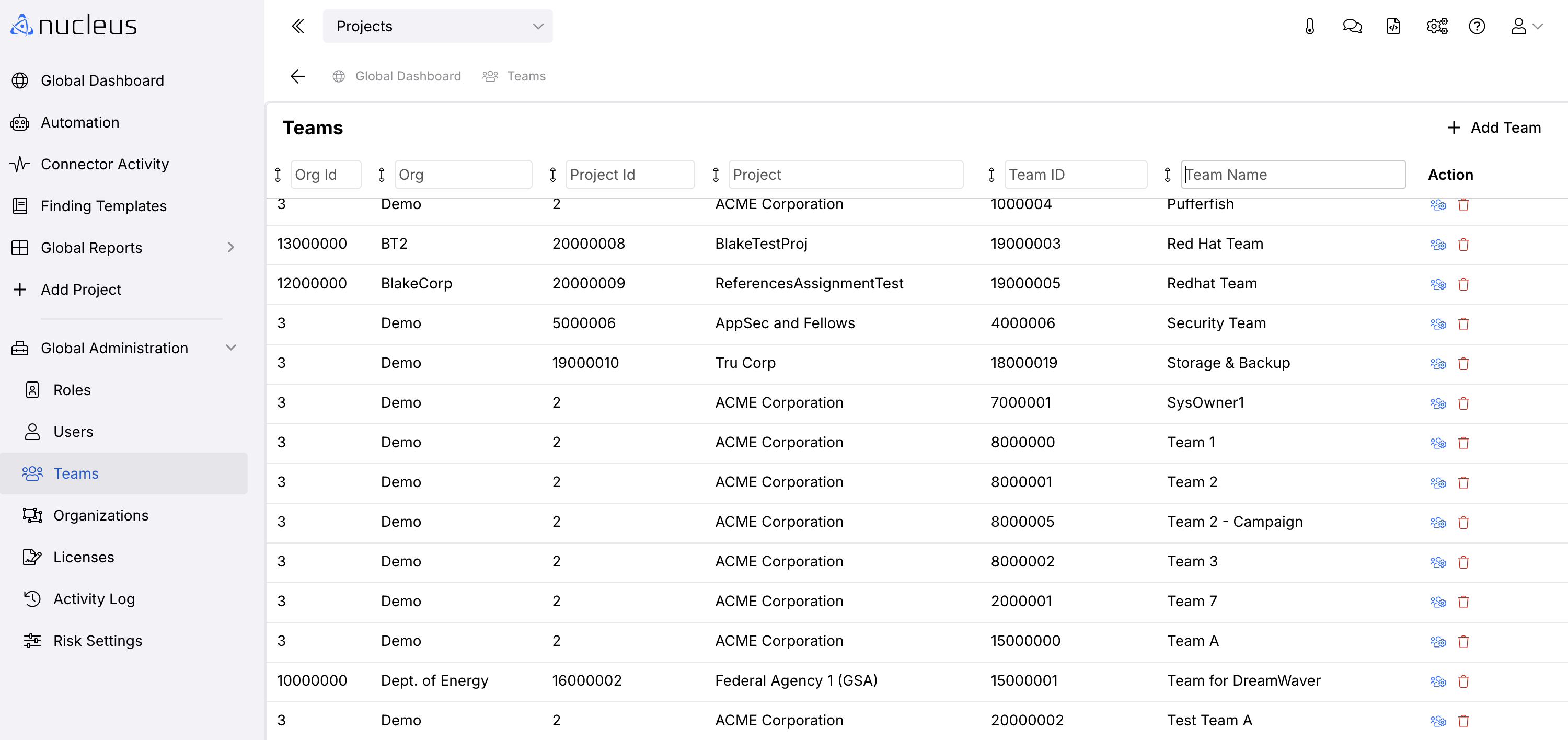
Your new team is added to the Teams list.
Steps to update a team
- From within a Nucleus project, navigate to Project Administration > Team Management.
- Click the Edit Team button in the Action column in the row of the team you wish to edit.
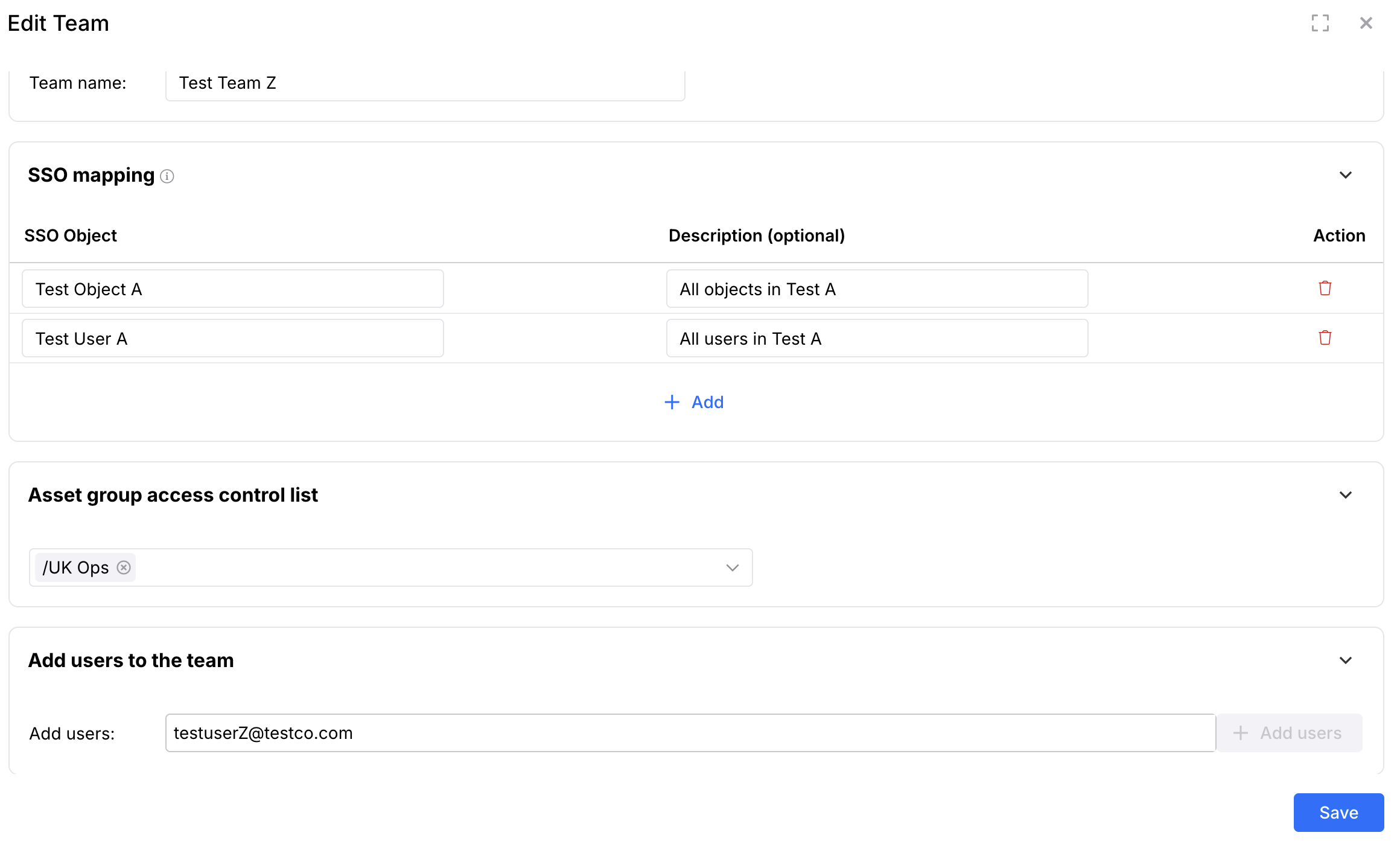
- In the pop-up modal, update the team name in the Name field and/or move users in and out of the team by following the steps above to add, and by clicking the trash button to remove users.
- When finished, click the blue Save button.
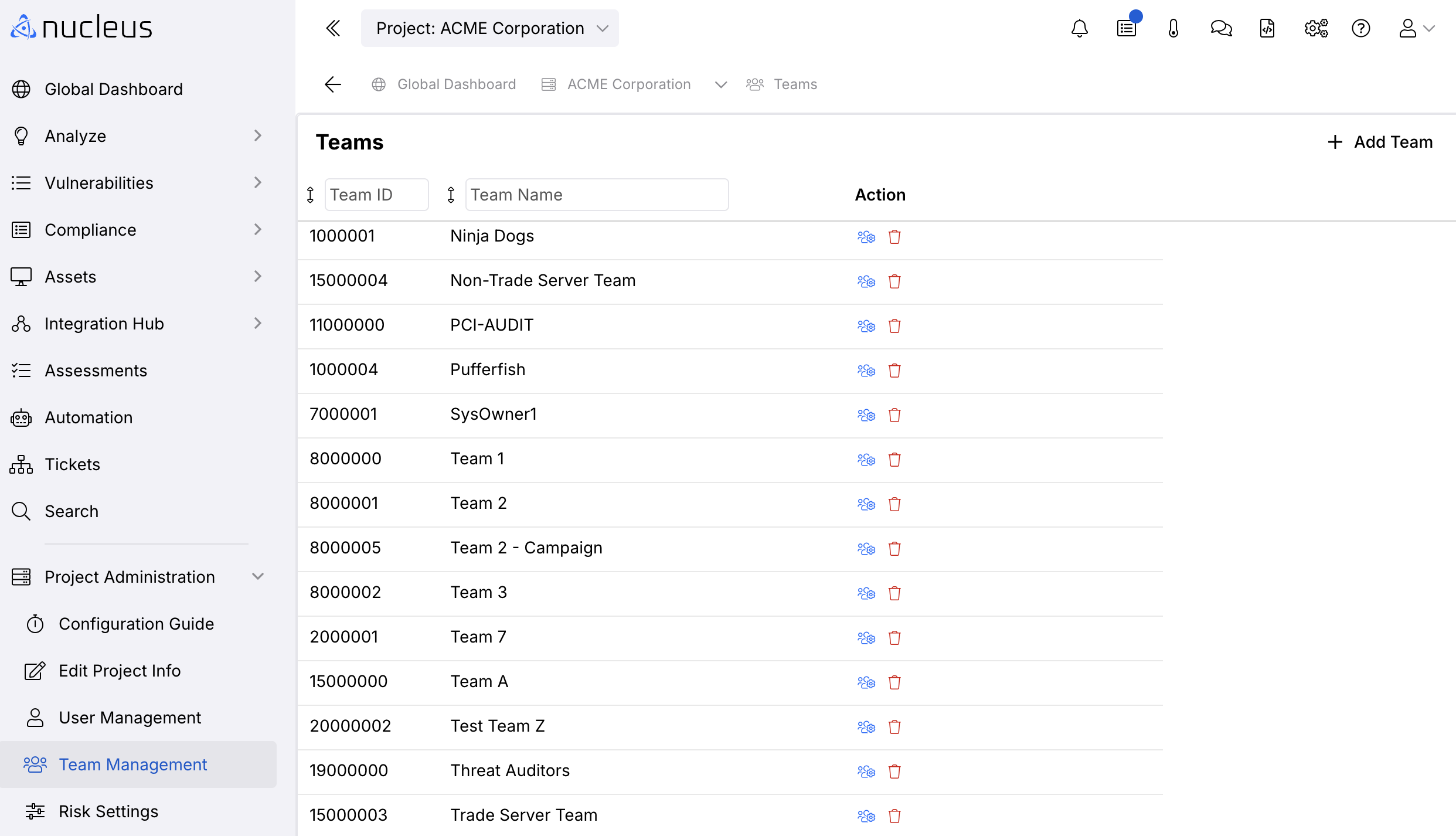
Your edited team is updated in the Teams list.
Adding users to teams via SSO
In order to to create an SSO team mapping, ensure that you have a project role with the permission Create SSO Team Mapping enabled.
SSO team mapping enables you to map groups and roles from your SSO provider to a team within a Nucleus Project, so that when team members login to Nucleus they are automatically allocated to their team within the Nucleus Project and can automatically see vulnerabilities assigned to their team.
If SSO has been enabled for your organisation and you have the appropriate role permissions, when adding or editing a team the following role mapping table will appear:
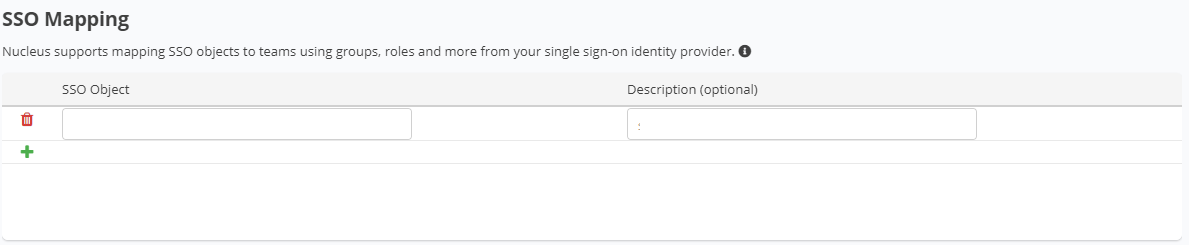
When an SSO object has been mapped to a team, when a user logs in to Nucleus, if their SAML assertion contains that SSO object as a group or a role, then they will added to that team. For Azure AD, this will either be a group UUID or a role name, and for Okta this will be the group name (exact match including case sensitivity).
Note that if using SSO mapping with roles in Azure AD, your integration must be configured to send roles to Nucleus. See the Azure AD SSO Setup Guide for more information.
Users will both gain and lose access to the Team based on the SSO Objects specified. There is a distinction between adding a user to a team manually vs giving that user access to the Nucleus project via SSO team mapping. Here are some items to note:
- If a user was added to a team via SSO mapping, and that mapping becomes invalid (due to either an explicit configuration change in Nucleus, or if that user's SSO group changes), they will also be removed from the team on their next login.
- Removing a user from a team in Nucleus will not stick if that user is still in a matching SSO group. In order to fully remove a user from Nucleus, ensure that the user in question has also been removed from any relevant SSO Team Mapping structures.
Controlling team access to assets
Teams can be configured to have limited access to groups of assets. Please see the page Managing access to Asset Groups (AGAC) for an explanation on how to configure this.