Overview
Nucleus enables you to ingest your Axonius asset data into Nucleus using the Axonius connector. The connector uses the APIs provided by Axonius to seamlessly ingest asset data from Axonius into various Nucleus projects for use in asset enrichment, automation and reporting.
Connector Setup
Connector Setup Checklist
Follow the steps in this checklist to successfully set up this connector:
-
API Access
Create a service account in Axonius. -
Connector Configuration
Create and configure the connector in your Nucleus project. -
Asset Data Ingestion
Create an asset data sync rule to ingest asset data from Axonius.
1. API Access
- Follow the Axonius article for Managing Service Accounts to create a new Service Account and API token and secret key.
- When selecting a Main Data Scope, choose the Global Data Scope.
The Service Account requires the Global Data Scope. Without this scope, Nucleus will be unable to read and use custom queries.
2. Connector Configuration
- Log in to your Nucleus project.
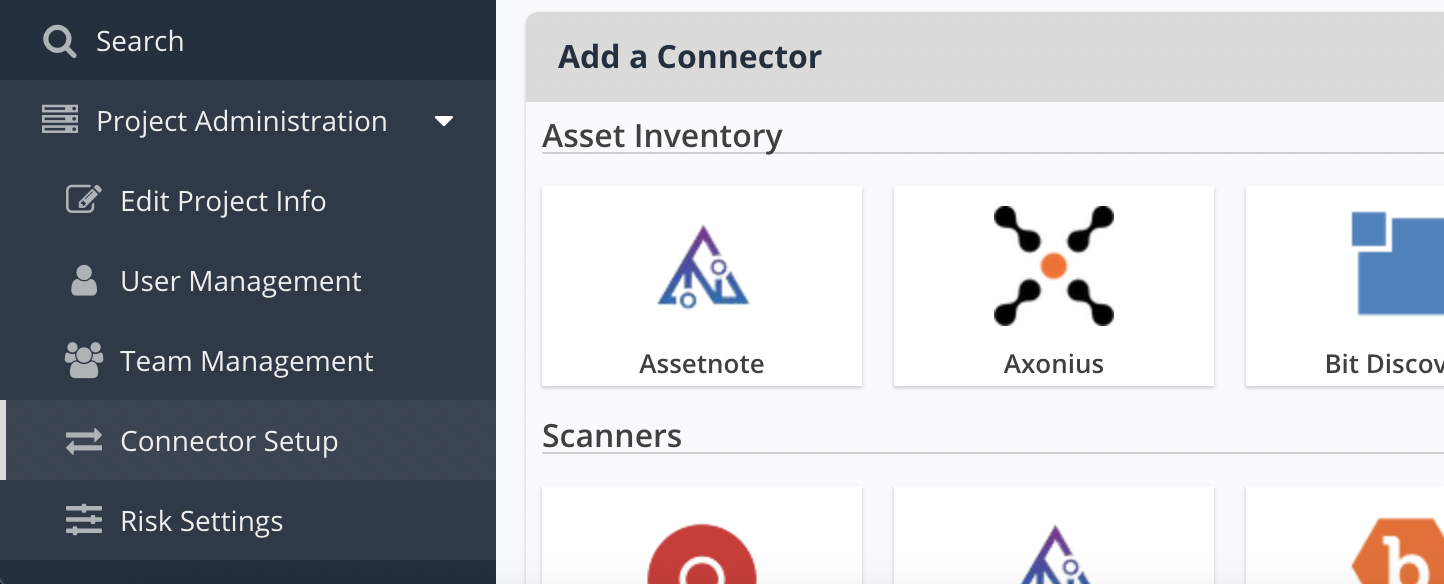
- From the navigation bar on the left, under Integration Hub, select Connector Setup.
- Select Axonius.
- In the Name field, enter a name for the connector.
- In the Description field, enter a description for this connector.
- In the Instance URL field, enter the URL to your organization's instance of Axonius.
- In the API Token field, enter the API token of your Axonius service account.
- In the API Secret field, enter the API secret key of your Axonius service account.
- Click Verify Credentials. If the credentials were entered correctly, a message confirming a successful connection will appear.
- Click Save & Finish.
3. Asset Data Ingestion
The Axonius connector is an asset inventory connector and not a scan-based connector. As such, you will only be able to ingest data through Asset Inventory Sync rules, as described below. You will not be able to ingest asset data through the "Import Via Connector" tool in the "Data Ingest" tab of the Nucleus console.
To ingest Axonius asset data results into a Nucleus project:
- From the navigation bar on the left, select Automation.
- Select the Asset Inventory Sync tab.
- Click + Add Rule.
- In the Name field, enter a name for the rule.
- From the Select the connector from which you would like to import assets menu, select the Axonius connector you created previously.
- Click Next.
- Select which devices to synchronize.
- To import all devices, select Synchronize all available devices in Axonius.
- To import specific devices, select Synchronize devices found in saved queries (specify below) and then select which devices to synchronize in the list below.
- Click Next.
- Optionally select which additional fields to synchronize.
- Click Next.
- Select which assets to import.
- To import all assets, select Apply to all assets.
- To import specific assets, select Only import assets which match the criteria and configure asset matching rules to define which assets to import.
- Click Next.
- In the Start Date field, enter or select a date to begin synchronizing assets.
- In the Start Time field, select the time of day for assets to synchronize.
- Select whether you want to synchronize on a Daily, Weekly, or Monthly basis.
- Click Save & Finish.