After setting up permissions and instance sync, configure the AWS connector to pull data from ECR basic scanning into your Nucleus project.
Connector configuration
- Log in to your Nucleus project.
- From the navigation bar on the left, under Integration Hub, select Connector Setup.
- Select Amazon Web Services.
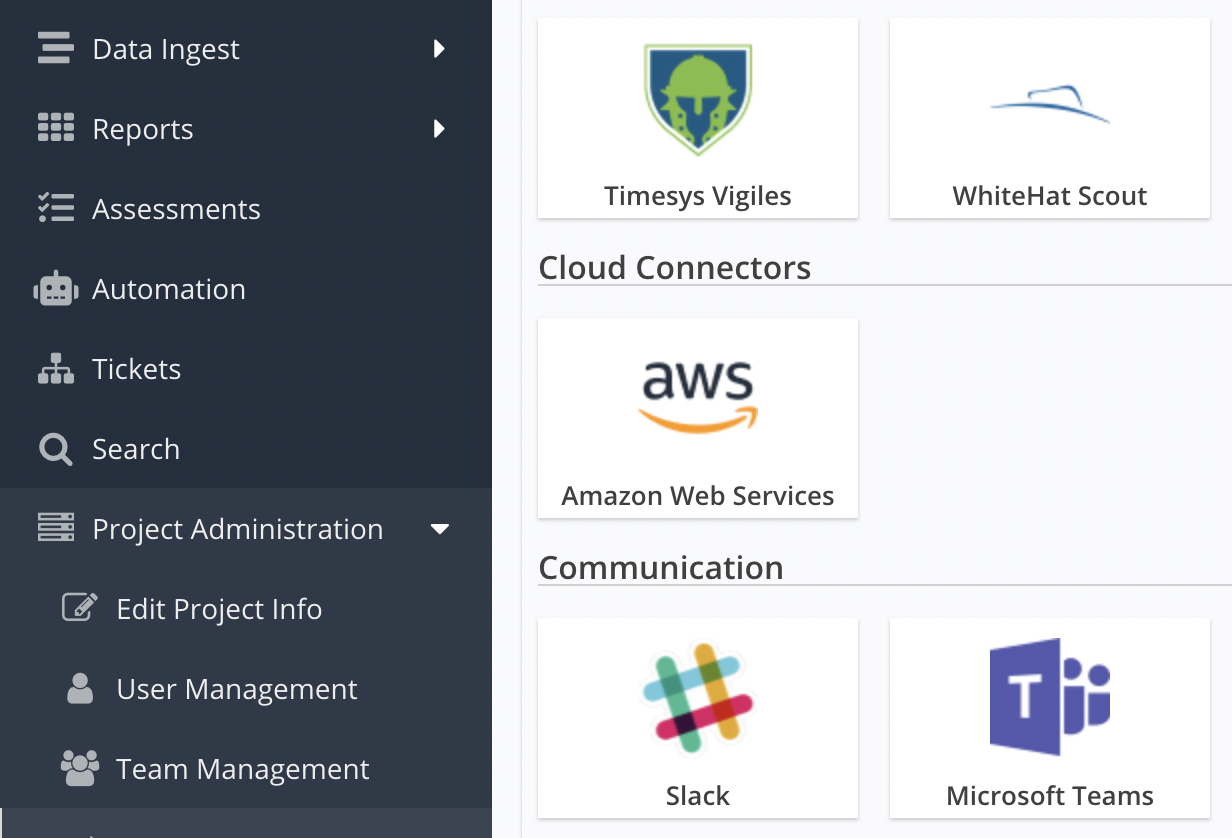
- In the Name field, enter a name for the connector.
- In the Description field, enter a description for this connector.
- In the Authentication section click the green plus button to add a new AWS role to use when connecting to AWS. Note you can only have one role per AWS account. Alternatively, you can bulk import credentials using a CSV file.
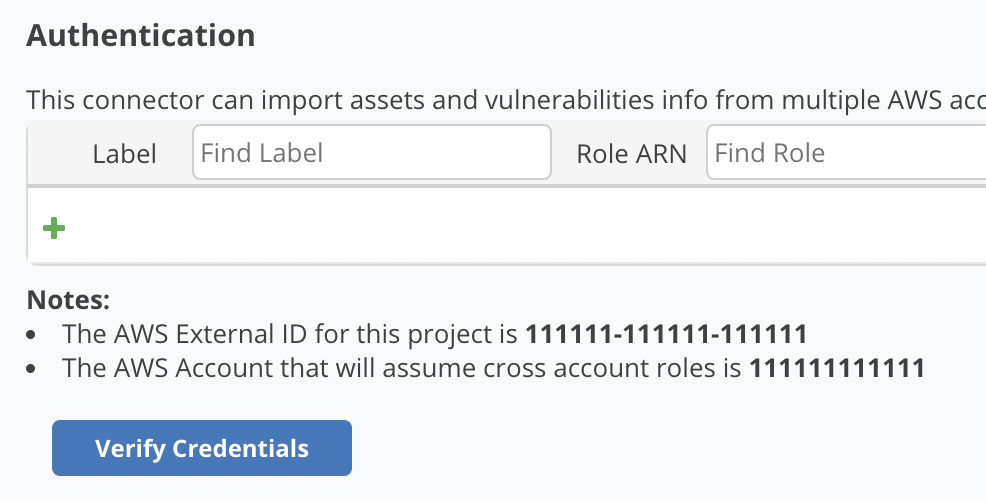
- In the Label field, enter a label for the role.
- In the Role ARN field, enter the Amazon Resource Name (ARN) for the role.
- Click Verify Credentials. If the credentials were entered correctly, a message confirming a successful connection will appear.
- Do not check Import all AWS Resource Tags as nested asset groups as this option is now legacy.
- Optionally check Synchronise EC2 and ECR Instance states.
- To automatically deactivate the asset in Nucleus when an EC2 or ECR instance is terminated, select When an EC2 or ECR instance is terminated, deactivate the asset in Nucleus.
- To automatically remove the asset from Nucleus when an EC2 or ECR instance is terminated, select When an EC2 or ECR instance is terminated, remove the asset from Nucleus.
- Optionally decide if you want to upload asset and finding data from your Nucleus project to S3 buckets.
- Click Save & Finish.
Bulk import credentials template
If your organization has many AWS accounts, you can bulk import role ARNs by clicking Bulk Import Credentials and uploading a CSV structured in the following way:
label,crossaccountrole
my label,arn:aws:iam:123456798012:role/myRoleName
Vulnerability scan data ingestion
The AWS connector enables flexibility when you import image scan results from Amazon ECR. To ingest Amazon ECR Image scan results from your AWS connector into a Nucleus project:
- Log in to your Nucleus project.
- From the navigation bar on the left, under Integration Hub, select Import via Connector.
- Select your AWS connector.
- Select Amazon ECR (Basic).
- Select whether to import by Repositories, Account, or All.
- Select the region(s) from which to import results.
- Click Next.
- Select the repositories or accounts to import.
- Click Next.
- Select a schedule to import scans into the project.
- Click Save & Finish.
The ECR Scan Ingestion functionality is built to ingest all scan results for all images in a repository. Because of this capability, the first time that you ingest all repositories, images, and scans, there's a large amount of data to fetch and normalize which may result in significantly longer processing times.
Next steps
You are now finished setting up the AWS connector. If you use other AWS services, see our other AWS guides.
You can optionally set the AWS connector to upload all asset and finding data from your Nucleus project to S3 buckets.