Overview
In Nucleus, you can take many actions on vulnerabilities to help you track things such as ownership, due dates/SLAs, evidence, status, and more. In this article we are going to talk about a few of the most common workflows that are used within the Nucleus console. These workflows were designed to enable you to better coordinate remediation activities and workflows across users or teams.
There is a separate ticketing workflow where you can create bi-directional tickets in external systems. This article outlines how to manage workflows within Nucleus.
Assign vulnerability
In Nucleus, you can assign ownership of a vulnerability to either Users or Teams. This allows you to represent ownership of a vulnerability for tracking, reporting, and more. To assign a vulnerability, do the following steps:
Assign to User
- Go to Vulnerabilities > Active
- Click on a vulnerability you want to assign
- Click on the "Instances" tab.
- Use the checkboxes to select the vulnerabilities you would like to assign.
- Find the button for "Assign to User" and search for/select the user you would like to assign to this vulnerability.
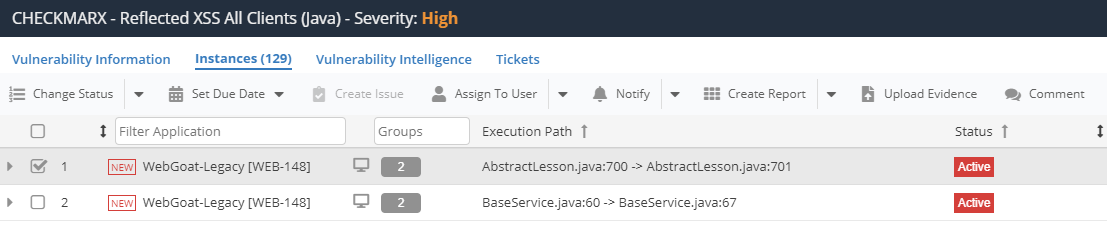
That's it! the vulnerability has been assigned.
Assign to Team
Nucleus allows you to assign vulnerabilities to teams as well. For more information on Teams, refer to our teams article set: Teams
The actions for this are exactly the same as assigning to a user except in step 5, select "Assign to Team" from the toolbar instead of "Assign to User".
For more information on managing Team assignments and other advanced workflows, check out Teams with vulnerabilities.
Set a due date
Setting due dates is an important workflow within a VM team. This is how you can track against what vulnerabilities are in compliance with your organization's policy on fixing vulnerabilities within a timelimit depending on their attributes. To do this in Nucleus, do the following:
- Go to Vulnerabilities > Active.
- Click the vulnerability you want to assign to someone on your team.
- Go to the Instances tab to see which assets are affected by this vulnerability.
- Use the checkboxes to select which instances of a finding you want to set the due date for.
- Click the Set Due Date dropdown menu and select from the available options.
You can also do tasks like assigning vulnerabilities, and setting statuses and due dates in bulk using the bulk modify action on the Active Vulnerabilities page.
Automating these workflows
You can automate all of the above workflows by using the Nucleus Automation Engine. You can create rules to automatically assign vulnerabilities, set due dates, and more. To start leveling up your process, check out the Automation articles!
(Optional) Notify users via email when a vulnerability is assigned
Nucleus also has specialized workflows that allow you to enable automated email notifications to users when they're assigned a vulnerability in the console. This must be set up at the Organization level under your Organization's settings page.
- Go to Global Administration > Organizations.
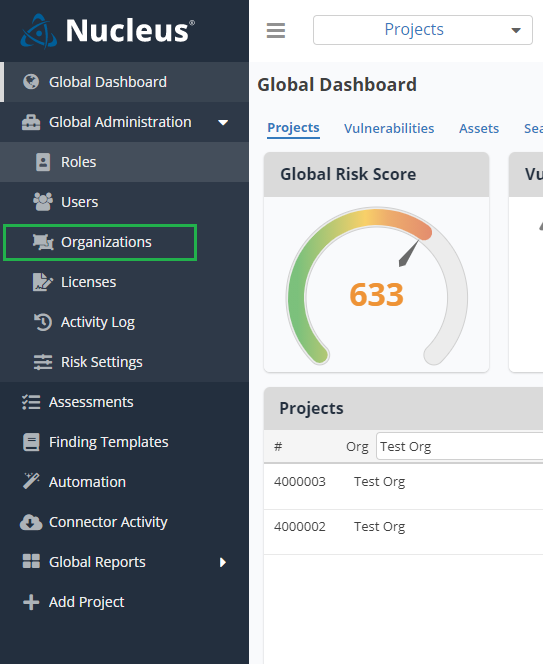
- Edit your Organization's top-level settings by editing the Organization.

3. Scroll to the bottom of the options and check the box for "Enable Email Notices for Assigned Vulnerabilities".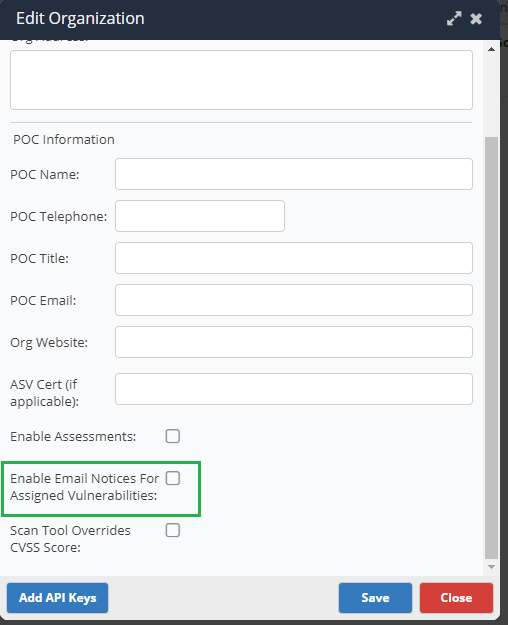
4. Click "Save".
Users will now be automatically emailed a notification when a vulnerability is assigned to them in Nucleus.
Nucleus will not send emails when a vulnerability has been assigned to a team, only when a vulnerability has been assigned to a specific user.
Related
Check out how to set other options for how Nucleus should work across your enterprise with other Organization-level settings.
If you have any questions, please contact us through the support center.