Welcome to the next step in operationalizing your Nucleus environment. Now that you’ve ingested data into the platform, it’s time to put that data to work.
Why This Step Matters
At this stage, you're moving from data ingestion to data orientation. This means understanding what you’ve ingested, how complete or useful that data is, and how to start identifying real risk. This is the cornerstone of the Normalize and Enrich stages in the Nucleus Vulnerability Management Maturity Model.
Exploration
Use the Active Vulnerabilities Page for Initial Exploration
The Active Vulnerabilities Page is the core, asset-aware findings view in Nucleus. It lists every discovered, de-duplicated, and currently active finding instance across all integrated scanners and sources. Each row represents a unique finding across all affected assets, combining data from the source scan with enrichment from Nucleus.
What It Shows
Each row on this page represents a unique vulnerability instance tied to a specific asset, scan type, and timestamp. This is where risk is real—not just theoretical.
Why It Matters
This is where most remediation starts. If a team is going to fix something, it’s almost always going to originate here.
Risk is contextualized. You can filter by risk score, exploitability, asset criticality, ownership, SLA status, and more.
It's enriched. Each finding is enriched with threat intel, business context, and metadata from all upstream sources, including from the proprietary Nucleus Insights & Threat Rating Vuln Intel feed.
To get to the Active Vulnerabilities page
Even before configuring SLAs, rules, or automations, your team can gain critical insight by:
Navigating to Vulnerabilities > Active Vulnerabilities
Applying Filters to hone in on findings with real impact (these are items being actively exploited and it is common to start here):
nucleus_exploited = truenucleus_risk_score >= 500asset_criticality = high
Use the Column Configurator to tailor your view (e.g., add Nucleus Risk Score, Exploitability, Tags)
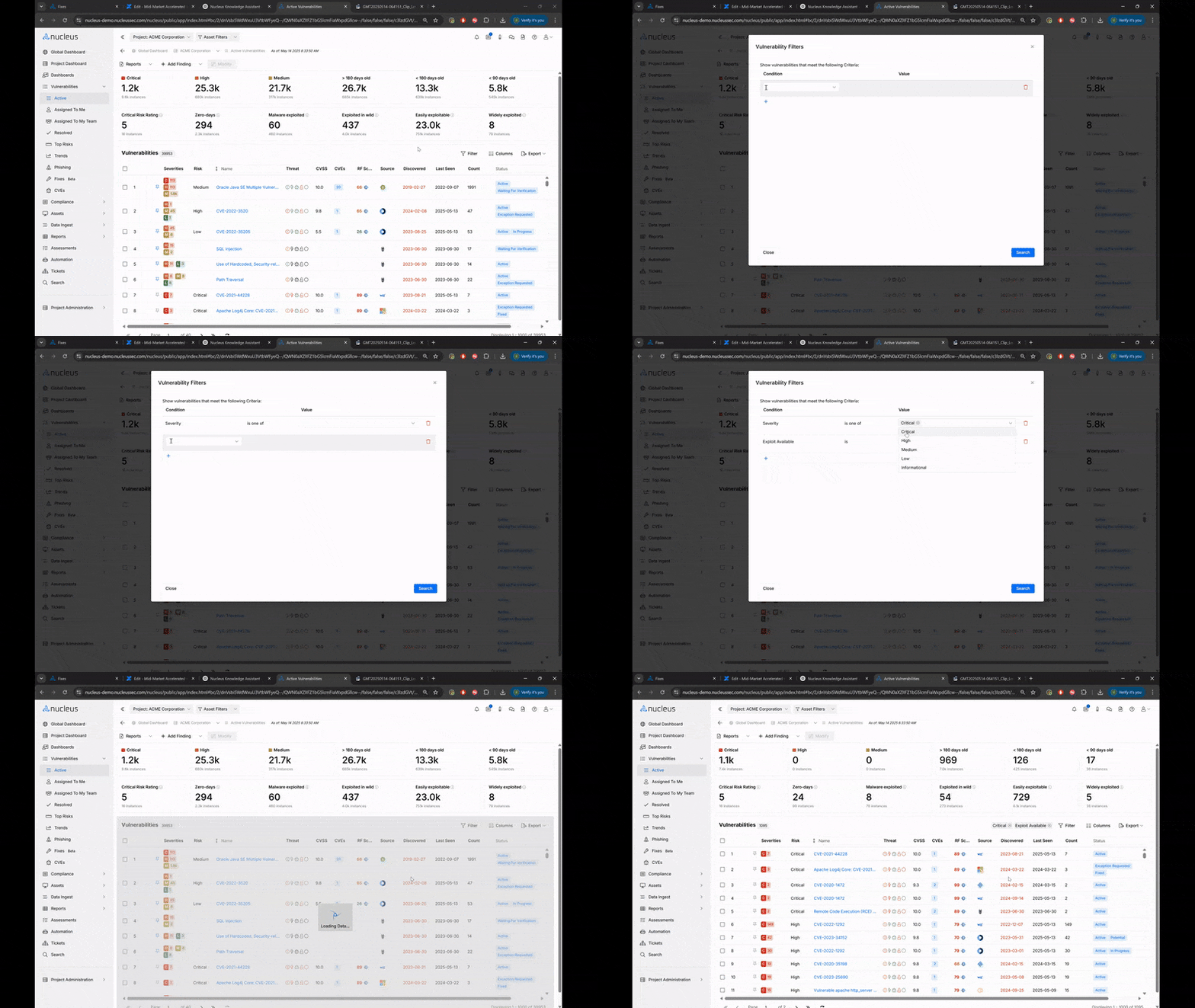
This page is the best place to triage incoming data and begin creating ticketing packages, assigning ownership, or measuring SLAs.
Next: use the CVEs Page
The CVEs Page in the Nucleus console is a cross-project inventory of all known CVE-based vulnerabilities that have been discovered in your environment. It aggregates CVEs across scan sources, normalizes them, and provides a single-pane-of-glass to explore:
The number of findings linked to each CVE
Enrichment details like exploitability (EPSS, KEV, Nucleus Insights, GreyNoise)
CVSS base and temporal scores
Presence of available remediations or patches
Why It Matters
Find CVEs affecting multiple systems: Quickly identify widespread risk across tools and teams.
Validate your coverage: If a trending CVE is missing here, it likely means you’re not scanning for it.
Prioritize across silos: CVEs help centralize triage across AppSec, Infra, and Cloud by providing a universal ID.
Suggested Use Cases
Filtering by
nucleus_exploited = trueto quickly surface weaponized vulnsClicking into a CVE to view all affected assets and vulnerability instances
Using filters to target
cisa_kev = true AND finding_count > 0for compliance-driven action
.png)
This page is a threat-informed, asset-aware jumping-off point that supports both security analysts and vulnerability managers.
Leverage Built-In & Custom Dashboards
Dashboards provide curated views of your risk posture and help stakeholders make decisions. Start with:
1. Operations Overview Dashboard
This dashboard helps identify visibility gaps and risk surface. Key metrics include:
Asset ingestion volume
Vulnerability counts
Threat intelligence enrichment stats from Nucleus Insights
Use this to baseline how much risk data you’ve collected, and what’s missing.
.png)
2. Executive Trends Page
The Trends view helps you monitor:
Dwell time
Vulnerability remediation velocity
Trends in discovered vs. resolved findings
You can now filter Trends by severity, exploitability, source, and discovery date.
.png)
3. Custom Dashboards
Available under Analyze > Dashboards, these dashboards allow you to build tailored views for your specific stakeholders. Examples include:
SLA performance by business unit
Open findings by team or tag
Project-specific KPIs (e.g., FedRAMP posture, internal audit tracking)
Use these dashboards to drive risk ownership and accountability across engineering and application teams.
Example dashboard:
.png)
4. Executive Metrics Page
This is your executive-ready metric-creator for business-aligned reporting. It allows you to compare cross-correlated metrics across asset groups:
Risk Score trends across time
SLA and due date compliance by team
Business unit comparisons
Use this for board reporting, governance meetings, and quarterly security reviews. These metrics are able to be used in the building of custom dashboards from above
5. Asset Management Page
While not a dashboard in the traditional sense, this is a powerful filtering and grouping tool. You can:
Filter assets by metadata (e.g., tags, ownership, criticality, cloud provider)
Sort by number of findings, active threats, or last seen date
Group assets into business units or technology tiers
Use this to explore your attack surface and ensure asset coverage is complete and actionable.
📊 Your in-app checklist will guide you to filter, triage, and save views.
Next Step
Let’s start prioritizing our work: Step 3 - Prioritize
Need a hand? Let us know. We're happy to assist.
— The Nucleus Team ([email protected])