Overview
Nucleus enables you to sync your Microsoft Teams collaboration tool to the Nucleus console using an automated connector. The connector enables your team to post directly to Microsoft Teams and send notifications to a specific channel from within the Nucleus console.
The Microsoft Teams connector has recently been updated to support webhook integration through Workflows. Microsoft is executing a phased retirement of Microsoft 365 connectors, the integration approach previously used by the Microsoft Teams connector. Customers with existing Teams connectors configured will need to edit their connections and follow the steps below to replace existing Webhook URLs with a new Workflow URLs for posting to a webhook. For more details on the retirement of Microsoft 365 connectors, see Retirement of Office 365 connectors within Microsoft Teams.
Configuring a Microsoft Teams Connector
The Microsoft Teams connector send notifications to a Teams channel by calling a Workflow configure to post to a channel when a webhook request is received. Follow the steps below to create a Workflow in Microsoft Teams and configure a new Teams connector in Nucleus:
-
Create a Workflow that posts to the Teams channel where you want to receive notifications from Nucleus:
- Open your Microsoft Teams app and follow these instructions from the Microsoft documentation to create a Workflow.
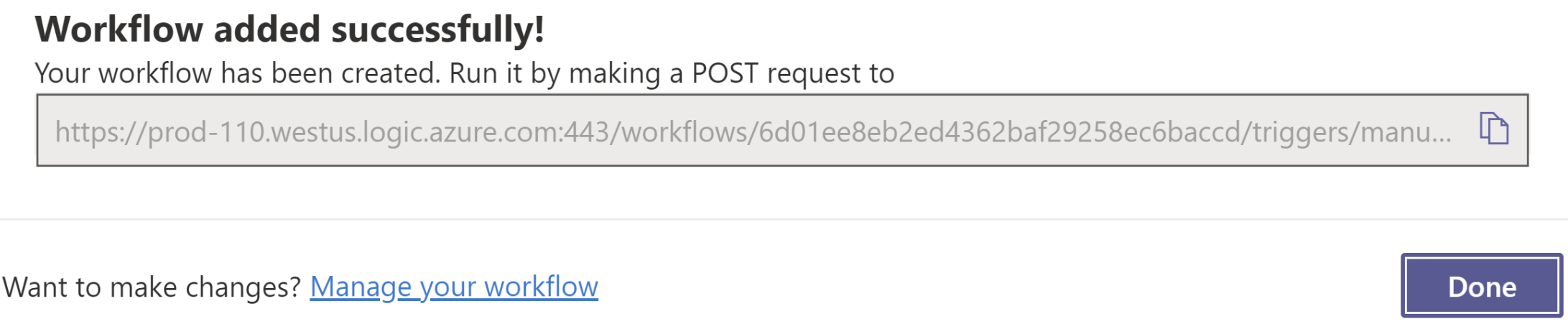
- Before clicking done, be sure to copy the Workflow URL to a notepad or clipboard:
-
From within a Nucleus project, go to Project Administration > Connectors.
-
Under the Communication section, click the Microsoft Teams icon.
-
In the Setup Microsoft Teams Connector pop-up modal, complete the following fields:
| Field | Info |
|---|---|
| Name | Enter a name for the connector. |
| Description | (optional) Enter a description for the connector. |
| Webhook URL | Paste the Workflow URL copied when creating your Workflow in Teams. |
| Channel name | Enter the name of the Teams channel the Workflow is configured to send notifications to. |
- Click the Send Test Message button and wait for the success message.
- Click the Save & Finish Button and you're done!
Create a notification automation rule
Nucleus enables you to set up an unlimited number of flexible automation rules, including notifications. Notification rules will send alerts to your Microsoft Teams instance when triggered on criteria that you define. To set up a notification rule, do the following:
- From within a Nucleus project, go to the Automation page.
- Click the Notifications icon.
- Click Add Rule.
- Enter a name in the Rule Name field, such as
Notify on new critical vulns on external assets. - Select the Chat checkbox, and then your Microsoft Teams connector from the dropdown.
- Set the remaining options to your preferences.
- Click the Save button and close the pop-up modal and you're done!
You will now be notified in Microsoft Teams when any of the criteria you set in Nucleus is met.
If you have any questions, please contact us through the support center.